Source code navigation
You can quickly navigate through your code in the editor using different actions and popups.
You can start with watching a video tutorial to check what navigation options are available in PhpStorm.
Navigate with the caret
To see the previous caret position, select from the main menu or press Ctrl+Alt+Left. To move forward, select or press Ctrl+Alt+Right.
To quickly move to the top of the editor, press Ctrl+Page Up. To move the caret to the bottom of your editor, press Ctrl+Page Down.
To navigate to the last edited location, press Ctrl+Shift+Backspace.
To find the current caret location in the editor, press Ctrl+M. This action might be helpful if you do not want to scroll through a large file.
Alternatively, you can press Up and Down arrow keys to achieve the same result.
To highlight a word at the caret you are trying to locate, select from the main menu. If you are using Windows, you can also press Ctrl+F3.
To see on what element the caret is currently positioned, press Alt+Q.
To move caret between matching code block braces, press Ctrl+Shift+M.
To navigate between code blocks, press Ctrl+[ or Ctrl+].
Move the caret
You can use different actions to move the caret through code. You can also configure where the caret should stop when moved by words and on line breaks.
To move the caret to the next word or the previous word, press Ctrl+Right or Ctrl+Left.
By default, PhpStorm moves the caret to the end of the current word. When you move the caret to the previous word, it is placed at the beginning of the current word.
You can customize the caret position for these actions. In the Settings dialog (Ctrl+Alt+S) , go to . In the Caret Movement section, use the When moving by words and Upon line break options to configure the caret's behavior.
To move the caret forward to the next paragraph or backward to the previous one, press Ctrl+Shift+A and search for the Move Caret Forward a Paragraph or Move Caret Backward a Paragraph action.
You can also select a text and then move the caret forward or backward to a paragraph. Press Ctrl+Shift+A and search for the Move Caret Forward a Paragraph with Selection or Move Caret Backward a Paragraph with Selection action.
Find a line or column
In the Go to Line/Column dialog, specify a line or column number, or both, separating them with : and click OK.
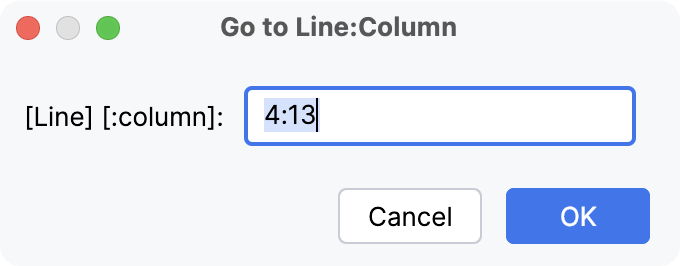
If you do not want to see the line numbers in the editor, in the Settings dialog (Ctrl+Alt+S) , go to and clear the Show line numbers checkbox.
Locate a code element with the Structure view popup
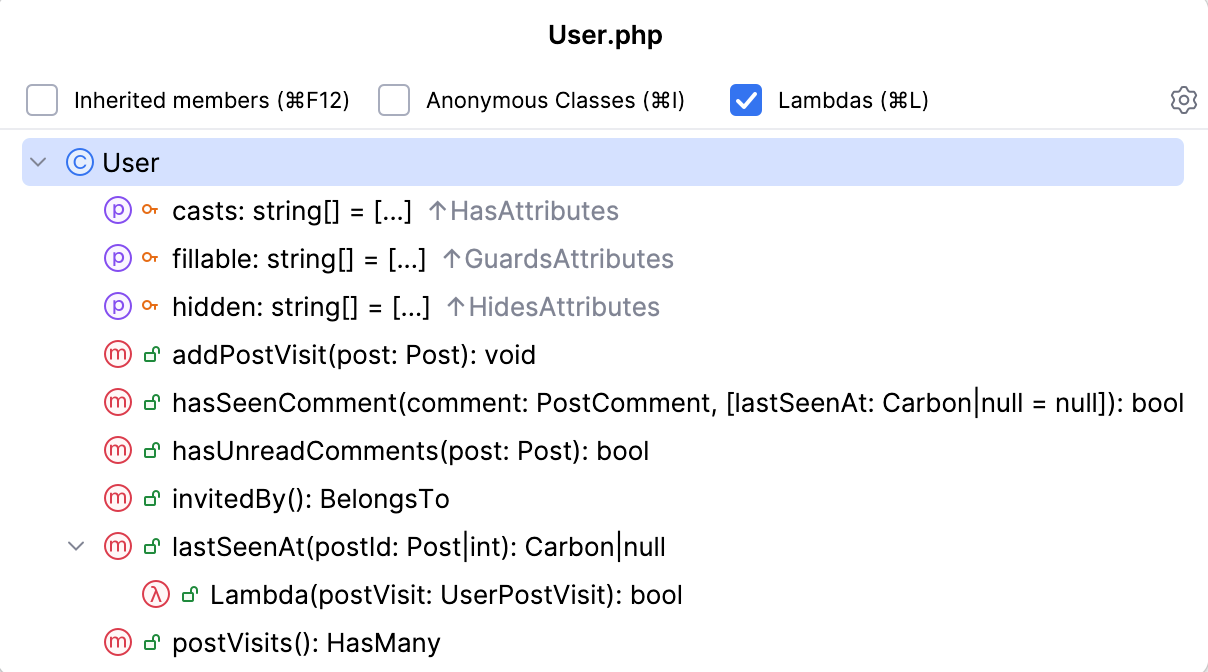
You can use the structure view popup to locate a code element in the file you are working on.
To open the structure view popup, press Ctrl+F12.
In the popup, locate an item you need. You can start typing a name of the element for PhpStorm to narrow down the search. Press Enter to return to the editor and the corresponding element.
While in the popup, you can sort file members, see anonymous classes and inherited members.
Navigate between code elements
Go to declaration and its type
You can navigate to the initial declaration of a symbol and the symbol's type from its usage.
Place the caret at the necessary symbol and press Ctrl+B.
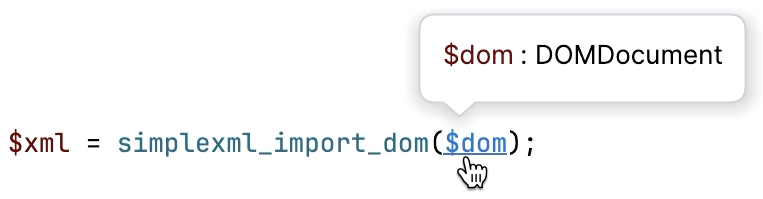
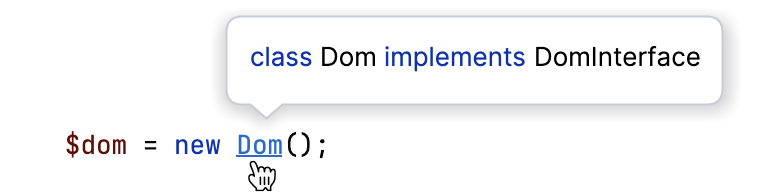
Alternatively, use Ctrl+Click: keeping Ctrl pressed, hover over the symbol. When the symbol turns into a hyperlink, its declaration will be displayed in the tooltip. Click the hyperlink without releasing the key to open the declaration in the editor.
For a type declaration, press Ctrl+Shift+B.
Alternatively, keeping Ctrl+Shift pressed, hover over the symbol. When the symbol turns into a hyperlink, its type declaration will be displayed in the tooltip. Click the hyperlink without releasing the keys to open the type declaration of the symbol in the editor.
Consider the following sample code fragment:
Invoking Go to Type Declaration on
$awill move the caret to the variable's type,class D.Invoking Go to Type Declaration on the
fmethod in$a->f()will move the caret to the declaration of the class returned by this method,class C.Invoking Go to Declaration on the
fmethod in$a->f()will move the caret to this method's declaration withinclass D.
Go to implementation
You can keep track of class implementations and overriding methods using the gutter icons in the editor, or by pressing the appropriate shortcuts, or by clicking Inheritors inlay hints.
Click one of the
 /
/ ,
,  /
/ gutter icons located in the editor and select an ascendant or descendant class from the list.
 To navigate to the super method, press Ctrl+U.
To navigate to the implementation, press Ctrl+Alt+B.
Use Inheritors inlay hints that show the number of descendants of a class (inheritors), interface (implementations), or trait (used by`s). Click the hint to jump to the descendants. If there are several descendants, select the relevant one from the list.
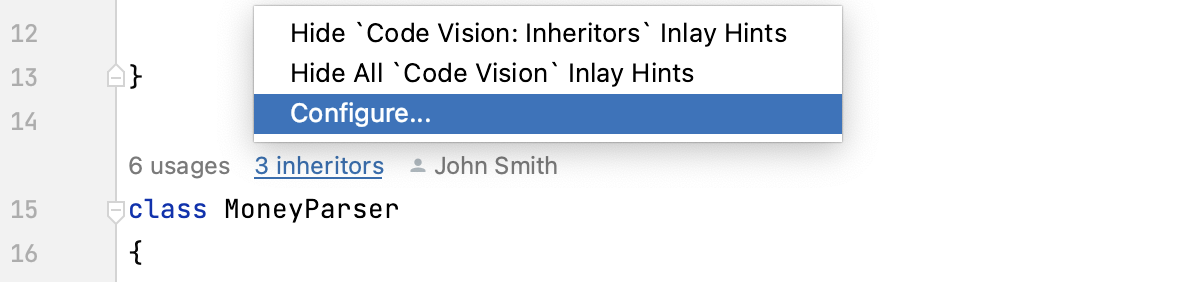
Inheritors inlay hints are enabled by default. To turn them off, hover over a hint and select Hide 'Code Vision: Inheritors' Inlay Hints or Hide All 'Code Vision' Inlay Hints from the context menu.
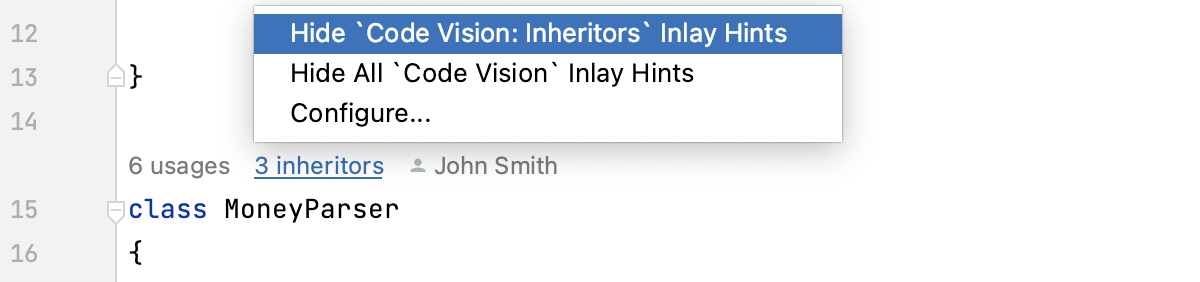
By default, Inheritorshints are shown above classes and interfaces. To change this position, click Configure from the context menu of a hint.
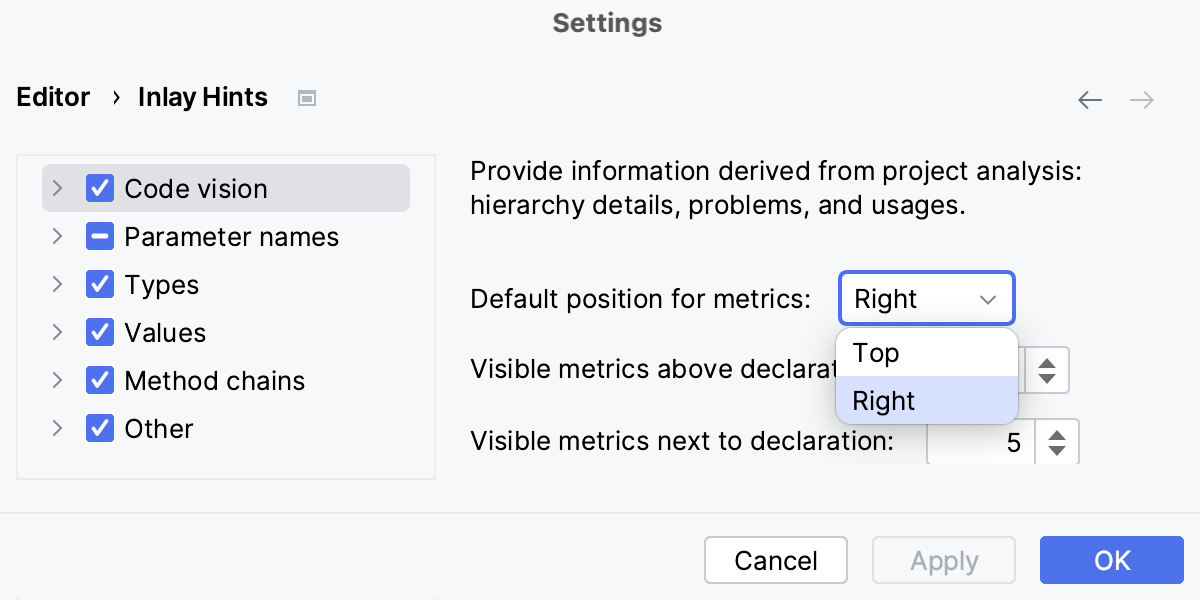
On the Inlay Hints page, that opens, select the appropriate setting from the Position list. Alternatively, select the Code vision node and change the Default position for metrics.
Navigate between errors or warnings
To jump to the next or previous found issue in your code, press F2 or Shift+F2 respectively. Alternatively, go to in the main menu.
PhpStorm places the caret immediately before the code issue.
Configure the way PhpStorm navigates between code issues: it can either jump between all code issues or skip minor issues and only navigate between detected errors. Right-click the code analysis marker in the scroll bar area and choose one of the available navigation modes from the context menu:
To have PhpStorm skip warnings, infos, and other minor issues, choose Problems with Highest Priority.
To have PhpStorm jump between all detected code issues, choose All Problems.
Browse through methods
To visually separate methods in code, in the Settings dialog (Ctrl+Alt+S) , go to and select the Show method separators option.
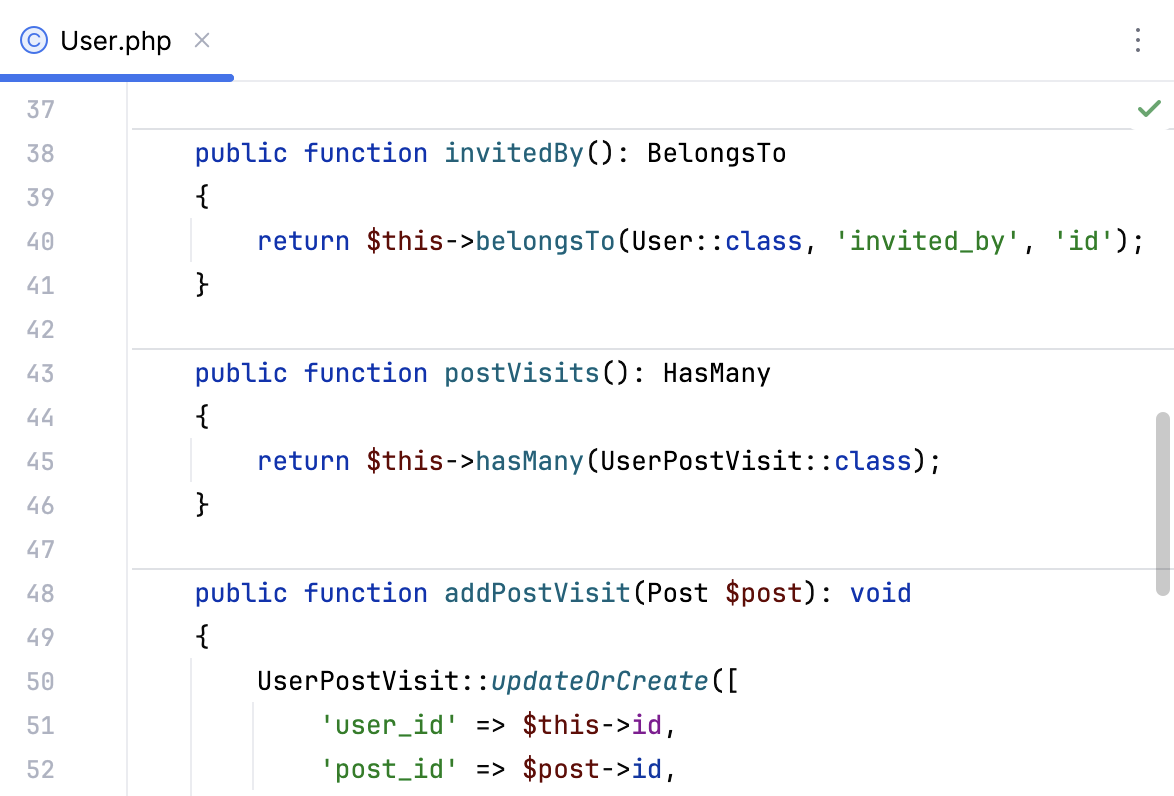
To open the Structure tool window, press Alt+7.
Navigation in SQL code and files
Go from a reference to an object in the Database tool window
To go to the definition of a column, table or any other object, select the object name in your code and press Alt+Shift+B.
Open a DDL definition of an object
In PhpStorm, you can open and edit the source code of a database object directly in the editor. The source code can be opened from the editor or Database tool window.
In the editor, click an object and select . Alternatively, press Ctrl+B.
In the Database tool window, do one of the following:
Click the DDL button on the toolbar.
Click an object and select .
Press Ctrl+B.
Switch between files using the switcher
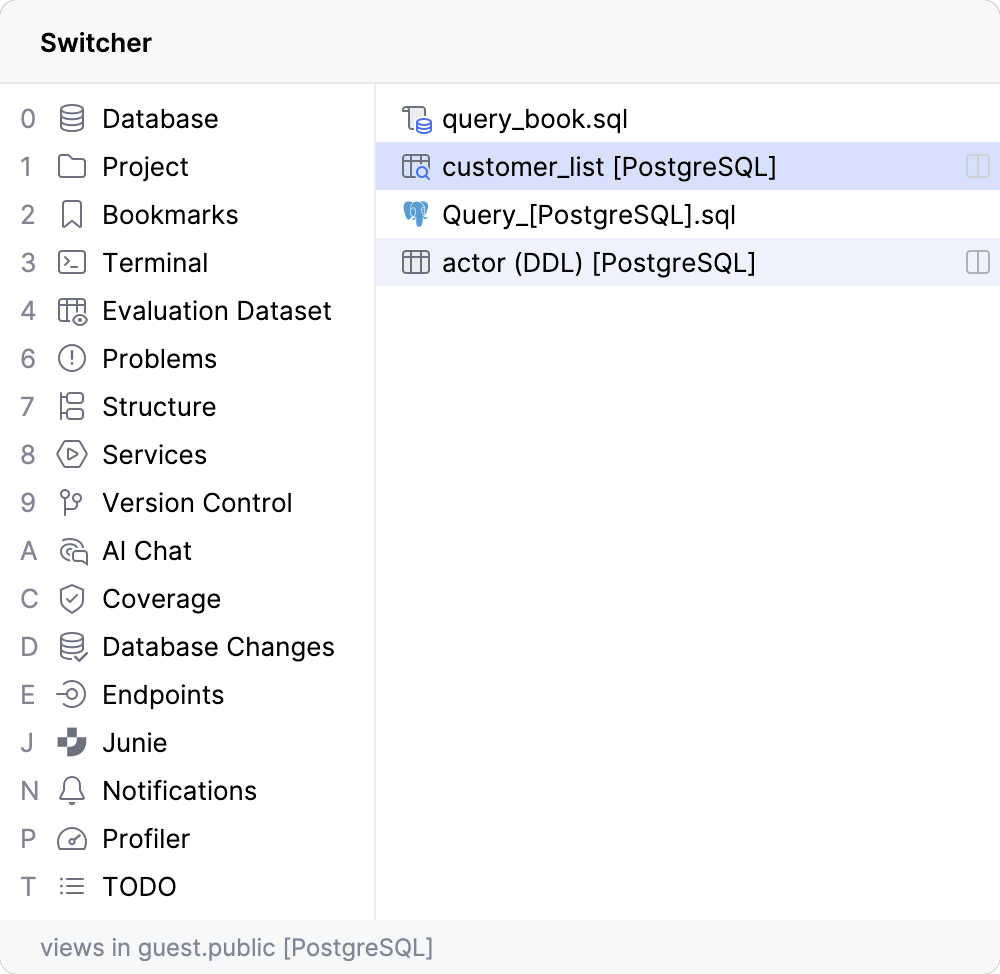
With the switcher, you can switch between open files, query consoles, and tool windows.
To open the Switcher window, press Ctrl+Tab. Do not release the Ctrl key. Use arrow keys to move in the Switcher window. When you release the Ctrl key, the selected item becomes active, and the switcher closes.