Configure a virtualenv environment
PyCharm makes it possible to use the virtualenv tool to create a project-specific isolated virtual environment. The main purpose of virtual environments is to manage settings and dependencies of a particular project regardless of other Python projects. virtualenv tool comes bundled with PyCharm, so the user does not need to install it.
Create a virtualenv environment
Do one of the following:
Click the Python Interpreter selector and choose Add New Interpreter.
Press Ctrl+Alt+S to open Settings and navigate to .
Click the Python Interpreter selector and choose Interpreter Settings. Click the Add Interpreter link next to the list of the available interpreters.
Click the Add Interpreter link next to the list of available interpreters and select Add Local Interpreter.
The following actions depend on whether you want to generate a new virtual environment or to use an existing one.
- New virtualenv environment
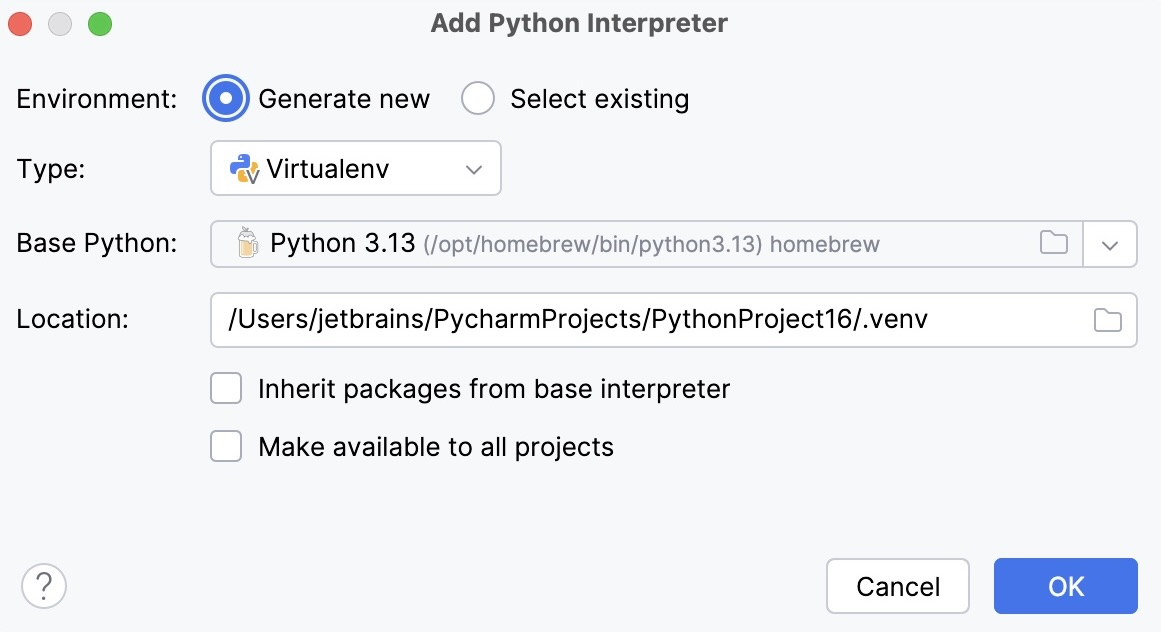
Select Virtualenv from the list of environment types.
Select the base interpreter from the list, or click
 and find the Python executable in your file system.
Specify the location of the new virtual environment in the Location field, or click
and browse for the location in your file system. The directory for the new virtual environment should be empty.Select the Inherit packages from base interpreter checkbox if you want all packages installed in the global Python on your machine to be added to the virtual environment you're going to create. This checkbox corresponds to the
--system-site-packagesoption of the virtualenv tool.Select the Make available to all projects checkbox if you want to reuse this environment when creating Python interpreters in PyCharm.
- Existing virtualenv environment
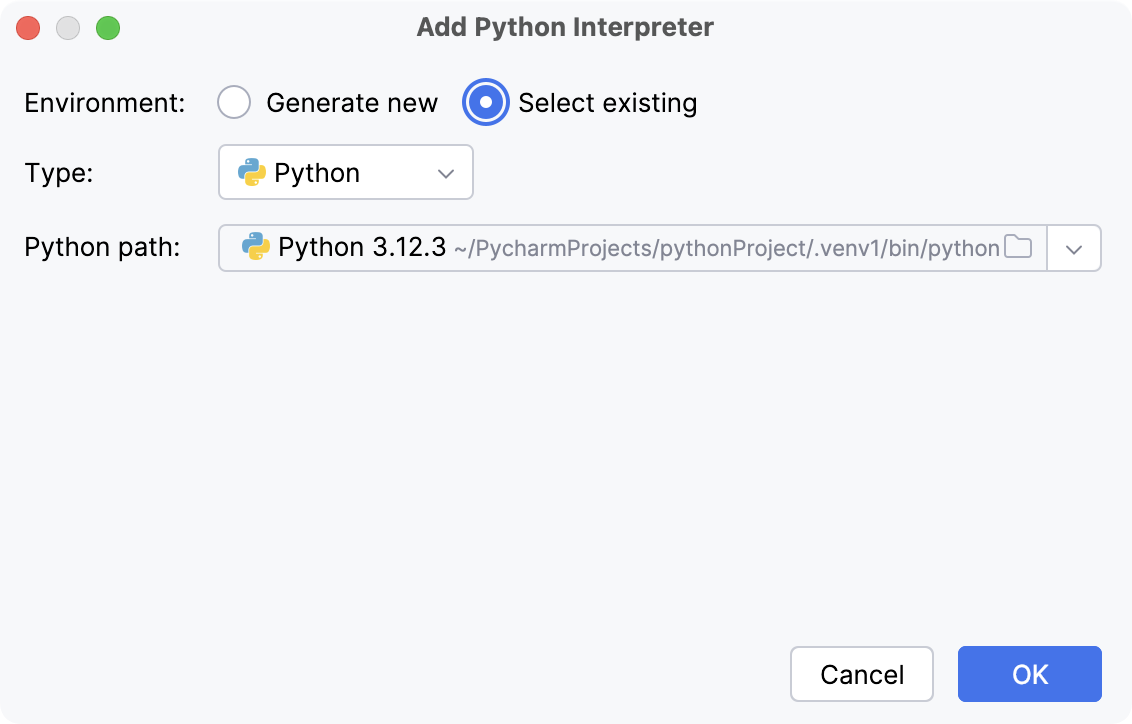
Select Python from the list of environment types.
Select the required interpreter from the list.
If the required interpreter is not on the list, click
 , and then browse for the required Python executable (for example, venv/bin/python on macOS or venv\Scripts\python.exe on Windows).
The selected virtual environment will be reused for the current project.
Click OK to complete the task.
You can create as many virtual environments as required. To easily tell them from each other, use different names.
PyCharm can create a virtual environment for your project based on the project requirements.
Create a virtual environment using the project requirements
Open any directory with your source files that contains the requirements.txt or setup.py file: select from the main menu and choose the directory.
If no virtual environment has been created for this project, PyCharm suggests creating it.
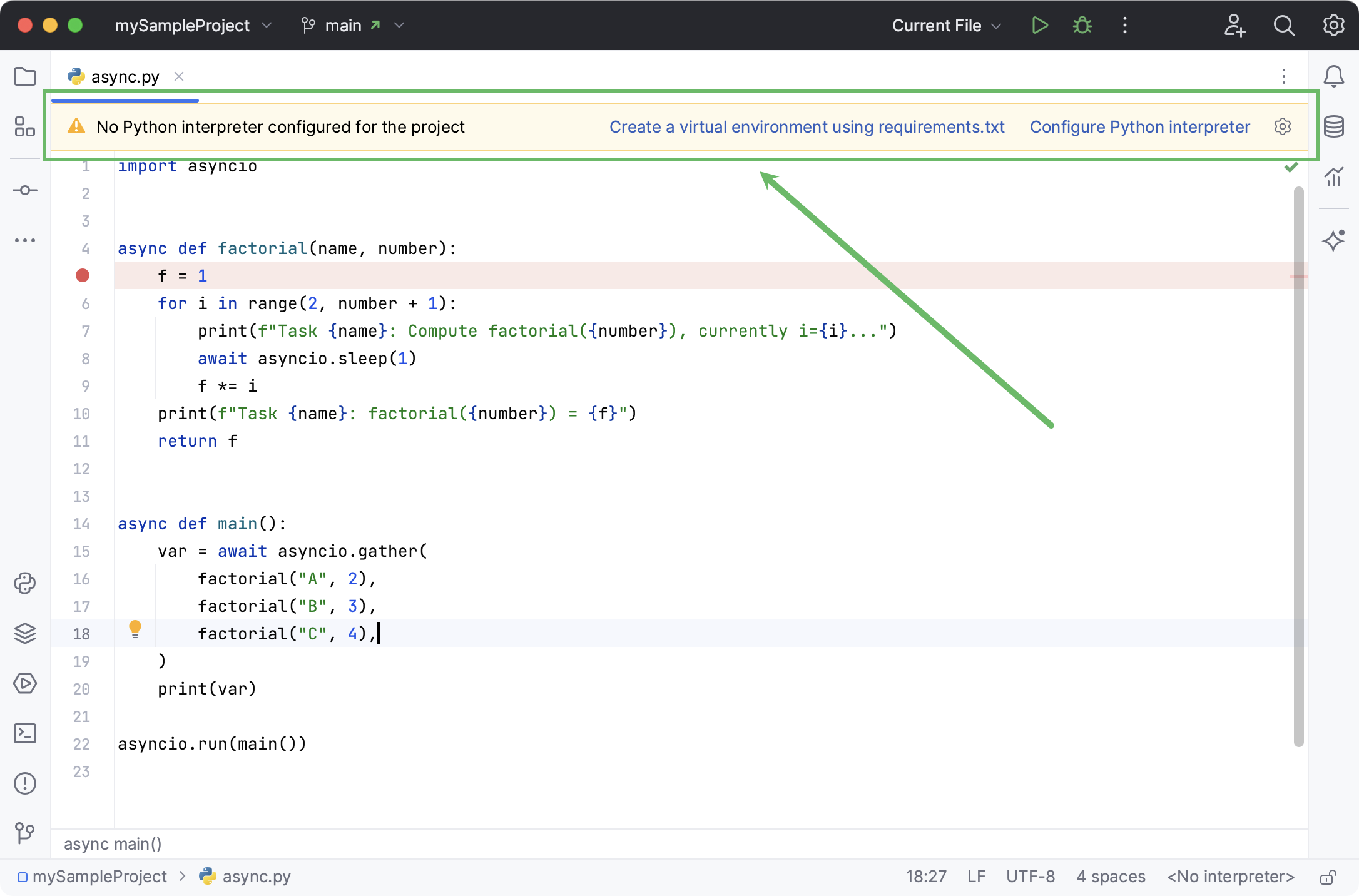
Click Create a virtual environment using requirements.txt.
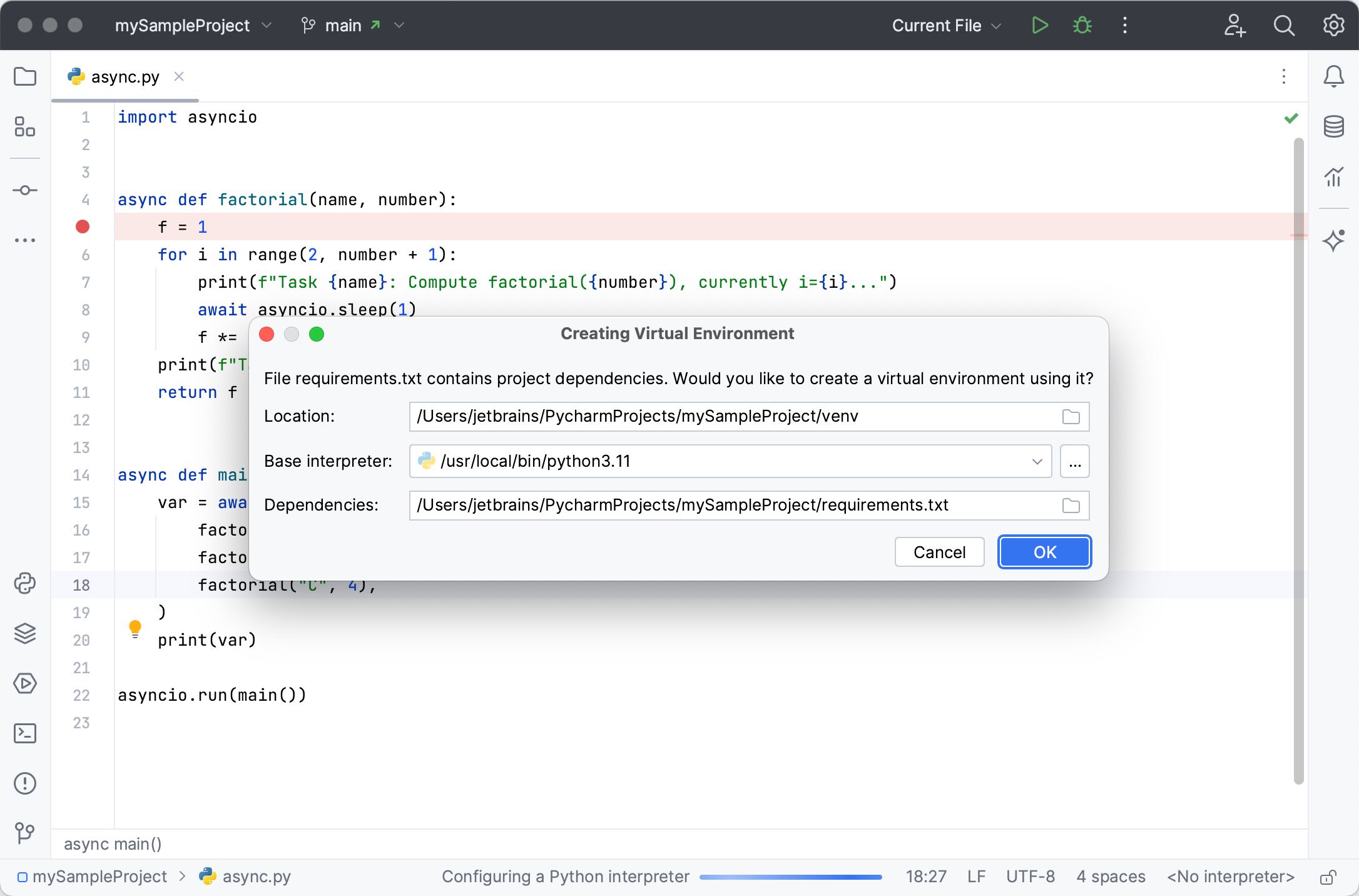
Keep the suggested options or specify the environment location or base Python interpreter. Click OK to complete the task.
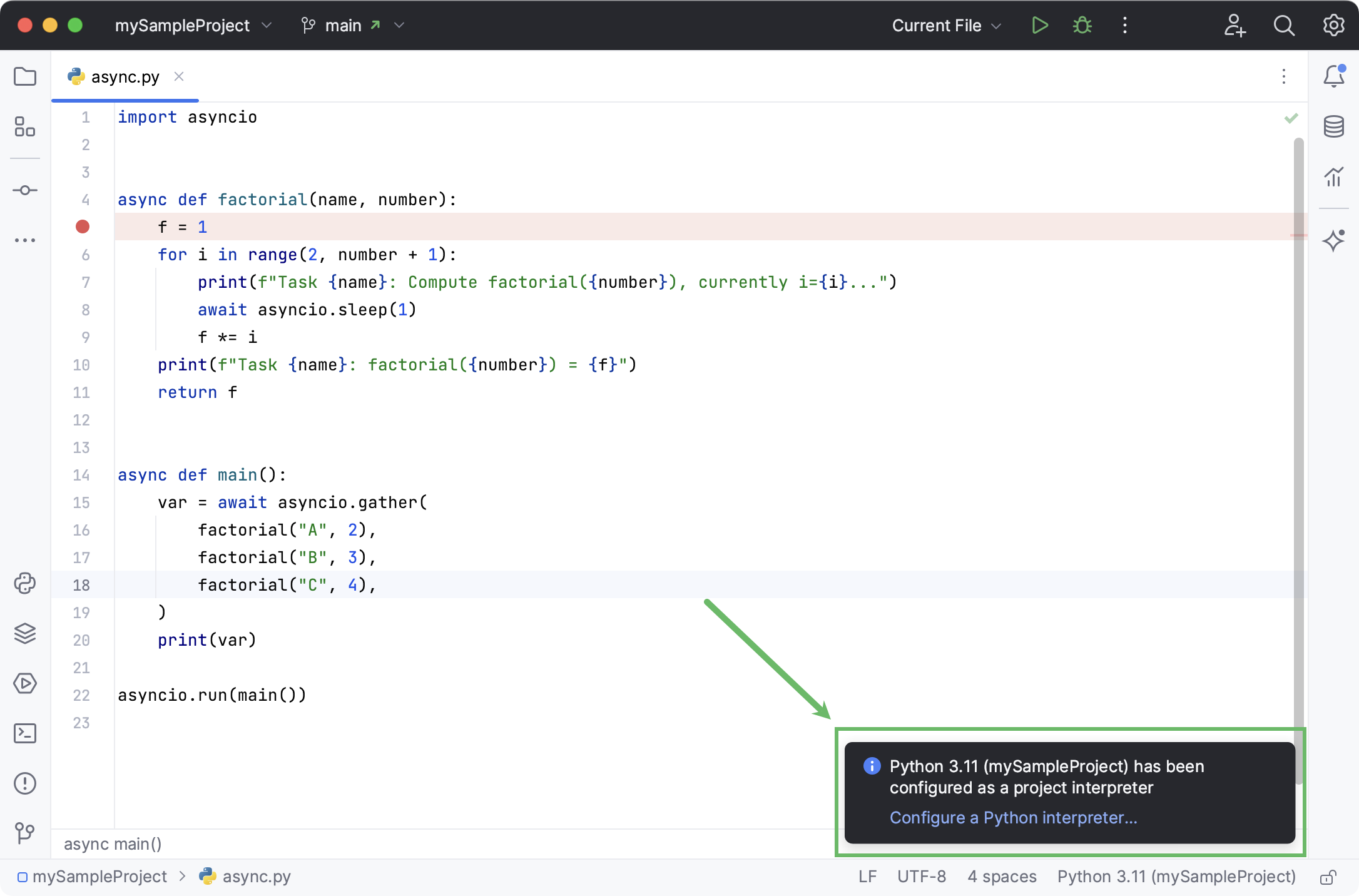
Once you click OK, PyCharm creates an environment and installs all the required packages. On the completion, see the notification popup:
Note that if you ignore a suggestion to create a virtual environment, PyCharm will not create a Python interpreter for your project. So, any time when you open a .py file, you'll see the warning with the options for configuring a project interpreter:
This approach is particularly helpful when you want to upgrade a version of Python your environment is based on, for example, from 3.5 to 3.9. You can specify a new base interpreter and use requirements.txt to ensure all the necessary packages are installed.
For any of the configured Python interpreters (but Docker-based), you can:
Once you have created a new virtual environment, you can reuse it for your other projects. Learn more how to set up an existing environment as a Python interpreter.