Manage tasks
When you work on a project, you can organize your work in smaller tasks that you need to complete.
These can be tasks that you set yourself. In PyCharm, you can divide a large piece of work into smaller tasks and associate them with changelists.
These also can be tasks coming from your issue tracker. For example, you can work with tasks and bugs assigned to you directly from PyCharm. To be able to do so, connect the IDE and your tracker account.
Configure integration with issue trackers
PyCharm supports integration with:
Connect the IDE to your tracker
In the Settings dialog Ctrl+Alt+S, select .
Click
 and select the necessary issue tracker from the list.
Enter connection details. Note that settings differ depending on your issue tracker.
Normally, you have to specify the server URL and connection credentials: Username and Password.
In some cases, you need to enter an API token instead of your password.
For example, if you're connecting your IDE to YouTrack, the Password field is replaced with Token. Learn more from Manage Permanent Tokens.
For Jira, enable the Use personal access token option to use a token instead of your user name and password.
Select the Share URL option to allow access to the server for other members of your team. When this option is enabled, a server URL and its type are saved to the .idea/misc.xml file, which can be shared between development team members through version control.
Click Proxy settings… if you want to access the server using a proxy server. You can find more information on proxy settings in the HTTP Proxy section.
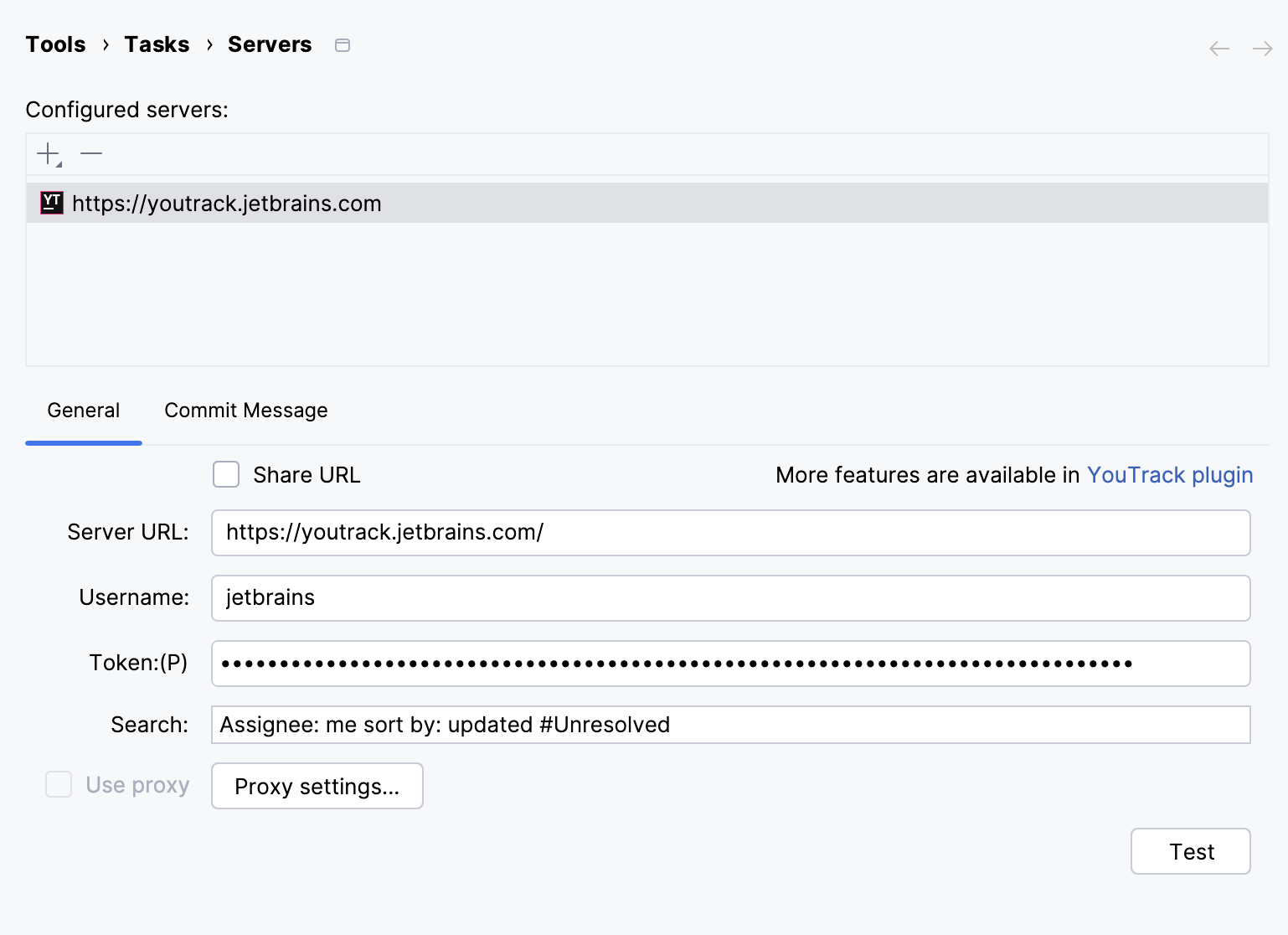
On the Commit Message tab, you can enable adding a commit message for a changelist and configure a message template.
On the Server Configuration tab, configure advanced parameters for connecting to your issue tracker.
This tab is only available for some trackers (for example, for trackers that are not supported out of the box).
Server Configuration tab parameters
Item | Description |
|---|---|
Login URL | The resource for authentication. The IDE sends requests to this resource every time before retrieving the list of issues from the server, for example: The field is disabled if you have selected the Use HTTP authentication checkbox on the General tab. |
Tasks List URL | The resource for retrieving the list of issues from the server, for example: |
Single Task URL | The resource for retrieving detailed information about an issue by its ID, for example: This field is optional unless you select the Each task in separate request checkbox. |
GET or POST | Select the necessary type of HTTP requests. |
Each task in separate request | Enabling this option allows the IDE to send several requests to retrieve the list of issues with their IDs first and then to get detailed information on each issue separately using the resource specified in the Single Task URL field. This option is for issue trackers with restricted REST APIs that cannot send all the required information in a single response. |
Response type | Select the format in which your issue tracker responses: XML for XPath, JSON for JSONPath, or Text for regular expressions. |
The table of selectors | Selectors allow you to specify which information about an issue is going to be retrieved from the server response. |
tasks | The path to the list of issues in the server response. This field is mandatory. |
id | The path to the issue ID in the server response. This field is mandatory. |
summary | The path to the issue title in the server response. This field is mandatory. |
Specify additional integration options
In the Settings dialog Ctrl+Alt+S, select .
Configure the necessary options:
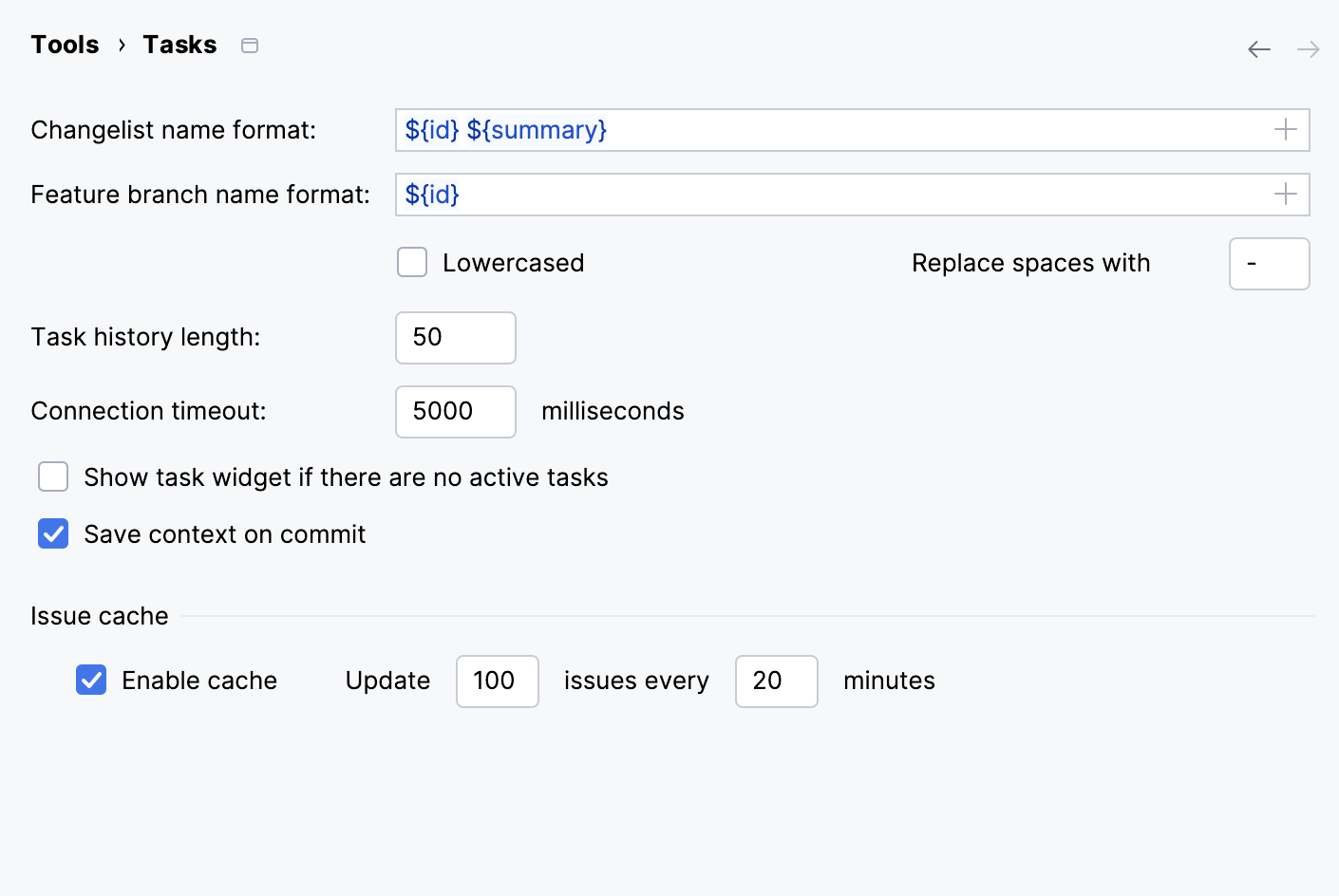
Changelist name format: when you open or create a new task, PyCharm prompts you to create a new changelist associated with this task. In this field, you can specify a template that will be used for generating names for new changelists.
Click
to select placeholders from the list.Feature branch name format: when you create or open a new task, PyCharm prompts you to create a new feature branch. In this field, you can configure the template for generating names of new feature branches.
Click
to select placeholders from the list.Use the Lowercased and Replace spaces with options to configure prompted feature branch names.
These settings are useful if your IDE is integrated with an issue tracker. For example, the DSGN-0001 Add new icon task name is going to be converted to the dsgn-0001add-new-icon feature branch name.
Task history length: the number of tasks that PyCharm stores.
Save context on commit: every time you commit changes, PyCharm creates a new closed local task that keeps files, bookmarks, and breakpoints that you have worked with. This way, you can quickly restore all tabs associated with the task any time in the future.
Enable issue cache: optimize synchronization between PyCharm and your issue tracker. Synchronization is especially recommended if you work with "slow" issue tracking systems.
PyCharm caches the list of issues loaded from the tracker and updates them repeatedly. You can specify how many issues should be cached and how often PyCharm should update information about them.
Tasks
In PyCharm, there are two types of tasks:
Tasks that were loaded to PyCharm from your issue tracker. These are tracker tasks. Tracker tasks are linked with the corresponding issues in your issue tracker. This allows you to monitor and update them directly from PyCharm.
Tasks that were originally created in PyCharm. These are local tasks. Local tasks are not related to an issue tracker.
If you have created at least one task of either type, a drop-down list for switching between tasks appears on the toolbar.
Open tracker tasks
Tracker tasks are loaded to your PyCharm once you connect it to your issue tracker.
In the main menu, go to Alt+Shift+N, or click the task combo on the toolbar.
Select the necessary task from the list.
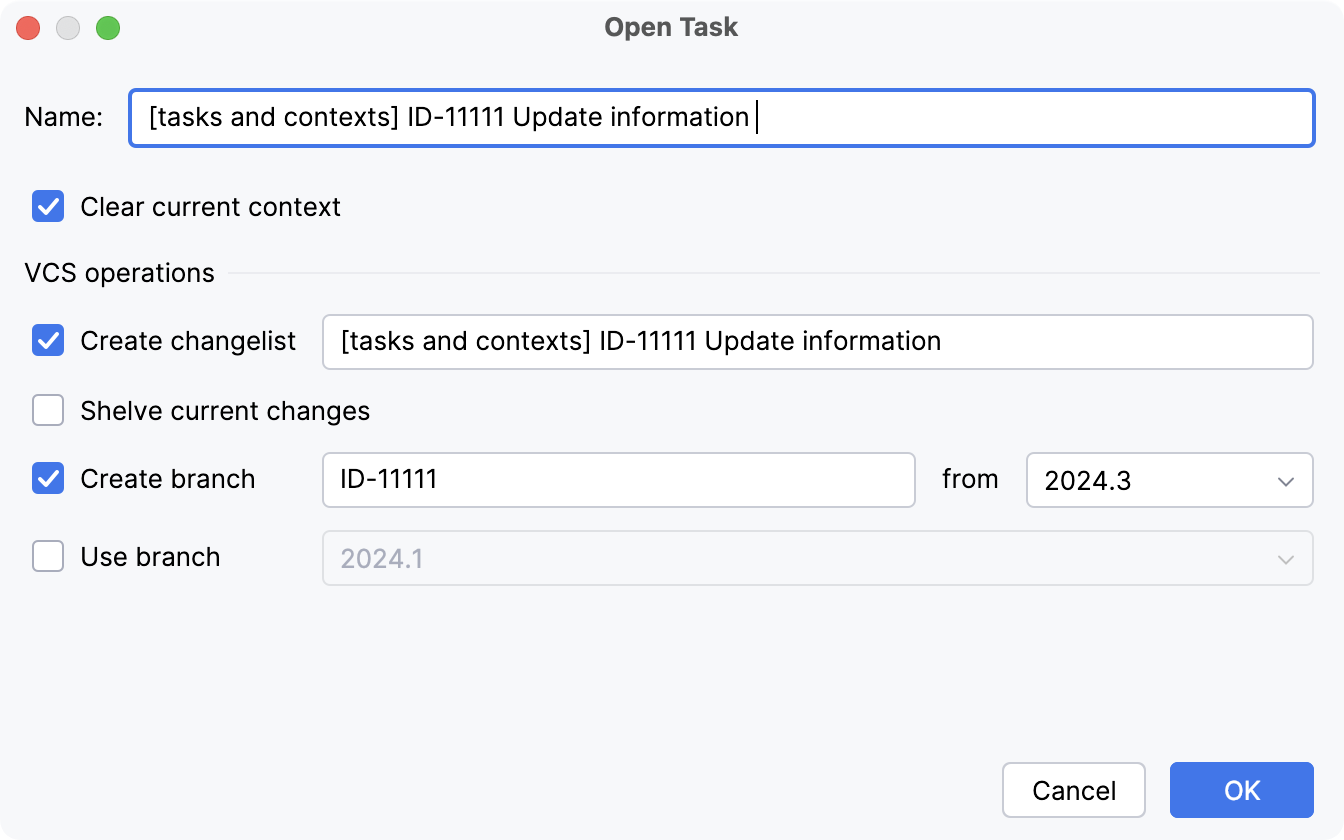
In the Open Task dialog, you can update the issue state.
If you want to close all tabs that are currently opened in the editor, select the Clear current context checkbox.
In the VCS operations section, you can create a new changelist, select an existing branch to which you want to contribute, or create a new one.
You can also shelve the current changes to return to them later.
Create local tasks
In PyCharm, you can create local tasks that do not originate from your issue tracker.
In the main menu, go to . You can also use the task combo or press Alt+Shift+N.
In the Enter task name dialog, select Create New Task.
Enter a name for the new task.
If you want to close all tabs that are currently opened in the editor, select the Clear current context checkbox.
In the VCS operations section, you can create a new changelist, select an existing branch to which you want to contribute, or create a new branch.
You can also shelve the current changes to return to them later.
View task description
When you are choosing a task to switch to, the list of tasks shows only task IDs. This information is not always enough because it reflects neither the steps that lead to the problem nor the related discussion.
In the main menu, go to .
Open the necessary task and press Ctrl+Q to open the task description in PyCharm, or Alt+Shift+B to view the description in a browser.
Alternatively, go to and click Show 'task ID' Description or Open 'task ID' in Browser.
View closed tasks
A closed local task is a task not associated with a changelist if the entire project or the affected directory is under a version control.
A closed tracker task is a task that has the closed status in your issue tracker.
Click the task combo and then click Open Task.
Select the Include closed tasks checkbox, or press Alt+Shift+N.
Close tasks
In the main menu, go to and click Close Active Task.
This will close the current context in the PyCharm. Select the necessary checkboxes to commit changes and, optionally, merge the branch that was created. For tracker tasks, you can also change their state. The new state will be propagated to your issue tracker.
Delete tasks
If you do not need a task to appear in PyCharm, you can remove it from the list of tasks.
Click the task combo on the main toolbar.
Select one or more tasks you want to delete.
Use Shift (for adjacent items) or Ctrl (for non-adjacent items) keys for multiple selection.
Click the right-arrow button and select Remove.
When you are deleting tracker tasks, you remove them from the IDE. They will remain in your issue tracker. Local tasks in this case will be completely removed since they are not connected to your issue tracker.
Time tracking
With PyCharm, you can track the amount of time you spend on a task working in the editor. For local tasks, this information might be helpful if you want to know how much time exactly you need to compete a task as you work on a project.
For tracker tasks, this option is useful if your issue tracker configuration requires that you log the time you spend on tasks. In this case, you can send your time log from PyCharm to the tracker.
Enable time tracking
Press Ctrl+Alt+S to open settings and then select .
Select the Enable Time Tracking checkbox.
(Optionally) Change the Suspend delay value.
Here you can specify how long you have to stay inactive before the task will be considered suspended.
Track time
Click
 for automatic time logging.
For manual time tracking, click
 . To stop manual time tracking, click
  .
.
Send time log to the tracker
Click Post work item to bugtracker
 in the Time Tracking tool window.
Specify the time interval you want to log and add a comment if necessary. Click OK.