Welcome screen
PyCharm displays the Welcome screen when you start the IDE or close all other projects. It is a fully functional project environment, from which you can create a new project, start you learning path with PyCharm for Education, open or check out an existing project from version control.
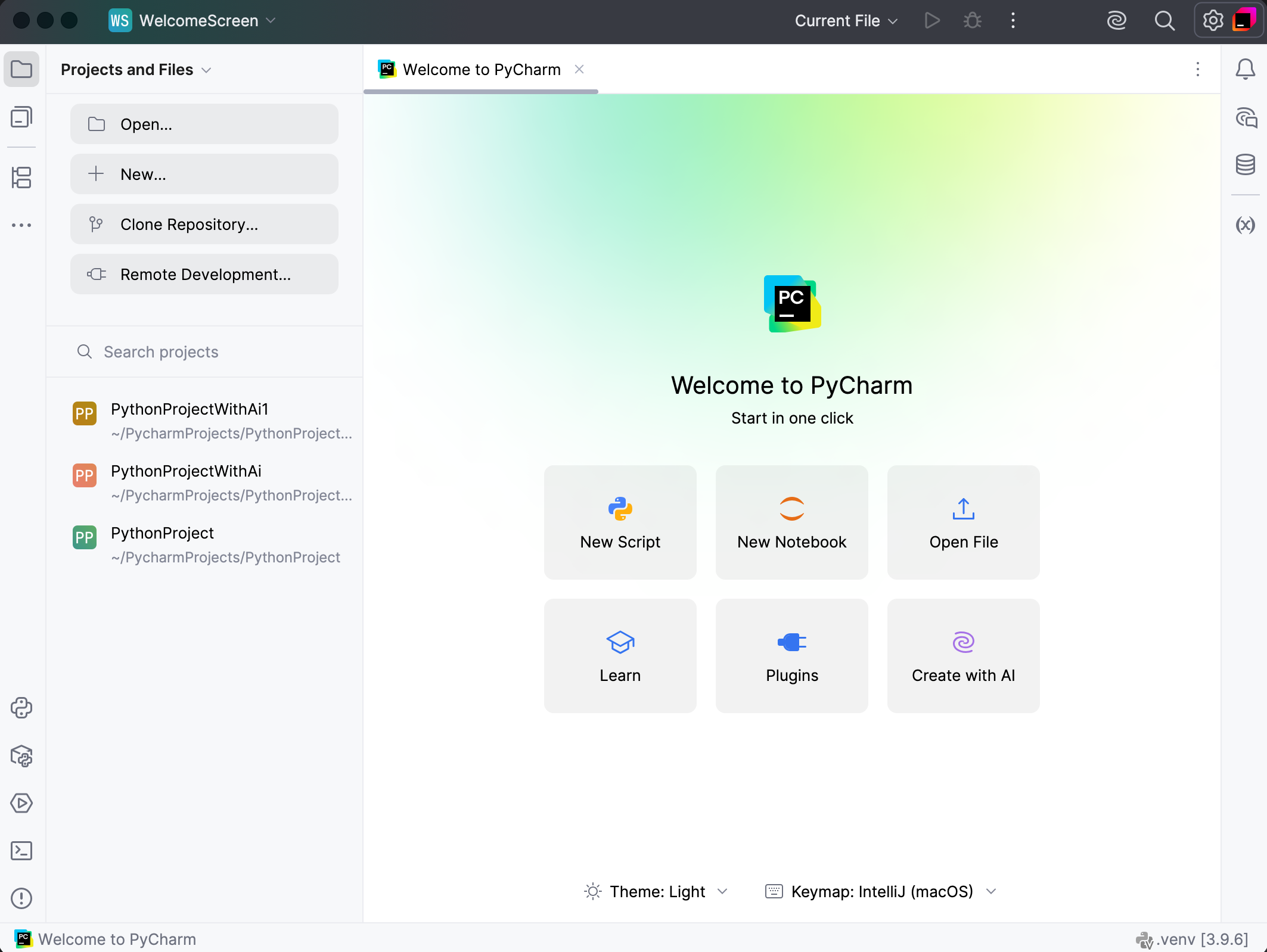
Use the Projects and Files pane in the left part of the Welcome screen to open existing projects, create new ones, clone from a repository, or connect to a remote development environment.
Use the Learn button to find numerous resources to get acquainted with the IDE. Expand the list of available interactive courses to choose the one that you would like to try. PyCharm will open a specific learning project to study the topic step-by-step in a real environment. Follow the instructions in the Learn view to test your new skills on actual coding samples.
If you have previously opened projects in PyCharm, you will see a list of them in the left-hand pane. You can start typing to find a project, click to open it, or remove any project from the list using the context menu or the screw nut icon.
If you want to get back to the Welcome screen after your work, close all opened projects.
Switch between the Welcome screen modes
To show the Welcome screen as a separate dialog:
Go to and under the Welcome Screen section, clear the Show the Welcome screen in non-modal mode checkbox.
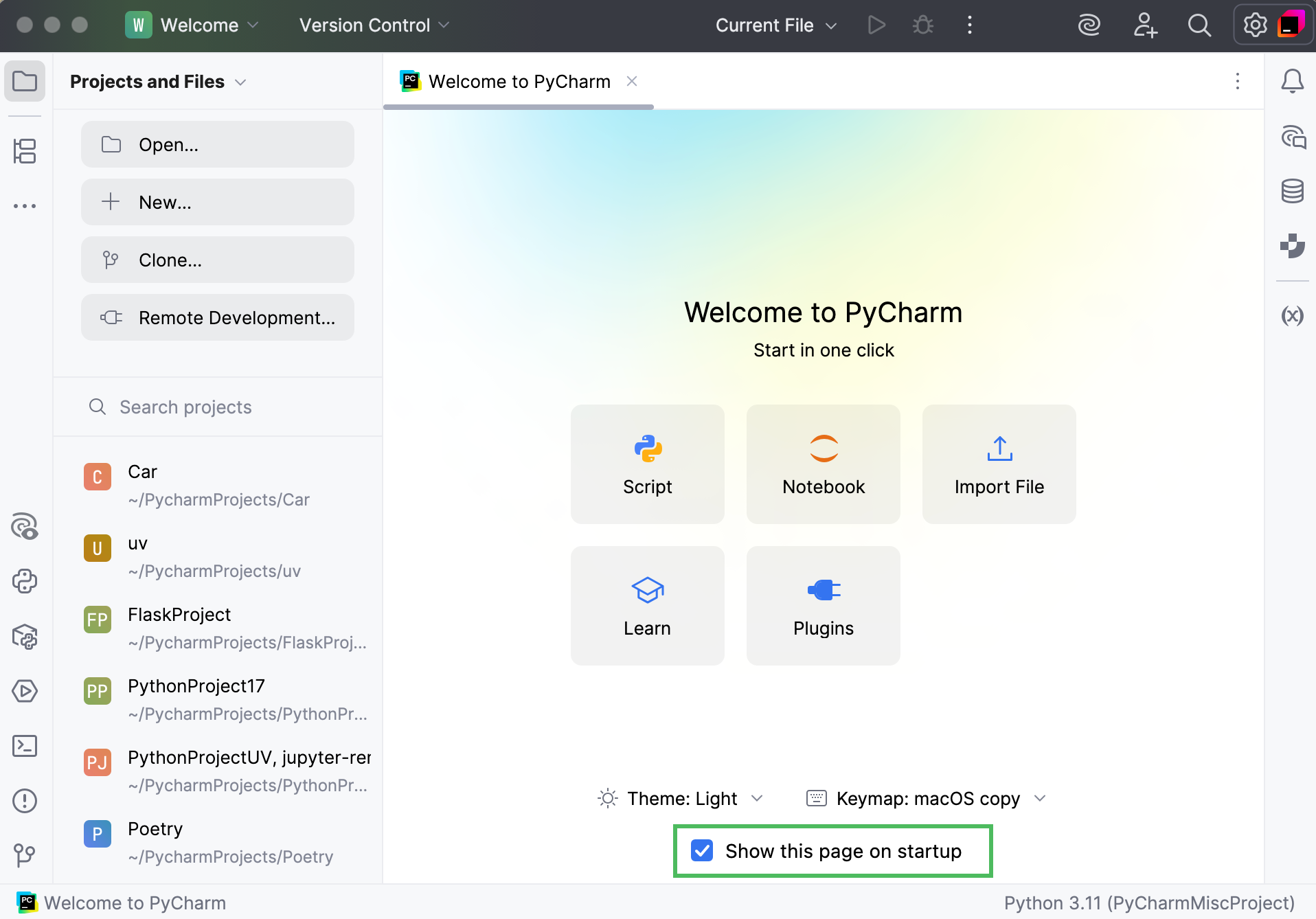
Alternatively, on the Welcome screen, clear the Show this page on startup checkbox.
Create a project with AI
You can create a project by describing what you want to build in a natural language. PyCharm will generate the project files and configure the project for you.
Create a project with AI
On the Welcome screen, click Create with AI.
The Quick start with AI tab will appear. In the text field, describe the project you want to create.
You can also select one of the suggested prompts.
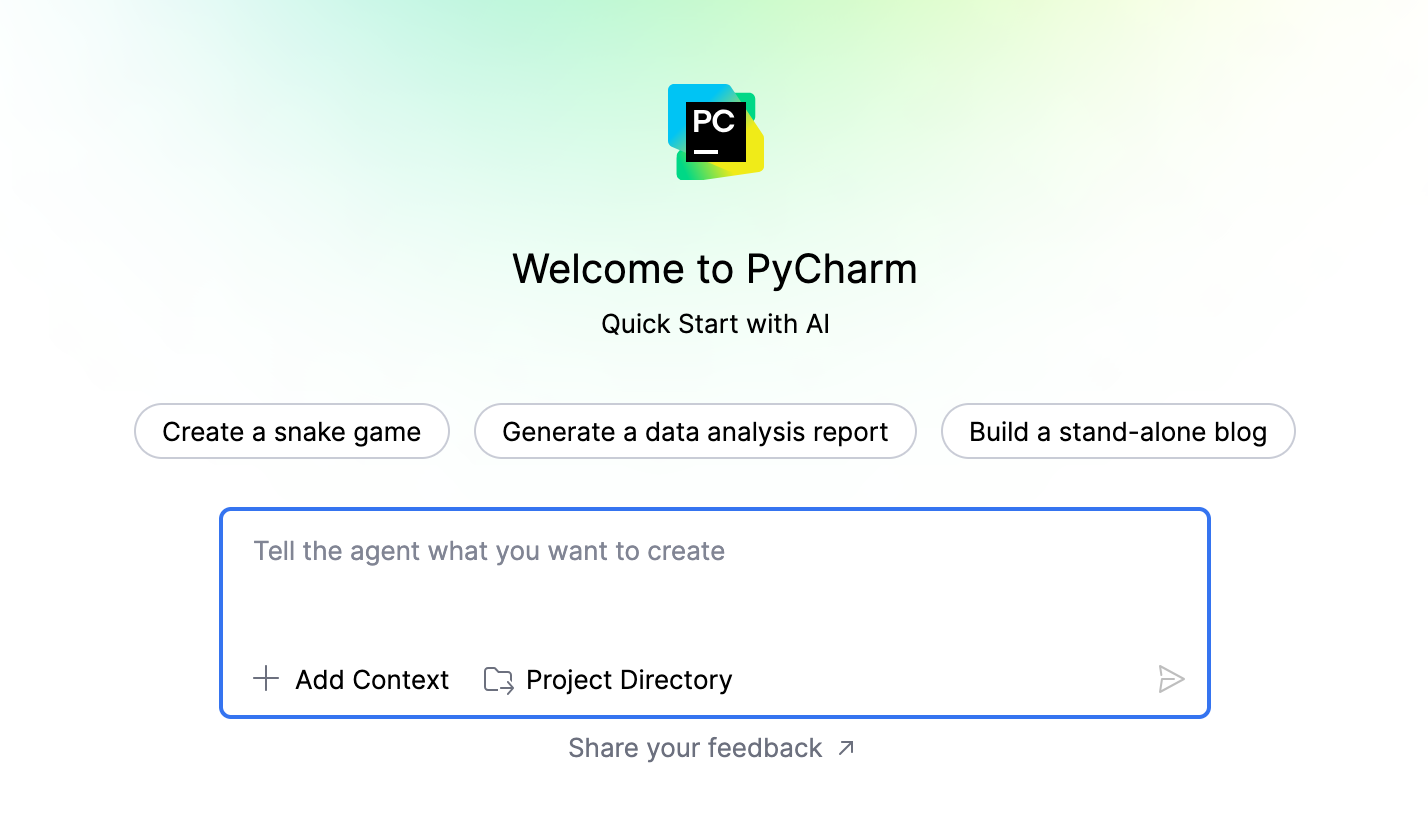
Click Add Context to provide additional information for the AI.
Click Project Directory to select the directory where you want to create the project.
Submit the prompt. PyCharm will analyze your request and prepare the project requirements and the list of files to create.
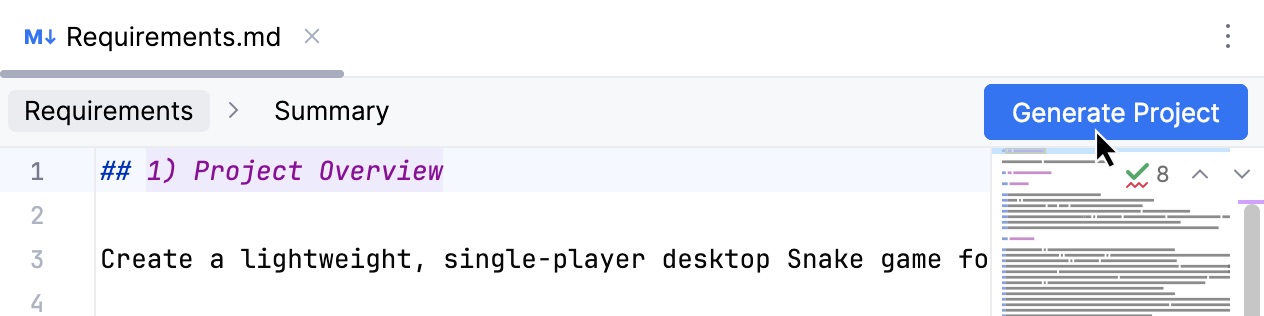
Review the generated summary and click Generate Project in the upper right corner of the editor.