CamelHumps
CamelHumps is a feature that identifies parts of compound names composed according to CamelCase, where each part starts with a capital letter, or when parts of a compound name are separated by underscores. You can type only initial letters of these parts, and ReSharper will find items with matching names automatically.
CamelHumps in search commands
CamelHumps always works in all Search by name commands, namely Search Everywhere/Go to Type, Go to File, File Structure, and Go to Symbol. It is very convenient to type initial letters of name parts and get the list of matching items:
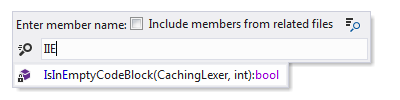
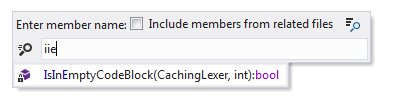
You can type either uppercase or lowercase letters:
ReSharper can also find CamelCased items that match letters in the query in any order:
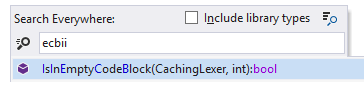
Of course, such items will be placed lower in the result lists if there are items that match both letters and their order in the query.
CamelHumps in editor assistance actions
CamelHumps can also work for Extend/Shrink Selection and other typing assistance commands that ReSharper overrides in Visual Studio:
Extend Selection to Next/Previous Word (Ctrl+Shift+Right Arrow/Ctrl+Shift+Left Arrow)
Go to Next/Previous Word (Ctrl+Left Arrow/Ctrl+Right Arrow)
Delete text from the start of the word to the caret Ctrl+Backspace
Delete text from the caret to the end of the word Ctrl+Delete
Enable CamelHumps in typing assistance actions
Select from the main menu or press Alt+R O.
Go to the page of ReSharper options.
With the Use CamelHumps checkbox, toggle CamelHumps support in typing assistance features.
Click Save in the Options dialog to apply the modifications and let ReSharper choose where to save them, or save the modifications to a specific settings layer by choosing this layer from the Save To selector. For more information, see manage and share resharper settings.
If the CamelHumps is enabled, the Extend/Shrink Selection commands take into account parts of compound names. Suppose you have placed the caret in the middle of a compound name with several parts that begin with uppercase letters:

With CamelHumps, pressing Control+W for the first time selects the current part of the word:

Only after pressing this keystroke for the second time ReSharper selects the whole word:

All subsequent presses are processed as usual.
With the Use CamelHumps option enabled, Visual Studio's 'Next/Previous Word' Edit.WordNext/Edit.WordPrevious and 'Extend selection to Next/Previous Word' Edit.WordNextExtend/Edit.WordPreviousExtend commands also work in a different way. When you press Ctrl+Right/Left Arrow or Ctrl+Shift+Right/Left Arrow the caret moves with/without selection to the next/previous character that separates parts of a compound name in the current word, and only after the last part in word, it moves on to the next/previous word.
There is also a way to have both behaviors (respecting and ignoring Camel Case) for 'Next/Previous Word' and 'Extend selection to Next/Previous Word', that is, the default Visual Studio shortcuts (Ctrl+Right/Left Arrow and Ctrl+Shift+Right/Left Arrow) will work ignoring Camel Case and some custom shortcuts will work respecting Camel Case.
To configure it, turn off the Use CamelHumps option in ReSharper settings, and then assign custom shortcuts in Visual Studio options () to the following commands:
ReSharper_HumpNext– move caret to next humpReSharper_HumpPrev– move caret to previous humpReSharper_HumpNextExtend– extend selection to next humpReSharper_HumpPrevExtend– extend selection to previous hump
Note that with this setup (with the Use CamelHumps option disabled), the Extend/Shrink Selection command will ignore CamelHumps.
CamelHumps in code completion
By default, CamelHumps support is also enabled for Code Completion features, that is, you can start typing a CamelCase abbreviation of a symbol (also in lowercase) and the completion popup will display matched items. If necessary, you can configure this behavior.
Change the way code completion filtering works with CamelHumps
Select from the main menu or press Alt+R O, then choose on the left.
Use the Match middle of the identifiers checkbox to toggle CamelHumps support for completion features.
Click Save in the Options dialog to apply the modifications and let ReSharper choose where to save them, or save the modifications to a specific settings layer by choosing this layer from the Save To selector. For more information, see manage and share resharper settings.
This feature is supported in the following languages and technologies:
|
|
|
|
|
|
|
|
|
|---|---|---|---|---|---|---|---|---|
|
|
|
|
|
|
|
| |


The instructions and examples given here address the use of the feature in C#. For more information about other languages, refer to corresponding topics in the Languages and frameworks section.