Search Everywhere/Go to Type
This command combines two different features:
Search Everywhere, which appears first, allows you to navigate to the following destinations: types, symbols, files, string literals in source and textual files, recent edits, recent files, and recently viewed methods. The list of suggestions appears as soon as you invoke this feature and initially includes your recent files and navigated items.
Go to Type, which appears the second time you press Control+N or invoke the command from the menu, allows you to navigate to any type.
By default, navigation to text is integrated into Search Everywhere — ReSharper will show textual occurrences matching the query string at the bottom of the result list, after all matching types, symbols, and files. You can disable this behavior by clearing Integrate Go to Text into Search Everywhere on the page of ReSharper options .
If this option is disabled, you can navigate to text by pressing Control+N three times.
Start the search
Using these actions you can search items in symbols and files in your entire solution as well as all assemblies referenced in the projects of your solution. Search results also include matching items from all assemblies that are currently loaded in the Assembly Explorer window.
Note that this command works in global scope, that is you do not need to bring your focus to the editor to invoke it.
Search project items or locate a type
Press Control+N or choose from the main menu. Alternatively, you can press Control+Shift+A, start typing the command name in the popup, and then choose it there.
In the Search Everywhere list that appears, start typing the item name. As you type, the list of items narrows down, suggesting names that match the entered substring.
If you have a full or a relative path to a solution file in the clipboard — for example, if you copied it from a CLI server — you can paste the path to the input field of the popup.
To narrow down the list of items, you can type
/to apply filters. For example, you can type/meto display only events. Note that you can type filters both before and after your search query.To specify a line in the searched file, type it after a
:(colon).To switch to the Go to Type feature, click the menu command or press the shortcut once again. The Enter type name list appears where you can specify a type you are looking for.
Optionally, select Include library types or press Alt+N to display matching items from libraries referenced in the solution.
By default, as long as your input matches something in your solution, only solution items are displayed. If there are no matches for your input in the solution, ReSharper starts looking for matching library types automatically.
Do one of the following:
Click the desired item to open it in the editor.
Select the desired item by pressing Up and Down and then press Enter to open it in the editor.
To view and analyze the list of matched items in the Find Results window, click Show in Find Results
.png "ThemedIcon.SearchResults.Screen.(Gray).png") , press Shift+Enter or + on the numeric keypad .
, press Shift+Enter or + on the numeric keypad . Select a symbol in the result list and press Alt+F7 to find all its usages, Control+Alt+F7 to navigate to a specific usage, or Shift+Alt+F7 to find usages of related entities.
The selected search result can be opened either in the normal editor tab or in the Preview tab. To always open the results in the Preview tab, select Open new files in preview tab from everywhere on the page of ReSharper options and make sure that it is also enabled in Visual Studio options.
If the item you navigate to belongs to the current solution, ReSharper opens the corresponding file in the editor and places the caret at the symbol declaration. If it is in referenced libraries, ReSharper navigates according to the settings defined on the page of ReSharper options Alt+R, O.
Search for items with compound names
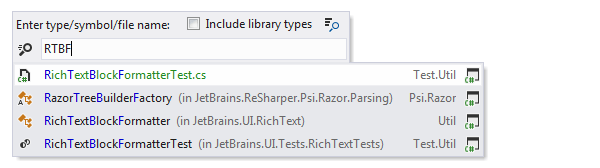
You can narrow down the list of items using CamelHumps. It is case-insensitive, so there is no difference between rtbf and RTBF. ReSharper always shows recently visited items at top of the list and highlights them in green.
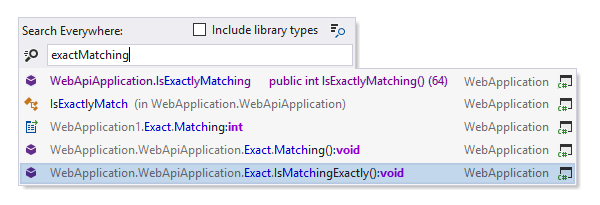
ReSharper can also find items that match parts of the query in any order. For example, a search for exactMatching will match isMatchingExactly.
Search by fully-qualified names
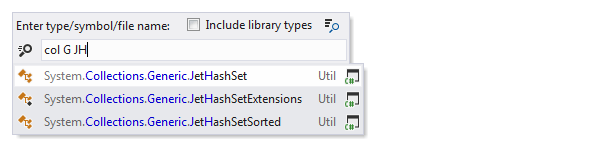
If you want to navigate to a type or member by its fully-qualified name, type parts of the name and split them with spaces or dots. Consider the example below:
Search for exact matches
If you want to search for an exact match, use quotes: looking up "Collection" will return Collection but will not return FilteredCollection, IterateCollection(), and so on. However, while using exact search to filter out compound names, you can still use wildcard symbols * and ? to allow exactly as much variation as you need.
Generalize the search query
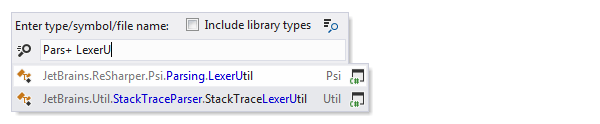
You can also use wildcards when specifying the name: * (asterisk) represents zero or more characters; + (plus), : (semicolon), . (dot), and \ (backslash) separate parts of the type's fully qualified name.
Remember last input
ReSharper can remember the last input that you used to find something with Search Everywhere/Go to Type, Go to Symbol, Go to File, and Go to Text actions. To enable or disable this behavior, use the Remember last search checkbox on the page of ReSharper options. When this option is selected, ReSharper will also use your current selection in the editor as the initial search query.
This feature is supported in the following languages and technologies:
|
|
|
|
|
|
|
|
|
|---|---|---|---|---|---|---|---|---|
|
|
|
|
|
|
|
|
|


The instructions and examples given here address the use of the feature in C#. For more information about other languages, refer to corresponding topics in the Languages and frameworks section.