Navigation and Search in JavaScript
Most of ReSharper's navigation and search features are also supported in JavaScript. You can find the detailed information on these features in the corresponding topics of the Navigate and search section. In the main topic of the section, you can also find the feature matrix and check what exactly is supported in JavaScript.
In this topic, you can find some examples of using navigation and search features in JavaScript.
Navigation
Navigation commands are available:
in the menu
in the context menu in the editor
on the Navigate To context menu
You can also:
navigate from the File Structure window
find usages of a symbol
File structure
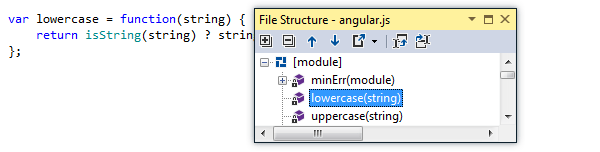
File Structure helps overview the structure of the current file. ReSharper detects code constructs common for all programming languages as well as some specific constructs for JavaScript, for example, modules. All module members are visible within module only, so the corresponding icon .png "Lock") is displayed for each member.
is displayed for each member.
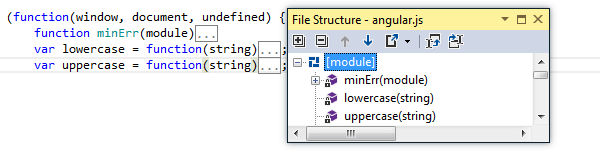
To display anonymous and therefore unnamed functions in the File Structure window, ReSharper retrieves their names from their declarations.
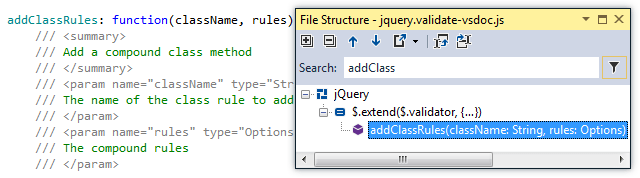
ReSharper takes into account XML documentation comments and extracts useful information. If data types of parameters are not specified explicitly within function signature, you can still see them in the File Structure window because they are specified within XML documentation.
Also, you can navigate to a member declaration by double-clicking the member in the File Structure window.
Go to declaration
Go to Declaration - place the caret at the name of a function and navigate directly to the file where the function is declared.
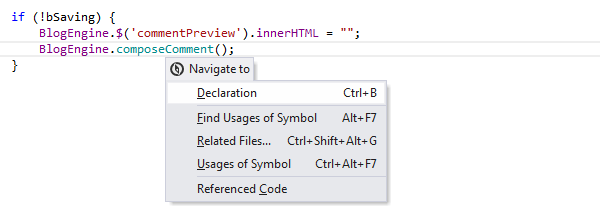
If the selected item has several declarations, you are prompted to choose one from the list.
Pay attention that functions declared within paired <script> tags are visible in the current file only.
Go to usage
Go to Usages of Symbol - very useful if you want to find out how many usages of a function are in the whole solution.
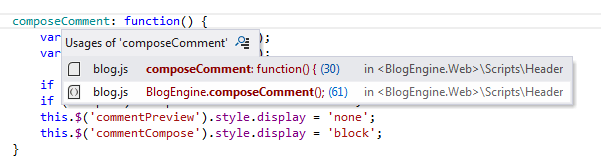
If you place the caret a symbol within paired <script> tag and invoke the command, ReSharper will look through the current file only.
Go to file member
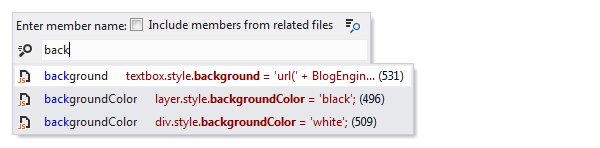
Go to File Member - helps you quickly navigate to a desired member within the current file.
Search
To find your way around without scanning thousands lines of code, use ReSharper search features. As usual, you can define certain search target and vary its search scope via Find Usages and Find Usages Advanced features.
Find usages of a symbol
Place the caret at the name of a variable or a function.
Do one of the following:
From the main menu, choose .
Click Find Usages in the context menu.
Press Alt+F7.
If only one usage is found, ReSharper navigates to the usage directly in the editor.
If several usages are found, the Find Results window opens.
In the screenshot below, you see the differences between Find Usages and Find Usages Advanced.
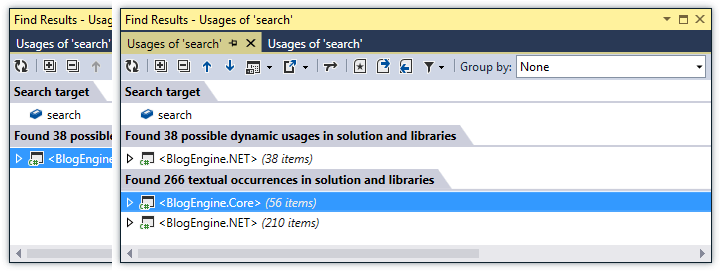
To navigate to a usage in source code from the Find Results window, select and double-click the usage.
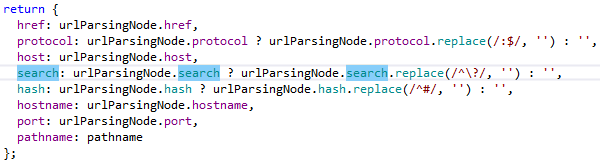
If you want to see all usages of a symbol in the current file, press Control+Shift+F7 and highlight usages within this file.
Structural search and replace
Sometimes standard search facilities cannot help, especially when you are looking for syntax constructs which are similar but not identical. In such cases the Structural Search and Replace feature could be helpful. To use this feature and bear fruits, make three steps: create placeholders, write a pattern and invoke the search process.
Let's find try catch statements with empty catch blocks. The following pattern can be used for this purpose:
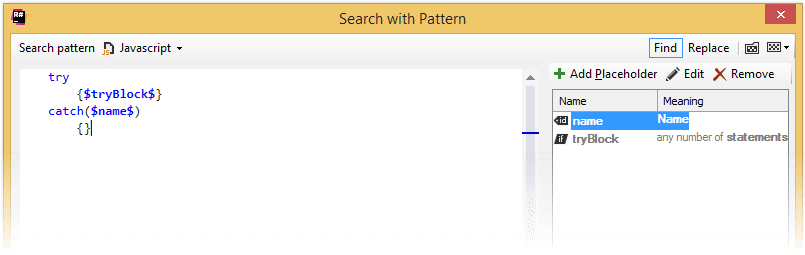
In addition to standard JavaScript language syntax you see placeholders enclosed in $ dollar signs. These placeholders are displayed to the right of the pattern. As we are looking for empty catch blocks, the most important condition here is the empty braces in the catch statement. As soon as all conditions are defined, click Find to start the search process.
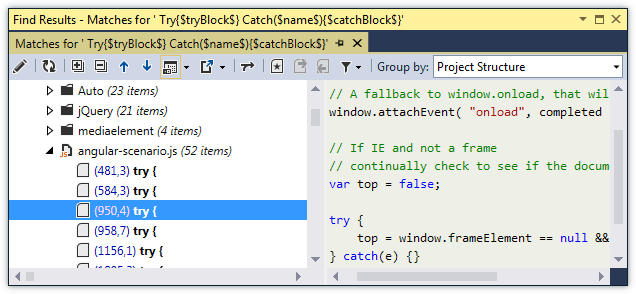
All results are displayed in the Find Results window. As you can see at the preview, ReSharper has found only those try catch statements that have empty catch blocks.
You can create patterns right from source code. Select a desired code block, right-click the selection and choose Search with Pattern in the context menu.