Move Type to Another File refactoring
This refactoring helps you move the selected type from the current file to any existing file or to a new file. If you are moving to a new file, the new file is created automatically. If there are no more types in the current file, it can be removed. All necessary imports are moved with the type. All imports that are no longer necessary are removed from the original file.
If you invoke this refactoring on a nested type, ReSharper will make the parent class partial, create a new file for the new part of the partial class, and move the selected type there. If necessary, you can then use the Move Type to Outer Scope refactoring to make the type non-nested and remove the redundant part of the parent class.
Move a type to another file
Select a type in one of the following ways:
In the editor, place the caret at the name of a type.
Select a type in the Solution Explorer.
Select a type in the File Structure window window.
Select a type in the Class View.
Select a type in the Object Browser.
Select a type in the type dependency diagram.
Do one of the following:
Press F6 and then choose Move to Another File
Press Control+Shift+R and then choose Move to Another File.
Right-click and choose Refactor | Move to Another File from the context menu.
Choose from the main menu.
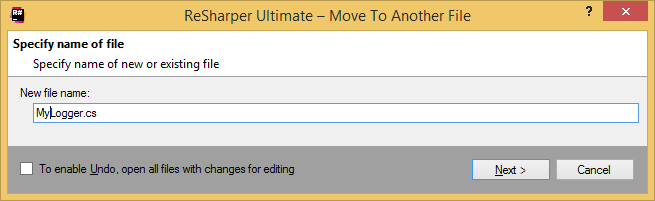
The Move to Another File dialog will open.
Type a filename in the New file name field. You can specify the name for an existing file or a new one. In the latter case, the new file is created in the current project or folder.
To apply the refactoring, click Next.
If no conflicts are found, ReSharper performs the refactoring immediately. Otherwise, it prompts you to resolve conflicts.
This feature is supported in the following languages and technologies:
|
|
|
|
|
|
|
|
|
|---|---|---|---|---|---|---|---|---|
|
| | | | | | | |


The instructions and examples given here address the use of the feature in C#. For more information about other languages, refer to corresponding topics in the Languages and frameworks section.