Rename refactoring
This refactoring allows you to change the name of any symbol or project in your solution. All references to and usages of the symbol will be updated automatically.
Use the refactoring for different C# entities
Here is the list of entities that you can rename with this refactoring:
- Namespace
You can also change its nesting level of the namespace. For example, you can rename namespace
A.B.CtoA.D.- Type
If the renamed type is located in file with the same name, ReSharper renames the containing file, too.
If the renamed type is a part of a hierarchy of types with similar names, for example
class Foo : IFoo, you will be able to choose whether to rename the related types.- File
You can rename any file and ReSharper will make sure that all relevant project items will be updated accordingly.
If the file contains a type with the same name, ReSharper can also rename that type. Optionally, it can also update all mentions of the file in comments and string literals.
- Method
If the method is a part of inheritance/implementation hierarchy, the related methods are renamed as well.
If the method has overloads, you will be able to choose whether to rename the overloads.
- Field
If the field is used in a property with a matching name, you will be able to choose whether to rename the property.
- Property
If the property has a backing field with a matching name, you will be able to rename the field as well.
- Parameter
If the method is a part of inheritance/implementation hierarchy, or has overloads with a parameter of the same name and type, you will be able to rename parameters in the related methods, too.
- Local variable
ReSharper renames local variables without showing the dialog:

- Event
- Delegate
Invoke the refactoring with a command
Select an entity in one of the following ways:
In the editor, place the caret at the name of an entity.
Select an entity in the Solution Explorer.
Select an entity in the File Structure window window.
Select an entity in the Class View.
Select an entity in the Object Browser.
Select an entity in the type dependency diagram.
Do one of the following:
Press F2.
Press Control+Shift+R and then choose Rename.
Right-click and choose Refactor | Rename from the context menu.
Choose from the main menu.
The Rename dialog will open.
Type a new name for the entity or use one of the suggested names.
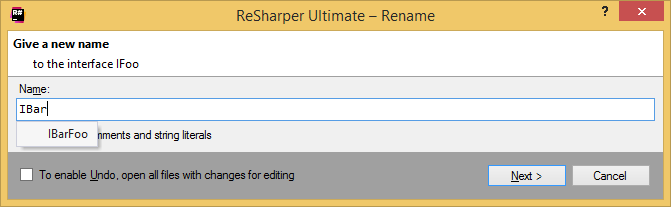
ReSharper will suggest new names for the entity taking into account your naming style.
Depending on the entity that you rename, select which related items should be renamed, for example, occurrences of the entity in comments and string literals.
Click Next. If there are nothing related to the renamed entities, ReSharper applies the refactoring. Otherwise, the wizard displays additional steps:
If there are related entities with similar names, they are listed on the following step:
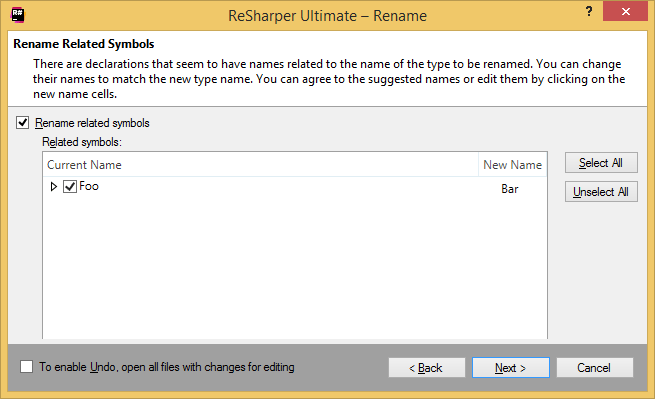
Select related entities that you want to rename along with the selected entity - you can accept the suggested names or specify new names in the New Name column.
If you have previously selected Search in comments and string literals and occurrences of the entity name is found, they are listed on the following step:
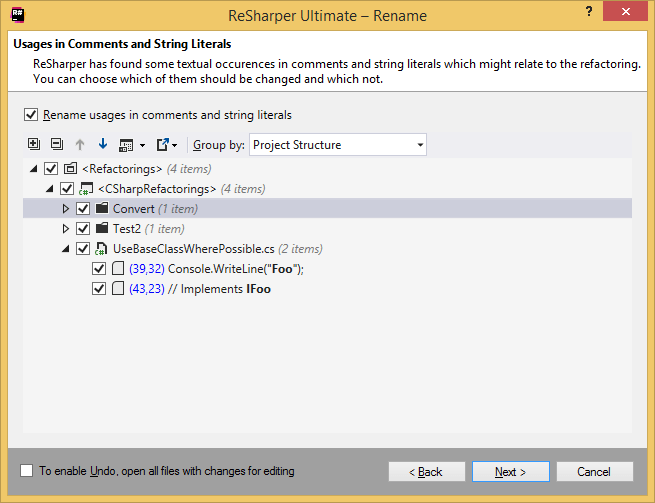
Select textual occurrences that you want ReSharper to rename.
If no conflicts are found, ReSharper performs the refactoring immediately. Otherwise, it prompts you to resolve conflicts.
Perform the refactoring in-place
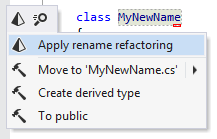
You can rename an entity by modifying its declaration right in the editor and then applying a quick-fix to invoke the solution-wide refactoring.
As soon as you change entity's name at its declaration, a grey border appears around the name, notifying you that the refactoring is available. You can press Alt+Enter to find the refactoring in the action list:
Applicability in different languages
This feature is supported in the following languages and technologies:
|
|
|
|
|
|
|
|
|
|---|---|---|---|---|---|---|---|---|
|
|
|
|
|
|
|
| |


The instructions and examples given here address the use of the feature in C#. For more information about other languages, refer to corresponding topics in the Languages and frameworks section.