File structure
WebStorm allows you to view and navigate the structure of a file in the Structure tool window and in the Structure popup. Click  in the toolbar of the Structure tool window and select the elements you want shown.
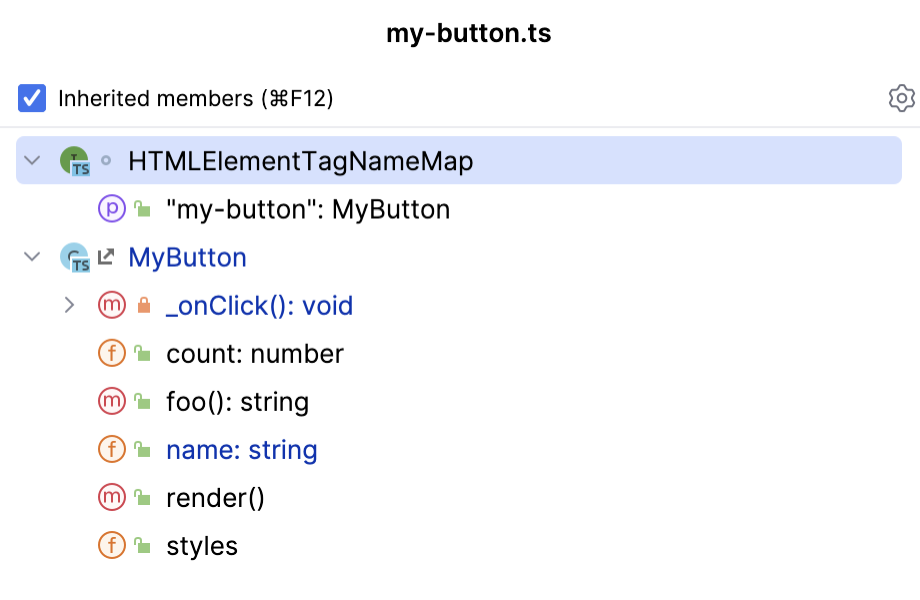
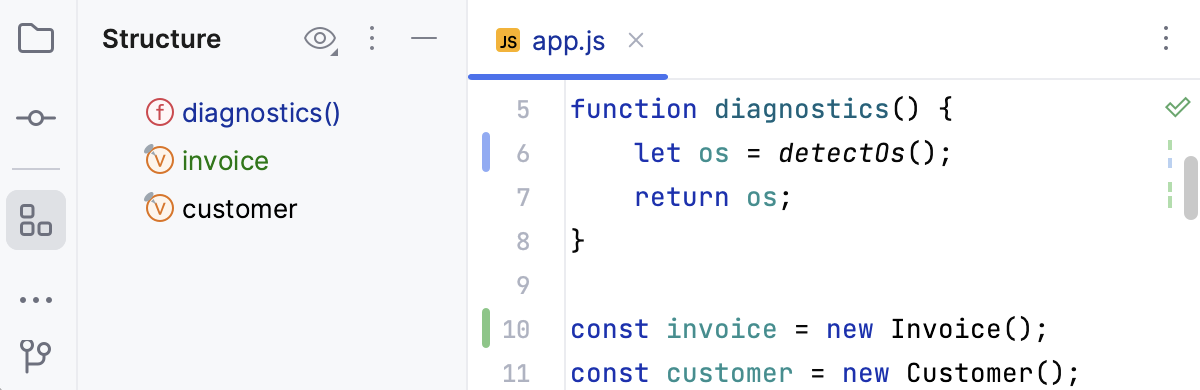
You can see the VCS status colors in the Structure tool window and the Structure popup if your project is under version control. It helps you track changes in files. The names of modified objects become blue, and the names of the newly added objects appear highlighted in green.
Hover over icons in Structure to get additional information in tooltips about the items.
Structure popup
The popup provides less information than the tool window, but it allows you to navigate the structure faster due to the Narrow down on typing option.
Open a file in the editor and press Ctrl+F12, or go to in the main menu.
In the popup, start typing the name of the element that you want to find. The IDE will narrow down the search results as you type.
You can also use CamelHumps, that is, for example, you can type
dsuto match .You can additionally narrow down your search results by using the checkboxes in the popup. To change the sorting, click
 and select the necessary option.
 Press Enter or click an item to close the popup and navigate to the selected element in the editor.
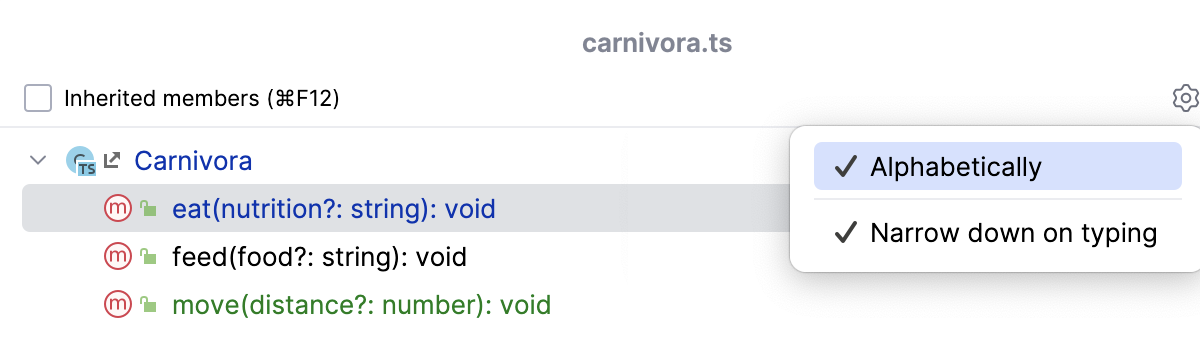
- Inherited members
Displays all methods and fields inherited by the current class and accessible from it. The inherited members are displayed gray to distinguish them from the members defined in the current class.
- Alphabetically
Sorts elements within a class alphabetically.
- Narrow down on typing
Hides irrelevant items as you type. When this option is disabled, the IDE highlights all items that match your search query without hiding irrelevant items.
Structure tool window
Open a file in the editor or select it in the Project tool window.
Press Alt+7 or go to in the main menu.
In the tool window, start typing the name of the element that you want to find. You can also use CamelHumps. The IDE will highlight the search results as you type.
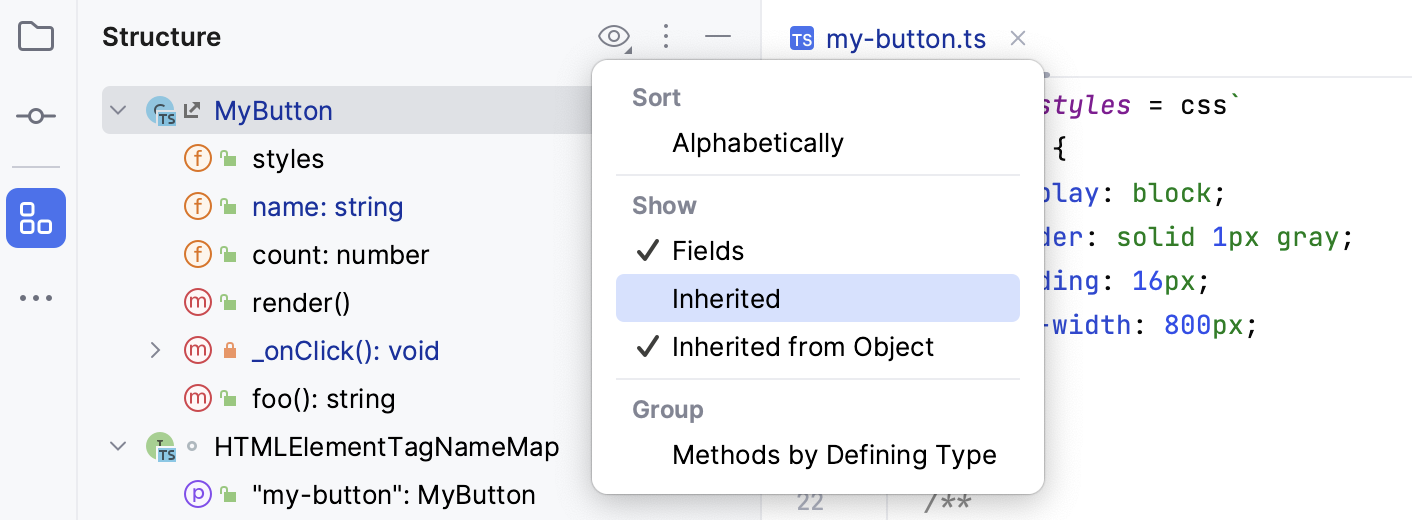
You can additionally narrow down your search results or sort the items in the tool window by using the options located under
. 
View options
Sort
- Alphabetically
Sorts elements within a class alphabetically.
Show
- Fields
Displays all fields (properties) in the tree.
- Inherited
Displays all methods and fields inherited by the current class and accessible from it. The inherited members are displayed gray to distinguish them from the members defined in the current class.
- HTML Outline
(Only for HTML files) Displays HTML 5 outline of an HTML file
- DDL statements
(Only for SQL files) Displays only DDL statements (for example,
CREATE,ALTER,DROP, and other statements).- DML statements
(Only for SQL files) Displays only DML statements (for example,
SELECT,INSERT,UPDATE,DELETE, and other statements).- Select statements
(Only for SQL files) Displays only
SELECTstatements.- Other
(Only for SQL files) Displays only statements that do not fall under the previous categories.
Group
- Methods by Defining Type
Groups all methods that override or implement the methods of a particular class or interface under the node that corresponds to this class or interface.
- Group by type
(Only for SQL files) Group statements by their type (for example, DDL statements, DML statements,
SELECTstatements, and Other).
Run tests from Structure
In the Structure tool window, right-click a test and select
 Run 'method name' (Ctrl+Shift+F10).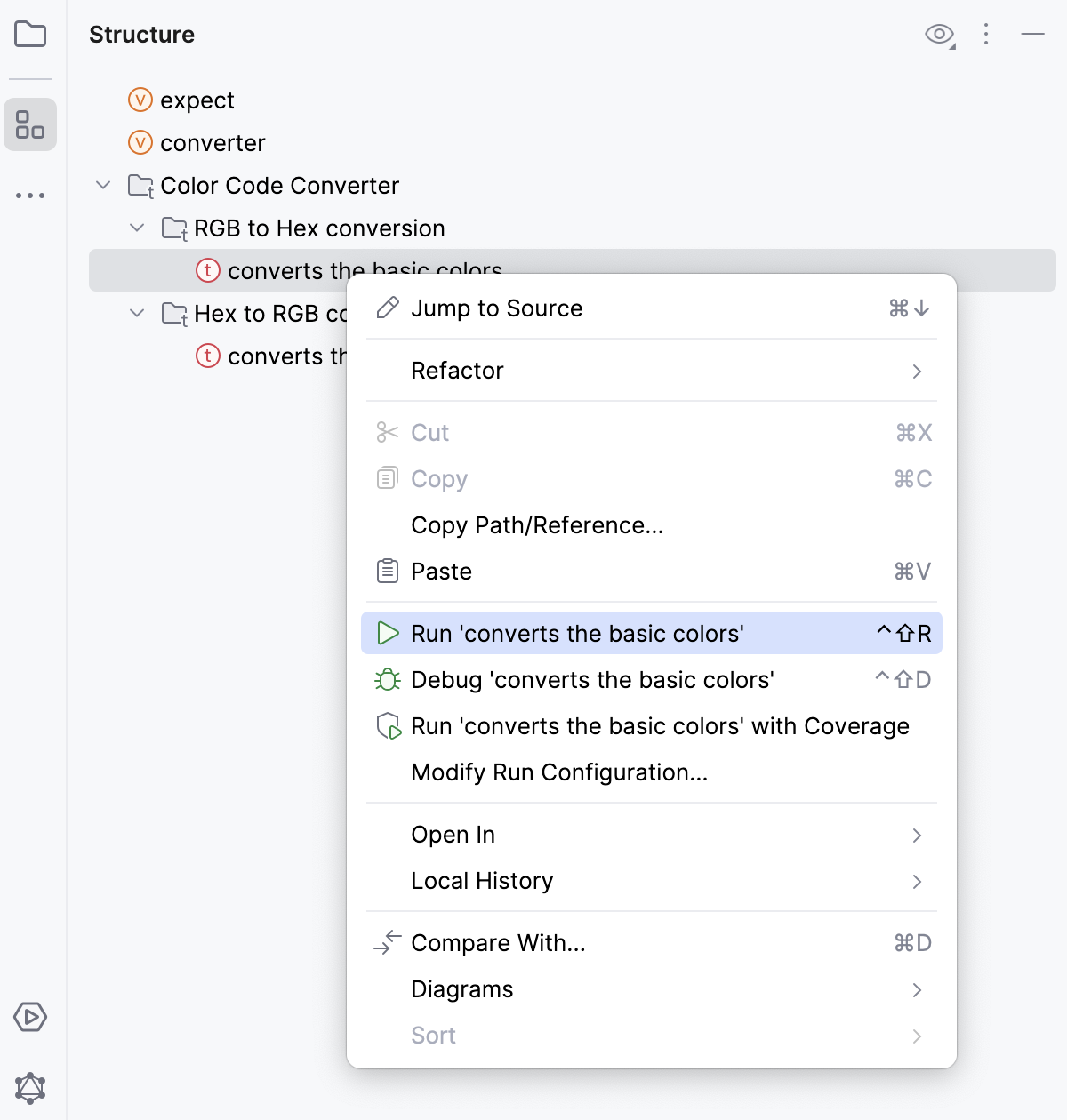
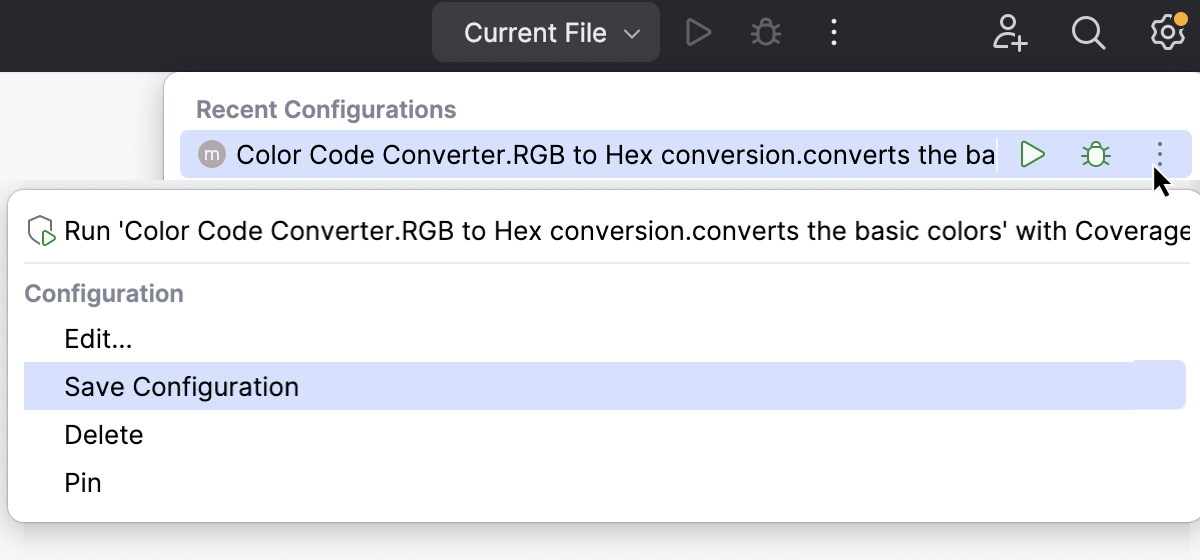
WebStorm creates a temporary run configuration with this test. To re-use theis configuration, save it and edit, if necessary.
Group members
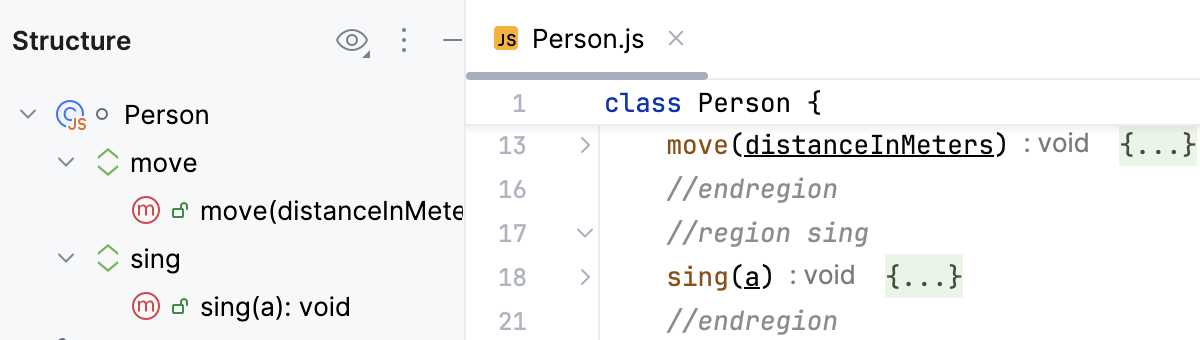
In JavaScript and TypeScript, you can group class members in Structure by annotating them in your source code.
In the editor, select a code fragment and press Ctrl+Alt+T or go to in the main menu. Select the necessary folding region comment,
regionoreditor-fold.WebStorm inserts the comments around the selected code. Learn more from Custom folding regions.
The Structure tool window and Structure popup mark these regions with
 .
.