Live watches
Live watches allow you to monitor global variables and peripheral registers in real time, without stopping the debugger or the program execution. This feature is useful for embedded developers working with time-sensitive protocols, such as Bluetooth, or with physical processes that cannot be interrupted.
Configure a debug profile
Go to and configure your debug profile.
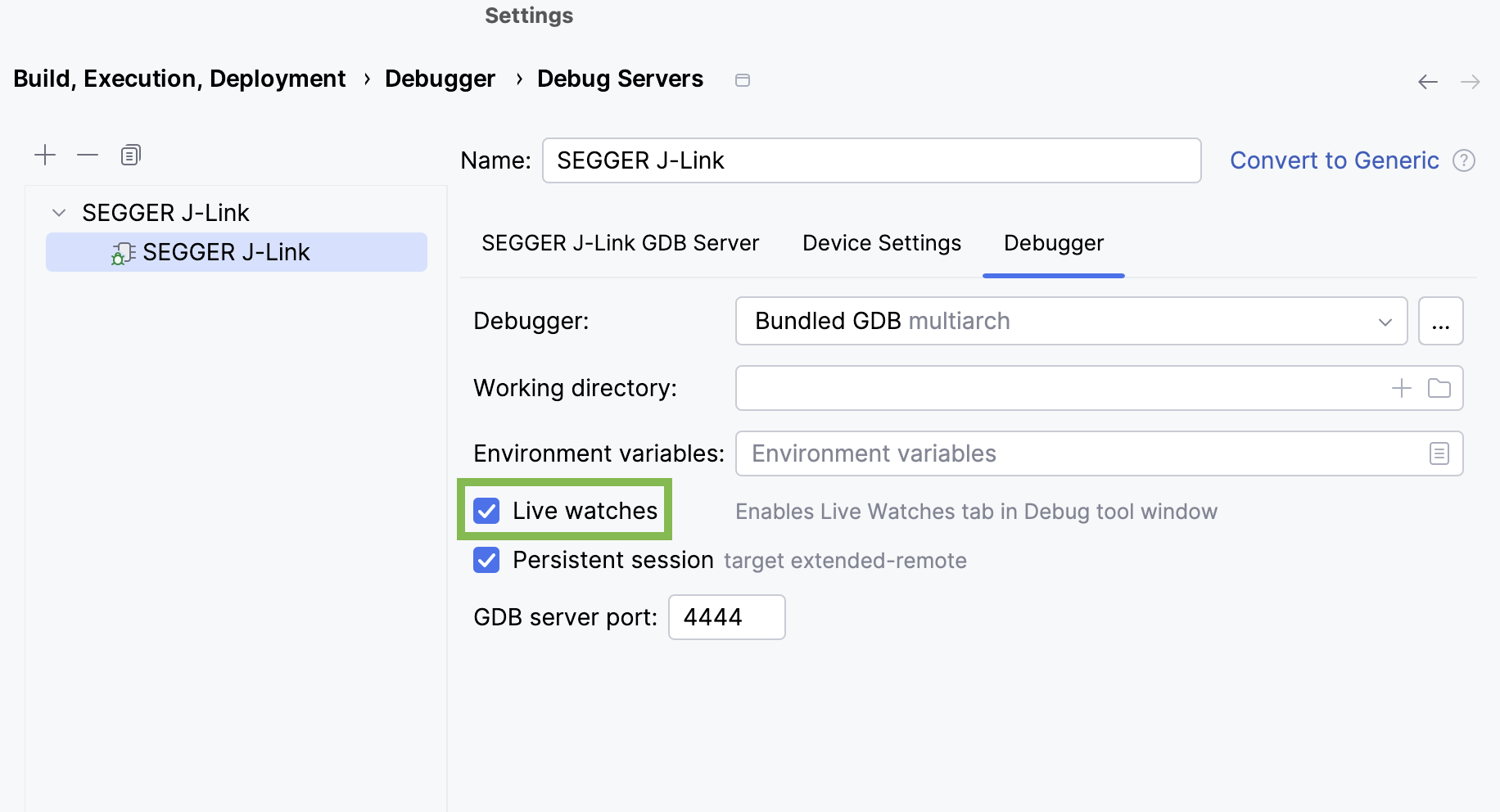
On the Debugger tab of the profile, select Enables Live Watches tab in Debug tool window:
Start debugging with live watches
Select the required run/debug configuration and your debug server profile in the main toolbar switchers.
Run a debug session.
In the tool window, select the tab. The tab is available in every debug session.
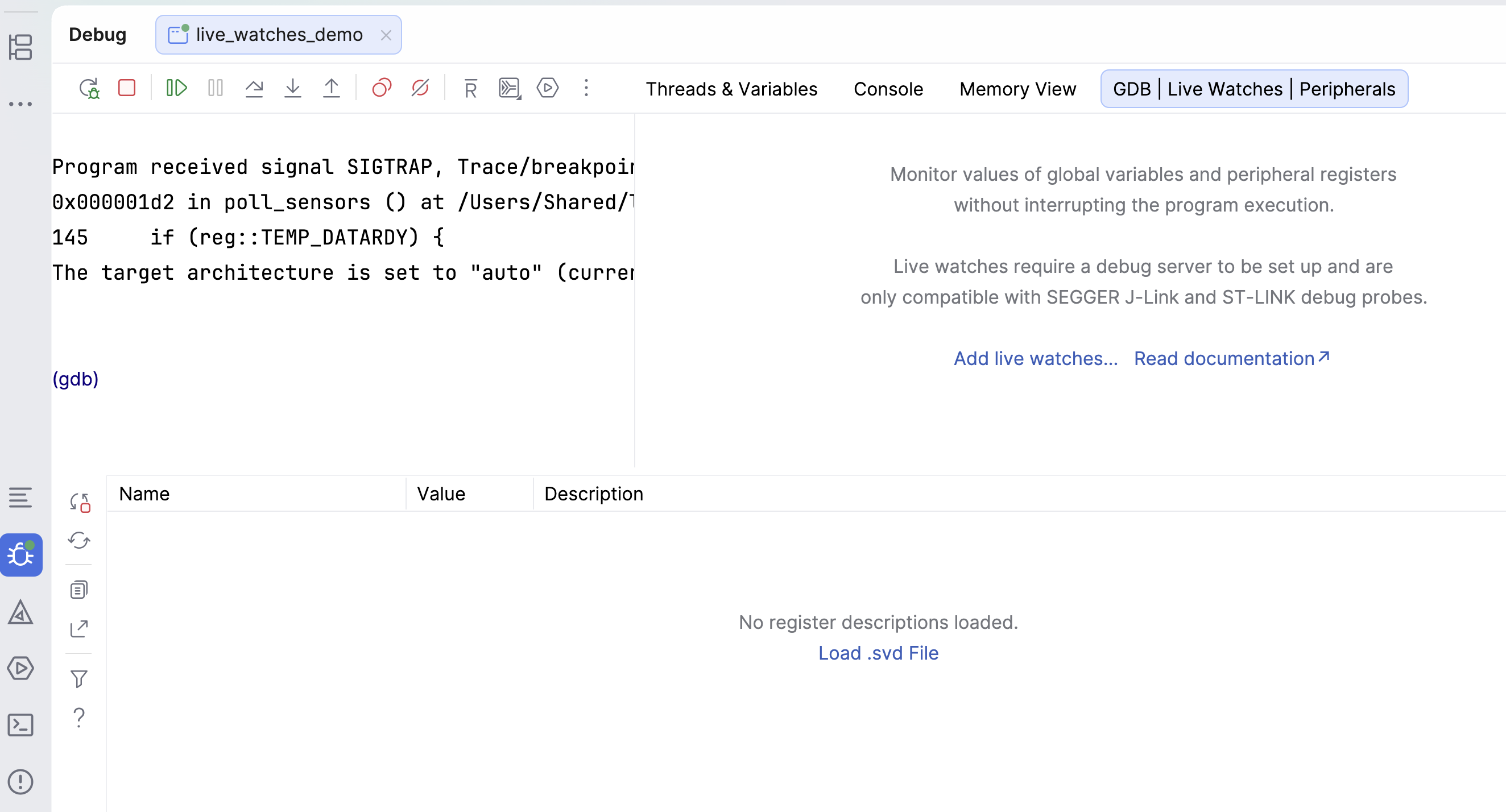
While no watches are added, the tab explains the feature and offers two links: Add live watches…, which opens the dialog for entering an expression, and Read documentation, which opens this page.
By default, the tab opens grouped with and tabs. You can change the layout of the tab in .
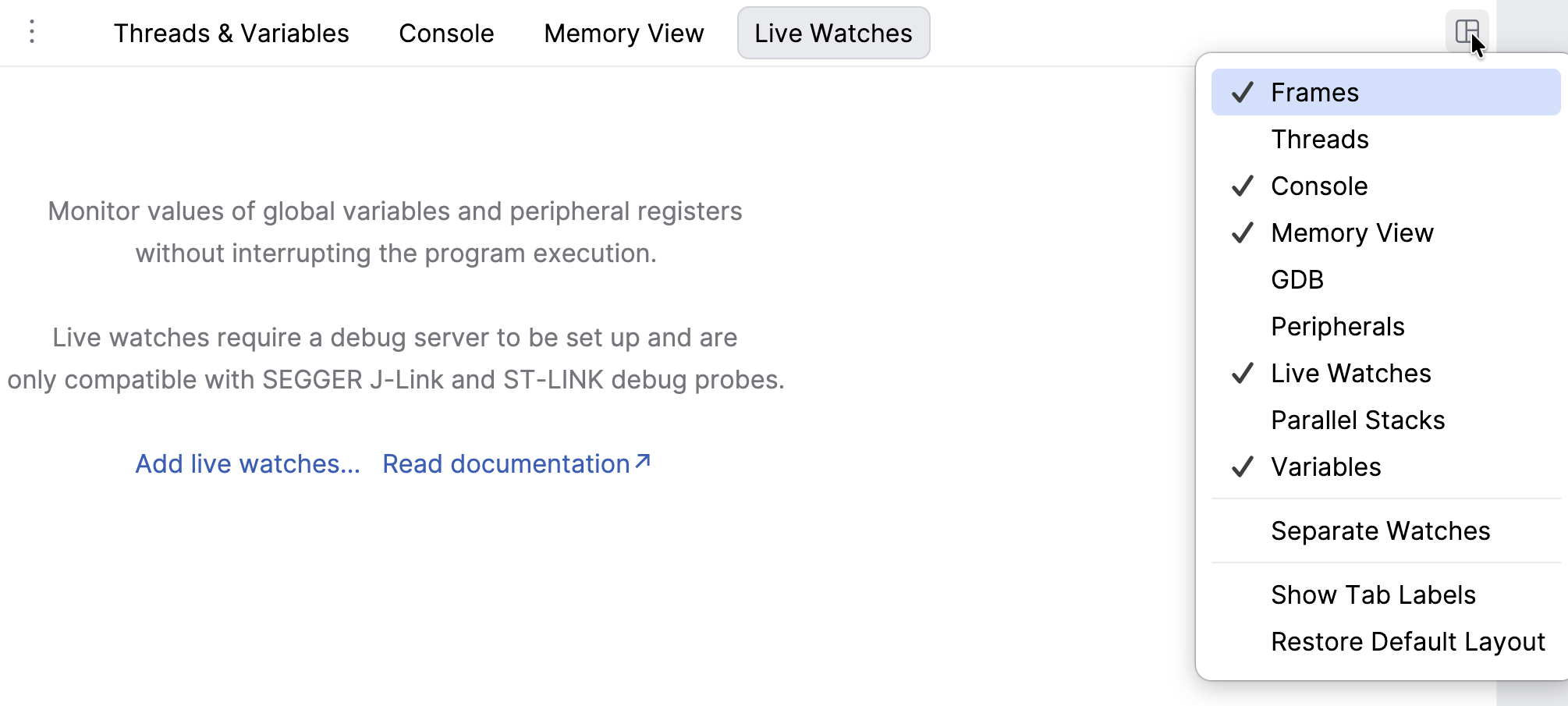
Add an expression to watch by clicking Add live watches… or right-click a variable in the editor and select Add to Live Watches.
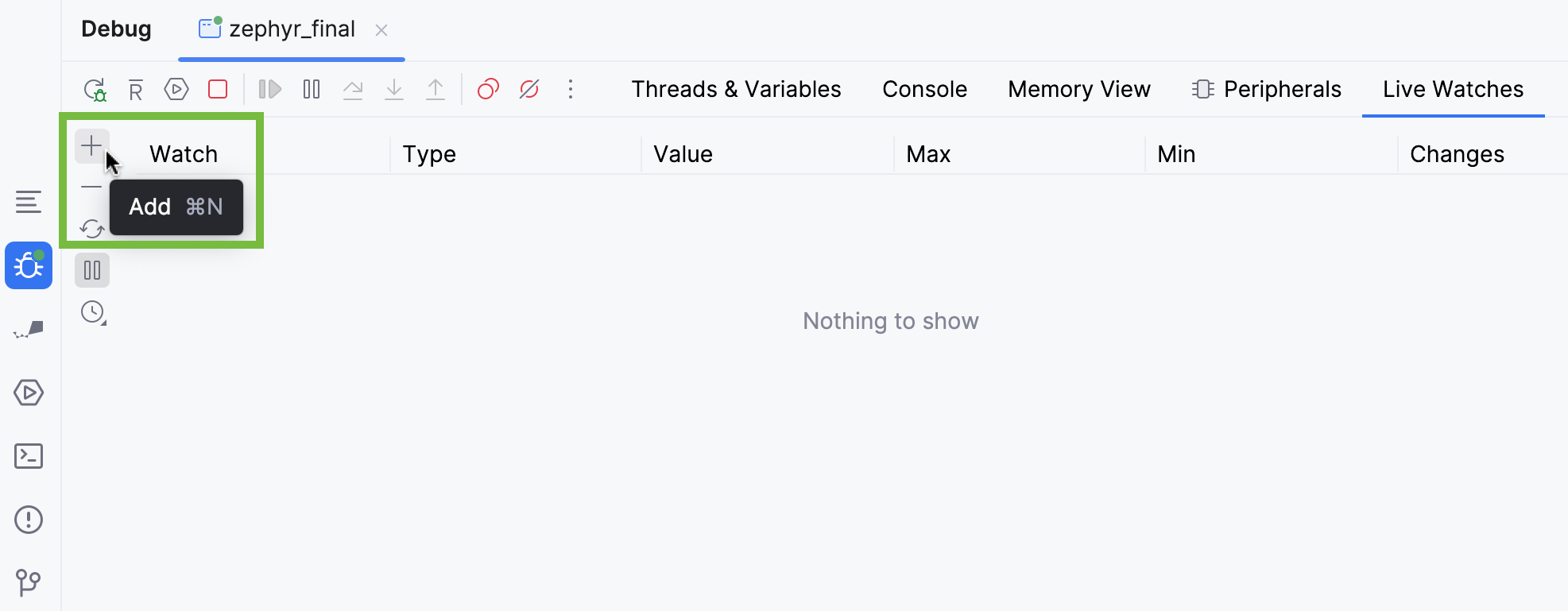
For every watch, the table shows its expression, type, and current value, along with the maximum and minimum values and the number of value changes recorded so far:
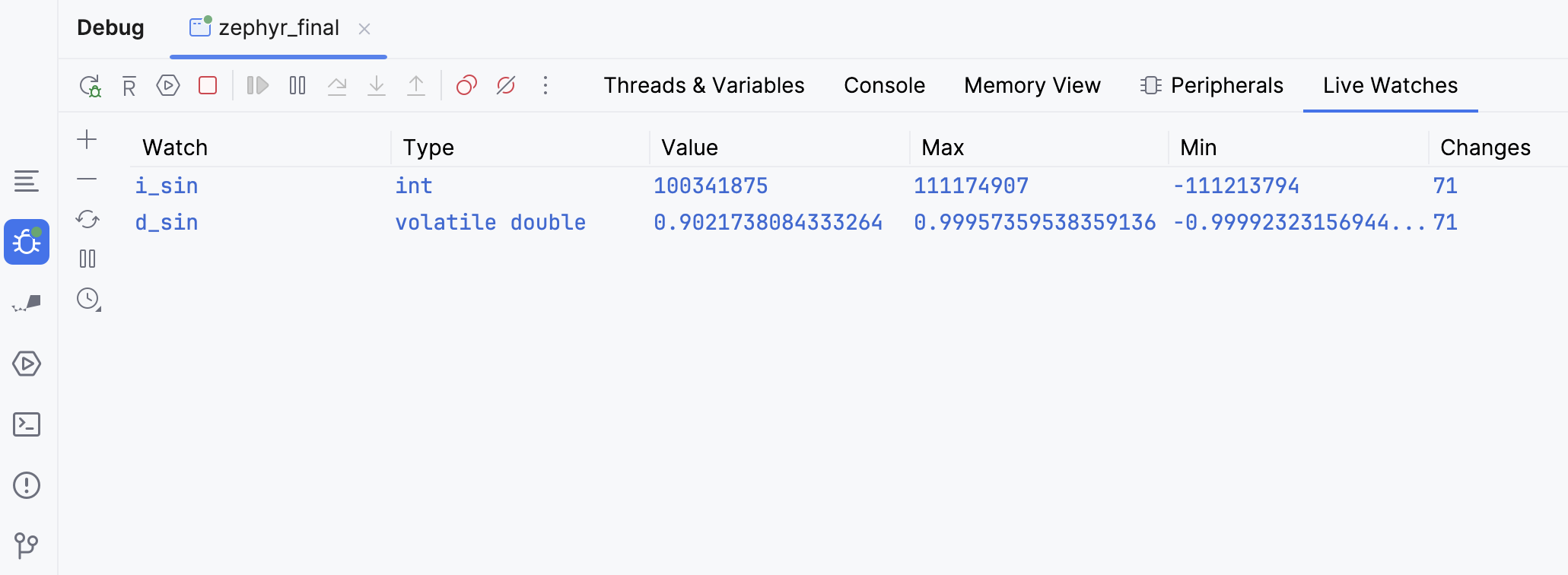
Use Columns on the toolbar of the tab ( ) to hide the columns that you do not need.
Click Sampling Period ( ) to select how often CLion reads the values: 2000 ms, 1000 ms, 500 ms, or a custom value. If the period is too short for the number of watches, CLion shows a banner with a link that doubles the period.
Copy values to the clipboard
To copy data from the table, right-click a row and use one of the following actions:
- Copy Cell
Select Copy Cell to copy the cell of the column that you right-clicked. If several rows are selected, the action is named Copy Column Cells and copies the cell of that column from every selected row, one value per line. The Ctrl+C shortcut does the same.
- Copy Table to Clipboard
Select Copy Table to Clipboard to copy all rows of the table.
- Copy Selection to Clipboard
Select Copy Selection to Clipboard to copy the selected rows.
Copy Table to Clipboard and Copy Selection to Clipboard produce comma-separated values with a row of column names on top, and cover only the columns that the table currently shows.
Work with the history of values
CLion records every sample it takes, so you can review how the values changed during the session. The two history actions on the toolbar of the tab become available as soon as the table has at least one row.
- Show History in Editor
Click Show History in Editor (
 ) to open the recorded samples as a CSV file named liveWatchesHistory_<time>.csv in the editor.
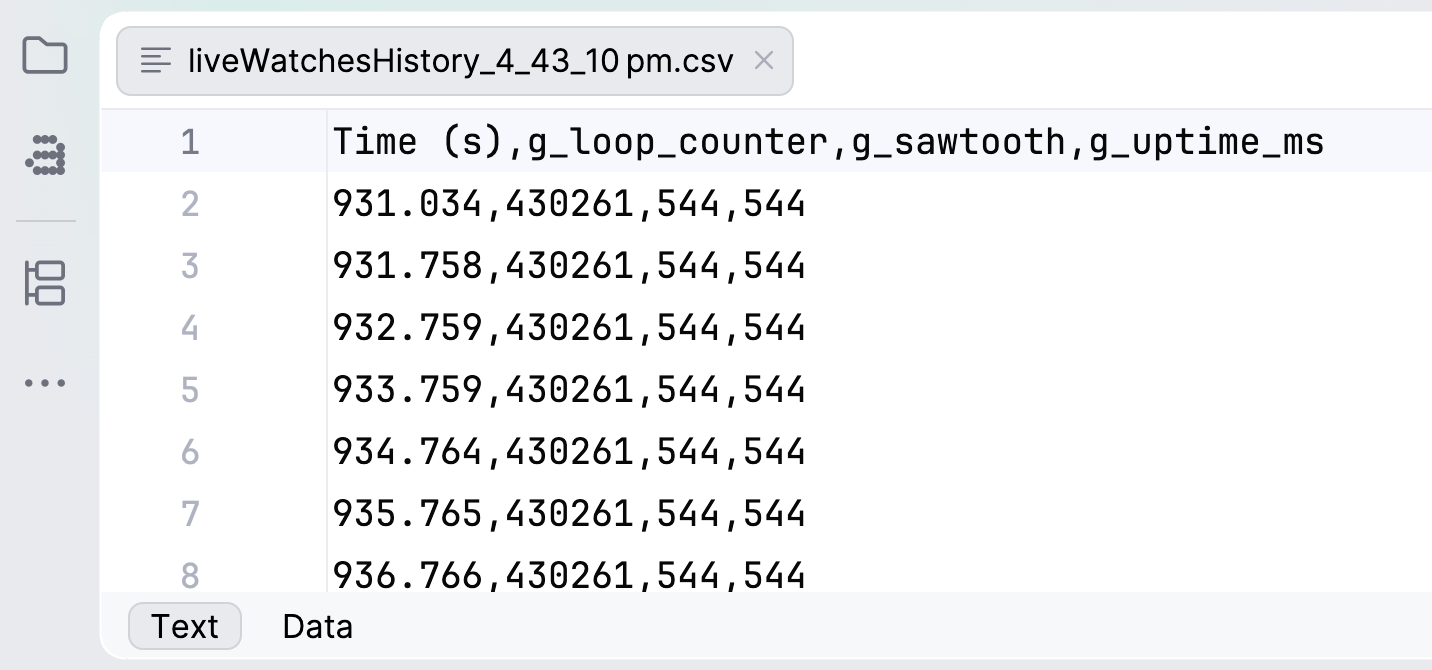
The first column,
Time (s), holds the time elapsed since the start of the session, and every other column holds the values of one watched expression.- Clear History
Click Clear History (
 ) to discard the recorded samples and reset the Max, Min, and Changes columns. This is useful when the history has grown too long, or when it still holds the values that the target produced before your firmware started to work.
CLion keeps the most recent samples only. The limit is set by the cidr.livewatches.history.depth registry key (), which is 10000 samples by default.