Junie by JetBrains
 Junie is an AI coding agent developed by JetBrains whose primary task is to autonomously plan and execute complex, multi-step actions based on your prompt. It can introduce large-scale edits to your project, run tests or terminal commands, and use external tools when needed, while reporting progress to you.
Get started with Junie
To use Junie, you need to install and activate it with a JetBrains AI subscription.
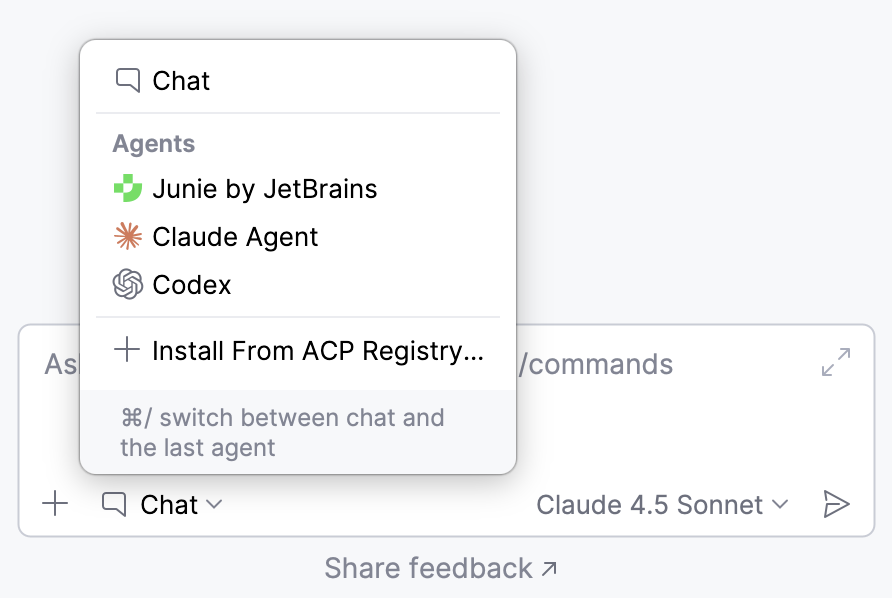
After setup, select  Junie in AI Chat to start using it.
Collect IDE context
Junie can automatically receive context about your current editing session, so you don't have to attach it manually with every prompt. When automatic context is enabled, each request you send includes:
The file currently open in the editor.
The text you have selected in that file, if any.
An indicator in the chat input field shows the current state of automatic context. Click it to switch between the two states:
 IDE context enabled – the active file name and any selected text are attached to each prompt.
 IDE context disabled – no editor context is attached automatically.

Select a model and reasoning level
To select a model that Junie uses to process your requests, click  and select the model from the list.
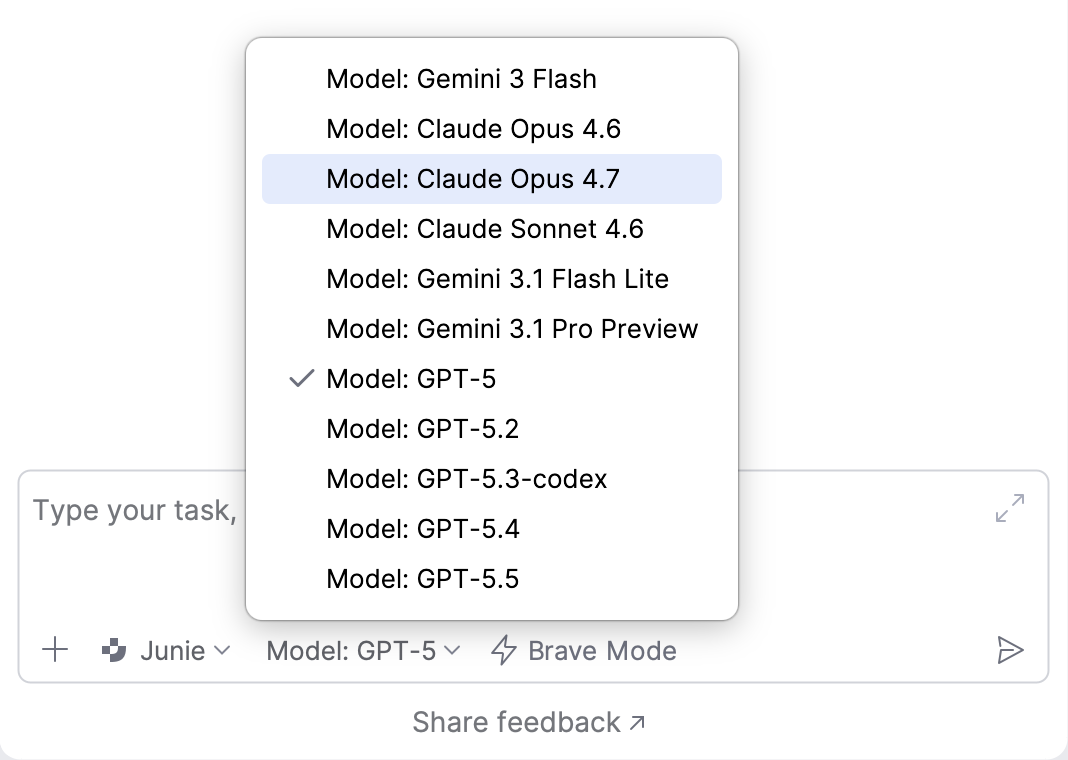
You can also select the Reasoning level for the model. Model reasoning refers to a model's ability to perform multi-step analysis and solve complex tasks. Higher levels increase the amount of reasoning the model applies before it responds, which can lead to higher-quality results on complex or critical tasks but may take longer.
Enable Brave mode
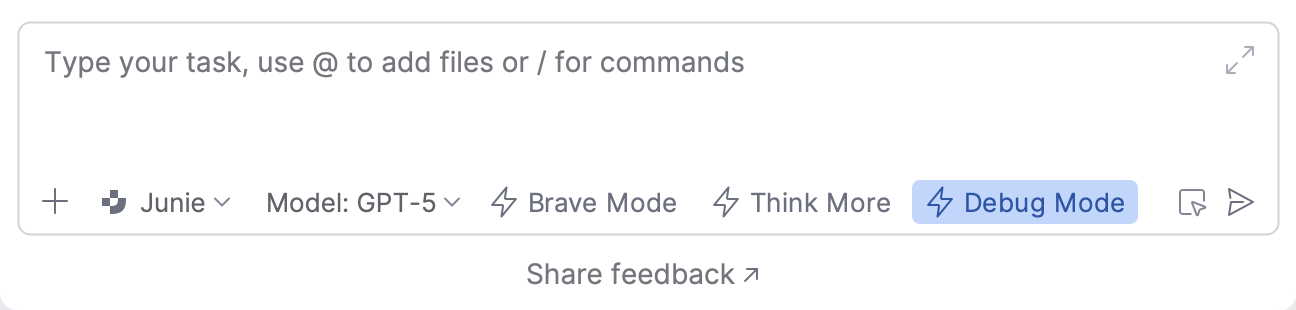
You can allow Junie to execute commands or modify files without asking for confirmation. To enable this behavior, turn on Brave Mode in the chat input field.

Enable Debug mode
Available in: IntelliJ IDEA Ultimate
In Debug mode, Junie works as an AI-powered debugging assistant. Instead of editing code, it launches or attaches to a running program through the IDE debugger to manage breakpoints, inspect the runtime state, and evaluate expressions in the paused execution frame.
How it works
Junie operates against a live debugger session connected to your IDE and uses a specialized set of tools focused on runtime inspection and execution control rather than source code modification:
Session control – launch a new debug session, attach to an existing process, resume execution, or step through code (step over, step into, step out).
Breakpoint management – set line and exception breakpoints, remove existing ones, and list all active breakpoints in the project.
State inspection – inspect variables in the current scope, view the call stack for all threads, and switch between threads and frames.
Expression evaluation – evaluate expressions or code fragments in the context of the currently paused frame.
In this mode, Junie does not modify source code unless you explicitly request a change that is compatible with the current execution state.
Enable debugger MCP tools for Junie
Debug mode relies on a specialized set of MCP tools provided by the bundled Debugger MCP Toolset and MCP Server plugins. These plugins require IntelliJ IDEA 2026.1.1 or newer. To ensure the MCP tools are available to Junie:
Go to , search for
MCP, and enable both the MCP Server and Debugger MCP Toolset plugins.Make sure that the MCP server is enabled in .
Make sure that the DebuggerToolset tools are enabled in .
Go to and connect to the IDE MCP server.
The JSON configuration may look like this:
{ "mcpServers": { "idea-mcp": { "type": "streamable-http", "url": "http://127.0.0.1:64342/stream", "headers": {} } } }Restart the IDE.
Example interactions
Once the debugger MCP tools are set up, ask Junie to debug your code in plain language. For example:
Why is
xnull? – Junie inspects the current paused frame, retrieves the value ofxand the surrounding context (call stack, related variables), and explains the state.Stop at line 42 in
Main.kt. – Junie sets a line breakpoint at the requested location.What is
list.size()? – Junie evaluates the expression in the current frame and reports the result.
Approve operations
By default, Junie requests your permission to run suggested bash commands, introduce changes, perform file operations, or use external tools. In this case, you can either approve or reject the operation.
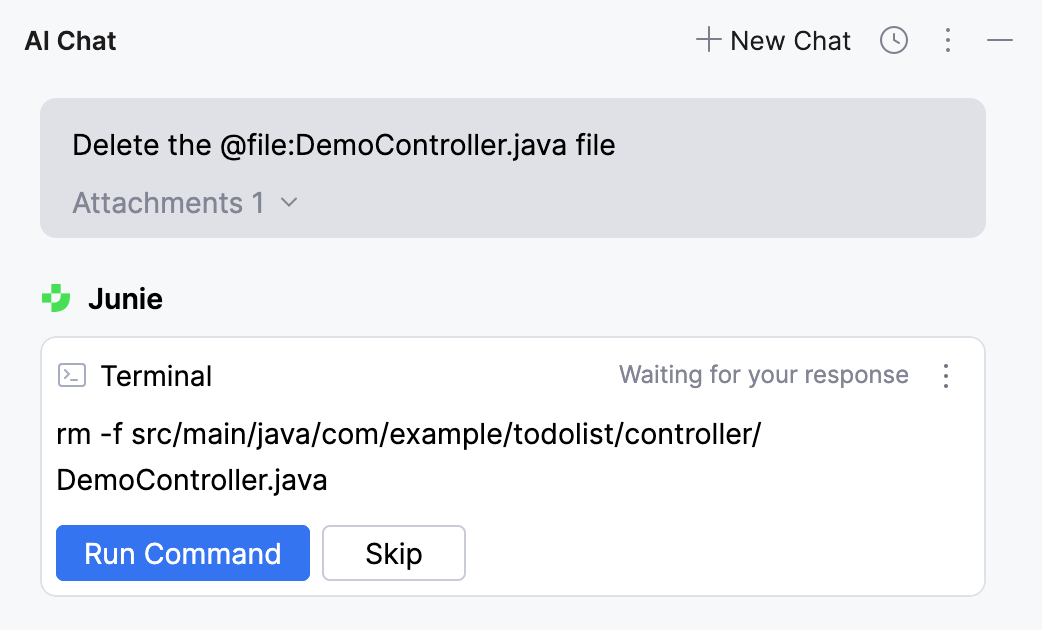
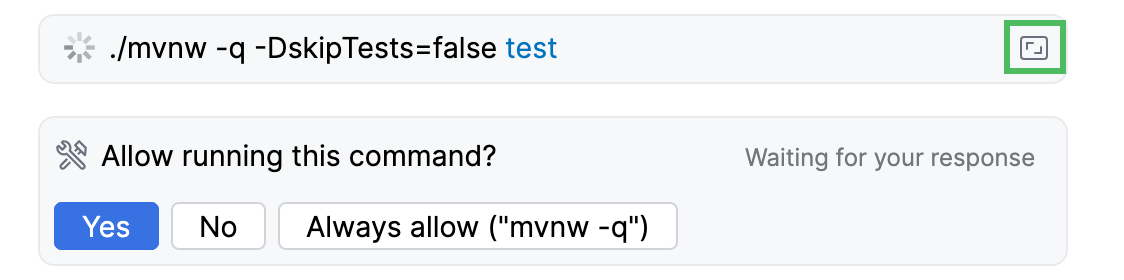
Yes – allows Junie to execute the command. You will be asked again if the command is requested later.
No – prevents Junie from executing this command.
Always allow – allows Junie to execute the required command automatically, without asking for permission.
Before you decide, you can review what the agent is about to do:
For a suggested file change, click the modified file to review the changes the agent introduces.

For a suggested command, click Open in editor in the top-right corner of the widget to review the complete command the agent suggests to run.
Rollback operations
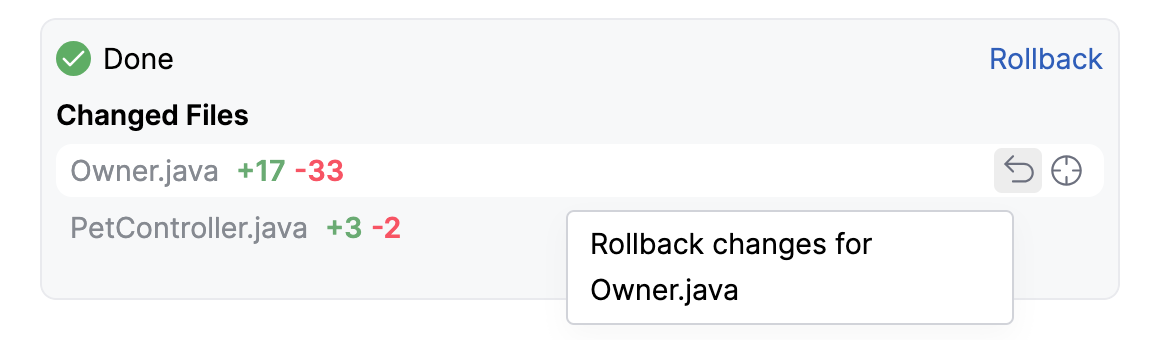
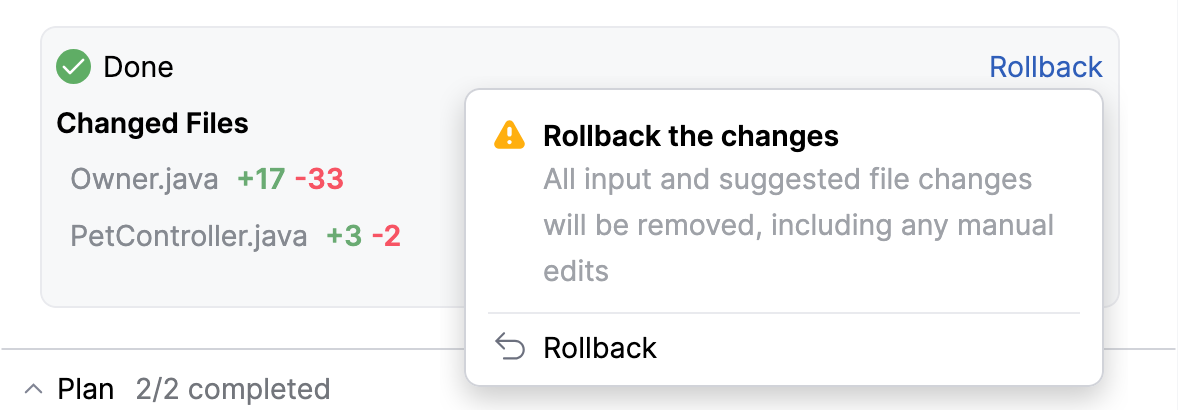
If the changes introduced by Junie do not suit you, you can roll them back. To do this:
Navigate to the pane listing the changed files.
Do one of the following:
To roll back changes in a specific file, hover over it and click
 .
.
To roll back changes in all files, click Rollback.
Use /commands
Junie supports a subset of /commands that you can type directly in the chat to run actions such as checking the session status, managing the current session, or viewing the agent configuration.
To see the commands available in the current session, type / in the chat input field and select a command from the list.
The following /commands are currently supported:
/ide– shows the current JetBrains IDE connection status and the JetBrains IDE features available to the current session./usage– shows the cost breakdown for the current session, including token usage and used models./remote– starts a remote session that lets you control Junie from a web UI in your browser. When you run the command, Junie posts a message in AI Chat confirming that the remote session has started, along with a link to connect to it. Open the link, log in with your JetBrains account, and you will see the remote session. Click Open Chat to start working with the agent from the web UI.The remote session lives as long as the IDE is running. Run
/remoteagain to display the Remote Session Status.
Enable use of external tools
You can enable Junie to use tools provided by configured Model Context Protocol (MCP) servers, extending its capabilities to perform a wider range of tasks. The available tools can be invoked automatically when the agent considers them necessary, or you can call them manually when writing a request.
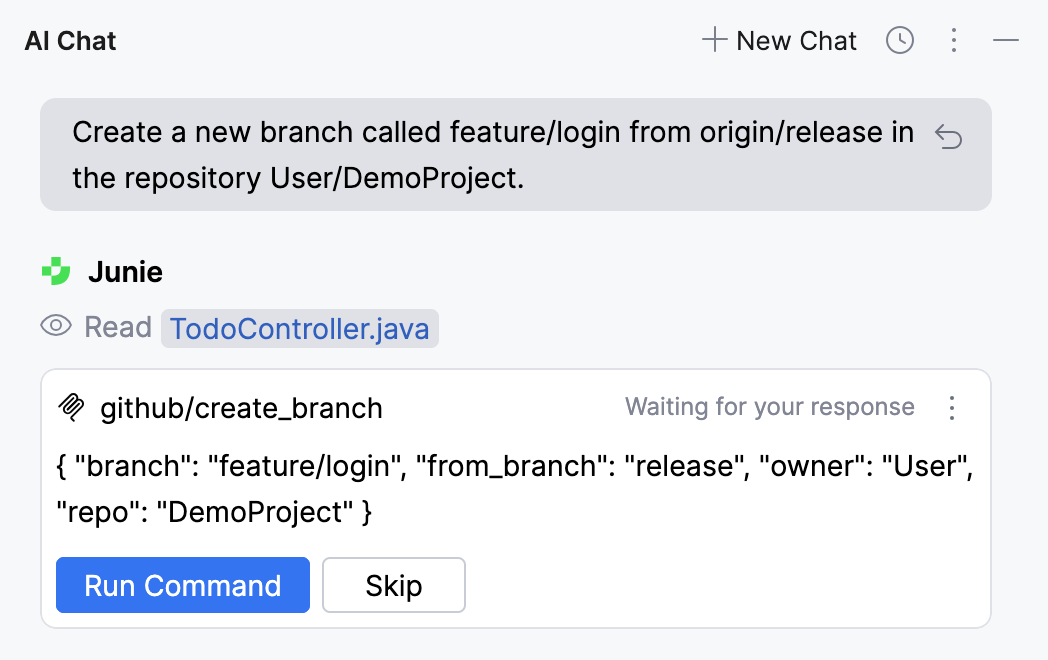
To enable Junie to use tools:
Make sure the MCP servers you want to expose to the agent are already configured in . For details on adding and configuring MCP servers, refer to Model Context Protocol (MCP).
In the IDE settings (Ctrl+Alt+S), go to .
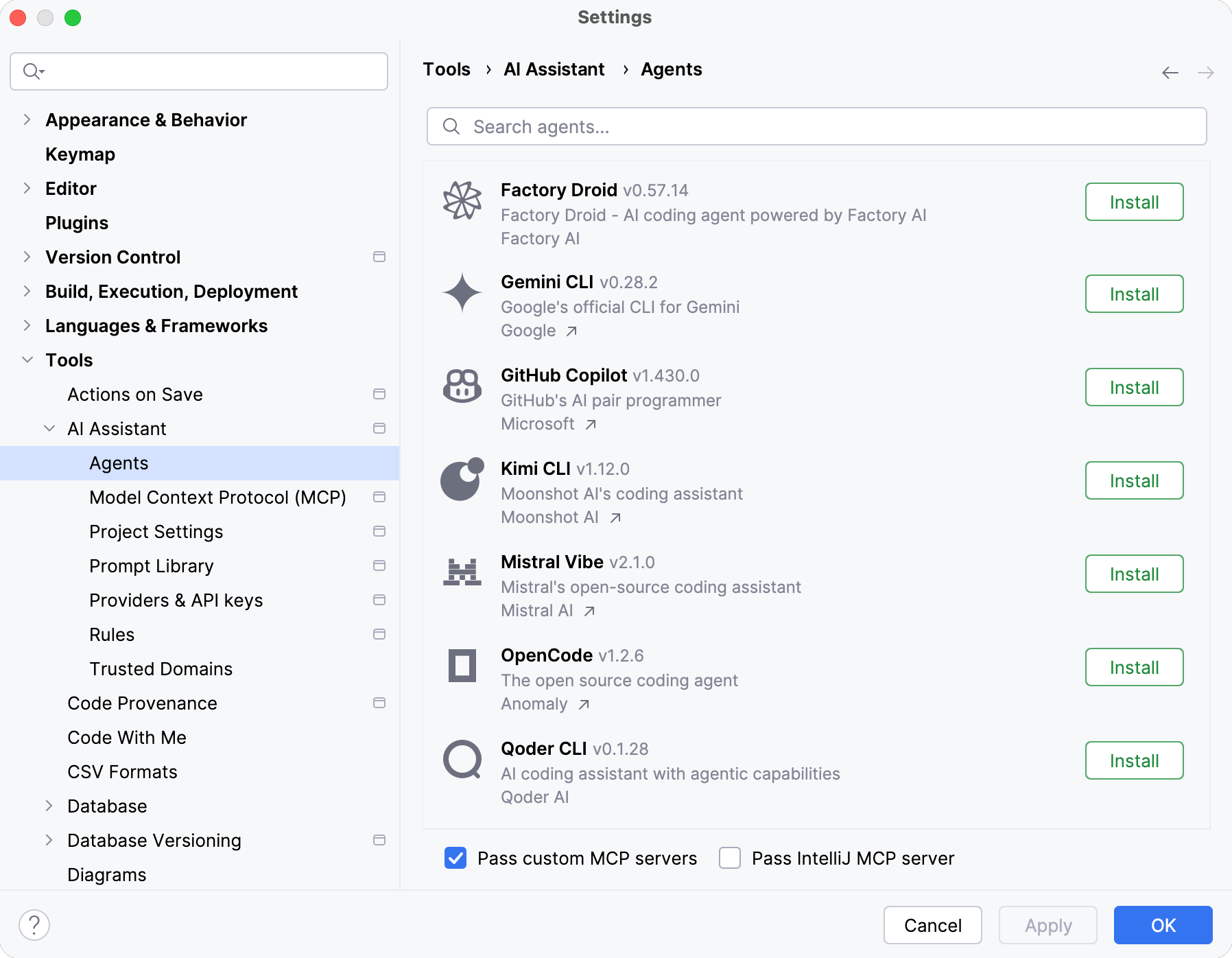
Enable the Pass custom MCP servers setting.
Click OK.
Add instructions
Instructions let you provide persistent, reusable context to the agent. Junie adds this context to every task it works on, so you don't have to repeat project-specific instructions in each prompt.
Junie reads instructions from the AGENTS.md file in the root project directory, so you can keep them under version control and reuse them across the project.
For more information about instruction files and their format, refer to Agent instructions.
Restrict access with .aiignore
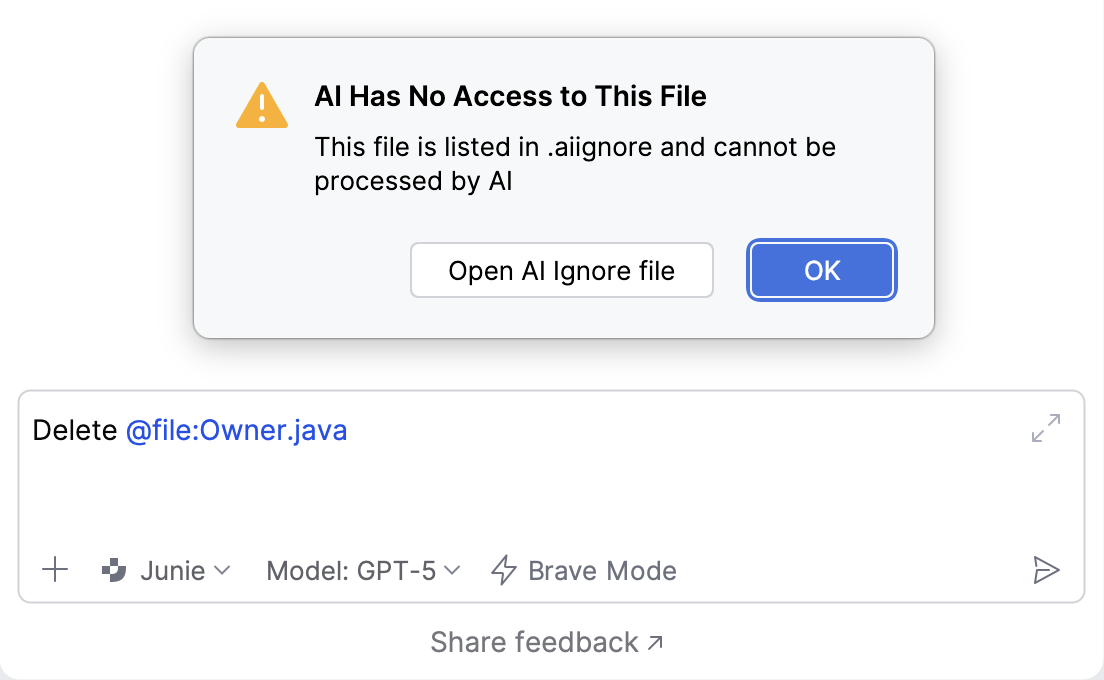
Junie respects the existing .aiignore file, so if you have one configured in your project, it will not process any files or directories listed there unless you explicitly permit it to do so.