Claude Agent
 Claude Agent is a third-party coding agent by Anthropic available for use in AI Assistant. It understands your codebase, can plan and execute development tasks, and interact with your environment using tools, running commands, and analyzing their results to complete complex programming workflows.
Get started with Claude Agent
To use Claude Agent, you need to install and activate it using one of the supported authentication methods. For instructions, refer to:
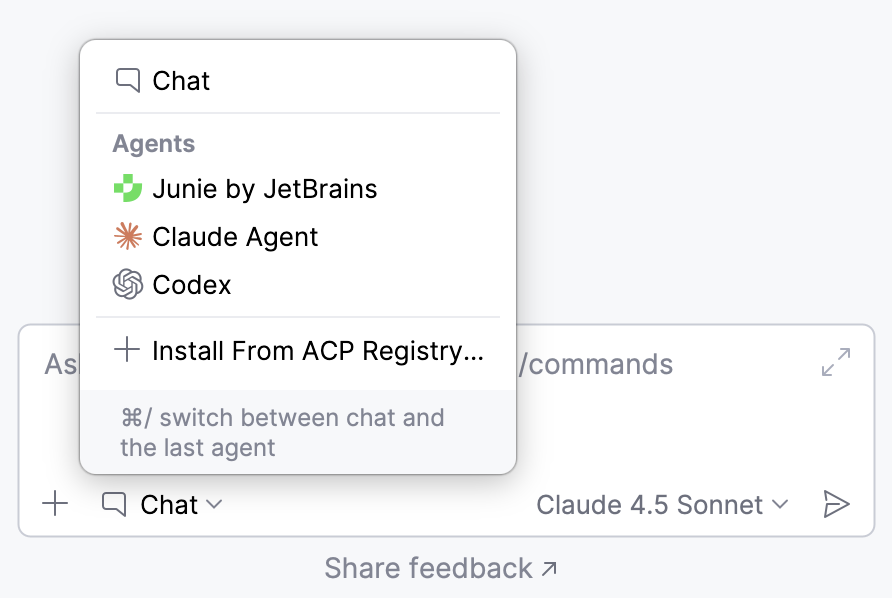
After setup, select Claude Agent in AI Chat to start using it.
Collect IDE context
Claude Agent can automatically receive context about your current editing session, so you don't have to attach it manually with every prompt. When automatic context is enabled, each request you send includes:
The file currently open in the editor.
The text you have selected in that file, if any.
An indicator in the chat input field shows the current state of automatic context. Click it to switch between the two states:
 IDE context enabled – the active file name and any selected text are attached to each prompt.
 IDE context disabled – no editor context is attached automatically.

Select operation mode
Claude Agent can operate in different modes, each providing a distinct level of autonomy and interaction.
To select an operation mode, click  and select a mode from the list.
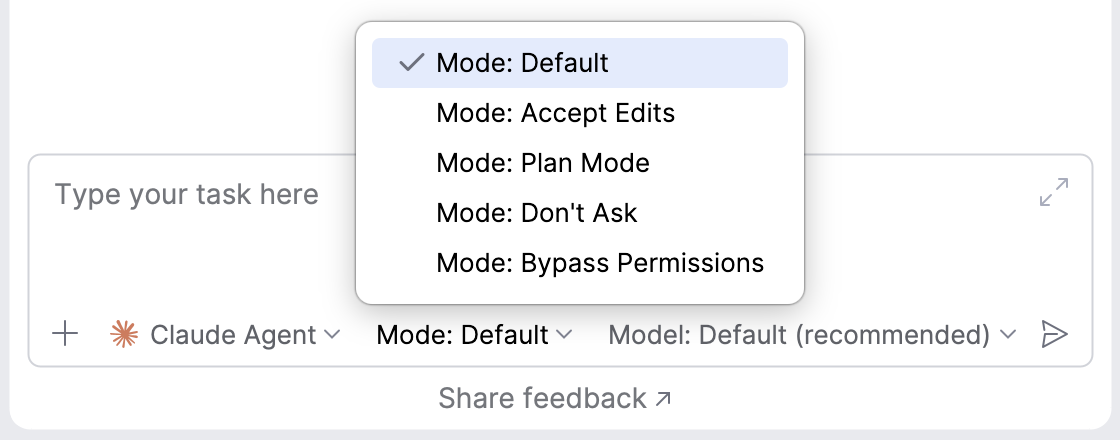
The following modes are available:
Auto – let the model decide whether to approve or deny the permission prompts.
Default – standard behavior; prompts for potentially dangerous operations.
Accept Edits – automatically applies file edits.
Plan Mode – enables planning without executing actions.
Don't Ask – does not prompt for permissions and denies actions that are not pre-approved.
Bypass Permissions – bypasses all permission checks.
Select a model and reasoning level
To select a model that Claude Agent uses to process your requests, click and select the model from the list.
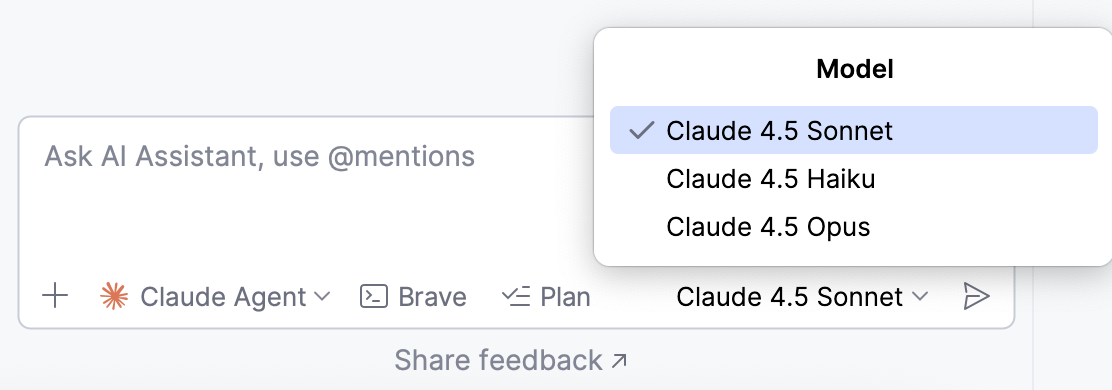
You can also select the Reasoning level for the model. Model reasoning refers to a model's ability to perform multi-step analysis and solve complex tasks. Higher levels increase the amount of reasoning the model applies before it responds, which can lead to higher-quality results on complex or critical tasks but may take longer.
Speed up responses
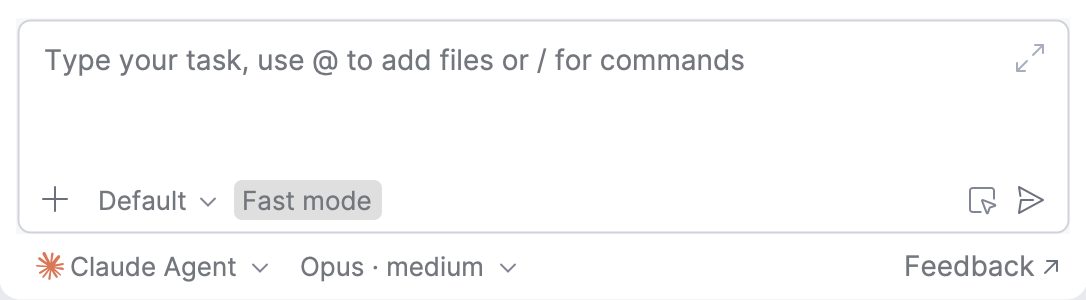
When you need quicker responses during interactive work, enable Fast mode. It makes a model generate its output faster without switching to a smaller or less capable model.
To turn Fast mode on or off, use the Fast mode toggle next to the operation mode selector.
Approve operations
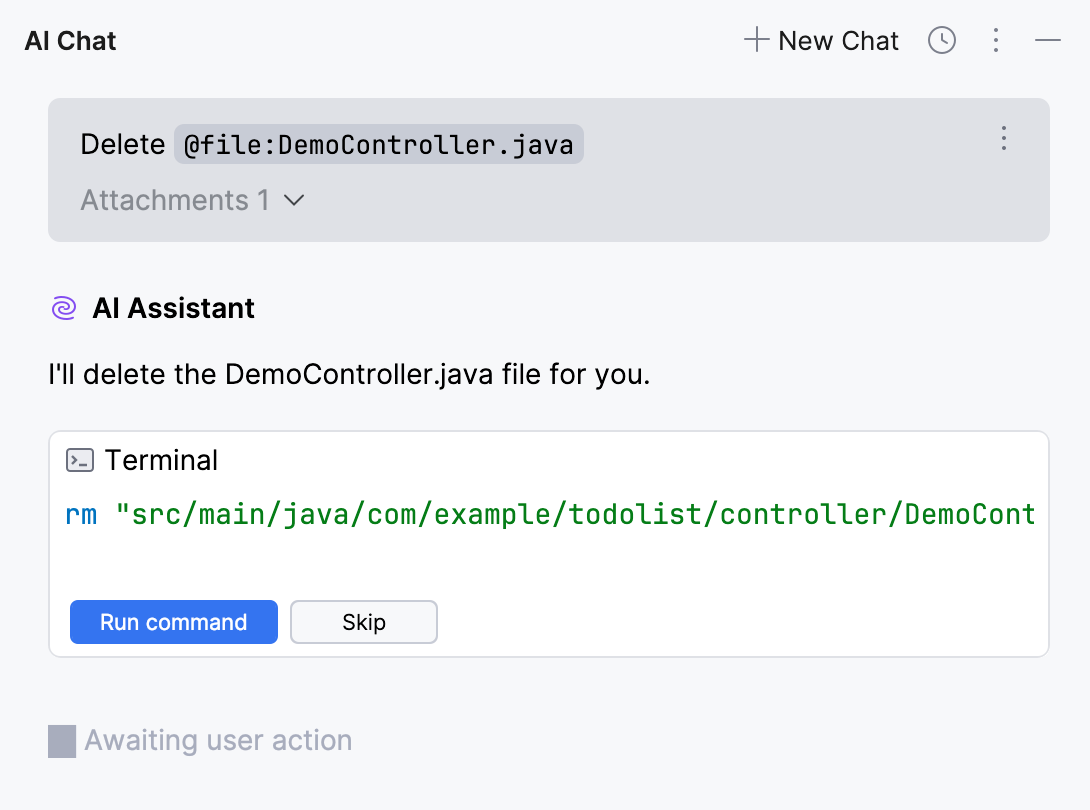
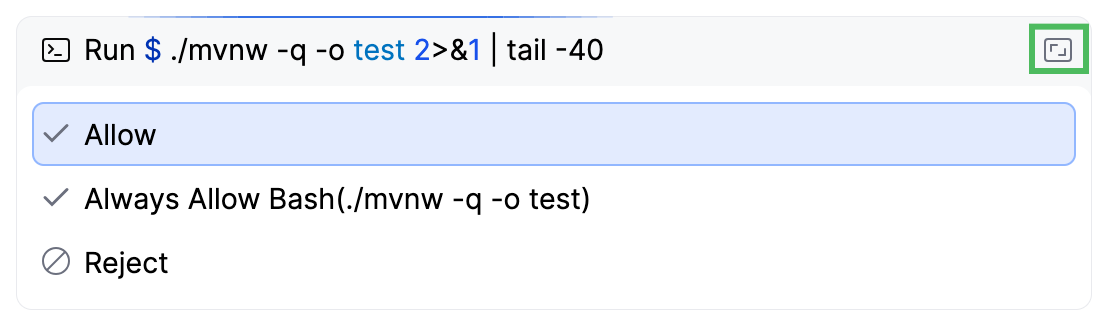
By default, Claude Agent requests your permission to run suggested bash commands, introduce changes, perform file operations, or use external tools. In this case, you can either approve or reject the operation.
Allow – allows Claude Agent to execute the command. You will be asked again if the command is requested later.
Always Allow – allows Claude Agent to execute this command automatically, without asking for permission.
Reject – prevents Claude Agent from executing this command.
Before you decide, you can review what the agent is about to do:
For a suggested file change, click
 to review the changes the agent introduces.
For a suggested command, click Open in editor in the top-right corner of the widget to review the complete command the agent suggests to run.
Rollback operations
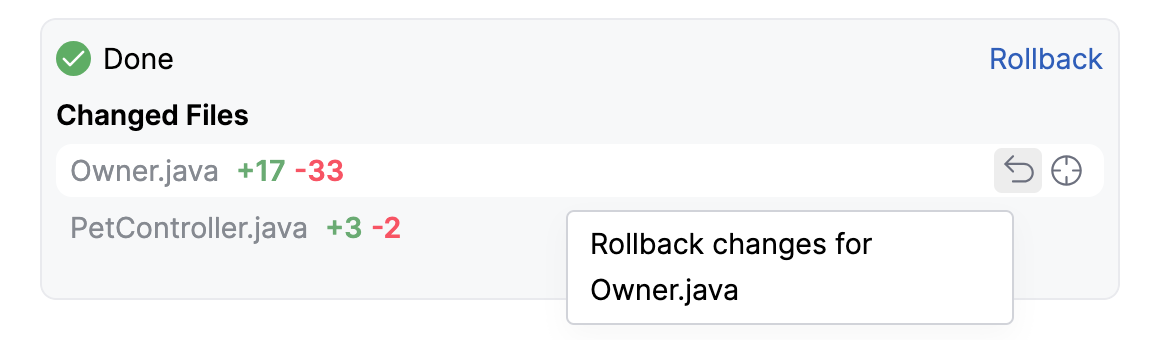
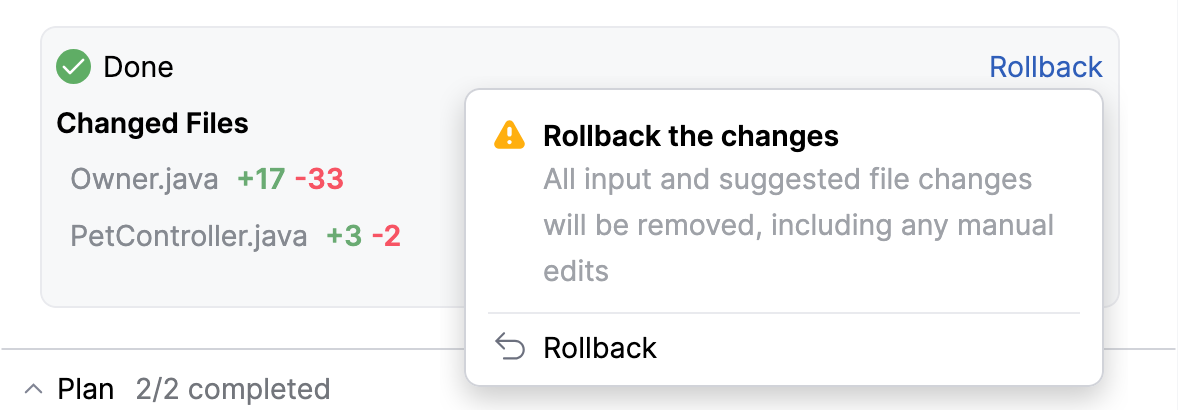
If the changes introduced by Claude Agent do not suit you, you can roll them back. To do this:
Navigate to the pane listing the changed files.
Do one of the following:
To roll back changes in a specific file, hover over it and click
 .
.
To roll back changes in all files, click Rollback.
Enable use of external tools
You can enable Claude Agent to use tools provided by configured Model Context Protocol (MCP) servers, extending its capabilities to perform a wider range of tasks. The available tools can be invoked automatically when the agent considers them necessary, or you can call them manually when writing a request.
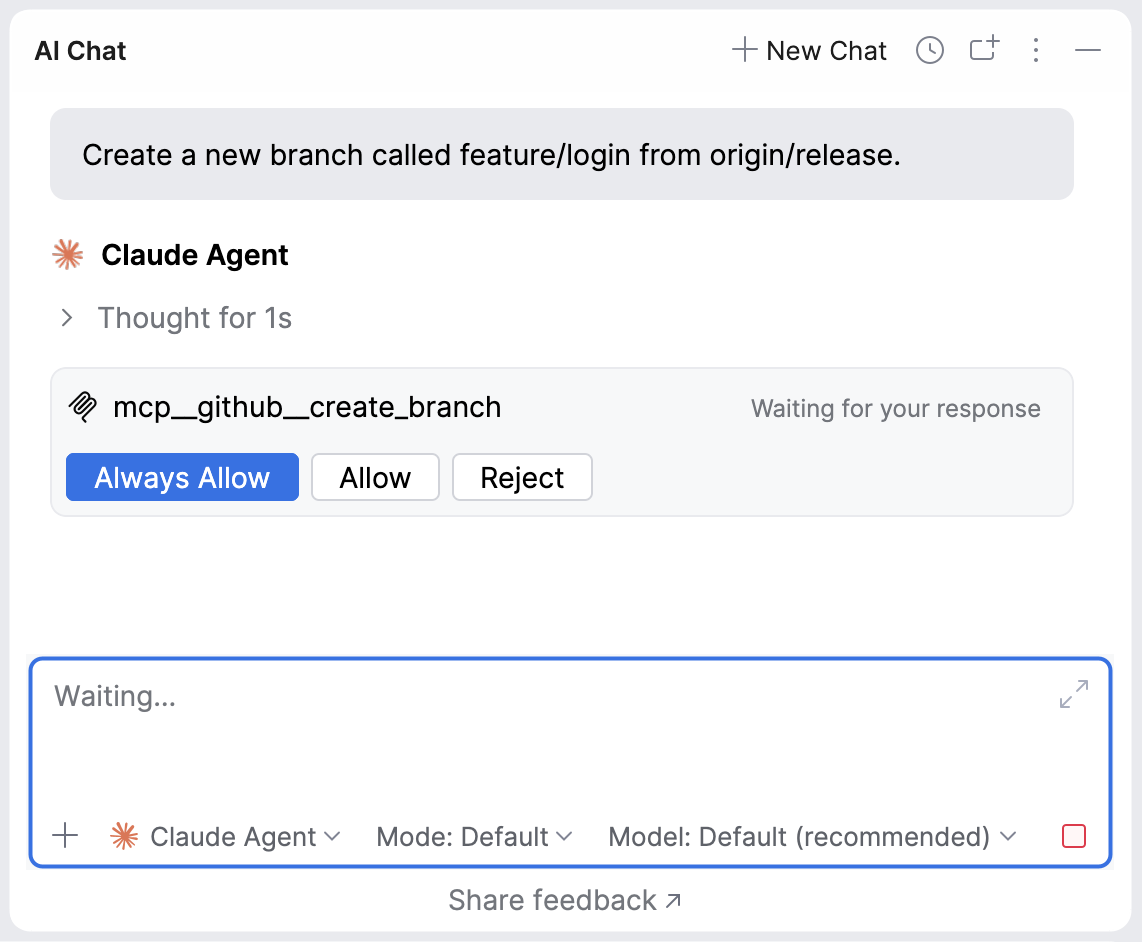
To enable Claude Agent to use tools:
Make sure the MCP servers you want to expose to the agent are already configured in . For details on adding and configuring MCP servers, refer to Model Context Protocol (MCP).
In the IDE settings (Ctrl+Alt+S), go to .
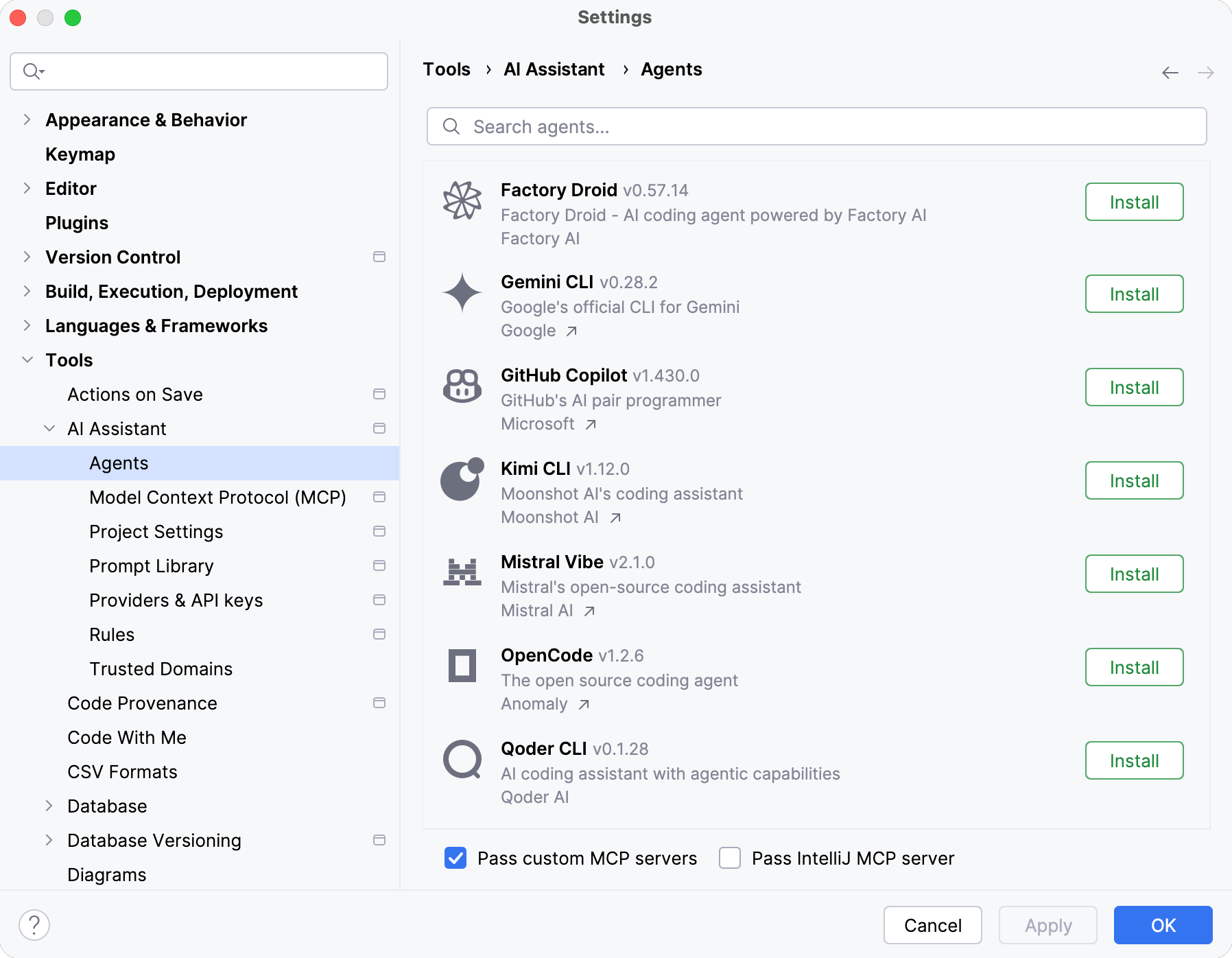
Enable the Pass custom MCP servers setting.
Click OK.
Enable use of database-specific tools
Available in: DataGrip and IDEs with Database Tools and SQL plugin
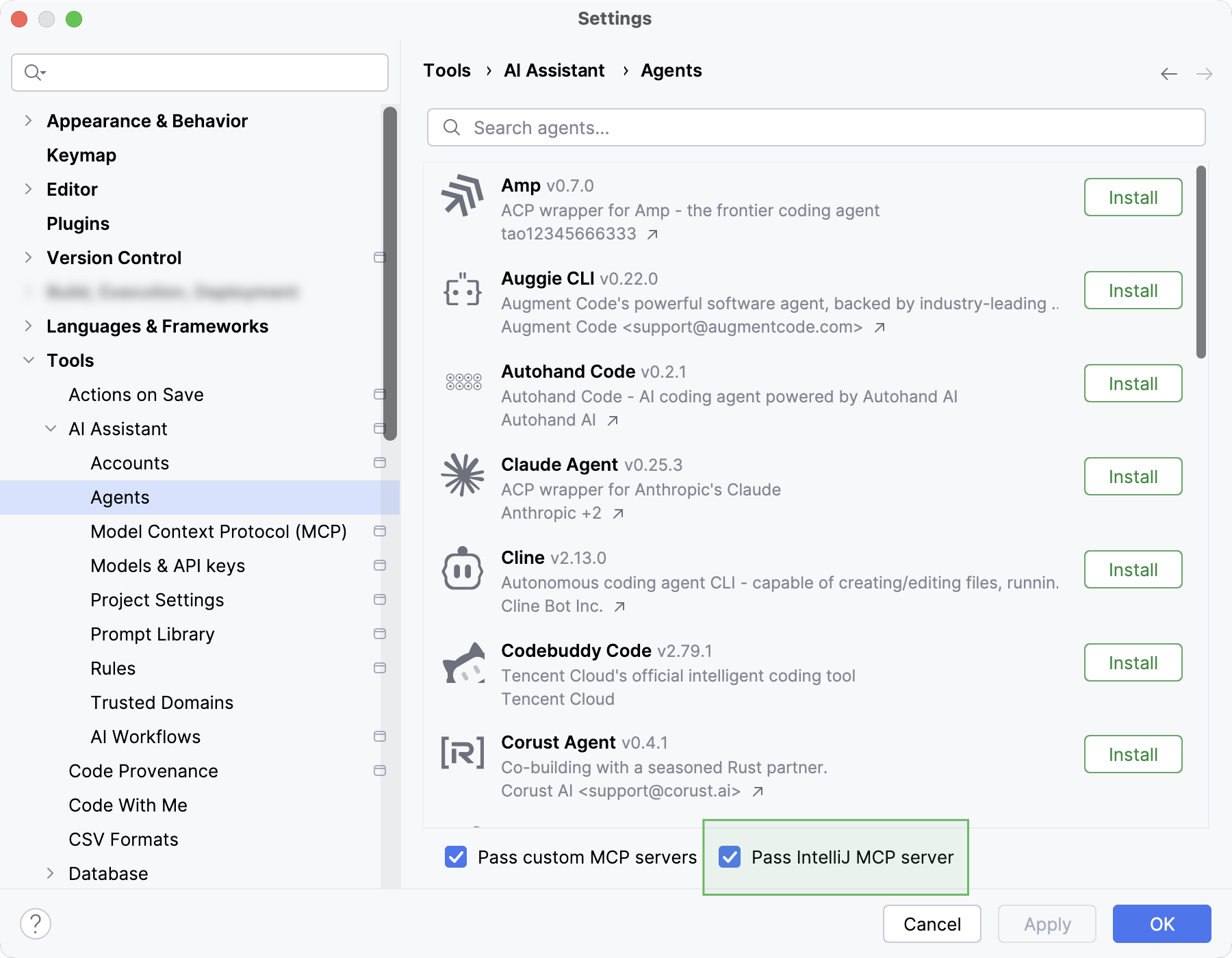
Claude Agent requires the Pass IntelliJ MCP Server setting to be enabled to use database-specific tools:
In the IDE settings (Ctrl+Alt+S), go to .
Enable the Pass IntelliJ MCP server setting.
Click OK.
Add instructions
Instructions let you provide persistent, reusable context to the agent. Claude Agent adds this context to every task it works on, so you don't have to repeat project-specific instructions in each prompt.
Claude Agent reads instructions from the CLAUDE.md file in the root project directory, so you can keep them under version control and reuse them across the project.
For more information about instruction files and their format, refer to Agent instructions.
Use /commands
Claude Agent supports a subset of /commands that you can type directly in the chat to run actions such as checking the session status, managing the current session, or viewing the agent configuration.
To see the commands available in the current session, type / in the chat input field and select a command from the list.
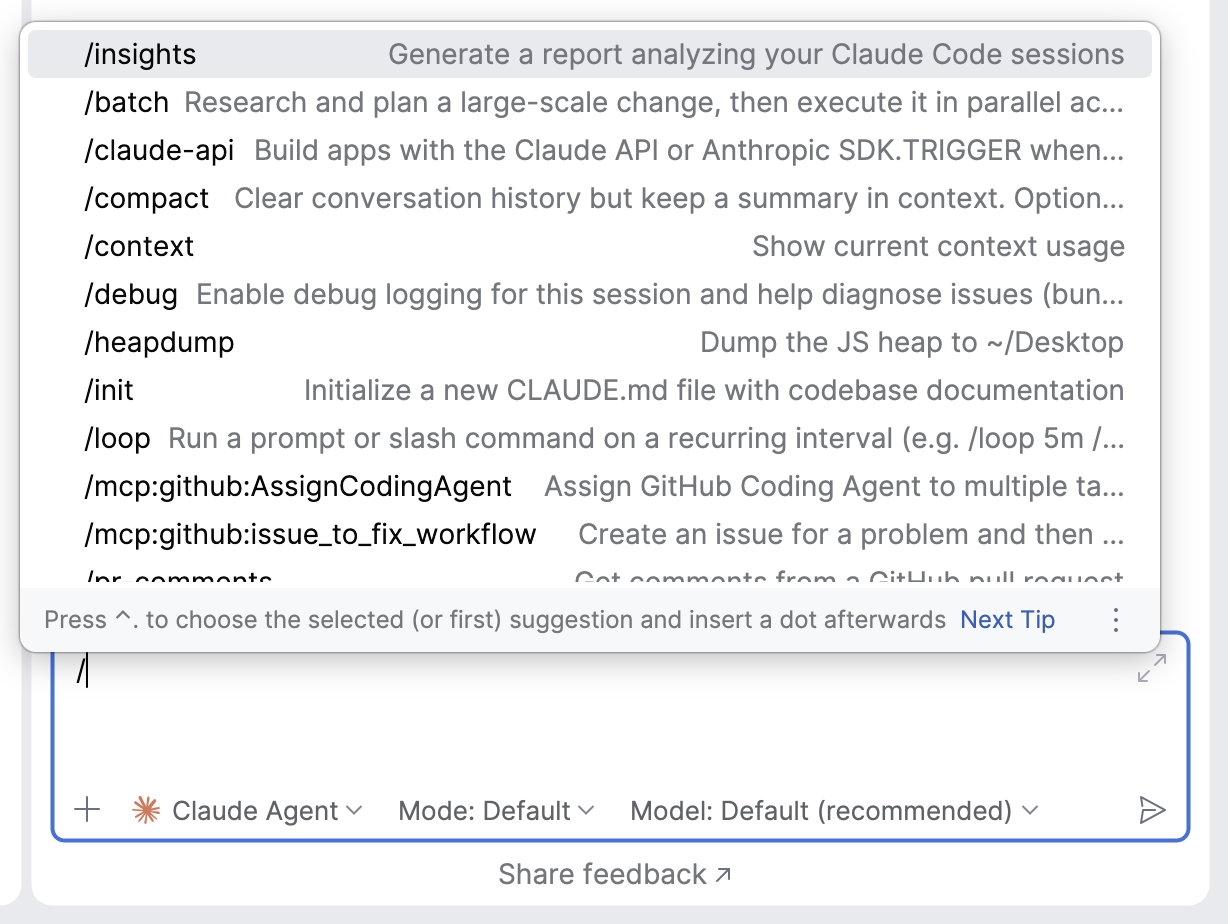
For details on specific commands, refer to the official Anthropic documentation.