Agent Client Protocol (ACP)
AI Assistant supports the Agent Client Protocol (ACP), allowing you to connect external AI agents and use them in the AI Chat. ACP defines a standard communication interface, so any agent that implements the protocol can be added without requiring a custom integration.
ACP-compatible agents can be installed from a curated registry or set up manually. Agents from the registry require no additional setup, while custom ones require configuration.
- Where to get an agent
As a starting point, you can explore the registry of ACP-compatible agents. It lists a set of curated agents available for use without manual setup.
Alternatively, visit the official ACP website for a list of compatible agents. Linked agent pages provide download instructions and the required configuration details.
- Subscription requirements
You can connect and use ACP-compatible agents without a JetBrains AI service subscription. For more information, refer to the Add ACP agents section.
- Limitations
Currently, ACP-compatible agents are not supported in the Windows Subsystem for Linux (WSL).
Install an agent from a registry
You can select and install an agent from the registry, which contains a list of curated ACP-compatible agents that can be accessed directly from your IDE.
Open the
 AI Chat tool window.
Click
 to open the chat mode selector and select the Install From ACP Registry option.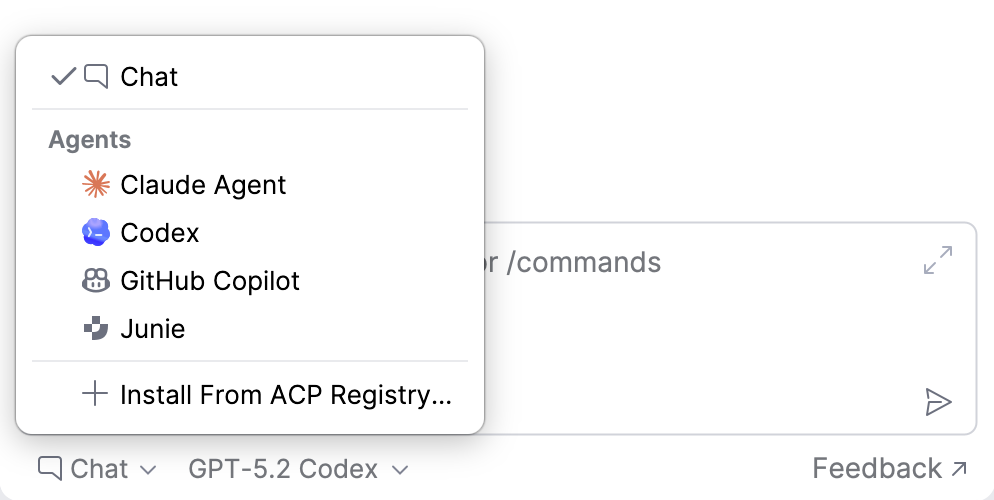
Alternatively, navigate to .
On the Agents page, install the agent that you want to use. Additionally, configure the MCP settings as needed.
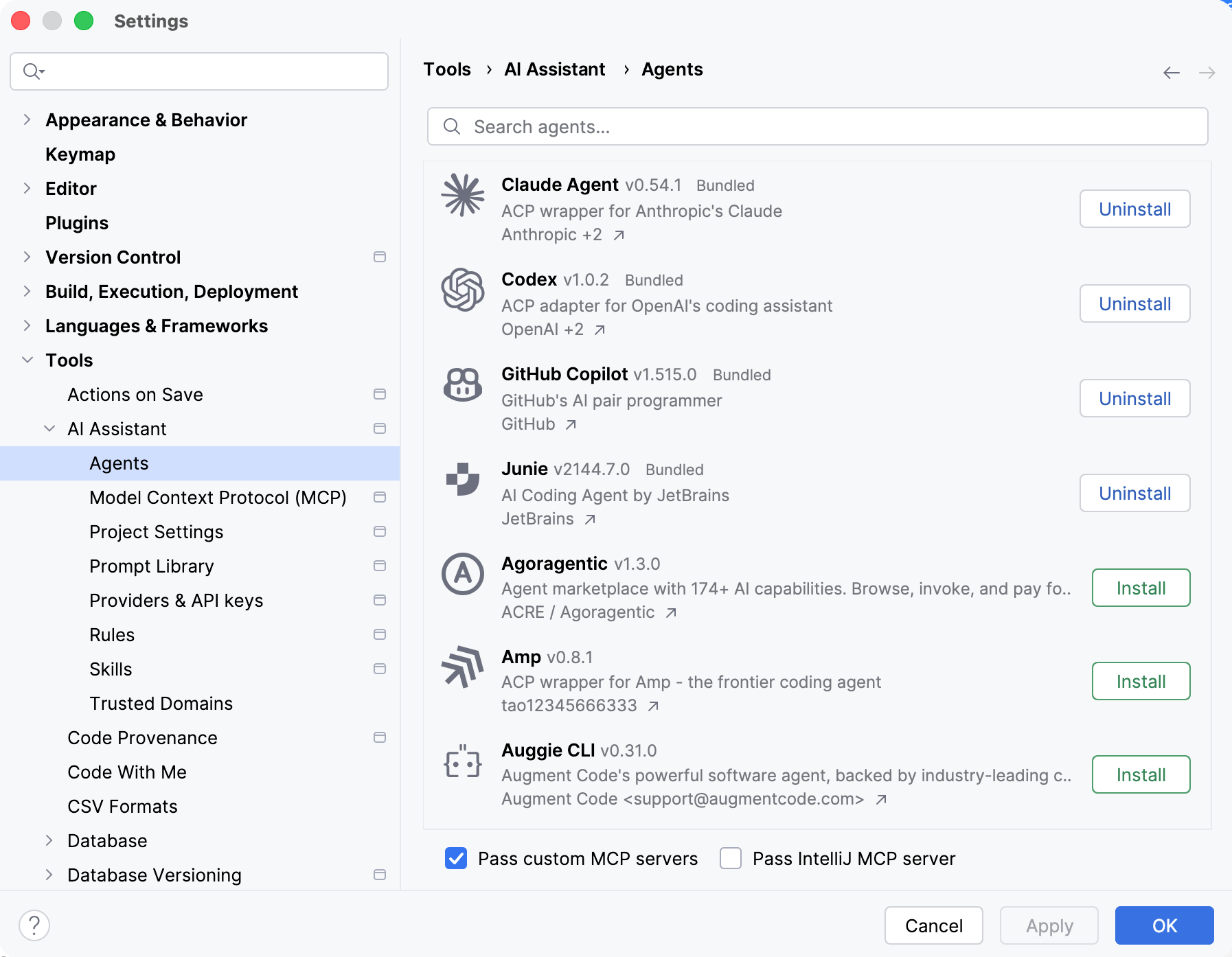
Pass custom MCP servers – enable this setting to expose configured MCP servers to installed agents.
Pass IntelliJ MCP server – enable this setting to expose the integrated IntelliJ MCP server to installed agents.
Click OK to apply changes.
During installation, the IDE automatically:
Downloads the required agent files.
Downloads and manages a Node.js or Python runtime if required. If a compatible runtime is already available, the IDE reuses it instead.
Prepares the agent for use.
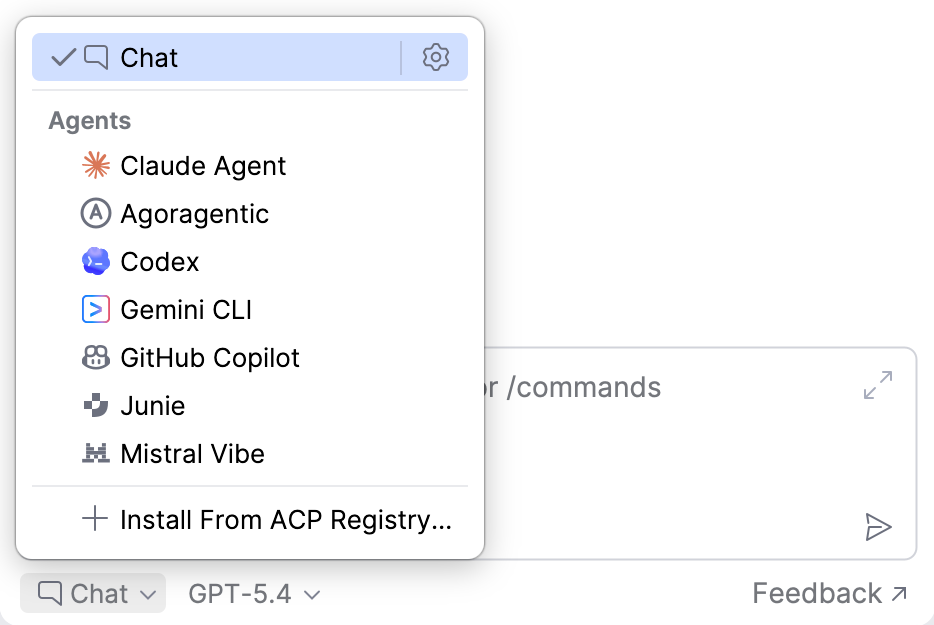
After installation, the selected agent is ready and becomes available for use in AI Chat.
Update agents
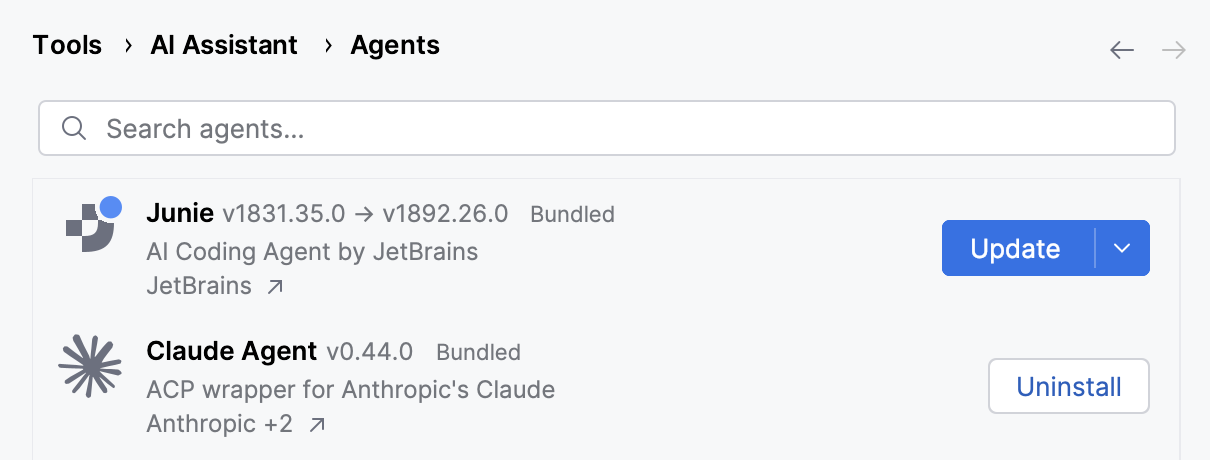
If a newer version of the agent becomes available, a blue dot appears next to it in the registry. To update the agent:
Navigate to .
Locate the agent with the newer version available.
Click Update.
Click OK to apply changes.
Uninstall agents
To uninstall agents:
Navigate to .
Locate the agent that you want to uninstall.
Click Uninstall.
Click OK to apply changes.
Add a custom agent
If you want to add a custom agent not listed in the registry, you need to provide its configuration in the acp.json file:
Open the
AI Chat tool window.Click the
 button in the upper-right corner of the AI Chat tool window and select Add Custom Agent.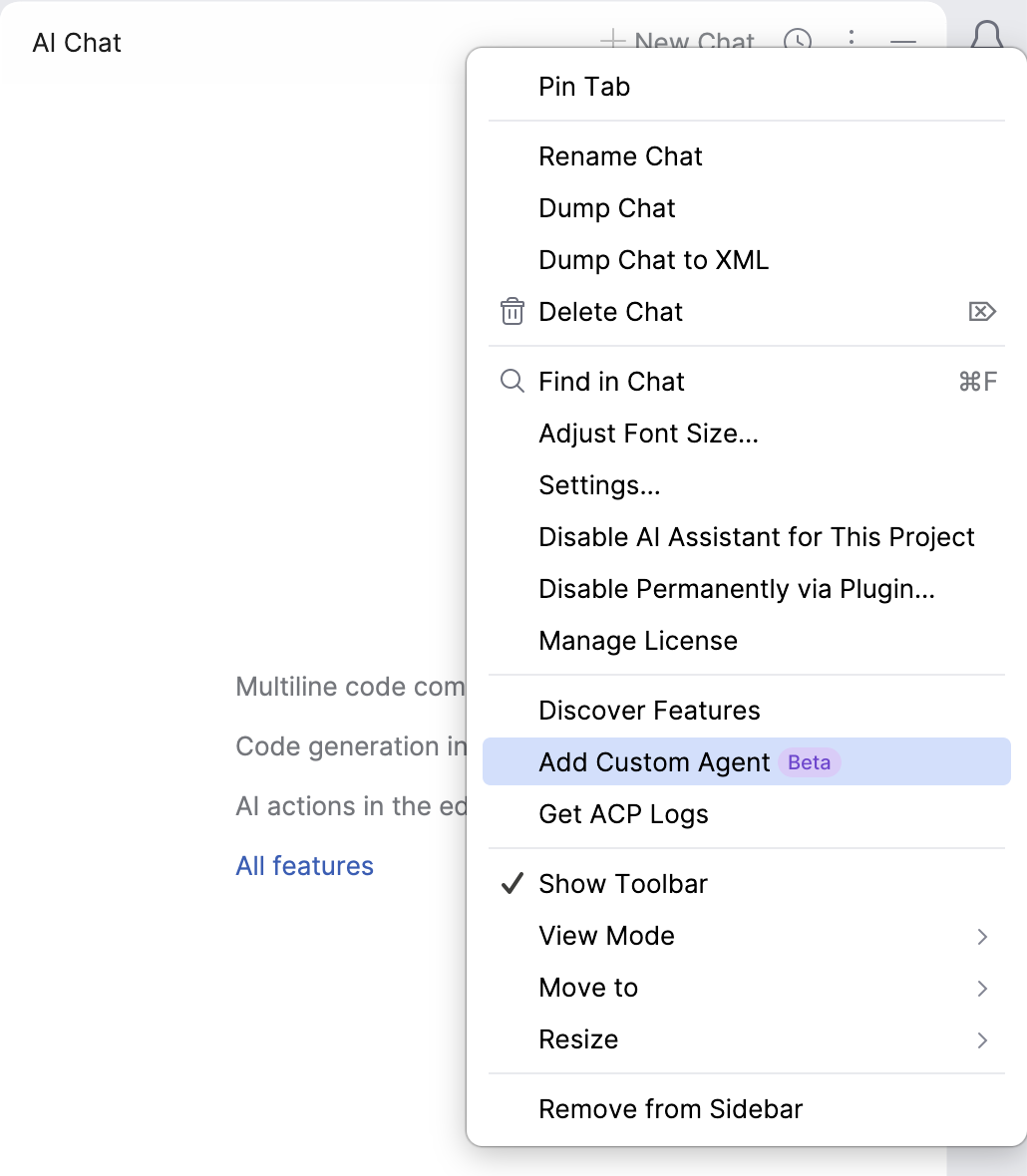
Choosing this option creates the acp.json file at ~/.jetbrains/acp.json and opens it for editing, where you need to provide the configuration details.
Populate the configuration file with the details of your agent. You can add multiple agents if needed. The configuration needs to follow this format:
{ "default_mcp_settings": {}, "agent_servers": { "Example Agent": { "command": "/path/to/agent", "args": [ "acp" ], "env": { "API_KEY": "your-api-key-here" } } } }default_mcp_settings– defines the default MCP configuration applied to all local agents, unless overridden by agent-specific MCP settings. Has two options:use_custom_mcp– controls whether user-configured MCP servers are exposed to the agent. Set totrueby default.use_idea_mcp– controls whether the integrated IntelliJ MCP Server is exposed to the agent. Set tofalseby default. When this option is set totrue, you can optionally restrict the tools available from the integrated MCP Server by specifying theidea_mcp_allowed_toolskey. If not specified, all available tools from the integrated MCP Server are exposed to the agent.
agent_servers– top-level object that contains all configured agents. Each key inside this object is the display name of the agent as it appears in AI Chat.Example Agent– display name used to identify the agent.command– path to the agent executable. AI Assistant launches this file as a subprocess.args– array of command-line arguments passed to the agent when it starts.env– collection of environment variables set for the agent process.
Once you complete the configuration, the agent becomes available for selection in AI Chat. Added agents are indicated by the  icon.
icon.
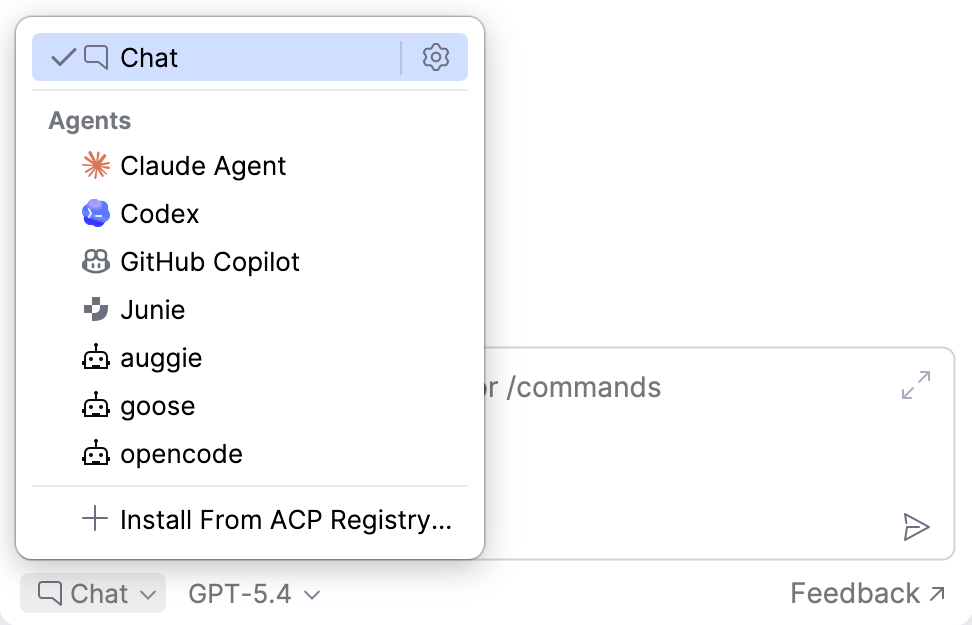
To use the configured agent, select it in the list, enter a prompt, and send it.
Collect ACP logs
To collect logs for configured agents, click the button in the upper-right corner of the AI Chat tool window and select Get ACP Logs. This will download an archive containing the agent logs.
To collect more detailed logs, including all requests sent to agents and their responses, enable the llm.agent.extended.logging key in the Registry:
In the main menu, go to or press Shift twice to open the search window.
Type Registry and press Enter.
In the dialog that opens, find the
llm.agent.extended.loggingkey using Ctrl+F and enable it.Click Close and restart the IDE to apply the changes.
After the IDE restarts, you can collect logs as usual using the Get ACP Logs action.
Configuration example
This section shows an example of what an ACP configuration file may look like:
Troubleshooting
This section contains troubleshooting tips for ACP-compatible agents.
- Added agent is not shown in the list
Agents added to the acp.json file should become available in AI Chat right away. If an agent does not appear in the list:
Check that the acp.json file is correctly formatted.
Restart the IDE.
- Agent fails to start
If the custom agent fails to start, try the following:
Ensure that all provided parameters have the correct values, as different agents may require different keys or arguments.
Use the full path to the agent executable in the
commandparameter.If the agent supports a console mode, try running it manually from a terminal to verify that it works.
If the issue persists, do the following: