AI Assistant Help

AI Chat

AI Chat is the main entry point for interacting with the LLMs supported by AI Assistant. Here, you can have a conversation with the language model, ask questions about your project, or iterate on a task.

Basically, the interaction comes down to the following steps:

  • Select a chat mode
    AI Chat can operate in two modes: Chat for everyday questions, and Agent for advanced development tasks.

  • Select a chat mode
  • Add context to your request
    Provide information relevant to your request. Add files, folders, images, symbols, or other elements that can serve as context for your query.

  • Add context
  • Process the response
    AI Assistant can answer questions, generate code snippets and terminal commands, and edit files. Each suggestion can be processed individually, as you see fit.

  • Process the response

Start a new chat

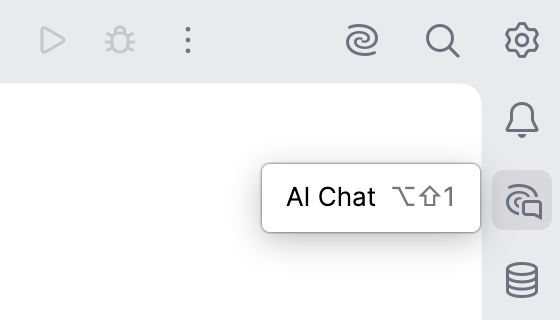
To start a chat with AI Assistant, click AI Chat on the right toolbar (in DataGrip, click the More tool windows icon More tool windows in the header and select AI Assistant).

Open AI Chat

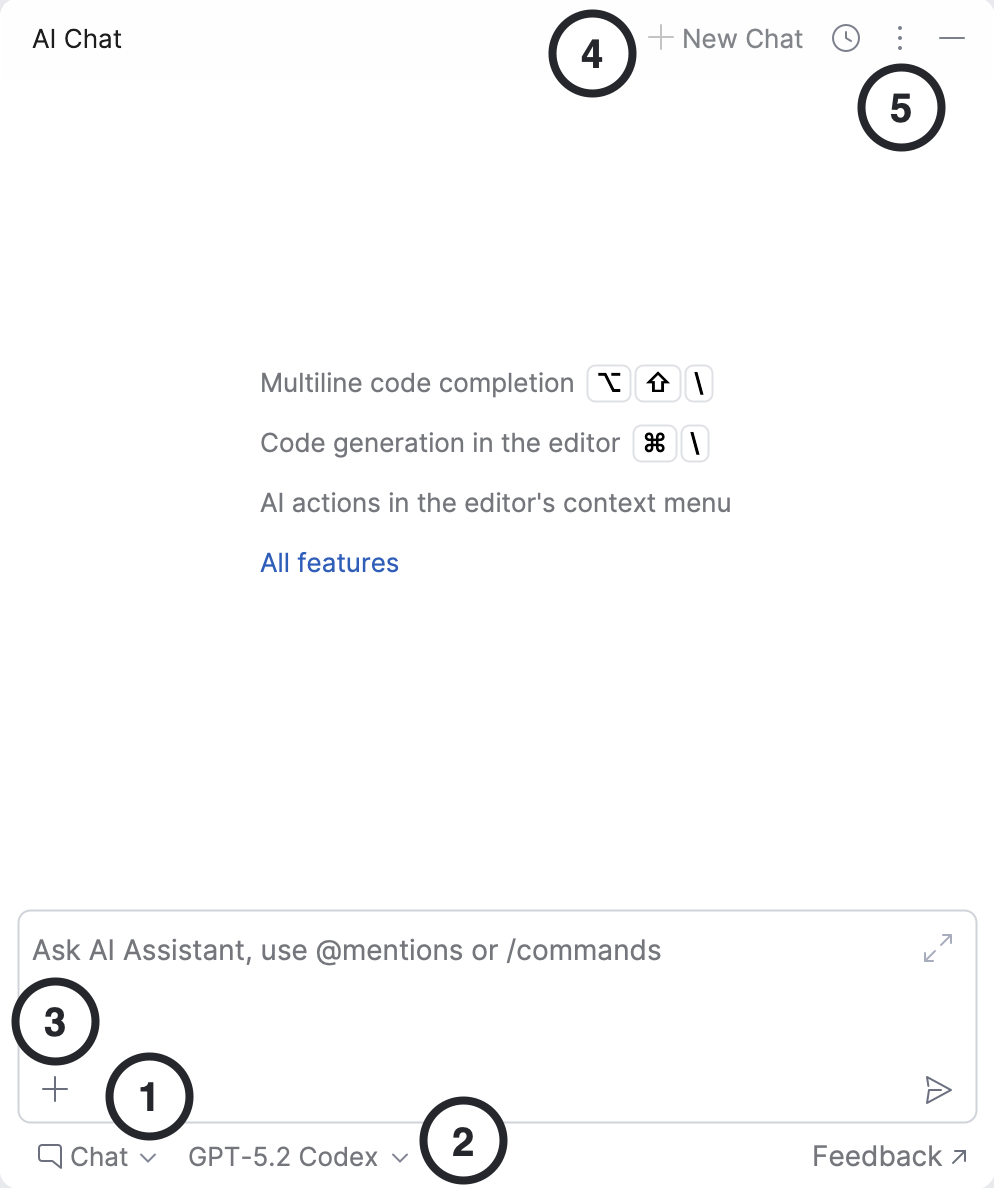
This opens the AI Chat tool window that consists of the following elements:

AI Chat elements
  1. Chat mode selector – switch between Chat for quick conversations and one of the supported Agents designed for complex tasks.

  2. Model picker – allows you to select the model that will process your requests, including local models, if they are set up.

  3. Attachments – add files, folders, images, symbols, or other elements that can serve as context for your request.

  4. Chat history and view settings – review, rename, or delete previous conversations, and configure the chat window layout.

Use AI Chat to ask questions about your codebase, request suggestions, generate code snippets, edit files, and more.

Select the chat mode

AI Chat can operate in two modes: a general-purpose chat for answering questions, or a specialized agent that helps with more complex development tasks.

To select the chat mode:

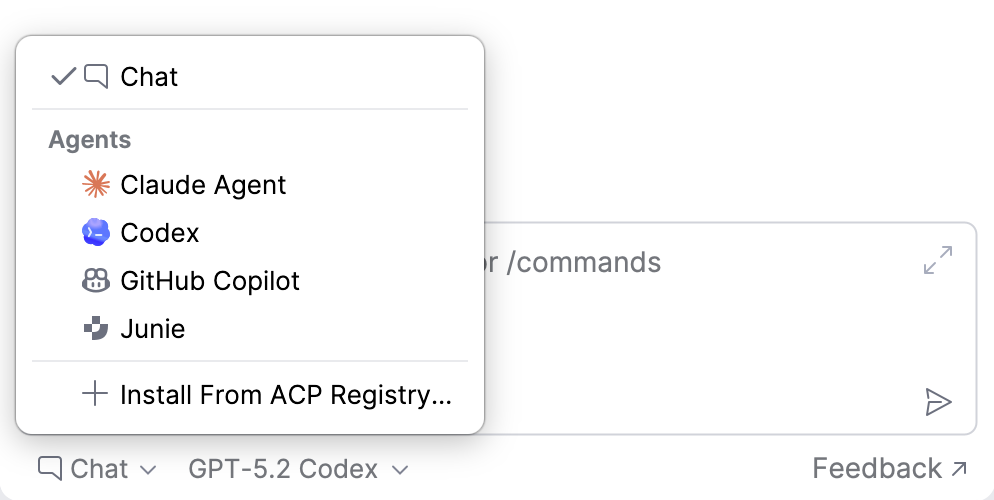
  1. In the chat, click .

  2. Select the mode from the list.

    Switch chat mode

Chat mode

Chat mode is used to ask general or project-related questions. In this mode, no changes are made to files – you can only request information, clarifications, or suggestions. Any generated code snippets must be reviewed and applied manually.

When using Chat mode, you can choose either one of the supported models or a model accessed through a configured third-party provider to process your requests.

By default, AI Assistant automatically gathers the context it needs to provide an answer. If you prefer to add the context manually, you can disable this behavior. To do this, click and disable the Enable Codebase Mode setting.

Codebase setting

After that, you can add the relevant information manually via the button or using @ references.

Agent mode

Agent mode is intended for more complex development tasks. Agents can help implement fixes, refactor code, generate tests, and more. Suggested changes can be introduced to multiple files, with the ability to review them before applying.

Currently, AI Assistant supports the following agents:

Junie by JetBrains

Junie logo Junie is an AI coding agent developed by JetBrains whose primary task is to autonomously plan and execute complex, multistep actions based on a user prompt. It can introduce large-scale edits to your project, run tests or terminal commands, and use external tools when needed, while reporting progress to the user.

Install Junie

To install and use Junie:

  1. In the chat, click and select Junie logo Junie from the list.

    Install Junie
  2. Type your prompt and press Enter. This will trigger the installation.

  3. Accept the terms of service by clicking Install and Continue.

    Accept the terms of service

    Once installed, you can start using %junie.

Select mode

Modes in Junie are agent configurations that tailor Junie's behavior to different types of tasks. You can select one of the following modes:

  • Code – Junie breaks the task into a multistep plan and executes it while reporting on the progress. It can autonomously run terminal commands, create new files, write or edit code, run tests, and verify the changes.

    Code mode

    After completing the task, you can give Junie follow-up instructions: keep the changes and start a new task, or decline them and roll everything back.

  • Ask – Junie operates in read-only mode: it can explore files, analyze code, and understand project structure, but cannot modify the code or the project files.

    Ask mode

    Use ask mode to get answers to your questions, explore and understand the codebase and the project structure, collaborate with Junie on the action plan, or brainstorm new features and improvements.

To switch between modes, use the mode picker dropdown in the prompt window. Select Auto to have Junie figure out which mode to use on its own.

Mode picker

    Approve operations

    By default, Junie requests your permission to run suggested bash commands, perform file operations, or use external tools. In this case, you can either approve or skip the operation.

    Junie requests an approve

      Rollback operations

      If the changes introduced by Junie do not suit you, you can roll them back. To do this:

      1. Navigate to the specific prompt that introduced the changes.

      2. Hover over it and click Rollback here.

      3. Confirm the operation by clicking Rollback. This reverts all changes made by Junie, as well as any manual changes you made after the selected point.

        Rollback changes

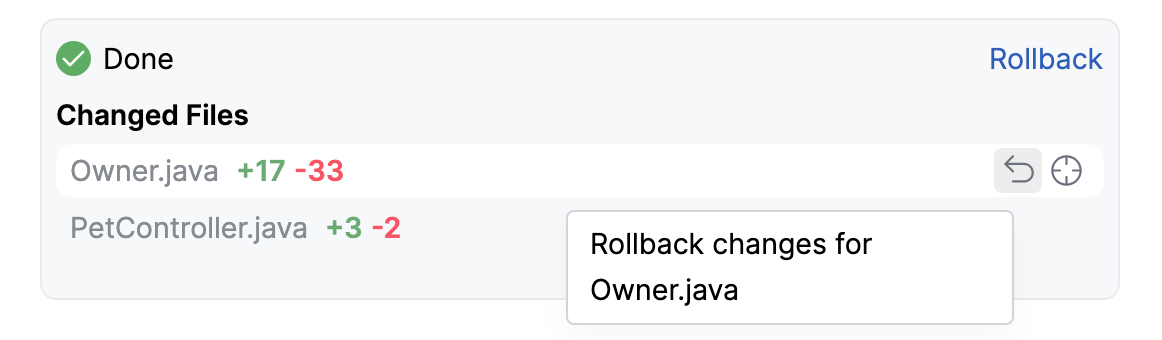
      If changes were applied to multiple files, and you want to revert them in a specific file, hover over the name of the file in the pane and click .

      Rollback changes in a specific file

      Brave mode

      You can allow Junie to execute commands or modify files without asking for your confirmation. To enable this mode, click Brave in the chat input field.

      Enable Brave mode

        Think more

        You can instruct Junie to Think More, enabling deeper reasoning and more thorough analysis when processing a task. When enabled, Junie spends additional time planning and verifying its actions, which can lead to higher-quality results — such as cleaner code and better-structured solutions.

        Think More setting

          Action Allowlist

          With Action Allowlist, you can specify the actions and commands that Junie is allowed to execute without user approval. This approach is safer than allowing Junie to perform all potentially sensitive actions autonomously.

          You can add rules to the Action Allowlist right from the chat while the agent is executing the task. To do so, click More actions next to the proposed action and select either of the following:

          Add terminal command to Allowlist
          • Add command to the Allowlist to add only this particular command to the Action Allowlist.

          • Add similar commands to the Allowlist to have Junie generate a regular expression (Regex) for this command pattern and add it to the Action Allowlist. For example, for the git log --oneline -2 command, a ^\Qgit log --oneline \E\S+$ RegEx will be added.

          • Manage Allowlist to open the Action Allowlist settings page.

          Enable use of external tools

          You can connect Junie to Model Context Protocol (MCP) servers. This will provide Junie with executable functionality for working with data sources and tools, such as file systems, productivity tools, or databases.

          When running a prompt, Junie analyzes what commands registered with the configured MCP servers as available tools are relevant and executes them through the respective MCP server.

          Run MCP command

          To connect Junie to an MCP server:

          1. In the IDE settings (Ctrl+Alt+S), go to Tools | Junie | MCP Settings.

          2. Click Add button on the toolbar. In the mcp.json file that opens, add one or multiple server configurations in the "mcpServers" key.

            Add an MCP server

            For the JSON schema, refer to the documentation of the MCP server you are adding.

          3. Click OK.

          Select processing model

          To select a model that Junie uses to process your requests:

          1. Navigate to Settings | Tools | Junie | Models.

            Junie models selection
          2. Select the model and click OK.

          .aiignore and guidelines.md files

          Junie respects the existing .aiignore file, so if you have one configured in your project, it will not process any files or directories listed there unless you explicitly permit it to do so.

          Junie also recognizes the guidelines.md file located in the .junie folder. This file defines project-specific instructions, and Junie automatically adds it to the context when processing a task. For more information about guidelines, refer to the official documentation.

            Additional Junie settings

            Junie has an additional set of settings that you can configure in Settings | Tools | Junie | Project Settings.

            Action Allowlist Junie
            • Project path – the path to the directory where Junie is allowed to make changes. Junie will request confirmation to edit files or folders outside of this directory.

            • Guidelines path – path to the agent guideline file relative to the project path. Supported file types: guidelines.md (Junie-specific) and AGENTS.md.

              If no path is specified, Junie looks for agent guidelines at .junie/guidelines.md by default.

              Always specify Guidelines path for monorepos and projects with non-standard structures.

            • Enabled technologies – select checkboxes for the languages and technologies that Junie will work with. The list of available languages and technologies is determined by the JetBrains IDE that you are using.

            • Frequency of questions from Junie – control the frequency of Junie's questions.

              The A normal amount option is selected by default, enabling Junie to get back to the user and ask for the human input during the task processing.

              Select Never ask me to disable Junie's ask questions feature.

              Claude Agent

              Claude Agent is a third-party coding agent by Anthropic integrated with AI Assistant. It understands your codebase, can plan and execute development tasks, and interact with your environment using tools, running commands, and analyzing their results to complete complex programming workflows.

              The main benefit of this integration is that Claude Agent, besides its own tools, can also use tools provided by JetBrains MCP Server.

              Download Claude Agent

              Initially, Claude Agent is not installed in AI Assistant. To install it:

              1. In the chat, click and select Claude Agent from the list.

                Install Claude Agent
              2. Type your prompt and press Enter. This will trigger the installation.

              3. Accept the terms of service by clicking Install and Continue.

                Accept the terms of service

                Once installed, you can start using Claude Agent.

              Use Claude Agent with an Anthropic API token

              If you already have an Anthropic account and want to use your existing subscription, you can provide your API token in the settings and use Claude Agent with it.

              1. Navigate to Settings | Tools | AI Assistant | Models & API keys.

                AI Assistant models settings
              2. In the Third-party AI providers section, select Anthropic as Provider.

              3. Enter your token in the API Key field and click Test Connection to verify that the connection is established.

              4. Click OK to apply changes.

              Approve operations

              By default, Claude Agent requests your permission to run suggested bash commands, perform file operations, or use external tools. In this case, you can either approve or skip the operation.

              Claude Agent requests an approve

                Brave mode

                You can allow Claude Agent to execute commands or modify files without asking for your confirmation. To enable this mode, click Brave in the chat input field.

                Enable Brave mode

                  Plan mode

                  Claude Agent can analyze your codebase and generate multistep implementation plans before making any changes to your files. The agent operates in read-only mode, collecting the required context and proposing structured code modifications. To enable this mode, click Plan in the chat input field.

                  Enable Plan mode

                  After processing your request, Claude Agent prepares a detailed plan for implementing the changes. You must review and approve this plan to verify that it meets your requirements before any modifications are applied to the codebase.

                  Prepared plan

                    Select a model

                    Different models have different capabilities, so you may want to switch models depending on your task. AI Assistant allows you to choose from a set of available cloud-based LLMs or connect third-party provider models.

                    Select an LLM

                    To select a model you want to use:

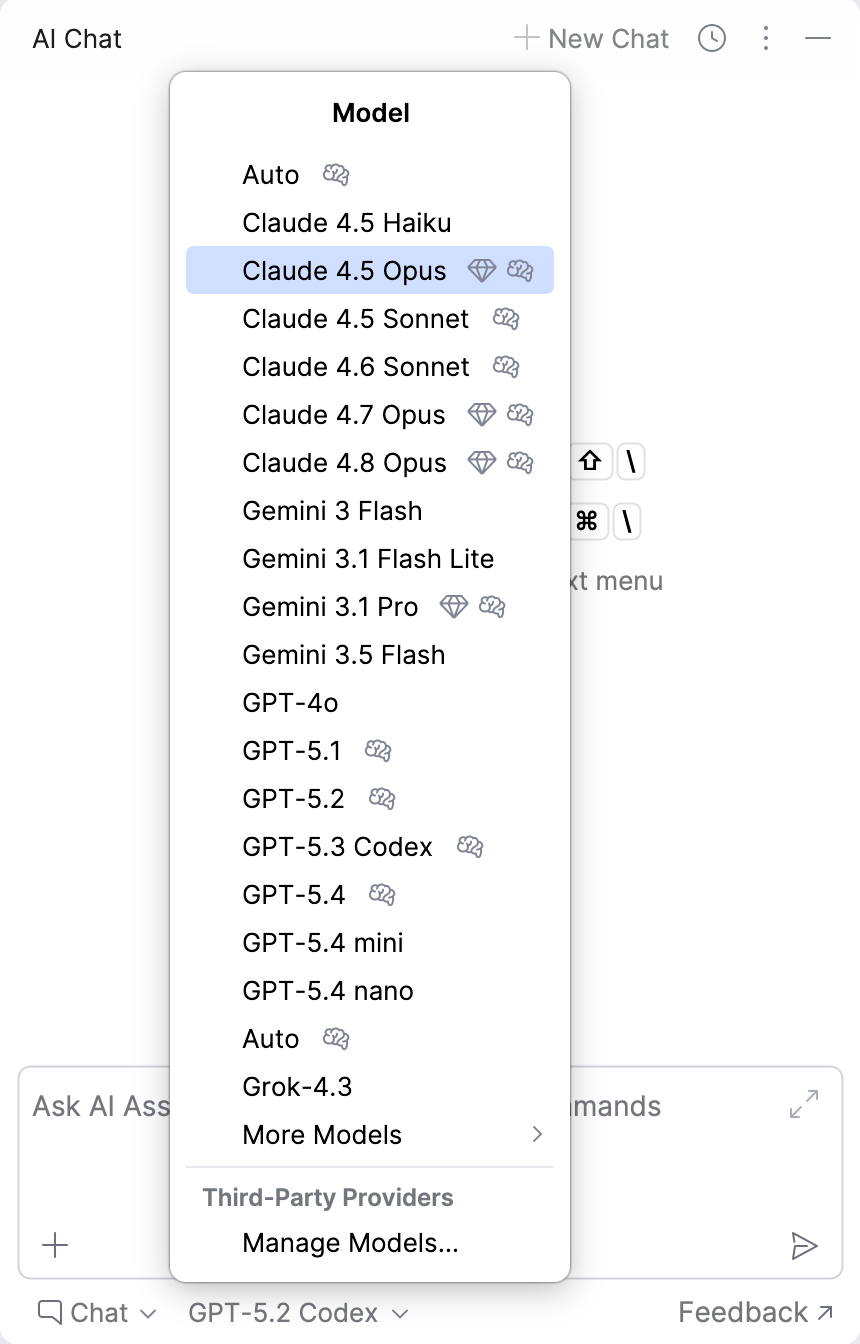
                    1. In the chat, click the button next to the model's name.

                    2. Select the desired model from the list.

                      Select the model from the list

                      If you are unsure which model to choose, you can set it to Auto. AI Assistant will automatically select the model that offers the best balance between performance and cost.

                    Connect models from third-party providers

                    To be able to select a model from a third-party provider, you must connect to it first:

                    1. Go to Settings | Tools | AI Assistant | Models & API keys.

                    2. In the Third-party AI providers section, select your LLM provider, specify configuration details, and apply changes.

                      Configure a third-party provider

                      Once you have configured a third-party provider, you can select its models for use in chat. They are listed under the provider's name.

                      Select local LLM
                    3. Select the desired model from the list.

                    Add and manage context

                    Attaching the right context to your request helps AI Assistant provide more accurate and relevant responses. You can add files, folders, images, symbols, commits, or other items to give AI Assistant additional information related to your question.
                    Add context

                    Context can be added in a couple of ways. You can do it either using the @ references or via the Add attachment button:

                    • Type @ in the chat input field, choose the relevant category, and select the item you want to add.

                      Add context
                      Available categories
                      • @thisFile refers to the currently open file.

                      • @selection refers to a piece of code that is currently selected in the editor.

                      • @projectStructure refers to the structure of the project displayed in the Project tool window.

                      • @problems refers to the issues detected in the currently open file.

                      • @localChanges refers to the uncommitted changes.

                      • @file: invokes a popup with selection of files from the current project. You can select the necessary file or image from the popup or write the name of the file (for example, @file:Foo.md or @file:img.png).

                      • @folder: refers to a folder in the current project. The selected folder, along with all its contents, is added as context to the prompt.

                      • @rule: adds a project rule into prompt. You can either select a rule from the invoked popup or write the rule name manually.

                      • @dbObject: refers to a database object such as a schema or table. For example, you can attach a database schema to your request to improve the quality of generated SQL queries.

                      • @commit: adds a commit reference into prompt. You can either select a commit from the invoked popup or write the commit hash manually.

                      • @symbol: adds a symbol into prompt (for example, @symbol:FieldName).

                      • @jupyter: for PyCharm and DataDrip, adds a Jupyter variable into prompt (for example, @jupyter:df).

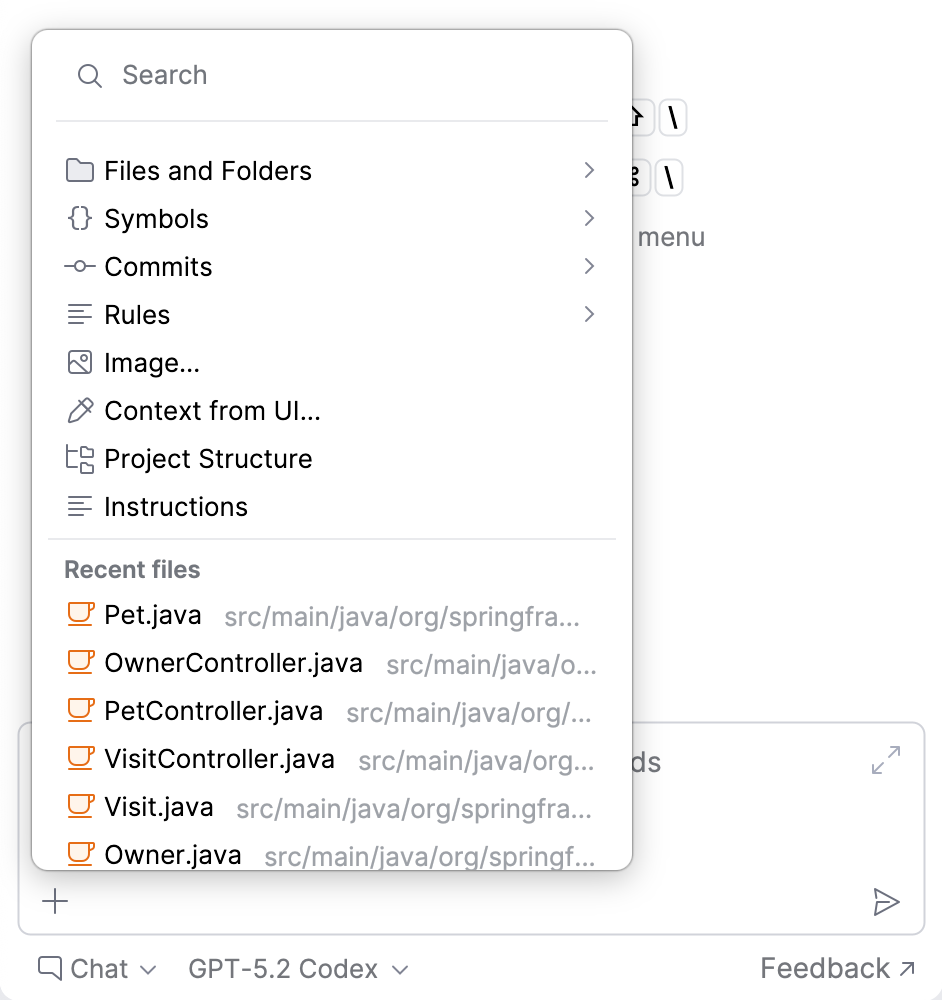
                    • As an alternative, you can select the relevant context by clicking the Add attachment button and selecting from the list. This method also lets you add context from the UI, which cannot be done with an @ reference.

                      Add context

                    Either way, the selected item will be attached to your request as context. Below you can find detailed instructions on adding specific types of context to your query.

                    Add files or folders to context

                    Adding files and folders to the context gives AI Assistant access to relevant code and project structure, helping it understand dependencies and provide more accurate, context-aware answers.

                    To add a file or folder to the context:

                    1. In the chat, click Add attachment.

                    2. Select the Files and Folders option from the menu and specify the file or folder you want to add.

                      Add Folder
                    3. Type your question in the chat and submit the query.

                    AI Assistant will use the attached file or folder to collect additional context when providing an answer.

                    Add images to context

                    AI Assistant can extract relevant information from images and use it as context when processing your requests. It can read code snippets from screenshots, analyze error messages, or interpret other visual context.

                    To add an image to your request:

                    1. In the chat, select the model that supports image processing. Such models are marked with the Supports images icon.

                      Models supporting images
                    2. Click Add attachment.

                    3. Select the Add Image option from the menu and specify the image you want to add. If needed, you can attach multiple images.

                      Add Image
                    4. Type your question in the chat and submit the query.

                    AI Assistant will process the image and extract relevant information needed to generate a reply.

                    The extracted code snippets can then be further processed as needed.

                    Add context from UI

                    When asking questions in the chat, you can add context to your query directly from a UI element. It can be a terminal, tool window, console, etc. For example, you can attach a build log from the console to ask why your build failed.

                    1. In the chat, click Add attachment.

                    2. Select the Add context from UI option from the menu.

                      Add context from UI
                    3. Select the UI element that contains data that you want to add to the context.

                    4. Type your question in the chat and submit the query.

                    AI Assistant will consider the added context when generating the response.

                    Attach database object

                    Available in: DataGrip and IDEs with Database Tools and SQL plugin starting from IDE version 2025.2

                    You can attach a specific database object to your request in AI chat to provide the LLM with additional context. To do this:

                    1. In the chat, type @, then start typing or select dbObject:.

                    2. From the list of database objects that appears, select the one you want to attach.

                      Attaching a database object to AI chat

                      You can see which object was attached to your message and navigate to it by clicking the corresponding attachment in the chat.

                    3. Type your question in the chat and submit the query.

                    Attach selection as context

                    Sometimes, it is necessary to explain a specific part of the code, a runtime warning, terminal output, or other results shown in various tool windows while working with your code. AI Assistant allows you to select this content and add it to the chat as context for your request.

                    To get an explanation:

                    1. Select the content you want explained. This can be a code snippet from the editor, a runtime error, terminal output, or other console messages shown in a corresponding tool window.

                      Selection is added to chat

                      The selection is automatically added to the chat as context.

                    2. In the chat, ask AI Assistant to explain the selection.

                    Review attachments

                    You can review any attachment by clicking it. The item will be opened in a separate window.

                    If the request was already sent, you can find the attachments that were added to it by clicking the button.

                    Review attached context

                    The attachments provided by AI Assistant in the answer are always shown but can be hidden if needed by clicking .

                    Set a message trimming threshold

                    Each language model has a context window – the maximum amount of context it can process at once. If this limit is exceeded, the model may produce errors or incomplete responses, and earlier parts of the conversation may be discarded.

                    Model context window is full

                    To ensure your requests stay within the model's capacity, you can configure a message trimming threshold. If this threshold is exceeded, AI Assistant starts prioritizing smaller files and extracting key content from larger ones to optimize the amount of context sent to the model.

                    To set a message trimming threshold:

                    1. Go to Settings | AI Assistant.

                      Alternatively, hover over the trimmed attachment, marked with the icon, and click Adjust threshold.

                      Adjust threshold
                    2. In the Message Trimming Threshold section, select a value for the Trim message if it exceeds % of a model context window setting.

                      Set message trimming threshold
                    3. Click OK to save changes.

                    As a result, when your message exceeds the specified threshold, AI Assistant trims the attachments to ensure the model can process the request. The trimmed content is marked with the icon.

                    Message trimming threshold notification

                    Use commands

                    Commands work as shortcuts for specific actions, allowing you to save time when typing your query. You can use them in combination with @ references.

                    AI Assistant supports the following / commands:

                    • /explain – explains a mentioned entity.

                    • /refactor – suggest refactoring for the code selected in the editor.

                    • /docs – searches the IDE documentation for information on the specified topic. If applicable, AI Assistant will provide a link to the corresponding setting or documentation page.

                    • /web – searches for information on the internet. AI Assistant will provide an answer and attach a set of relevant links that were used to retrieve the information.

                    Process the response

                    AI Assistant's responses can contain code snippets, terminal commands, edit suggestions, or changes to single or multiple files. Depending on the selected chat mode, the available processing options may differ.

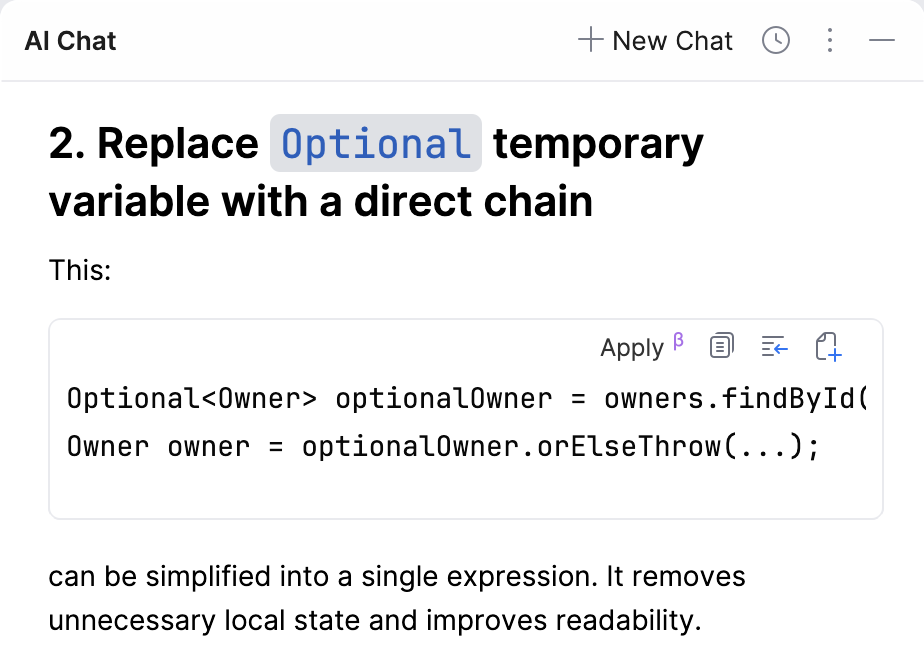
                    For example, in Chat mode, you can process the suggestions using the tools in the top-right corner of the code snippet:

                    Asking AI Assistant programming-related questions
                    • Applyapplies the suggestion to the currently open file. This action updates the entire file, adjusting relevant code to integrate the updates.

                    • Copy to Clipboard – copies the code snippet. You can then paste it manually where required.

                    • Insert Snippet at Caret – inserts the generated code snippet, or a selected fragment of it, into the file open in the editor at the caret position.

                    • Create File from Snippet – creates a separate file with the AI-generated code.

                    • – runs the generated terminal command. In PyCharm, this button is also used to run the generated code snippet in the Python console, separately from the rest of the project.

                    In Agent mode, suggested changes are often more complex and may affect multiple files. To help you review them, AI Assistant provides a diff view where you can examine each change before accepting it.

                    Review changes

                    For instructions on how to process changes to multiple files, refer to Apply changes to multiple files.

                    Apply a suggestion to the current file

                    Code snippets generated by AI Assistant in the Chat mode can be applied to the currently open file. The changes are made across the entire file, with relevant code adjusted to integrate the updates.

                    To apply the suggestion:

                    1. Locate the code snippet that you want to apply.

                    2. Click the Apply button.

                      Apply changes to the current file
                    3. In the editor, review the changes by clicking Next Change or Previous Change buttons.

                      Review the changes
                    4. When you are ready to apply the changes, click Accept All. Otherwise, click Discard All to reject the changes.

                    Apply changes to multiple files

                    When working in Agent mode, AI Assistant can introduce changes to multiple files across the project. You can review the affected files and process the changes directly in the chat.

                    To apply changes to multiple files:

                    1. Review the suggested changes. Along with an explanation of the issue, AI Assistant displays a list of affected files and lets you choose how to proceed:

                      Review changes
                      • Discard All – click to discard all proposed changes.

                      • Keep All – click to keep the suggested changes in all affected files.

                      • Show Changes in Toolbar Show Changes in Toolbar – click to display the list of affected files in a separate toolbar.

                        AI Assistant Changes toolbar
                      • Show Diff – click to open the diff viewer for the selected file. The diff viewer allows you to visually compare and review differences between file versions, helping you understand what has changed.

                        Diff viewer
                      • Create Patch – click to create a .patch file containing the changes. This file can be applied to your sources later.

                      • Accept – click to accept the proposed changes in the selected file.

                      • Discard – click to discard the proposed changes in the selected file.

                      • Group By – click to select how you want to group the modified files – by directory or module.

                      • Expand All – click to expand all nodes in the file tree.

                      • Collapse All – click to collapse all nodes in the file tree.

                    2. Process the changes as needed.

                    Regenerate the response

                    If you do not like the answer provided by AI Assistant, click Regenerate this response at the end of the response to generate a new one.

                    Regenerate response

                    Review chat history

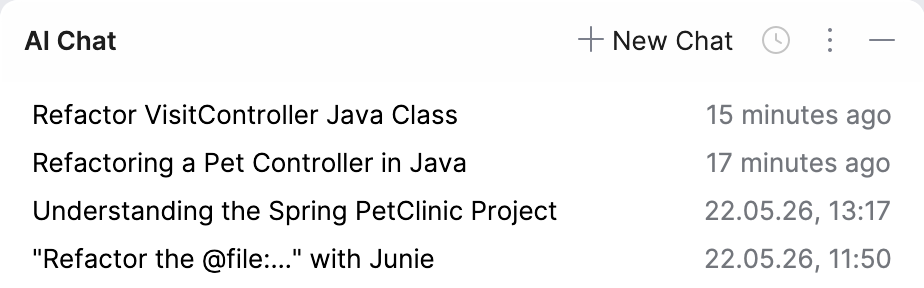
                    AI Assistant keeps the chats' history separately for each project across IDE sessions. You can find the saved chats in the Chat History list.

                    All Chats list

                    Names of the chats are generated automatically and contain the summary of the initial query. Right-click the chat's name to rename it or delete it from the list. Search for a particular chat name using Ctrl+F.

                    Besides searching for a specific chat, you can also search within a chat instance. To revisit a specific part of the conversation:

                    1. In the chat instance, press Ctrl+F. Alternatively, click and select Find in Chat.

                    2. In the search field, type your query. AI Assistant will highlight all occurrences of the specified text in the chat.

                    3. Use buttons to navigate to the next/previous occurrence.

                      Search through chat

                    Customize chat

                    You can adjust how AI Chat behaves to fit your preferences.

                    Change the chat response language

                    You can instruct AI Assistant to provide responses in a specific language.

                    1. Press Ctrl+Alt+S to open settings and then select Tools | AI Assistant.

                    2. In the Natural Language section, enable the Receive AI Assistant chat responses in a custom language setting.

                    3. In the text field, specify the language in which you want to receive chat responses.

                      Specify chat response language
                    4. Click Apply.

                    After that, AI Assistant will use the specified language in its responses.

                    18 December 2025