Refactoring with AI
AI Assistant can suggest refactorings for the selected code fragments, helping ensure consistency and clarity throughout your codebase.
Suggest refactoring
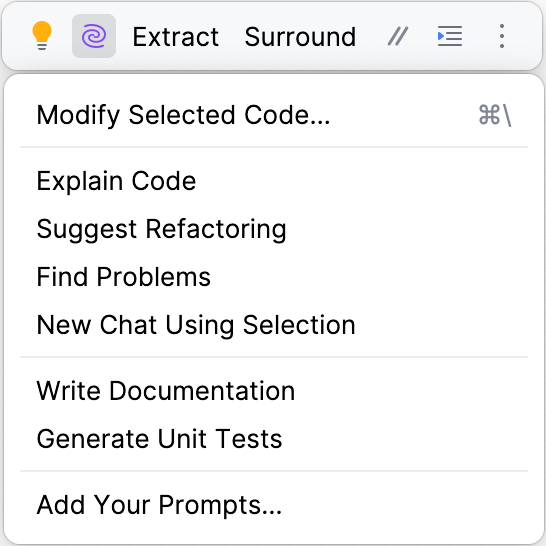
Select a code fragment and click
 in the popup that appears.
In the menu, click Suggest Refactoring.
The AI chat will open to offer you refactoring suggestions.
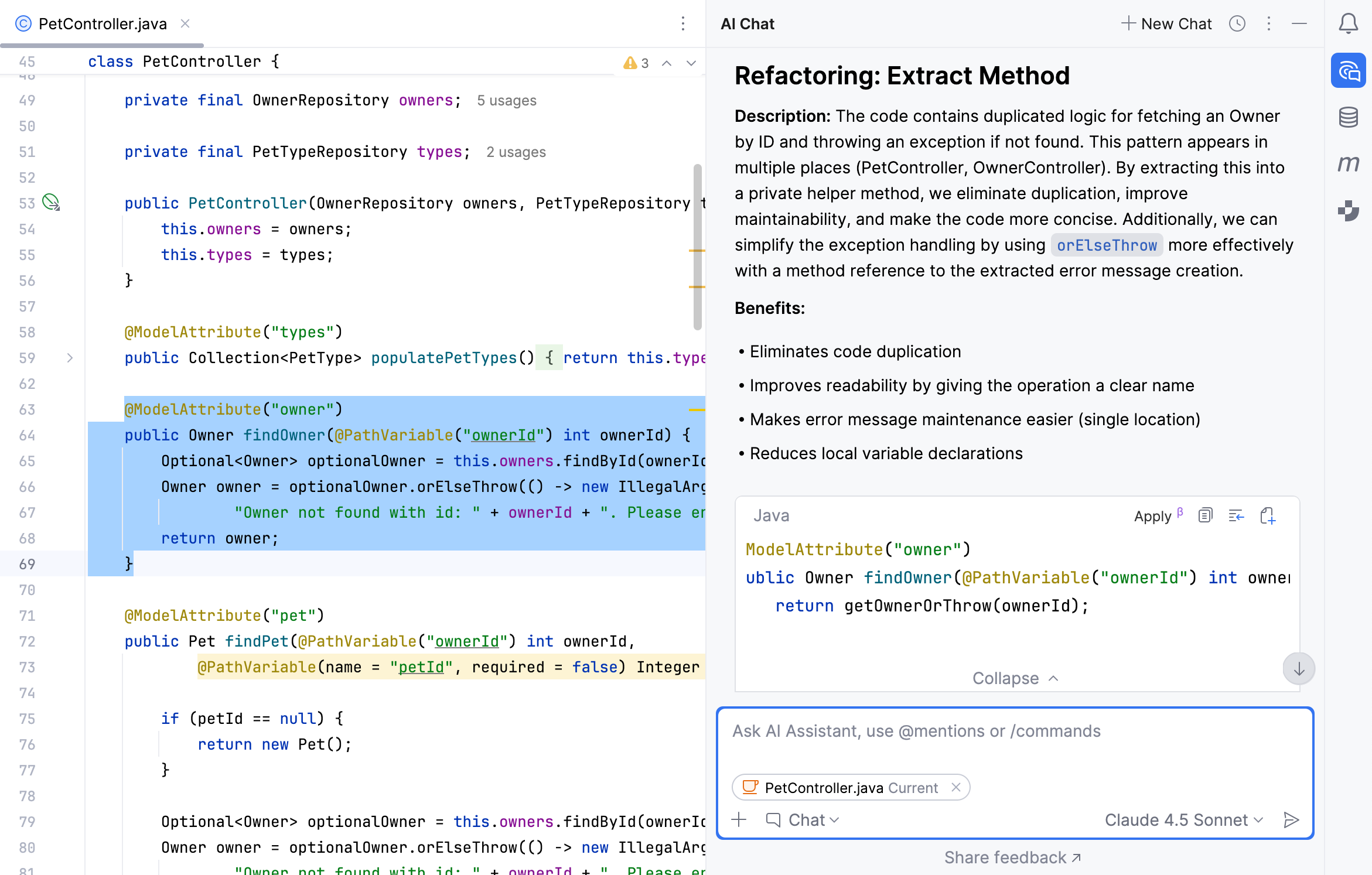
In the field with the refactored code, click Apply to add the suggested changes to the currently open file.
In the editor, review the changes by clicking
 Next Change and
  Previous Change buttons.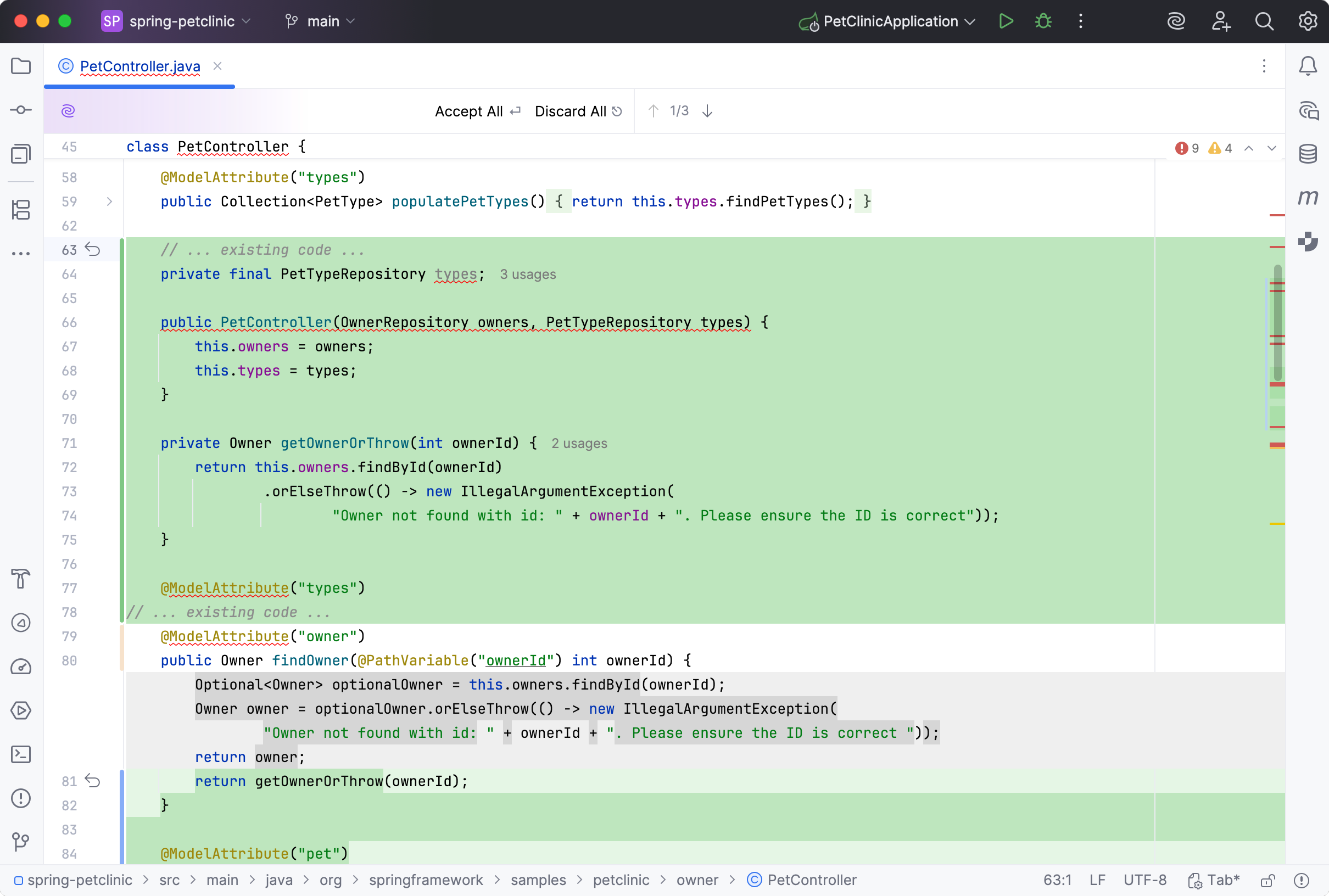
When you are ready to apply the changes, click Accept All. Otherwise, click Discard All to reject the changes.
Get help with name suggestions
Not available in: DataGrip, DataSpell
When you rename (Shift+F6) a symbol inline, AI Assistant suggests name options for it based on its contents.
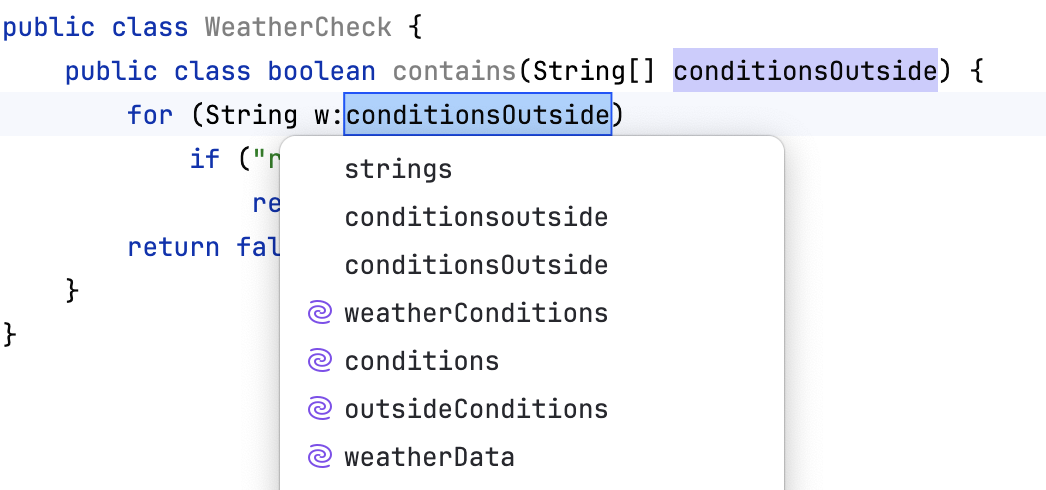
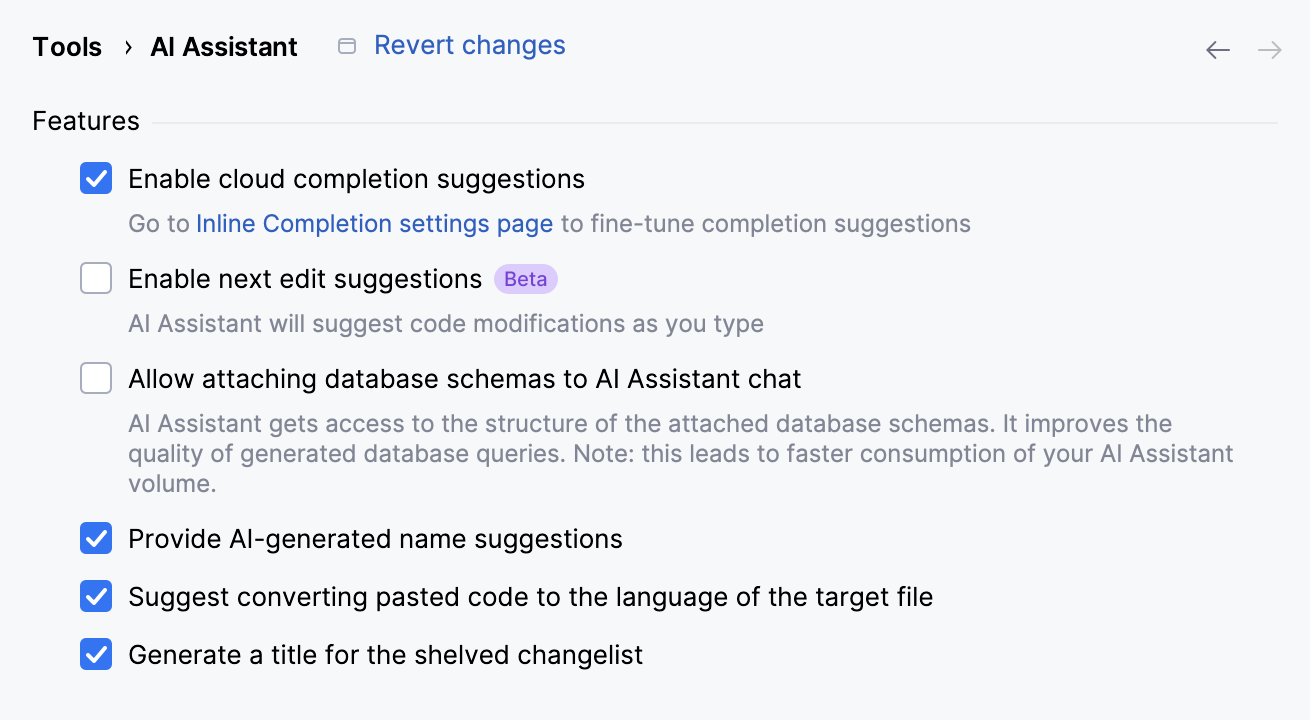
This feature is enabled by default. To switch it on and off, check the AI Assistant settings.
Press Ctrl+Alt+S to open settings and then select .
Use the Provide AI-generated name suggestions checkbox.
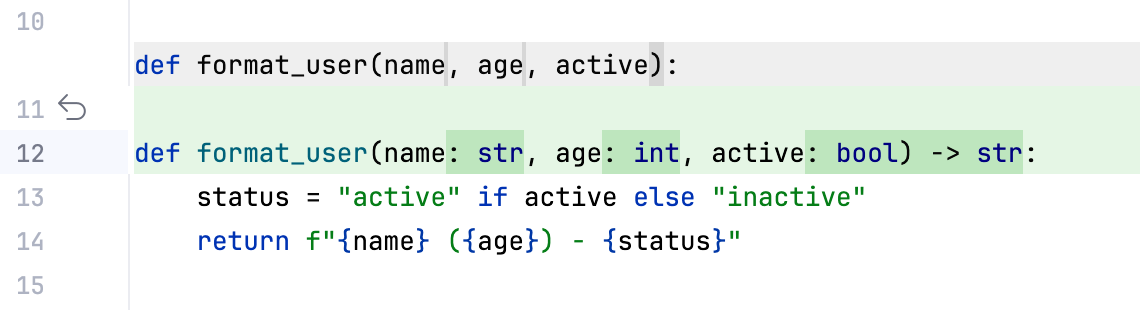
Add Python type annotations
Only available in: PyCharm, DataSpell
While PyCharm and DataSpell let you add type hints via intention actions, AI Assistant further extends this functionality by suggesting types based on the context.
Right-click a function or method definition to open the context menu.
Alternatively, place the caret on it and press Alt+Enter.
Select AI Actions and then Add Type Hints.
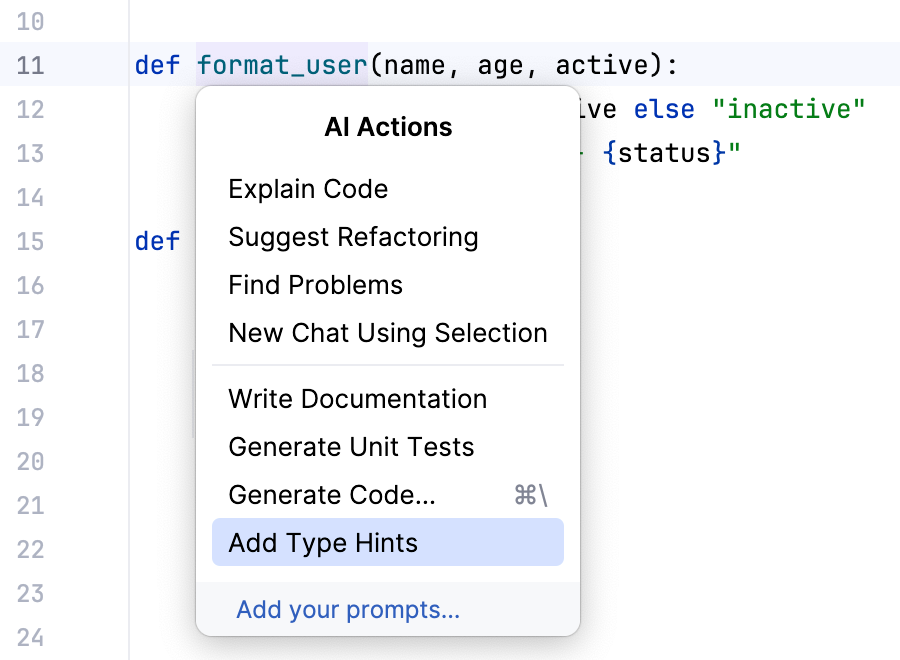
Type annotations are added to the function definition.