JetBrains Air in IDEs settings
JetBrains Air in IDEs settings are grouped under . Which agents are available, and whether an agent starts in the chat or terminal surface, is set on the Agents page instead. For information about available agents, refer to Browse, install, and update agents. For information about the model, effort, and mode that an agent starts with, refer to Configure and manage presets.
Air
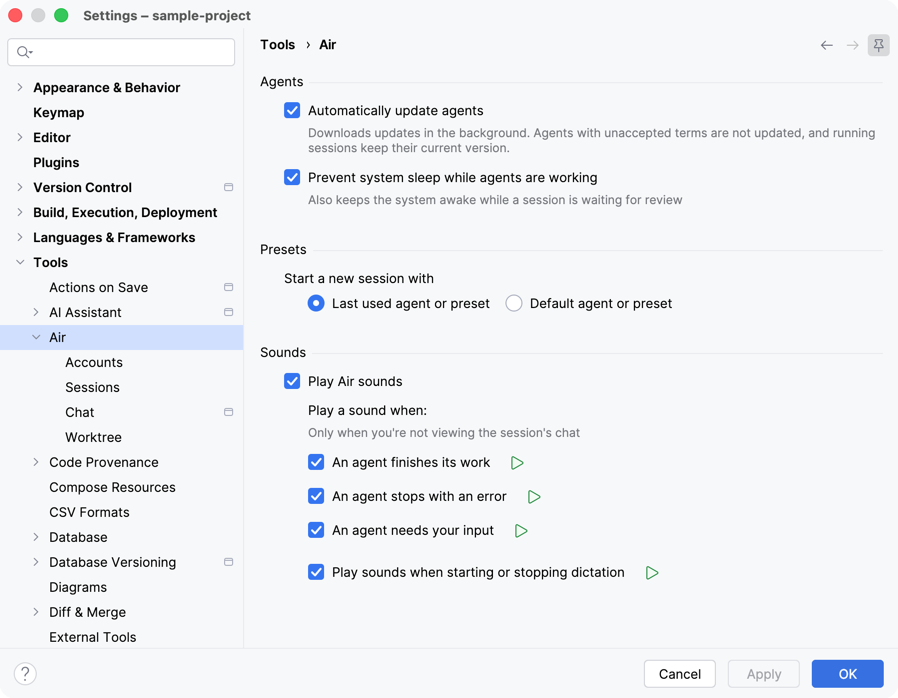
Setting | Description |
|---|---|
Automatically update agents | Download updates for agents in the background. Agents whose current terms you have not accepted are not updated, and running sessions keep the version that they started with. |
Prevent system sleep while agents are working | Keep the system awake while an agent is working or while a session is waiting for your review. |
Start a new session with | Choose whether new sessions start with the Last used agent or preset or with the Default agent or preset. |
Play Air sounds | Play sounds for agent events and dictation. Clear the checkbox to turn off all JetBrains Air in IDEs sounds. |
Play a sound when | Select the events that play a sound:
JetBrains Air in IDEs plays these sounds only when you are not viewing the chat of the session. To preview a sound, click |
Play sounds when starting or stopping dictation | Play a sound when you start or stop dictating a prompt. |
 next to the event.
Accounts
Configure the AI providers that agents work through. Add a provider for every API key that you have, and switch between the configured providers as your tasks require.
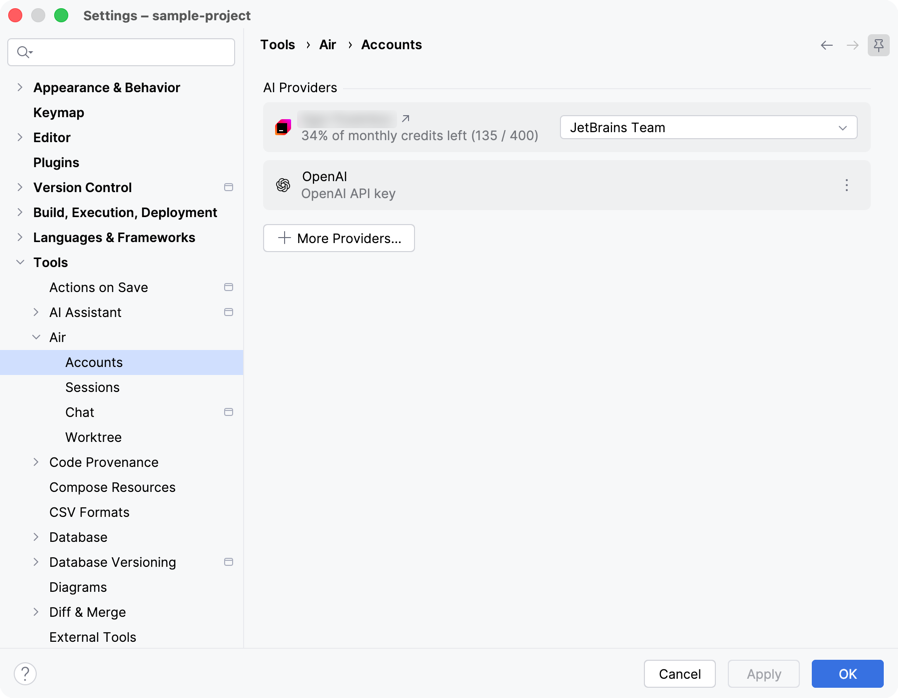
Setting | Description |
|---|---|
AI Providers | The providers that agents work through. Each entry shows the provider and the kind of credentials that it uses, for example a personal API key. Use |
More Providers | Add a provider and fill in the details that it requires, such as its API key. The set of fields depends on the provider that you select. |
 on an entry to edit the provider or to delete its configuration.
If your organization supplies AI access, the AI Providers list also holds an entry for your JetBrains Account. The list on that entry holds the organizations that supply credits to your account. The text next to the list shows how many of your monthly credits are left. Use  on that entry to open your JetBrains Account settings in the browser.
Sessions
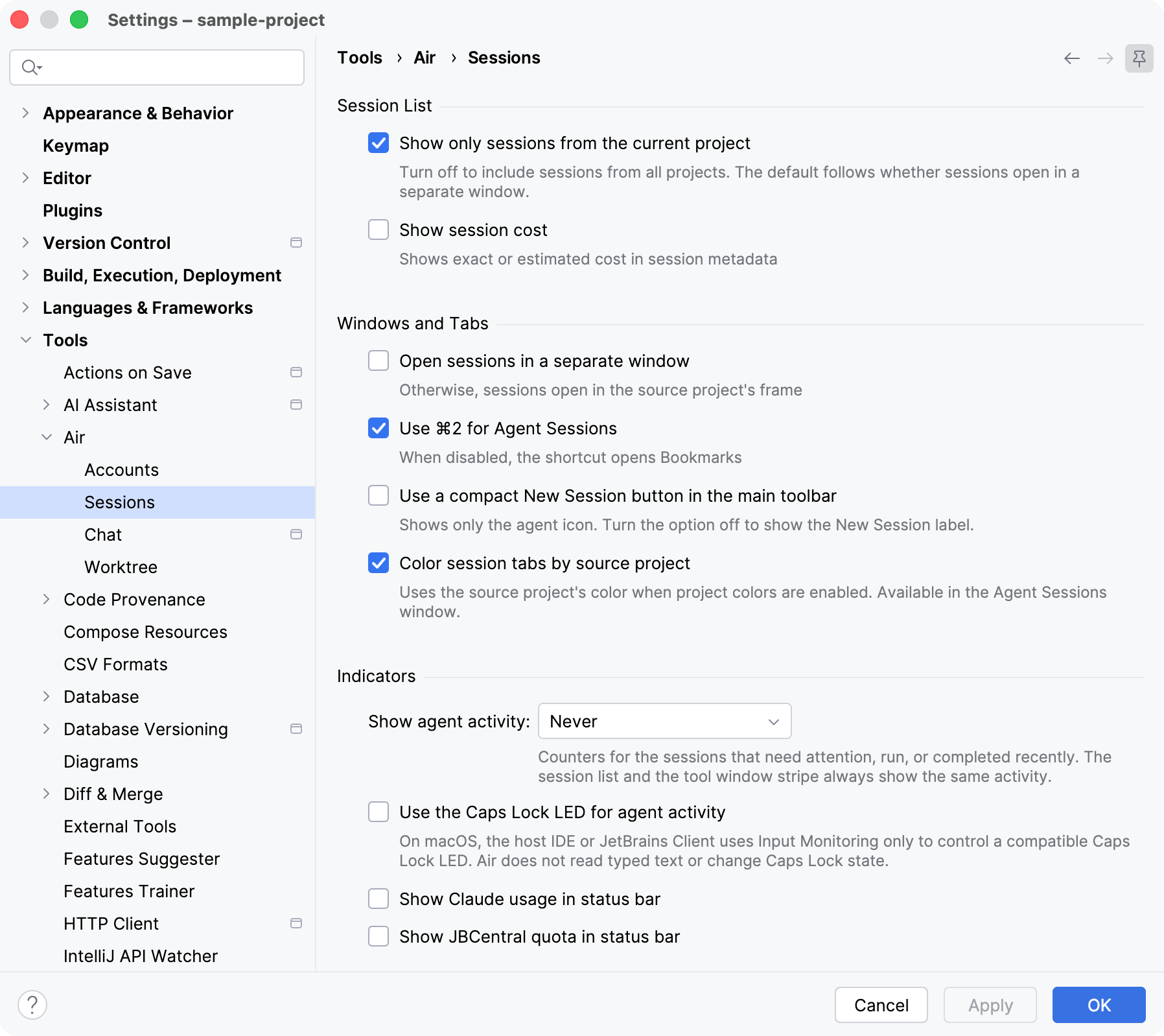
Setting | Description |
|---|---|
Show only sessions from the current project | Limit the Agent Sessions tool window to the current project. Clear the checkbox to list the sessions of all projects. The default value depends on whether sessions open in a separate window. |
Show session cost | Show the exact or estimated cost in session metadata. |
Open sessions in a separate window | Open sessions in a separate window instead of the frame of the source project. |
Use Alt+2 for Agent Sessions | Override the shortcut so that it opens the Agent Sessions tool window. By default, the shortcut opens the Bookmarks tool window, which is where it returns when you clear the checkbox. |
Use a compact New Session button in the main toolbar | Show only the agent icon on the New Session button in the main toolbar. Clear the checkbox to show the New Session label as well. |
Color session tabs by source project | When project colors are enabled, give the separate session window the color of its source project. This setting does not affect the color labels that you add to sessions in the Agent Sessions tool window. |
Show agent activity | Choose where to show the counters of sessions that need your attention, are running, or have recently completed: Never, Agent Sessions Title Bar (the header of the Agent Sessions tool window), Main Toolbar, or Both. The session list and the tool window stripe always show this activity. For more information, refer to Track agent activity without the tool window. |
Use the Caps Lock LED for agent activity | On macOS, use the LED of a compatible Caps Lock key to signal agent activity. JetBrains Air in IDEs uses the Input Monitoring permission only to control the LED: it does not read the text that you type or change the Caps Lock state. |
Show Claude usage in status bar | Show your Claude usage in the status bar. |
Show JBCentral quota in status bar | Show how much of your JetBrains Central quota is left in the status bar. |
Chat
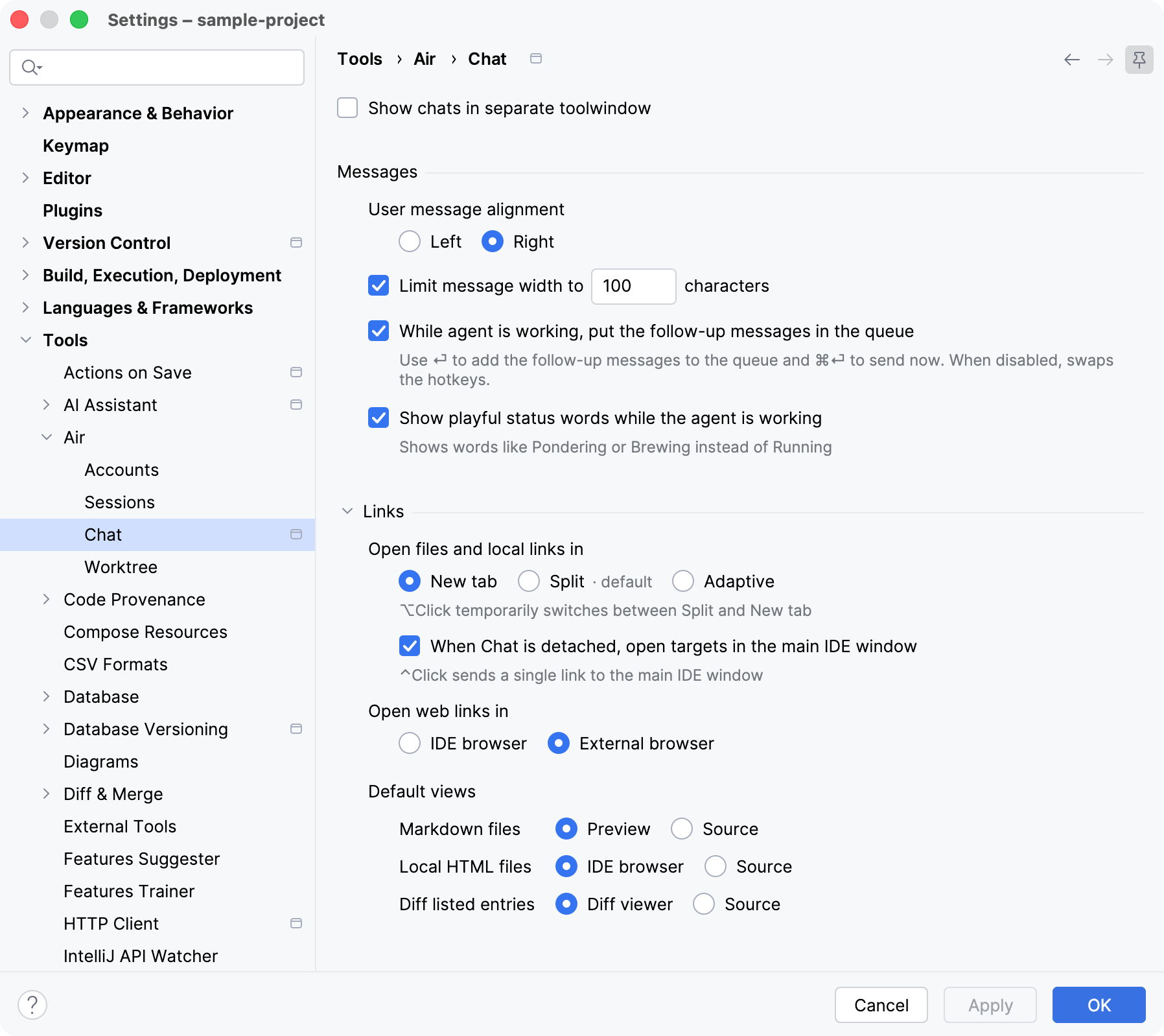
Setting | Description |
|---|---|
Show chats in separate toolwindow | Open sessions in the Chat tool window on the right side of the main window instead of in editor tabs. For more information, refer to Open sessions in the Chat tool window. |
User message alignment | Place your messages on the Left or Right side of the conversation. |
Limit message width to | Wrap messages at the specified number of characters instead of using the full width of the view. |
While agent is working, put the follow-up messages in the queue | Add follow-up messages to the queue while the agent is working. Press Enter to queue a message and Ctrl + Enter to send it right away. When you clear the checkbox, the two shortcuts swap. |
Show playful status words while the agent is working | Show words like Pondering or Brewing instead of Running in the status of a working agent. |
Open files and local links in | Choose where files and local links open:
|
When Chat is detached, open targets in the main IDE window | While a chat is detached from the main IDE window, open files and links in the main window instead of in the detached one. Ctrl + Click sends a single link to the main IDE window. |
Open web links in | Choose whether web links open in the IDE browser or in an External browser. |
Markdown files | Open the Markdown files that a session lists in Preview or in Source. |
Local HTML files | Open the local HTML files that a session lists in the IDE browser or in Source. |
Diff listed entries | Open the diff entries that a session lists in the Diff viewer or in Source. |
Worktree
Configure where JetBrains Air in IDEs creates temporary worktrees and when it deletes them, and manage the worktrees of each project. For information about running sessions in worktrees, refer to Fork in a new temporary worktree.
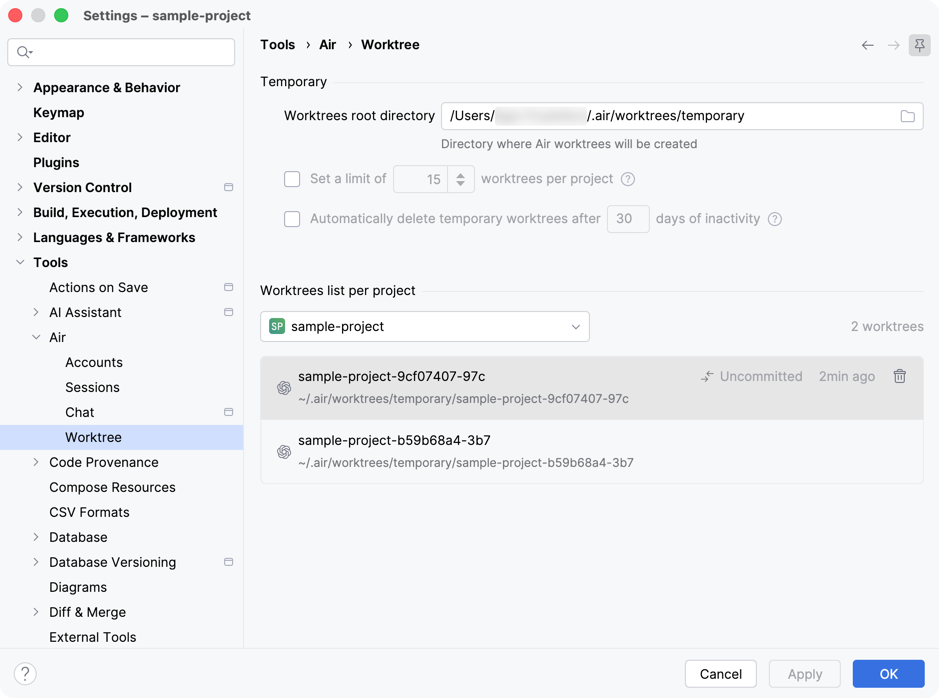
Setting | Description |
|---|---|
Worktrees root directory | The directory where JetBrains Air in IDEs creates temporary worktrees. By default, it is ~/.air/worktrees/temporary. |
Set a limit of worktrees per project | Limit the number of temporary worktrees that JetBrains Air in IDEs keeps for each project. This option is disabled by default. |
Automatically delete temporary worktrees after days of inactivity | Delete the temporary worktrees that have not been used for the specified number of days. This option is disabled by default. Uncommitted changes in a deleted worktree are lost. |
Worktrees list per project | Select a project to list its temporary worktrees. Each entry shows the name and path of the worktree, its status, such as Uncommitted, and when it was last used. To delete a worktree, hover over its entry and click |
 . Uncommitted changes in the worktree are lost.