JetBrains Air Help

Search

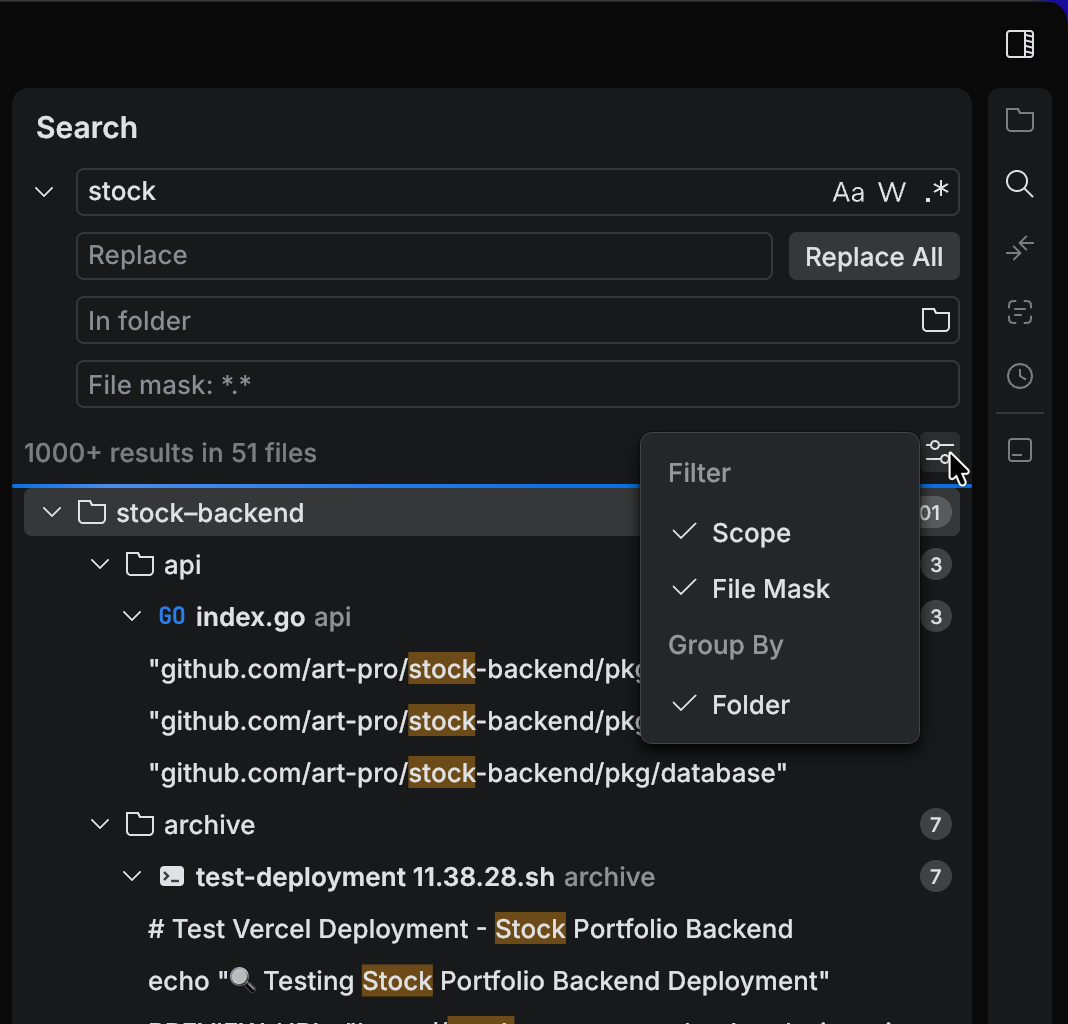
Use Search to find text across your workspace. You can also switch to replace mode and apply replacements in multiple files. You can add search results to a task as context.

Open the Search tool

  • Navigate to View | Tools in the main menu and select Search.

  • On the tool panel, click Search.

Open the Search tool

Switch between search and replace

  1. Navigate to View | Tools in the main menu and select Search.

  2. In the Search tool, click Toggle Replace.

    Switch between search and replace

Add search results to a task

  1. Navigate to View | Tools in the main menu and select Search.

  2. Run a search.

  3. Click Add Search Results to Task. JetBrains Air adds the current search results to the task context.

Limit the search scope

  1. Navigate to View | Tools in the main menu and select Search.

  2. In the Search tool, open the filter menu.

  3. Enable Scope to show the In folder field.

  4. Select a folder to search in.

Filter by file name pattern

  1. Navigate to View | Tools in the main menu and select Search.

  2. In the Search tool, open the filter menu.

  3. Enable File Mask to show the File mask field.

  4. Enter a file name pattern.

Group results by folder

  1. Navigate to View | Tools in the main menu and select Search.

  2. In the Search tool, open the filter menu.

  3. Under Group By, select Folder. JetBrains Air shows parent folders in the results pane.

25 February 2026