Search and replace
Use the Search tool when you need every match in the project at once: an error message, a config key, an API name you're about to change. You can narrow the search, group the results, replace matches across files, and hand the whole result set to an agent as context.
Find and replace actions
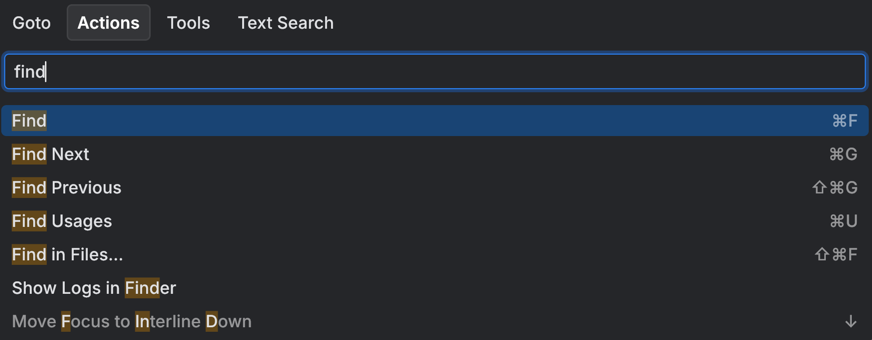
Four similarly named actions cover the two scopes: the file you have open, and the whole project. If you don't remember a shortcut, press Ctrl+Shift+K for the Actions tab of Go to All and type find or replace.
Action | Scope | Shortcut |
|---|---|---|
Find | The file you have open | Ctrl+F |
Replace | The file you have open | Ctrl+H |
Find in Files… | The whole project. Opens Text Search, which is built for jumping to one result – see Go to All. | Ctrl+Shift+F |
Replace in Files… | The whole project. Opens the Search tool in replace mode. | Ctrl+Shift+H |
To find where a symbol is used rather than where a string appears, use Find Usages (Ctrl+U).
Search across the project
Navigate to in the main menu and select Search.
On the tool panel, click Search.
Enter the text you want to find. You can use regular expressions and the search options in the search field.
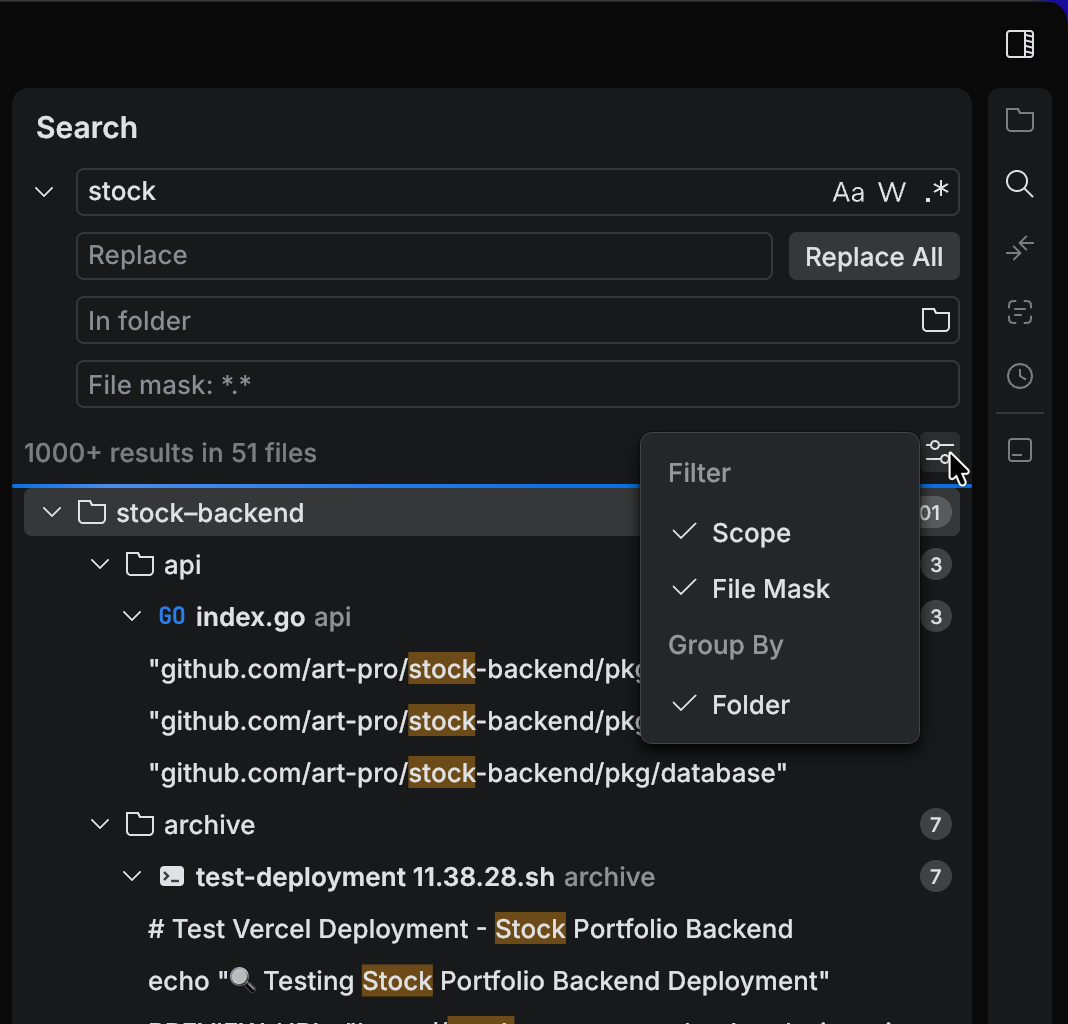
Select a match to open the file at that line.
Narrow the search
When a search returns too much, use the filter menu in the Search tool to scope it down.
Limit the search scope
In the Search tool, open the filter menu.
Enable Scope to show the In folder field.
Select a folder to search in.
Filter by file name pattern
In the Search tool, open the filter menu.
Enable File Mask to show the File mask field.
Enter a file name pattern.
Group results by folder
In the Search tool, open the filter menu.
Under Group By, select Folder. Parent folders appear in the results pane.
Replace in multiple files
To go straight to replace mode from anywhere, press Ctrl+Shift+H (Replace in Files…).
Switch between search and replace
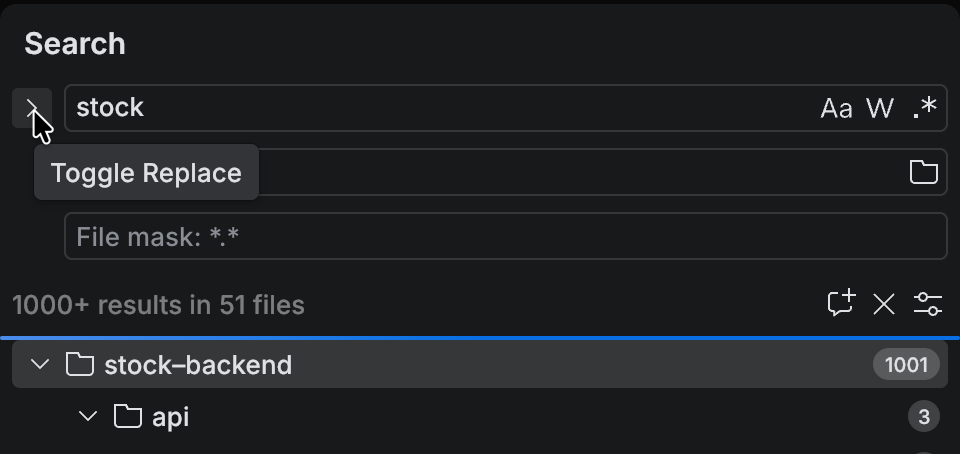
In the Search tool, click Toggle Replace.
Send the results to an agent
A result set is a good starting point for a task: it tells the agent every place a change has to reach.
Add search results to a task
Run a search.
Click Add Search Results to Task. The current search results are added to the task context.
For the other ways to give an agent context, see Task context.