Explore code
Even when you develop code with agents, IDE features are still essential. You still need to understand code, inspect changes, verify assumptions, and quickly navigate to the exact place you want to review or edit.
These are the core navigation and search features for this workflow: browsing files, searching across the codebase, jumping to files and symbols, and navigating through definitions, usages, implementations, and problems.
To open or clone a project, see Open projects.
Open the project in an IntelliJ-based IDE
When you need capabilities that go beyond code navigation and search, such as debugging, run configurations, or advanced refactoring, open the same project in a full IntelliJ-based IDE installed on your machine, such as IntelliJ IDEA, PyCharm, Rider, and others.
In the top-right corner of the Air app window, click the IDE selector next to the IDE icon.
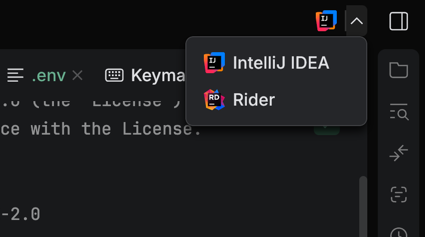
Select an IDE from the list of the IntelliJ-based IDEs you have installed.
The selected IDE opens the current project. The app stays open, so you can keep running agent tasks while you work in the IDE.
Browse files and folders
Use the Files tool to browse the project structure. Expand folders to navigate through the repository, and click a file to open it in an editor tab. You can open files in splits, and add any item to a task as context.
Open the Files tool
Navigate to in the main menu and select Files.
On the tool panel, click Files.
To quickly find a file in the tree, focus the Files tool and press Ctrl+F. Then start typing to filter the visible items.
Manage files from the tree
In the Files tool, right-click a file or folder.
Select an action, such as New File…, New Folder…, Rename…, Delete…, Copy Path, or Paste.
The same menu holds a Git submenu for the selected file, with actions such as file history, comparing the file with a branch or commit, and reverting changes.
Go to All (Search Everywhere)
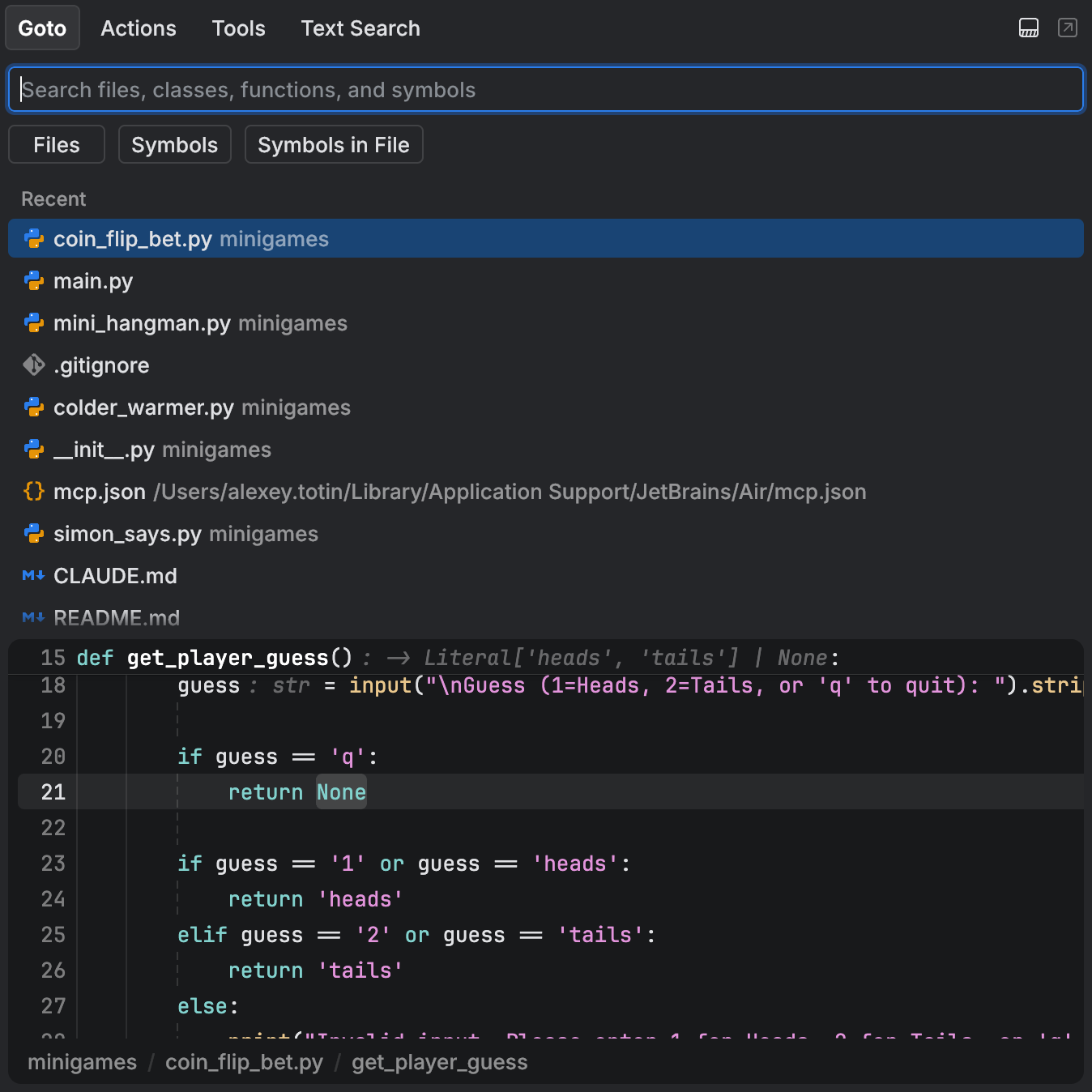
Use Go to All to quickly navigate through the project and the IDE. If you used IntelliJ-based IDEs before, this workflow is similar to Search Everywhere: one entry point for files, symbols, actions, tools, and text search.
Use Go to All
Open Go to All in one of the following ways:
Press Ctrl+K or Shift Shift.
In the main menu, select .
In the Goto tab, start typing to search across files, symbols, and symbols in the current file.
Use the filters below the search field to narrow results to Files, Symbols, or Symbols in File.
Select a result to preview it in the lower part of the popup. Press Enter to open the selected result in an editor tab.
Find and run actions
Open the Actions tab in one of the following ways:
Press Ctrl+Shift+K.
Open Go to All and switch to Actions.
Go to .
Type the action name, for example, Add to Task or Settings.
Select the action and press Enter to run it.
Open tools
Open the Tools tab in one of the following ways:
Press Ctrl+T.
Open Go to All and switch to Tools.
Go to .
Type the tool name, for example, Files, Chat, or Review.
Select the tool and press Enter to open it.
Search text across the project
Open the Text Search tab in one of the following ways:
Open Go to All and switch to Text Search.
Press Ctrl+Shift+F.
Run the Find in Files… action.
Enter the text you want to find. You can use regular expressions and the search options in the search field.
Optionally, narrow the search with In folder and File mask.
Review the matches and open the result you need.
Text Search is built for jumping to one result. When you need to see every match at once, replace text across files, or hand the whole result set to an agent, use the Search tool instead – see Search and replace.
Navigate through code
For supported languages, you get language-aware code navigation such as going to definitions, finding usages, and navigating to implementations. For other languages, basic editor features such as syntax highlighting may still be available, but advanced navigation can be limited.
The exact level of support depends on the language. For the current list, see Language support.
Find usages
Place the caret on a symbol in the editor.
Find its usages in one of the following ways:
Press Ctrl+U.
Hold ⌘ and click the symbol.
Go to .
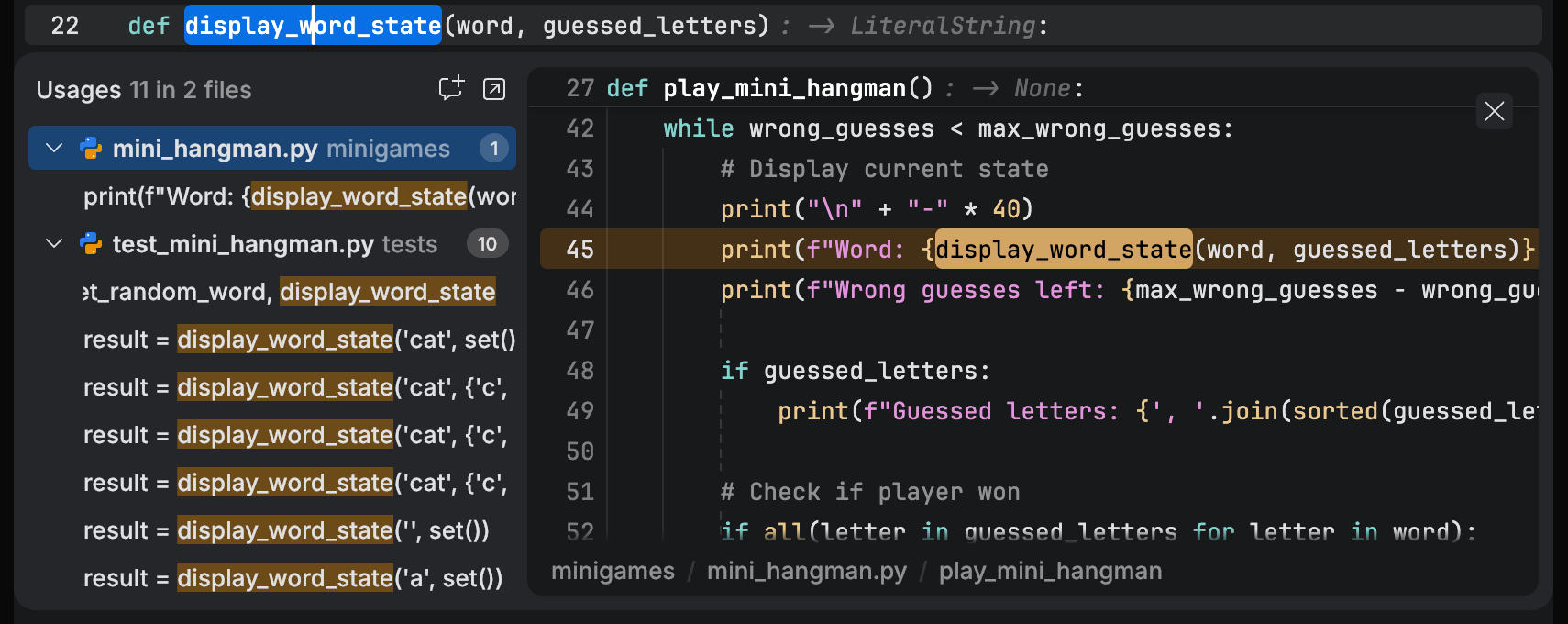
Review the usage list and open the result you need.
Go to definition
Place the caret on a symbol in the editor.
Go to its definition in one of the following ways:
Press Ctrl+B.
Go to .
The definition opens in the editor.
Go to implementations
Place the caret on a symbol in the editor.
Go to implementations in one of the following ways:
Press Alt+Shift+B.
Go to .
Select the implementation you want to open.
Go to type definition
Place the caret on a symbol in the editor.
Go to the type definition in one of the following ways:
Press Ctrl+Shift+B.
Go to .
Go to problems
Open the next or previous problem in one of the following ways:
Go to or .
Press Ctrl+E or Ctrl+Shift+E.
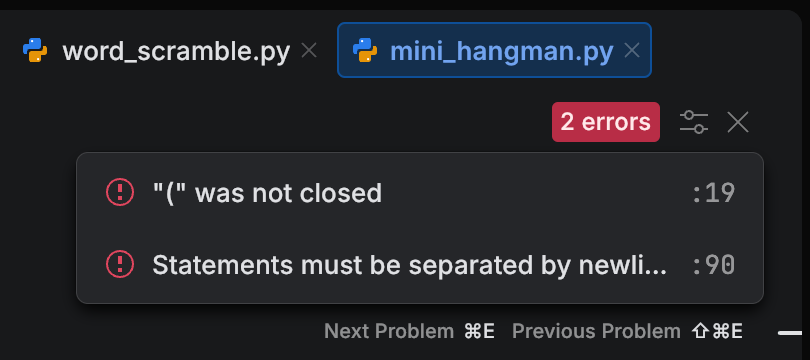
To inspect all current problems in the file, click the problem indicator in the editor tab or in the upper-right corner of the editor.
Select a problem from the list to jump to its location in the file.
If these navigation actions are unavailable for a file, the language may not have advanced language support. In that case, use Search, task context, and Go to All to navigate manually.