Run a task
A Air Teams task runs in a cloud environment instead of on your machine. Start it in the browser at https://air.jetbrains.cloud, from an IntelliJ-based IDE, or from the Air app.
What happens to your changes
A cloud environment has a limited lifetime. Air Teams suspends it after a period of inactivity and archives the task a day later, so nothing that lives only inside the environment is safe. To make the result durable, Air Teams doesn't wait for you: it commits what the agent produced to a separate task branch and pushes that branch to the remote repository.
This happens after every agent turn, not once at the end. A task you send back twice with feedback leaves three commits on its branch. Nothing is staged for you to accept, and nothing is left uncommitted for you to review before it lands – by the time you open the task, the change is already on the server.
What this leaves you is review and iteration. You read the result, comment on it, and let the agent answer – which adds another commit – until the branch is what you want. Then you open a pull request from it.
Edits you make yourself
Files you add or change by hand aren't part of that. They stay uncommitted, and you commit them yourself from the Changes tool.
Do that before you send the next prompt. The agent's next commit takes everything in the working tree, so your edits go in with the agent's under the agent's commit message if you leave them uncommitted.
Before you start
You can start with the default cloud environment, but for many projects it is useful to configure the environment first.
To run tasks in the browser, you must first configure a repository connection. Without it, you cannot select a repository. Learn how to connect repositories.
If your project needs specific dependencies, environment variables, secrets, or integrations, create an environment configuration for the repository in advance. Learn how to configure environments.
1. Start the task
You can start a task in the browser or from the Air app.
Run a cloud task from the browser
Log in to https://air.jetbrains.cloud with your JetBrains Account.
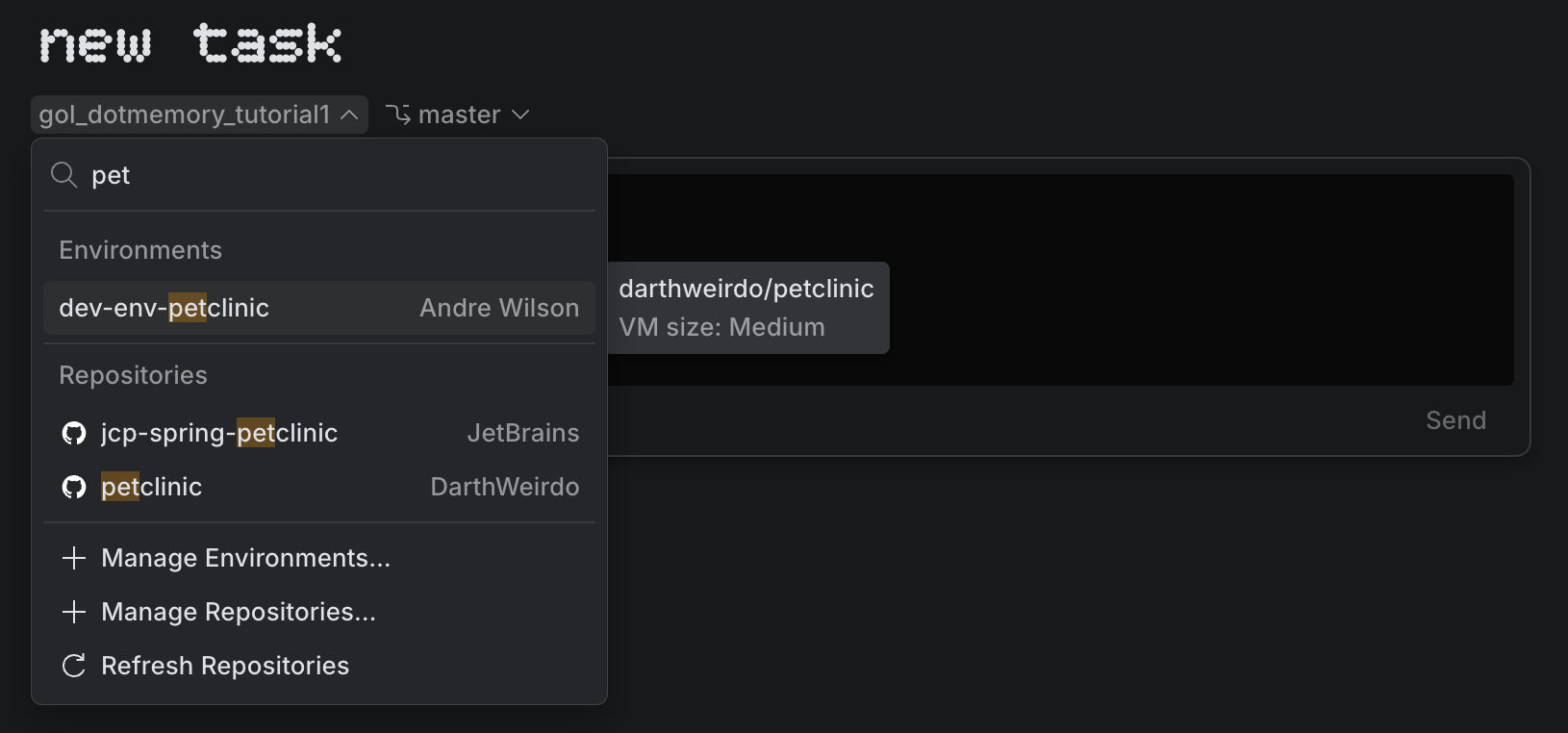
On the New Task page, select an environment or a repository, and a branch. Selecting an environment runs the task with that configuration; selecting a repository uses the default environment.
Choose the agent, the model and its effort level, and the permission mode.
The agent is fixed once the task starts, so this is the point to get it right. See Set up a task before you send it.
Enter your task prompt and send the task.
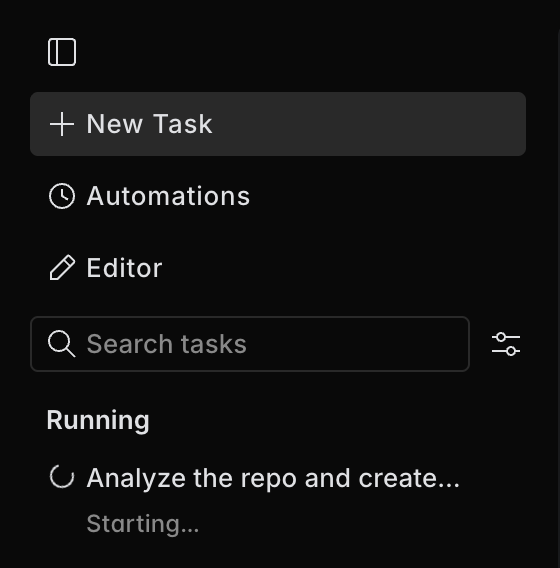
After the task starts, it appears in the left pane.
Run a cloud task from the Air app
Open your project in the Air app.
Start creating a new task.
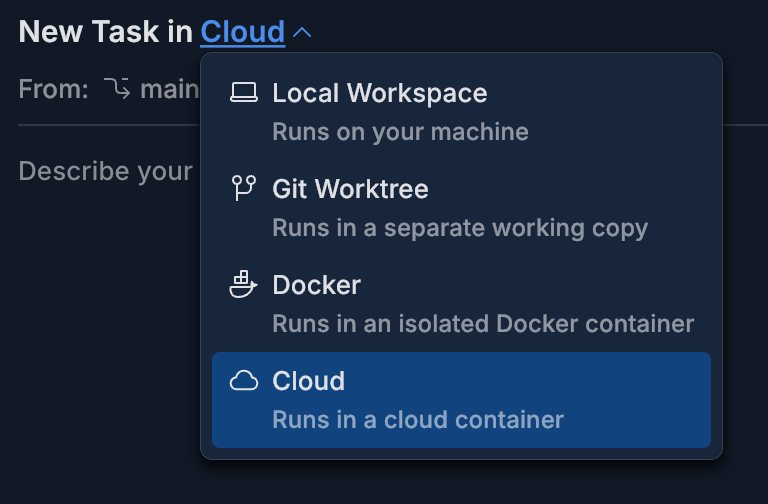
In the task run environment selector, choose Cloud.
Enter your task prompt and send the task.
2. Review the result and iterate
Open the task to see what the agent did. In the browser, this loads the Air Teams editor into the page, so you get the changed files, the diff, and code navigation alongside the conversation – see Work on a running task.
Review a cloud task
Open the task and read the agent's conversation and the diff.
Leave your feedback where it belongs in the code: select a line and use Add Comment for Selection, or send a fragment to the task with Add to Task.
You can also add context the agent didn't have: type
@and reference files, folders, branches, commits, or the local changes.Send the feedback.
The agent works on it and Air Teams commits the answer to the task branch, so each round of feedback adds a commit.
Repeat until the branch is what you want.
There is no built-in review pass in the browser. If the agent you selected ships a review command or skill, run it from the slash menu – type / in the task input. The Air app has review with agent built in, with its own review prompt and the option to review with a different agent than the one that wrote the code.
3. Create a pull request
The task branch is already pushed, so the last step is to open a pull request from it – see Create a pull request.
Run cloud tasks from IntelliJ-based IDEs
You can start a cloud task from the AI Assistant plugin in your IntelliJ-based IDE. This lets you stay in the IDE while the task runs in the cloud. You can monitor the task execution in Air Teams in the Tasks tool. You can also open your account page at air.jetbrains.cloud to see your running tasks.
Run a cloud task in an IntelliJ-based IDE
In your IntelliJ-based IDE (for example, IntelliJ IDEA), open AI Chat.
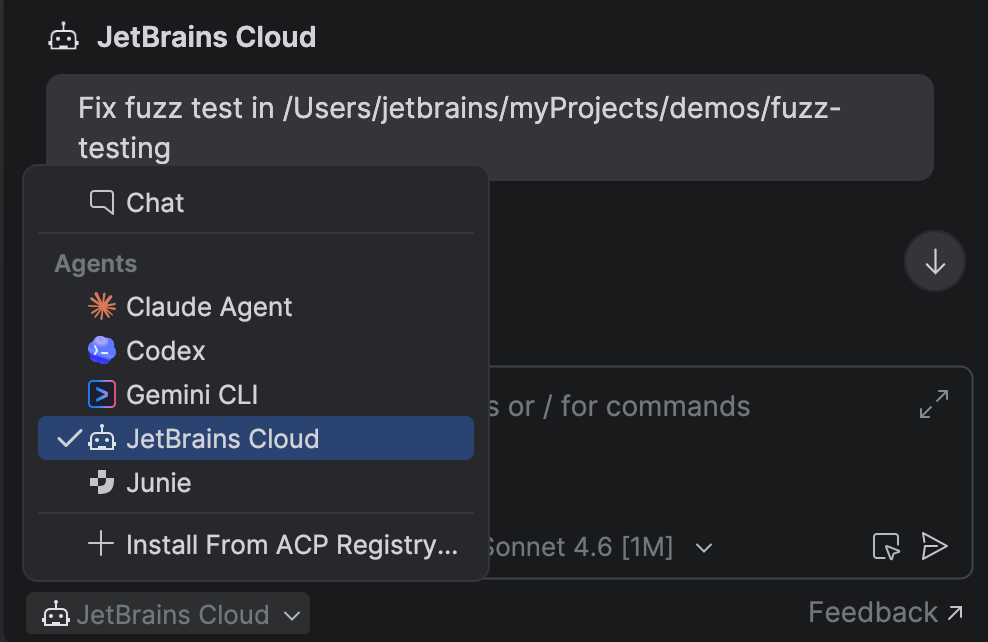
If the agent supports remote runs, a panel with a switcher for running it in the cloud appears. Switch to Cloud mode.
If you run the cloud task for this repository for the first time, the plugin prompts you to authorize the JetBrains Air connection app to access your repository.
Select a branch and a model to run the task.
Type a task and click Send.
The agent runs in the cloud and writes its changes to a separate branch. When it finishes, you can review results by clicking View Commits and merge the changes into your working branch by clicking Merge.
Alternatively, click Open in JetBrains Cloud to open air.jetbrains.cloud for monitoring your tasks in the web interface. If the task hasn't started yet, the link takes you to the New Task page instead – see The task link from the IDE opens the New Task page.
For more details, refer to the JetBrains AI Assistant documentation.
Resume a suspended task
After 75 minutes of inactivity, Air Teams suspends the task's cloud environment and marks the task Suspended. Your results are safe on the task branch, and you can start the environment again while the task stays suspended.
Resume a suspended task
Open the suspended cloud task.
Click Resume. Air Teams starts the environment again, and you can continue reviewing or working on the task.
The environment returns as it was, with the working tree, installed packages, and caches. Running processes are the exception, so restart servers, watchers, and anything else the task had running. See Snapshots and preserved state.
You can resume a task only while it stays suspended. After 24 hours of inactivity, Air Teams archives the task – you can still open it to view the chat history, but Resume is no longer available, because the environment can't be restarted. Your results remain on the task branch. See Cloud environment lifecycle.