MCP
MCP (Model Context Protocol) lets the agent use tools from external services: read an issue, check a build, look up an error. Each service exposes its tools through an MCP server.
In cloud tasks and automations, you can give the agent an MCP server in two ways:
Connector – a managed connection you set up in Air Teams. You pick a service, sign in, and Air Teams handles the connection. Use it for a service from the connector list that's reachable from the internet.
.mcp.jsonfile – a configuration file in the repository root that you write yourself. Use it for a service that has no connector, for a server that's only reachable from your network, or to keep the configuration versioned with the code.
The agent gets the tools from all connectors and .mcp.json servers at the same time. For the Air app, which also configures MCP servers through its own settings, see MCP servers.
MCP connectors
Air Teams has connectors for:
Confluence – pages, spaces, and attachments
Figma – files, comments, and design resources
GitHub – repositories, pull requests, and issues. This connector is always on: it needs no setup, can't be disabled, and is available in every cloud task and automation run that works on a GitHub repository.
GitLab – repositories, merge requests, and issues
Grafana – dashboards, alerts, and data sources
Jira – projects and issues
Linear – projects and issues
Sentry – errors and application health
TeamCity – builds, test results, and investigations
YouTrack – issues, agile boards, and articles
You can add connectors at two levels:
Personal – available in your own cloud tasks and automations. You add them in and sign in with your own account.
Project – available to every cloud task and automation in a project. A project admin adds them on the project page and signs in with a shared account, so all project members use the same connection.
Add a personal connector
Connect a service
Open Air Teams at https://air.jetbrains.cloud.
Open Settings and go to .
Find the service you want under Available. To filter the list, type in Search connectors.
Click Connect and follow the provider's authorization flow to sign in and grant access. Services that run on your own server also ask for its address.
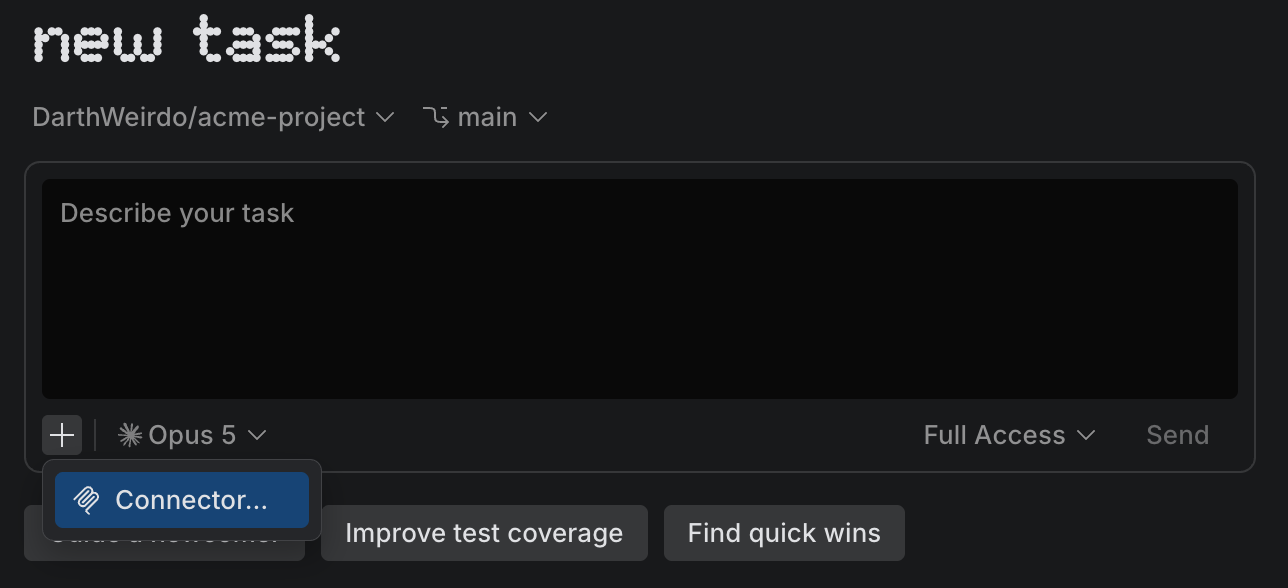
When you finish, the service moves to the Connected list. You can then select the connector in your cloud tasks and, through Select MCP connectors, in your automations.
Add a connector to a project
Project admins add connectors on the project page. A project connector is available to every cloud task and automation in the project, so you set it up once instead of each member configuring the same MCP server.
For details, see Projects | Add connectors to a project.
MCP servers via .mcp.json
A cloud environment has no settings screen, so a .mcp.json server comes from the repository. The environment picks up the file with the checkout, so every cloud task and automation that works on the repository gets the server.
Add an MCP server to the repository
In the repository root, create a
.mcp.jsonfile and add the server undermcpServers. Don't write tokens into the file. Reference an environment variable with${VARIABLE}instead:{ "mcpServers": { "youtrack": { "url": "https://youtrack.example.com/mcp", "headers": { "Authorization": "Bearer ${YOUTRACK_MCP_TOKEN}" } } } }Add the variable's value as a secret in the environment configuration, using exactly the same name. Names are case-sensitive.
Commit and push the file. The next cloud task or automation run on that branch gets the server.
Use connectors and mcp.json servers together
Set up each service one way or the other. If a connector and a .mcp.json server have the same name (e.g., both are called sentry), the agent gets the connector, and Air Teams skips the .mcp.json entry. If they have different names but reach the same service, the agent gets two copies of the same tools and can pick the wrong one.
Reach a service behind an IP allowlist
Your service (e.g., a self-hosted TeamCity instance, an internal registry, etc.) may accept requests only from allowlisted IP addresses. A connector and a .mcp.json server reach your server through different gateways, so the addresses you should allow are different:
Connector – the agent connects to your server through a gateway, so allow the gateway provider's IP addresses (EU tenant).
.mcp.jsonfile – the agent connects to your server through a fixed pool of addresses you can add to your allowlist. See IP addresses a cloud environment connects from.