Create automations
Before you start
Before you create an automation, make sure that:
Your organization is set up for Air Teams. This is done once by an administrator – see Set up Air Teams.
You are signed in to Air Teams with your JetBrains Account and have access to the organization.
The repository you want to automate is available through a configured repository connection. Automations work with any connected provider – GitHub, GitHub Enterprise Server, GitLab, and GitLab Self-Managed. If needed, see Connect a VCS provider.
Create an automation
You can create an automation from scratch or start from an automation template. A template pre-fills the automation's definition, and you can edit it afterward. You apply a template while creating or editing the automation, so the rest of the workflow is the same either way.
Create an automation
Log in to https://air.jetbrains.cloud with your JetBrains Account.
Open the Automations page.
Click New Automation, in the sidebar or in the top-right corner of the Automations page.
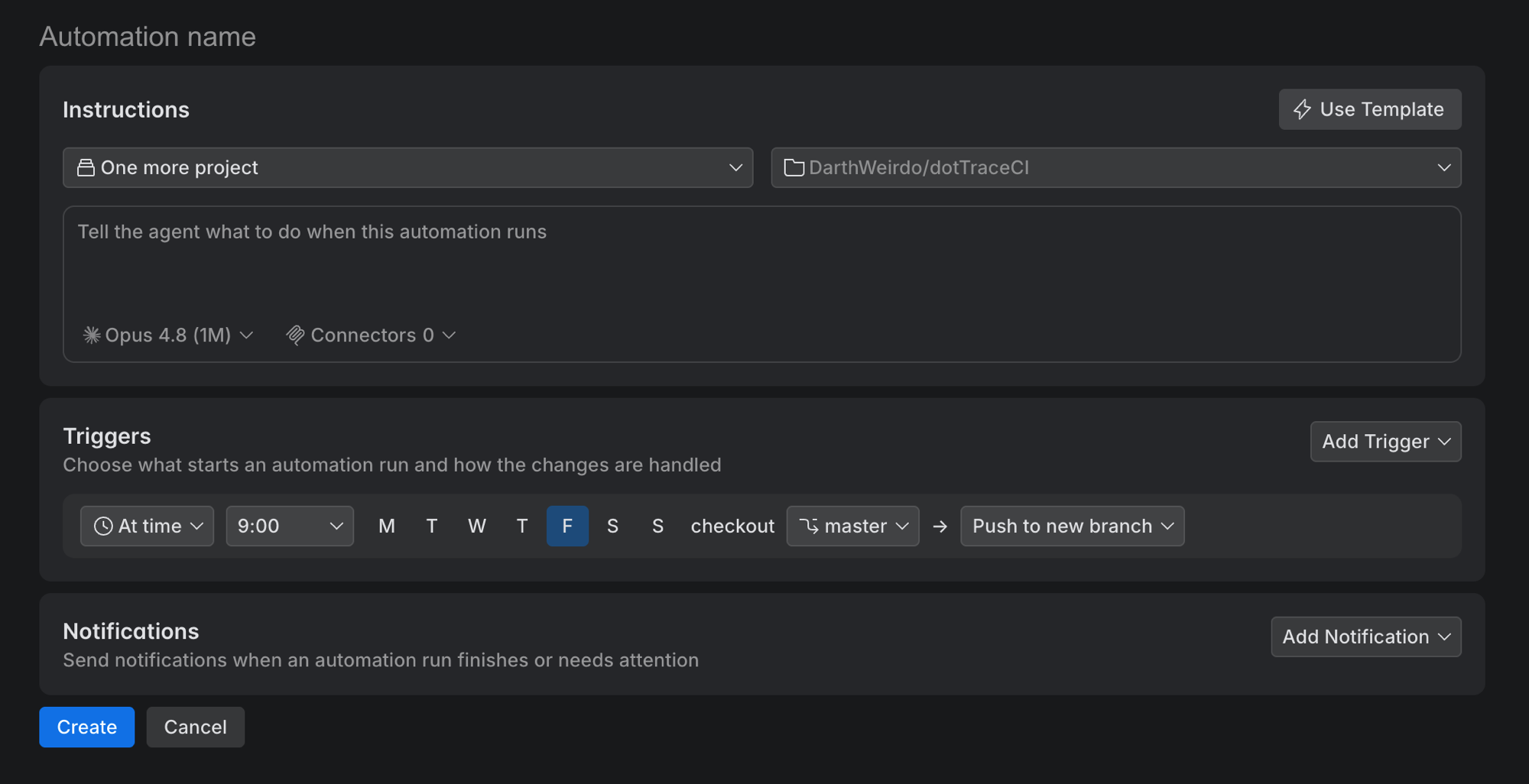
Enter a name for the automation in the Automation name field.
Under the name, use the scope selector to set who the automation belongs to: keep Personal to keep it to yourself, or select a project to share it with the project's members. Project admins can manage a project automation, and the project decides whether its runs spend the project's AI credits or yours. The scope also sets which environments and connectors you can select. For details, see Sharing automations in projects.
Click Select repository and select the repository the automation works on. If you have a preconfigured environment configuration for that repository, select it to run with its dependencies and settings; otherwise the automation uses the repository's default cloud environment. For details, see Configure environments for automations.
In a project whose automations run on the project's AI credits, a GitLab repository is available only if both you and the project's GitLab account can reach it. The ones its account can't reach are marked No project access – see Set up GitLab access for project automations.
Define what the automation does:
Instructions – the instructions the agent follows when the automation starts
Use Template – opens the list of automation templates. Select one to fill in the instructions, model, triggers, and connectors from a ready-made definition, which you can then edit. A template can also ask for parameter values and take extra instructions of your own.
Model – the model used for automation runs
Optionally, in Triggers, add one or more triggers. Each trigger configures two things:
How a run starts – an event or a schedule, plus the branch the run works on
What to do with the changes – whether the run commits them, opens a pull request, or reports back without touching the code
For details, see Automation triggers.
An automation without triggers never starts on its own. It runs only when you start it with Run Now – see Run an automation manually.
In Connectors, add connections to the MCP servers that the agent can use during the run. For details, see Connectors.
In Notifications, optionally add one or more notifications, including outgoing webhooks. For details, see Automation notifications.
Click Create.
Configure environments for automations
Automations are cloud tasks, so they run in cloud environments.
If you select just a repository in the repository selector, the automation runs in that repository's default cloud environment. This is enough for simple cases.
If the automation needs specific dependencies, environment variables, secrets, or other runtime settings, create an environment configuration for the repository in advance, then select it instead of the repository – see Configure environments.
The environments you can select depend on the automation's scope: a personal automation (Personal) lists your personal environments, and a project automation lists that project's environments.
Each run gets its own environment, but a run can start from a snapshot of an earlier run or task on the same repository, so files outside the repository can be preserved. Don't rely on that for correctness – see Snapshots and preserved state.
Add MCP connectors
Connectors give the automation's agent access to external tools through MCP, so it can read and act on data in services such as Sentry, Jira, or Figma during a run. In the Connectors section of the automation settings, click Add Connector and select which connectors this automation uses.
The connectors you can pick depend on the automation's scope:
A project automation can only use the project's connectors, listed under Project Connectors. To make another one available, a project admin has to add it to the project first – see Add connectors to a project.
A personal automation uses your personal connectors, and you can click Add Personal Connector to connect a service without leaving the form – see Add a personal connector.
Selecting connectors doesn't replace mcp.json. The agent also uses any MCP servers defined in a .mcp.json file in the repository root, alongside the connectors you select. See MCP servers via .mcp.json.
Sharing automations in projects
An automation is either personal or shared within a project. This sets who can use it and whose AI credits its runs consume:
Personal – the default. Only you can view, edit, or run the automation, and its runs consume your AI credits.
Project – project admins can manage the automation, and project members can view it and run it manually. Whose AI credits its runs consume depends on the project's AI Credits setting – see AI credits for automation runs.
That setting also decides who the run is, so it decides how the run reaches the repository – see How automation runs reach the repository.
To share an automation, select a project in the scope selector under the automation name when you create or edit the automation. You can change the project at any time, or set it to Personal to make the automation personal again.
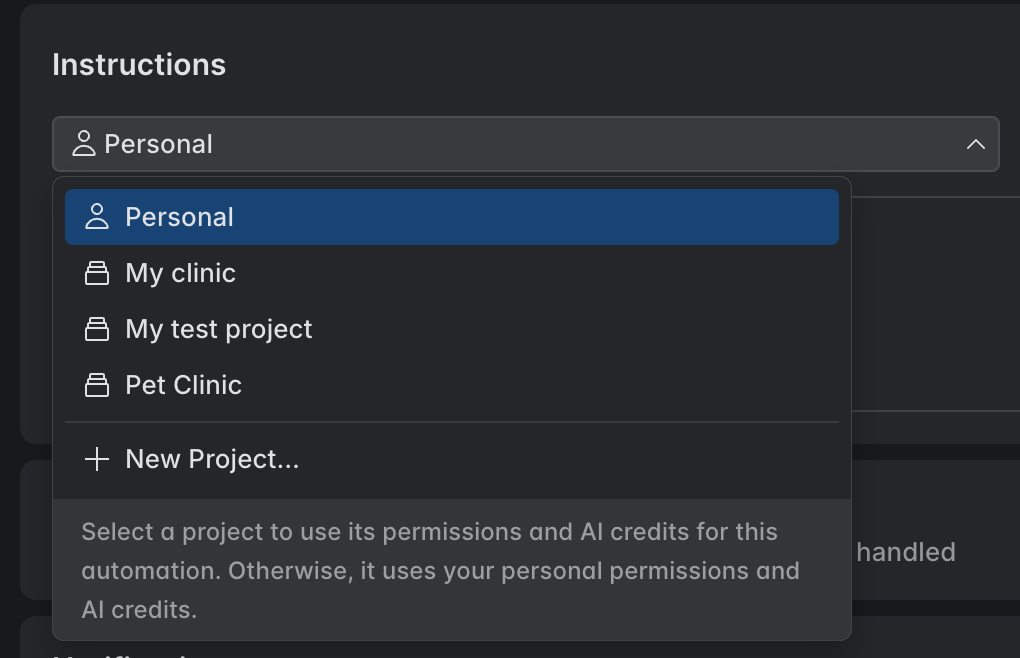
AI credits for automation runs
Every automation run consumes AI credits. A personal automation always spends yours. A project automation spends whichever credits the project's admins chose in project settings, under AI Credits: the project's own credits, or the personal credits of the person who created the automation. See AI credits for project automations.