Work with automation run results
Every automation run is a cloud task that Air Teams starts from a trigger instead of a person. A run uses the same environment configuration, checks out a branch in the cloud environment, and the agent works on the task. The trigger decides in advance what to do with the changes, so a run can push commits, open a pull request, or make no code changes at all.
You can work with automation run results from the Automations page: read what the run did, open a pull request from a pushed branch, continue the work in a new task, or repeat the run with the same input.
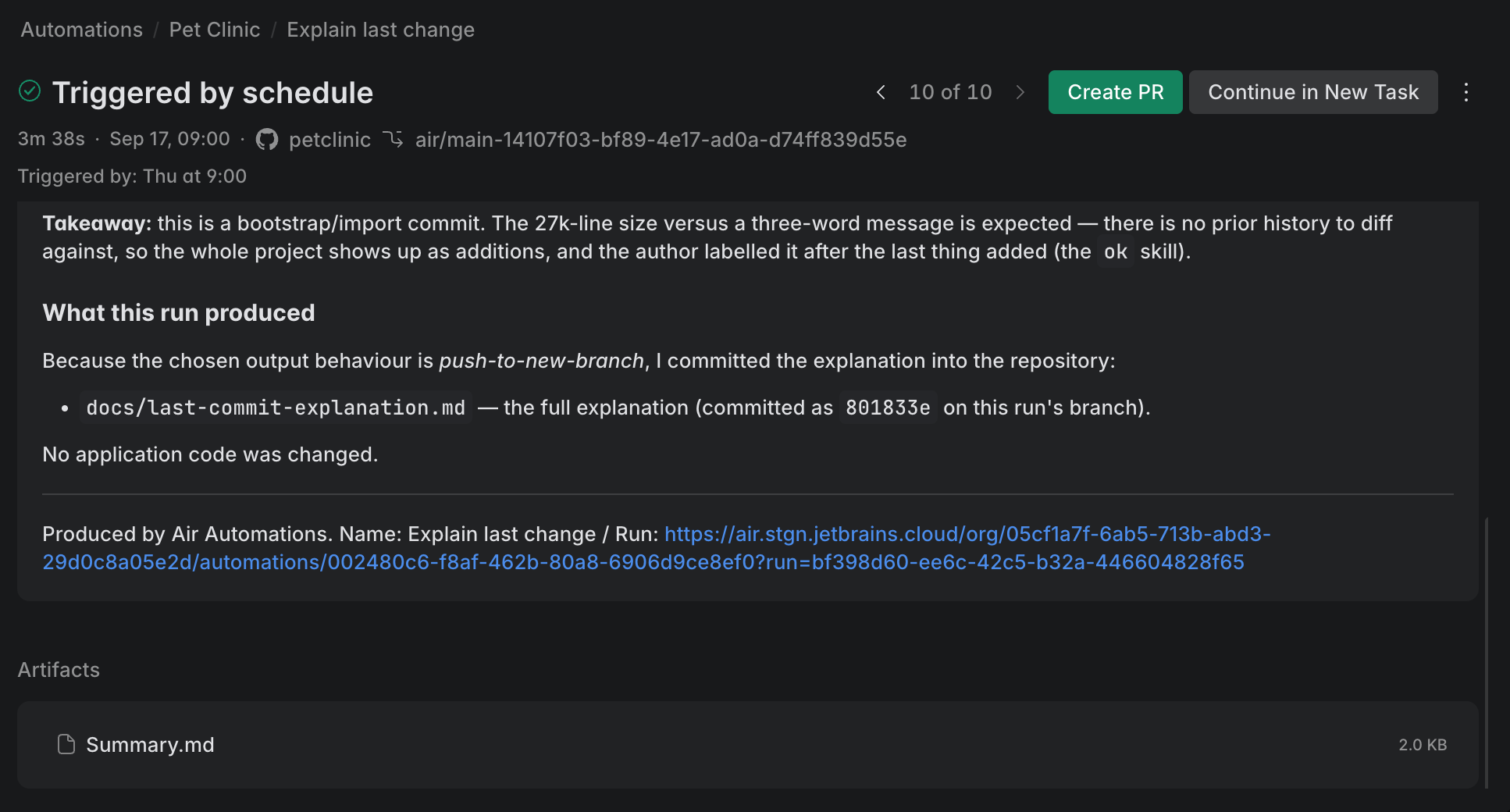
What a run does with its changes
Each trigger sets what its runs do with the changes they produce, so what you get after a run depends on the trigger. To set or change it, see What to do with the changes.
Trigger setting | What you get after a run |
|---|---|
No code changes | The run commits nothing. Its result is available in the run output and in any notifications you configured. Use it for analysis, triage, or reporting. |
Push to source branch | The changes are committed to the branch the run worked on: the checked-out branch, or the pull request's source branch. For a pull request trigger, this adds commits to the existing pull request. |
Push to new branch | The changes are on a new branch Air Teams pushed for the run. Open a pull request from it when you're ready – see Create a pull request from a run. |
Create a PR | Air Teams has already opened a pull request from the run's branch. Review and complete it in your VCS provider as usual. |
Create a pull request from a run
When a trigger uses Push to new branch, the run pushes its changes to a new branch but doesn't open a pull request. Create one from that branch when you're ready. With Create a PR, Air Teams already opened the pull request for you. This is the same review-and-apply flow as with a regular cloud task.
Create a pull request from a run
On the Automations page, select the automation and open the run you want to apply.
Click Create PR. Air Teams opens the new pull request page in your VCS provider in a new browser tab.
Review and complete the pull request in your VCS provider as usual.
You can also open the pushed branch directly in your VCS provider and create the pull request there.
View run details
The run page shows only the run summary.
To see how the agent got there, click Show full chat under the summary. The run's chat unfolds on the page with the task the agent received, its reasoning, and every tool call it made. The chat is read-only, so to act on what you read, continue the run in a new task. This is the fastest way to tell why a run finished without doing what you expected – see Troubleshoot automations.
The link appears only if you have access to the automation's chat history.
Continue a run in a new task
If you want to keep working on what an automation started, continue the run in a new task. Air Teams creates a new cloud environment and sets it up so the new task picks up where the run left off:
Branch – the new environment is on the same feature branch the run pushed to, so the run's changes are already in place.
Context – the new task starts with the automation run's result as context, together with an instruction telling the agent it's continuing automation's work.
Continue a run in a new task
Open the run on the Automations page.
Click Continue in New Task.
Air Teams opens the new task. Add more context or instructions and continue working as you would with any cloud task.
Once a run has follow-up tasks, a chevron appears on Continue in New Task. Open it for the Follow-Up Tasks list and jump back to any task you already created from that run.
Repeat a run with the same input
You can start a finished run again with the input it originally received – the event or webhook data that fired the trigger, or the context you typed for a manual run. For a triggered run this is the only way to reproduce it, because the event that started it is gone. Use it when a run failed for a reason that has nothing to do with the automation, or when you've edited the automation and want to compare the new result against the same input.
A repeated run uses the automation's current configuration, not the configuration the original run used. Only the input is replayed, so any change you saved since then (a different prompt or model, or a different setting for what to do with the changes) applies. The new run is separate from the original: the original run and its result stay in the Runs section, and the new run consumes AI credits like any other. Note that some runs can't be reproduced.
Repeat a run
Open the Automations page and select the automation.
In the Runs section, click the run you want to repeat (only a finished run can be repeated).
Next to Continue in New Task, open the options menu and select Rerun.
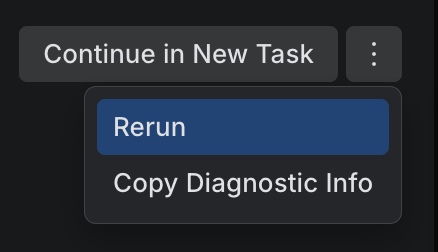
Air Teams starts the new run and opens it.