Troubleshoot automations
Automations run in remote cloud environments. When a run fails or produces an unexpected result, this topic helps you tell the two apart, fix the problems you can fix yourself, and collect the right information before you contact support.
Check the run status
Start with the status. Open the Automations page, select the automation, and inspect its runs in the Runs section. Each run shows how it ended:
Done – the agent finished and pushed its result to a branch
Problem – the run failed or was aborted before the agent could finish
For the full automation workflow, see Manage automations.
The run finished but the output is unexpected
If a run completes but the outcome doesn't match what you expected, the issue is usually in how the agent approached the task rather than in the platform. To see what happened, open the run and click Show full chat to read through the agent's steps – see See what the agent did in a run.
This is almost always model behavior. Refine the automation and run it again to check the result – try a different model first, and adjust the prompt or context as needed. Learn how to edit an automation and how to run one manually to test a change. To test the change against the input the run already had, select Rerun on that run – see Repeat a run with the same input.
Fix common setup problems
Some failures come from the configuration you control. Check these before you report a bug.
No repositories appear when creating an automation
The repository isn't available yet. Make sure the JetBrains Air app is installed for the repository and that the repository is added, then try again. Learn how to connect repositories.
In a project that runs its automations on the project's own AI credits, a GitLab repository can also appear disabled and marked No project access. Then the project's GitLab token is missing or its account can't reach that repository – see A project's GitLab automations are paused.
A project's GitLab automations are paused
On a project that runs its automations on its own AI credits, GitLab automations use a token that a project admin stores in project settings – see Set up GitLab access for project automations. If that token is missing or stops working, Air Teams pauses them and says which case it is. Each message names the GitLab instance, so a project connected to both GitLab.com and a self-managed instance reports them separately:
GitLab is not configured for the project – no token is stored yet. A project admin connects GitLab in project settings.
Invalid GitLab token – the stored token expired or was revoked in GitLab. A project admin creates a new one and reconnects GitLab.
The project's GitLab account can't access all required repositories – the token works, but its account isn't a member of the GitLab project that holds the repository. Add the account there with the role the automation needs.
If Air Teams rejects a token as you save it, the token is missing a scope. Check it against the scopes each kind of access needs.
MCP server errors during a run
MCP failures are most often caused by a variable name mismatch. Every token, key, or URL referenced in your repository's MCP configuration must have a matching environment variable, with exactly the same name. Names are case-sensitive. Verify the names match and rotate and re-add a token if it may have expired. Learn more about connectors and mcp.json servers.
A trigger didn't fire
What to check depends on the trigger type:
Schedule – a scheduled run launches on behalf of the automation's creator. If a schedule that used to work goes silent, the creator's session may have expired. The creator needs to sign in to Air Teams again.
GitHub events – only specific events start an automation, and each event maps to a single GitHub action. If the action you expected isn't one of the supported events, the automation won't run. See the supported events in Triggers.
On a repository from a self-hosted GitHub Enterprise Server instance, events also depend on the app an organization administrator created on that server. If the app's webhook is inactive or it isn't subscribed to the event, nothing reaches Air Teams: the trigger saves and manual runs work, but no event ever fires. Workflow triggers need the app's Actions permission on top of that. Ask the administrator to check the app against the GitHub Enterprise Server instructions in the JetBrains Console documentation.
Jira events – Jira sends only the events selected in the webhook, so check that the one you expect is selected there. Check the filter value on the trigger too: a label, assignee, status, or priority has to match exactly. If anyone in your organization rotated the secret in Air Teams without updating it in Jira, no Jira event reaches the organization at all, and nothing reports it – see Connect Jira.
The run failed to start or ended with a problem
If a run doesn't start, or starts and ends with a Problem status you can't act on, this is usually an infrastructure issue on the JetBrains side. Some failures are transient, so repeat the run with the same input to check whether it reproduces. If it does, copy the diagnostic information for the run and contact support.
Copy diagnostic information for a run
The diagnostic information identifies the run and its environment so support can trace the failure without extra back-and-forth. To copy it, open the run, open the options menu, and select Copy Diagnostic Info.

The copied text contains identifiers such as the organization, automation, run, and workspace IDs. Paste this into your support request.
Contact support
To reach support, open the user menu and select Contact Support.
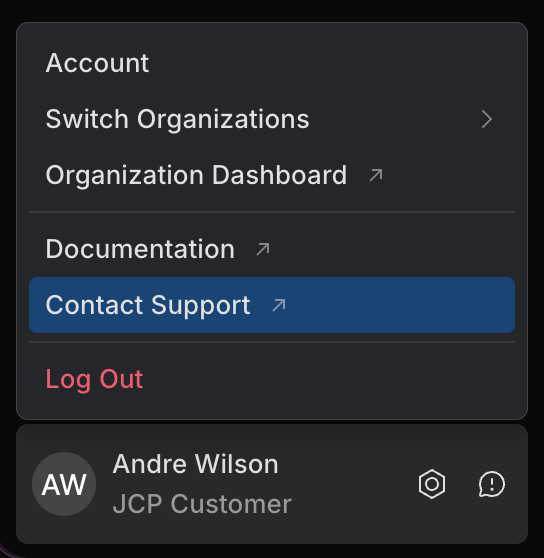
To help support investigate, include:
the diagnostic information for the run (see Copy diagnostic information for a run)
the trigger type – schedule, GitHub event, Jira event, or webhook
what you expected to happen and what happened instead, with the steps to reproduce it