JetBrains Air Help

Connect repositories

Unlike local runs, cloud environments do not already have your project checked out. To make repositories available in JetBrains Air, configure integration with a supported VCS provider: GitHub, GitLab, or Bitbucket.

Repository access in JetBrains Air is based on the JetBrains Air Team app installed in your VCS provider.

You can start the connection flow from the web version of JetBrains Air. In JetBrains Air and AI Assistant, repository authorization is started from the cloud task flow.

Connect repositories

  1. In the web version of JetBrains Air, go to Settings | Integrations.

  2. Find your VCS provider and click Connect.

  3. Complete the provider flow opened by the web version of JetBrains Air.

    The provider can ask you to authorize the JetBrains Air Team app for your personal account and, if applicable, for organizations available to your account.

  4. Finish the authorization flow.

    After the connection is established, JetBrains Air shows the connected account and the organizations available through that connection.
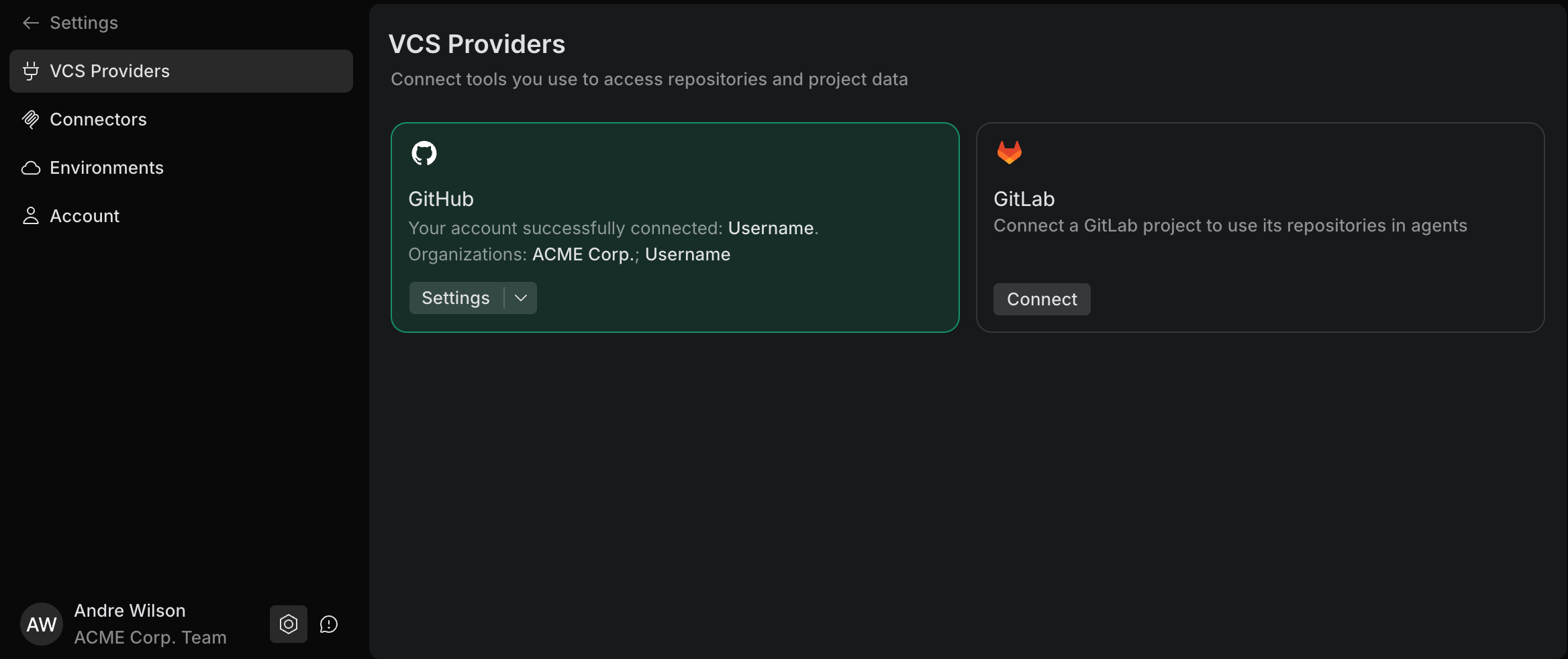
    VCS connections
  1. In JetBrains Air or AI Assistant, start creating a task and select a cloud run environment.

  2. If asked for repository read permissions, click Manage... in the authorization banner.

  3. Complete the provider flow opened from the banner.

    The provider can ask you to authorize the JetBrains Air Team app for your personal account and, if applicable, for organizations available to your account.

  4. Return to the task flow and continue working on the task.

    Connecting a VCS provider

    When you connect a VCS provider, Air starts the installation of a provider-specific app called JetBrains Air Team. The installation flow depends on the VCS provider, but in all cases it installs an app into your VCS provider account and grants it permission to perform specific actions on all or selected repositories.

    Connecting a provider involves two distinct actions. Depending on the provider and the account, one person can perform both, or different people can perform each one:

    • Installing the app – an administrator installs the JetBrains Air Team app into a VCS provider account – a personal account, organization, or group – and chooses which repositories the app can access. This is what makes those repositories available to JetBrains Air.

    • Authorizing the app – each user authorizes the JetBrains Air Team app to act on their behalf, for example to view issues and create pull requests. On GitHub, this is an OAuth flow.

    Sometimes one person performs both actions. For example, when you connect your own personal account, you both install the app for that account and authorize it to act on your behalf. For an organization, an administrator usually installs the app, and each user then authorizes it for themselves.

    GitHub

    Who can grant the app access to a repository

    A user can grant app access in these cases:

    • Personal repositories – if the app is installed in the user's personal account, the user can grant access to their personal repositories.

    • Organization repositories – organization owners can grant the app access to organization repositories.

    • Repository admins – repository administrators can grant access to repositories they administer, if the organization allows repository administrators to install GitHub apps.

    Users with only normal read or write access cannot directly grant the app access to a repository. On GitHub, such repositories can appear with a Request badge instead.

    How to make a repository appear in JetBrains Air

    Installing the app for an organization does not mean that every repository in that organization will appear for every user in JetBrains Air.

    A repository appears in JetBrains Air only if both of the following are true:

    • the app installation has access to that repository

    • the user has explicit repository access in GitHub

    Repository type

    When it appears in Air

    Personal repository

    The app is installed in the personal account and has access to the repository.

    Organization public repository

    The organization installation has access to the repository.

    Organization private repository

    The organization installation has access to the repository, and the user has explicit repository access in GitHub.

    Organization internal repository

    The organization installation has access to the repository, and the user has explicit repository access in GitHub. Organization membership alone is not enough.

    Internal repositories need special attention. A user may be able to open an internal repository directly in GitHub because they belong to the organization, but the same repository still may not appear in JetBrains Air.

    For internal repositories, the usual fix is to grant the user explicit repository access, for example through a team or a direct collaborator role.

    GitLab and Bitbucket

    GitLab and Bitbucket repository access in JetBrains Air also goes through the JetBrains Air Team app. Air starts the flow, and the app is then installed and authorized in GitLab or Bitbucket.

    The repositories that appear in JetBrains Air depend on:

    • which repositories the app is allowed to access

    • which repositories the current user is allowed to access in GitLab or Bitbucket

    Set up organization repository access (admin)

    To make organization repositories available in JetBrains Air, the JetBrains Air Team app must first be installed for that organization in the VCS provider.

    This first step must be done by a user with sufficient administrative permissions in that organization. For GitHub-specific details, see Who can grant the app access to a repository.

    Grant JetBrains Air access to organization repositories

    1. In the web version of JetBrains Air, go to Settings | Integrations.

    2. Find the required VCS provider and click Connect.

    3. In the provider flow opened by the web version of JetBrains Air, install the JetBrains Air Team app for the organization.

    4. Grant the app access either to all organization repositories or only to selected repositories.

      Only the repositories granted to the app at this stage can later appear in JetBrains Air.

    After that, users from that organization can connect the same provider in JetBrains Air and access the repositories that are available to them according to the provider's access rules.

    Manage repository access

    After a provider is connected, you can change which repositories are available to the app from the web version of JetBrains Air.

    Manage repository access

    1. In the web version of JetBrains Air, open Settings | Integrations.

    2. Find the connected provider and click Settings.

    3. Select the personal account or organization account you want to manage.

      GitHub app installation flow where the user chooses a personal or organization account
    4. Update repository access for that account.

      For example, in GitHub you can choose:

      • All repositories – the app can access all current and future repositories in that account

      • Only select repositories – the app can access only the repositories you choose

      For a personal account, switching to Only select repositories lets you choose which of your repositories the app can access.

      For an organization account, the list can also include repositories that are allowed for the app installation but that you cannot grant yourself. On GitHub, such repositories can appear with a Request badge. You can request access to those repositories from this screen.

    5. Save the changes.

    If a repository does not appear in JetBrains Air

    If a repository is missing from the repository list in JetBrains Air, check the following:

    • the provider is connected in Air

    • the app installation has access to that repository

    • you are connected to the correct personal or organization account

    • you have the required repository access in the VCS provider

    • for GitHub internal repositories, you are not relying only on organization membership visibility

    23 June 2026