Run environments
In the Air app, a task can run in your workspace, in a separate Git worktree, or in a Docker container. Pick the environment in the task header before you start the task. To run the task in the cloud instead, see Run a task.
Select a task run environment
In the task header, use the environment selector.
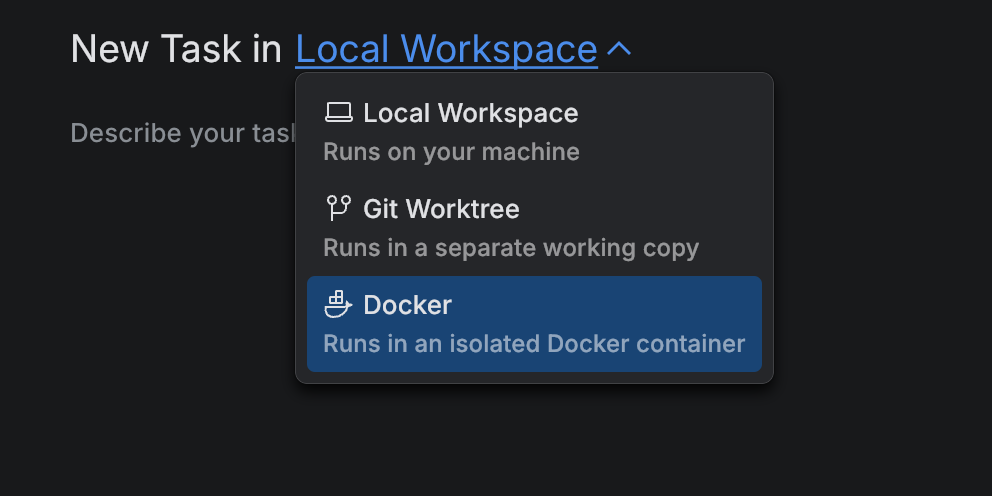
Local Workspace – runs directly in your current workspace. This mode has the fastest startup and uses your existing environment, but changes are applied to your project folder. It does not provide isolation.
Git Worktree – creates a separate working branch of the repository. This mode provides isolation from your main branch while still using your local environment. Note that you may need to reinstall project dependencies or repeat location-specific setup for every new task.
Docker – runs in an isolated container. You must have Docker Desktop installed and a valid license to use it. This mode offers complete isolation for code changes and tools. Isolation means that all edits, commands, and dependencies stay inside the container and do not affect your local workspace or system environment.
Cloud – runs in a remote cloud environment. Air Teams commits changes to a separate task branch and pushes them to the remote repository after the task is done.
Local Workspace
Use Local Workspace to run a task on your machine in the current workspace. This option starts fast and uses your existing local setup. Changes apply to your working copy.
The agent edits files directly on your current branch. To accept the result, you commit and push:
Git Worktree
Use Git Worktree to run a task in a separate working copy of the same repository. This option helps you isolate changes from your main working directory. Use it when you want to work on multiple tasks without mixing edits. For more information about Git worktrees, refer to git-worktree at git-scm.com.
For each task, the Air app creates a separate branch in the worktree. Learn more about how the isolation in a Git worktree works here.
Git Worktree isolates files and branches, but not the host environment itself. The task still runs on your machine. If you need task-specific environment variables or preparation steps, configure them in .air/worktree.json.
Your local working copy stays on its branch while the agent works in the worktree. After review, you bring the result back with Apply Locally or Check Out Branch Locally, then commit and push:
worktree.json
Git Worktree settings are stored in .air/worktree.json in the project root. You can open this file directly or from the project settings: Open and click Edit.
Use the following example as a reference:
Specify environment variables
Use the environment section to pass environment variables to the worktree task.
These variables are resolved against the host environment before setup commands run. They are merged into the shell process that executes setup commands and remain available throughout the agent session.
Environment variables defined in .air/worktree.json are scoped to the current worktree session. They do not automatically affect other worktrees or unrelated local sessions.
Entry type | Description |
|---|---|
| Sets a single environment variable. If |
| Loads variables from a |
The following system variables are reserved and cannot be overridden: HOME, PATH, USER, SHELL, TMPDIR, variables that start with FSD_, and variables that start with XDG_.
For example:
In this example, DATABASE_URL is available both in the setup command and in terminal sessions spawned by the agent inside the same worktree session.
Run commands before the agent session
Use the setup section to run commands on the host machine inside the worktree directory before the agent session starts.
Only the commands for the current operating system are executed. Commands for other operating systems are ignored. If there is no entry for the current OS, setup is skipped.
Variables from the environment section are available in setup commands.
Parameter | Description |
|---|---|
| (Optional) Commands to run before launching an agent in a worktree on Linux. |
| (Optional) Commands to run before launching an agent in a worktree on macOS. |
| (Optional) Commands to run before launching an agent in a worktree on Windows. |
For example:
You can also use setup commands to clone another repository that the task needs. For cloud tasks, see Clone additional repositories.
Run commands before the worktree is deleted
Use the cleanup section to run commands on the host machine inside the worktree directory before the Air app deletes the worktree. Use it to remove temporary files, stop background processes, or release resources the task created.
The Air app deletes the worktree when you delete the task that uses it, not when the task finishes or when you bring the changes back to your local workspace. Until you delete the task, the worktree and its branch stay on disk, so you can return to the task and keep working.
Only the commands for the current operating system are executed. Commands for other operating systems are ignored. If there is no entry for the current OS, cleanup is skipped.
If a cleanup command fails, the Air app reports the error and deletes the worktree anyway.
Variables from the environment section are available in cleanup commands.
Parameter | Description |
|---|---|
| (Optional) Commands to run before deleting a worktree on Linux. |
| (Optional) Commands to run before deleting a worktree on macOS. |
| (Optional) Commands to run before deleting a worktree on Windows. |
For example:
Docker
Use Docker to run a task in an isolated container. This option helps you isolate tools, dependencies, and runtime configuration from your local machine.
For each task, the Air app creates a separate branch inside the container.
Your local working copy stays untouched while the agent works in the container. After review, you bring the result back with Apply Locally or Check Out Branch Locally, then commit and push:
docker.json
Docker settings are stored in .air/docker.json in the project root. You can open this file directly or from the project settings: Open and click Edit.
Use the following example as a reference:
Use the default image
If your task does not require any specific tooling or dependencies, you can run it without creating .air/docker.json. In this case, the Air app uses a managed default image that contains almost all common tools and frameworks.
This is the simplest option and is often enough for basic tasks.
Use a custom image
Use a custom image when your project depends on tools, packages, or system libraries that are not available in the default image.
Important notes:
You can use either a prebuilt image from Docker Hub (
image) or build an image from a Dockerfile (build).You can use either
imageorbuild, but not both.A custom image must include Git and provide
/bin/sh. To install Git, you can add to the DockerfileRUN apt-get update && apt-get install -y git-allWhen you use a custom image, pay attention to the container user configuration. See Run the container as a specific user.
Prebuilt image
Use image to run the agent in an existing Docker image. For example:
Parameter | CLI equivalent | Description |
|---|---|---|
|
| Name of a prebuilt Docker image from Docker Hub, for example When you use |
Dockerfile
Use build to build a custom image from a Dockerfile. For example:
Parameter | CLI equivalent | Description |
|---|---|---|
|
| Path to the Dockerfile. Relative paths are resolved from the build context. Absolute paths and When |
|
| (Optional) Build context directory. Relative paths are resolved from the project root. Absolute paths and |
|
| (Optional) List of |
Important:
The Air app controls the container runtime itself. Because of this, some Dockerfile directives that affect runtime behavior are overridden or ignored when the agent starts.
The Dockerfile is still used for image build steps such as
FROM,RUN,COPY,ADD,ENV,ARG,LABEL, andONBUILD. However, directives that control how the container runs, such asENTRYPOINT,CMD,EXPOSE,WORKDIR, andSHELL, are replaced by the Air app runtime configuration.VOLUMEinstructions must not target paths that overlap with the reserved mount point/mnt/air.
Run the container as a specific user
Use the user section to define which OS user the container process runs as.
If you specify user, you must also specify either image or build.
If you use build, the user and group must be created explicitly by the Dockerfile. If you use image and omit user, the Air app creates a default user airuser:agents automatically, with sudo access, a home directory, and a Bash shell.
Parameter | CLI equivalent | Description |
|---|---|---|
|
| Object with The user must have a valid home directory. |
For custom images, make sure the Dockerfile creates the user and group. For example: RUN groupadd some-user && useradd --create-home some-user
Specify environment variables
Use the environment section to pass environment variables to the Docker container.
These variables are injected when the container starts, similarly to Docker run flags. They become part of the container process environment, so they are available to all processes inside the container, including setup commands and the agent itself during the whole session.
The following system variables are reserved and cannot be overridden: HOME, PATH, USER, SHELL, TMPDIR, TMP, TEMP, LOGNAME, SHLVL, WORKSPACE_SECRET, variables that start with FSD_, and variables that start with XDG_.
Entry type | CLI equivalent | Description |
|---|---|---|
|
| Sets a single environment variable. If |
|
| Loads variables from a Relative paths are resolved from the project root. Absolute paths and |
Set variables directly
Use type: "env" to define individual variables directly. For example:
In this example, APP_ENV is set explicitly, while NVM_BIN is inherited from the host environment when the container starts.
Load variables from a file
Use type: "envFile" to load variables from a file instead of listing them one by one. For example:
The file does not have to be stored in the current workspace. You can use a path inside the project or an absolute path outside it.
Run commands before the agent session
Use the setup section to run shell commands inside the container before the agent session starts. For example:
These commands run after the container starts and after the Air app initializes the file system daemon, but before the agent begins working on the task. You can use them to:
install additional packages
create or update configuration files
prepare directories or caches
run project-specific initialization steps
You can also use setup commands to clone another repository that the task needs. Because the container doesn't have your host credentials, pass a token through the environment section. For cloud tasks, see Clone additional repositories.