Accept changes
Accepting changes means moving the result of an agent task into the place where you continue normal development. In most workflows, this means applying the changes to a local branch, committing, and pushing them to a remote repository (either directly or through a pull request).
How you accept changes depends on where the task ran. In the Air app, you accept changes from the merged diff shown in the Task Changes editor tab.
A task that ran in the cloud has nothing to accept: its result is already committed to a task branch and pushed. Open a pull request from that branch instead.
Accept changes from local workspace
If the task ran in Local Workspace, the agent applied changes directly to your working copy. To accept them, commit and push.
Commit changes
Open the changes editor tab and review the staged files.
Enter a commit message and click Commit.
To have the Air app draft the message for you, click Generate Commit Message
 next to Commit.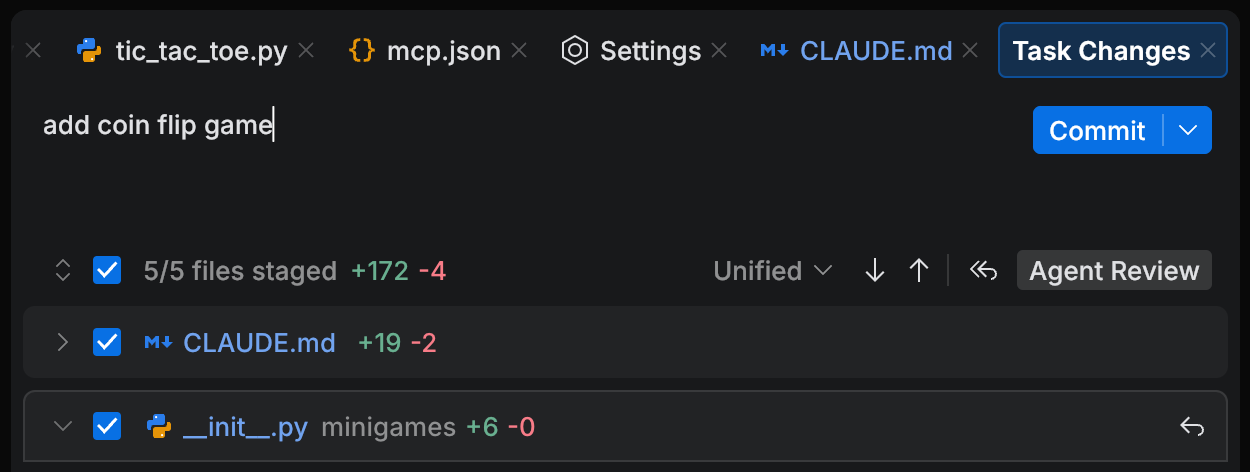
Push the commit to the remote repository.
You can also commit and push from the Changes tool. For the full workflow, including how to amend a commit and what each provider asks for on push, see Commit and push changes.
Accept changes from isolated environments
If the task ran in Git Worktree or Docker, the Air app kept the agent isolated from your local working copy. After review, choose how to bring the result back to your local workspace.
Apply Locally: copies the uncommitted changes from the task branch to your local workspace.
Check Out Branch Locally: creates a new local branch and adds a commit with the message Auto-committed changes. The commit can include one file or all changed files, depending on where you run the action.
- How isolation works
When you start a task in an isolated environment, the Air app creates a dedicated branch for the task (for example,
air/<task>) and a separate working directory managed by the Air app. Your local project directory stays on the branch you started from (for example,main).Example structure:
# Your local working copy (unchanged while the agent runs) ~/Projects/my-project/ (branch: main) # Air-managed task working copy (isolated) ~/Library/Caches/JetBrains/Air/tasks/ air/<task>/ my-project/ (branch: air/<task>)
Apply changes locally
In the changes editor tab, click Apply Locally.
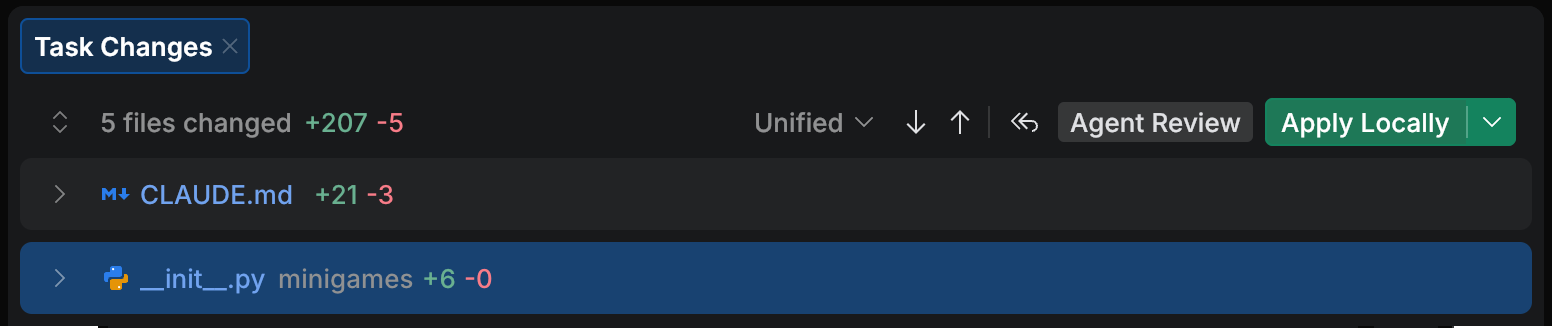
The Air app copies the changes from the task worktree back to your current working copy as uncommitted changes.
Choose how to integrate the changes: create a new branch and open a pull request, or commit and push directly to the current branch.
Check out branch locally
In the changes editor tab, open the Apply Locally drop-down menu.
Click Check Out Branch Locally.
The Air app checks out the task branch in your local working copy. The branch typically has the same name as the task branch, with a suffix
-copy, e.g.,air/add-new-feature-copy.Push the branch to the remote repository or open a pull request as usual.
Revert changes
Revert changes when you do not want to keep the result. You can do this straight from the Task Changes tab, file by file or all at once.
Revert a single file
Open the Changes tool. You can use the following options:
Navigate to in the main menu.
On the tool panel, click Changes.
On the Task Changes tab, click Revert
 next to the file name.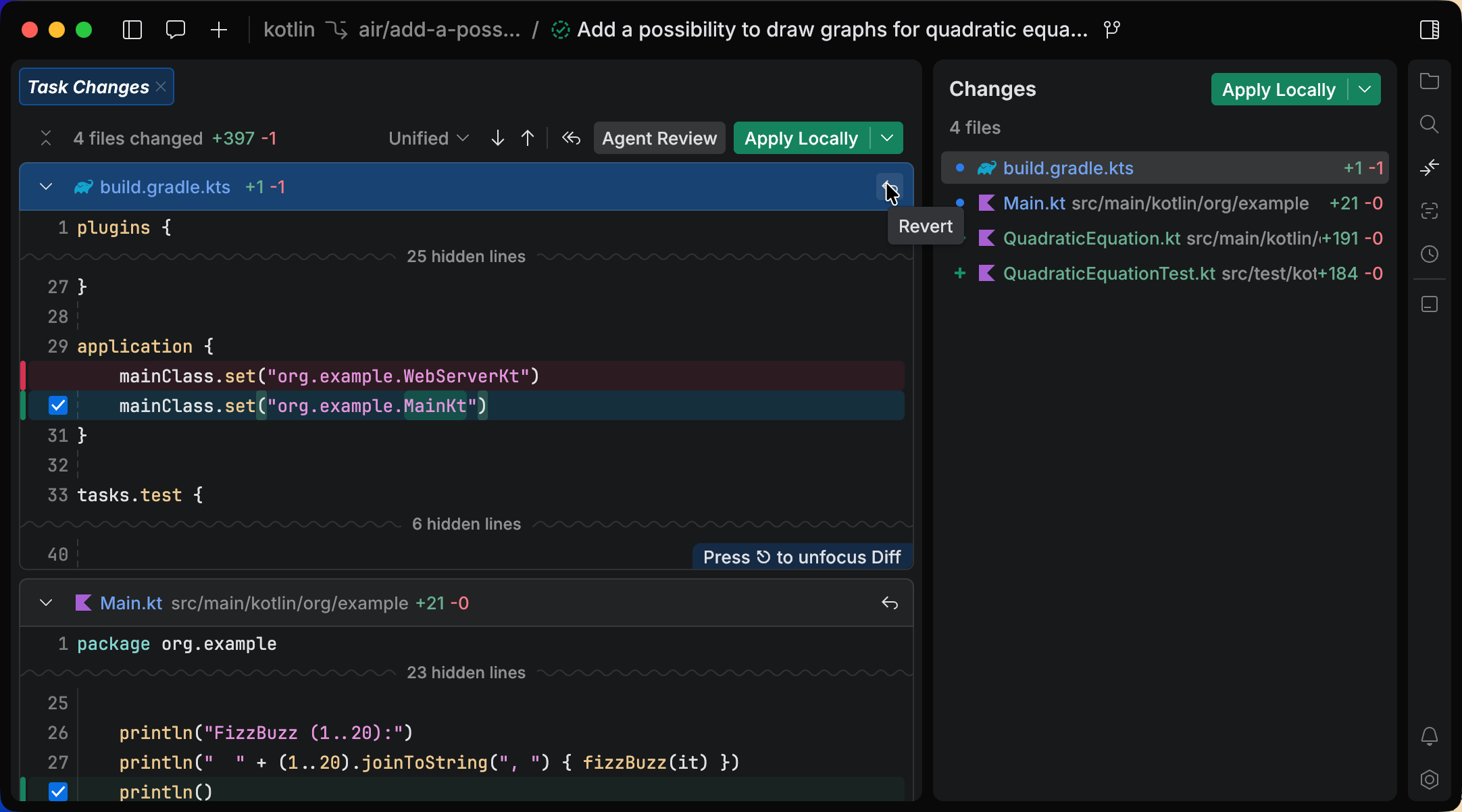
Revert all changes from a task
Open the Changes tool. You can use the following options:
Navigate to in the main menu.
On the tool panel, click Changes.
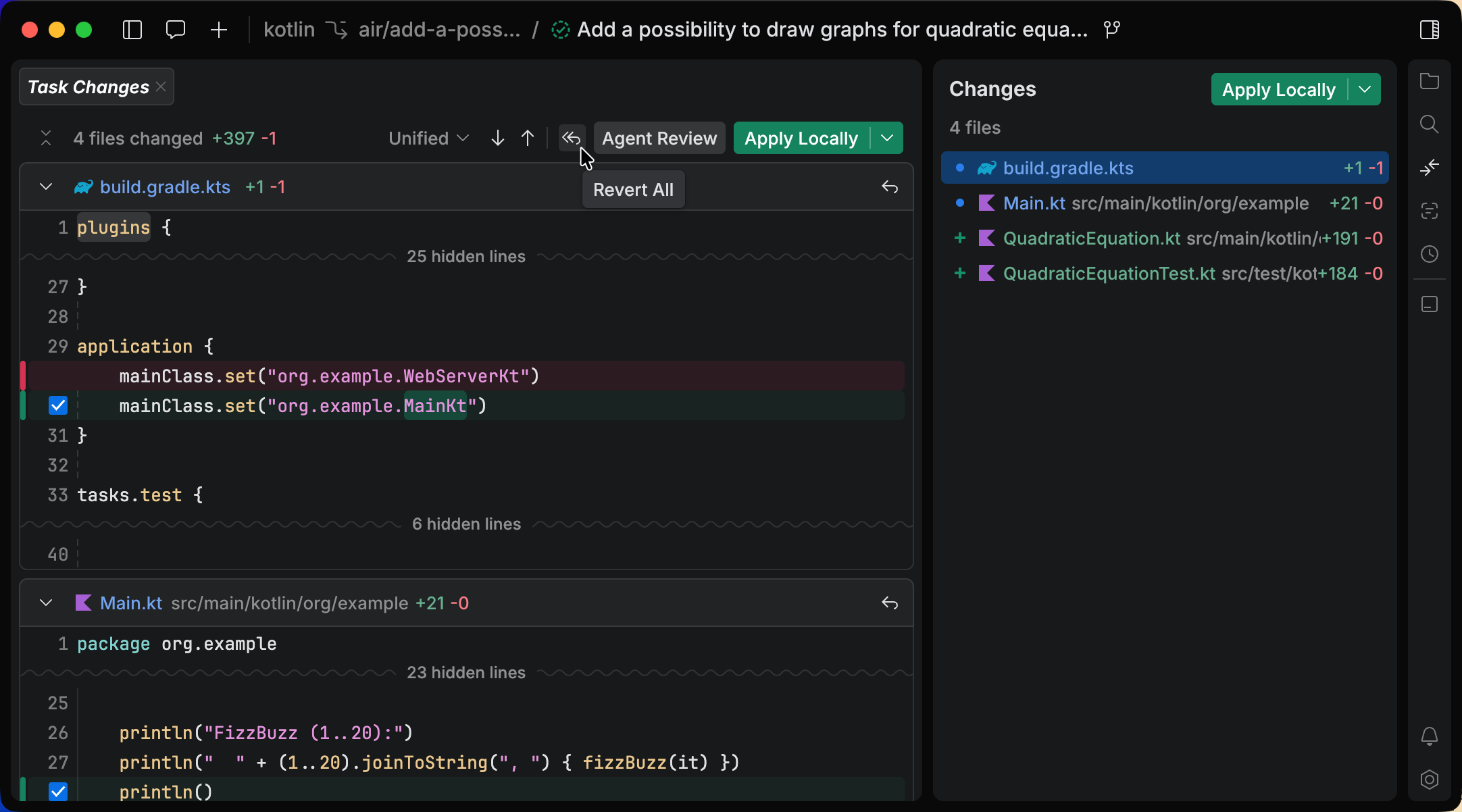
On the Task Changes tab, click Revert All
 .
.
If you already committed the changes, reverting no longer helps – roll the branch back instead. See Undo changes.