Air Mate (AI agent in Slack)
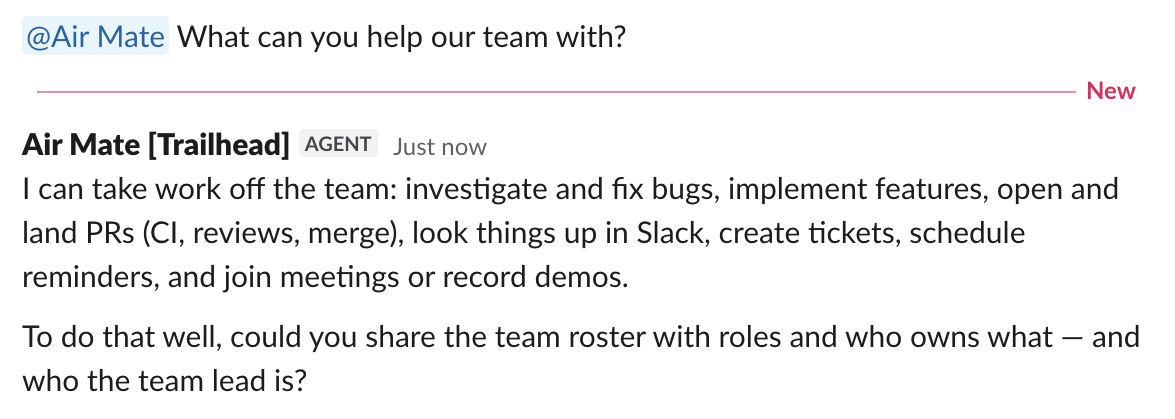
Air Mate is an AI agent that works with your team in Slack. It follows all messages in the channels it's connected to and replies on its own when it can back up its answer with evidence. To address it directly, type @Air Mate followed by your request, for example, @Air Mate why does the login test fail on main? In a direct message with Air Mate, every message is a request, so you don't need a mention. Air Mate replies in a thread, where everyone can follow up on the result. Use it to:
Answer questions – about your code, issues in a connected tracker, or earlier discussions in Slack. For example, explain how a feature works, find where something is implemented, or remind the team what was decided about a release.
Investigate and fix bugs – hand it a bug report from the thread, and it reproduces the problem, finds the cause, and proposes a fix.
Deliver code changes – it implements a change, opens a pull request, and follows up on review comments and CI.
Work with your other tools – through connectors, it can look up or create issues in your tracker, for example, in YouTrack.
Run recurring checks and reminders – for example, post a daily summary of open pull requests or tell the channel when a CI run on
mainfails.
Air Mate runs in its own cloud environment in Air Teams, built from the repository or environment configuration you give it.
Team and personal Air Mate
You can work with Air Mate in two places:
In a channel – a team Air Mate answers everyone in the channels it's connected to. It belongs to an Air Teams project, spends the project's AI credits, and only project admins can change it.
In a direct message – a personal Air Mate answers only you. It doesn't belong to a project, spends your own AI credits, and you manage it in Air Teams settings.
Repositories, channels, and how many Air Mates you need
Each Air Mate works with the repositories selected in its settings. It can't read or change other private repositories, even if you link to them in a message. To work with another repository, add it to the Air Mate's settings – see Give Air Mate the code, tools, and secrets it needs.
You don't need an Air Mate for every repository. Set one up per team or area of work, with all the repositories that team needs, and connect it to every channel where the team works. A channel has exactly one Air Mate, so there's nothing to choose when you mention it: @Air Mate always reaches the one connected to that channel. Its replies show its name, for example, Air Mate [OurMate].
Create a separate Air Mate only when some work needs different repositories, connectors, rules, or AI credits – for example, when not everyone in a channel should reach a repository. To work with it, connect it to its own channel.
You can have only one personal Air Mate. To work on another repository in your direct messages, add the repository to your personal Air Mate's settings.
Whose access Air Mate uses
A team Air Mate works under the project's service account, not under the person who asks. Anyone in a connected channel can use the repositories and services you connect to it, even if they don't have that access themselves. Connect only resources that everyone in the channel should be able to reach.
What Air Mate can read or change in each service depends on the account its connector uses. Pasting a link to a private repository or issue doesn't grant access to it – configure the connection in Air Teams instead. Rules tell Air Mate what not to do, but they don't restrict access. To make sure it can't do something, such as merge to a protected branch, limit the permissions themselves.
What Air Mate keeps between runs
Unlike a cloud task's environment, Air Mate's cloud environment keeps running between requests, and its disk persists across restarts. Tools it installs, caches, and files it saves stay available, so you can ask it to install a tool, keep notes, or save a script to reuse later.
It also saves its conversation state and restores it on the next run. Long conversations are summarized over time, so restate details that matter for a task or link to their source instead of relying on an old message.
If a run fails, the next one starts in a fresh environment and the installed tools are gone. Keep repeatable setup in the environment's startup script so it survives either way.
Models and AI credits
Air Mate's orchestrator is based on Grok. For the work itself, it uses models from OpenAI, Google, and Anthropic, depending on how complex each task is.
In the EAP, Air Mate doesn't follow the model and provider restrictions set in Air Governance: removing a model there doesn't stop Air Mate from using it.
There's no separate fee for Air Mate during the EAP, but its work spends JetBrains AI credits: a team Air Mate spends the project's AI credits, and a personal one spends yours.
Current limitations
Only GitHub repositories are supported.
Air Mate doesn't follow the model restrictions set in Air Governance – see Models and AI credits.
Only the channel creator or a Slack workspace admin can connect Air Mate to a channel.
Organization administrators can't switch Air Mate off for the whole organization yet. To stop one, disconnect it from a conversation or delete it.
Air Mate can't start or follow cloud tasks or automations; it does the work in its own cloud environment.