Automation templates
An automation template is a reusable definition of an automation – instructions, model, triggers, and connectors – that anyone can turn into a working automation without writing it from scratch. Use templates to roll out the same agentic workflow across repositories and teams.
Templates live on the Templates page: open the Automations tab and click Templates in the sidebar. They come in two groups:
By Air – the templates that ship with Air Teams, such as Code Review, Issue Triage, and Generate Release Notes
Organization – the templates created by people in your organization
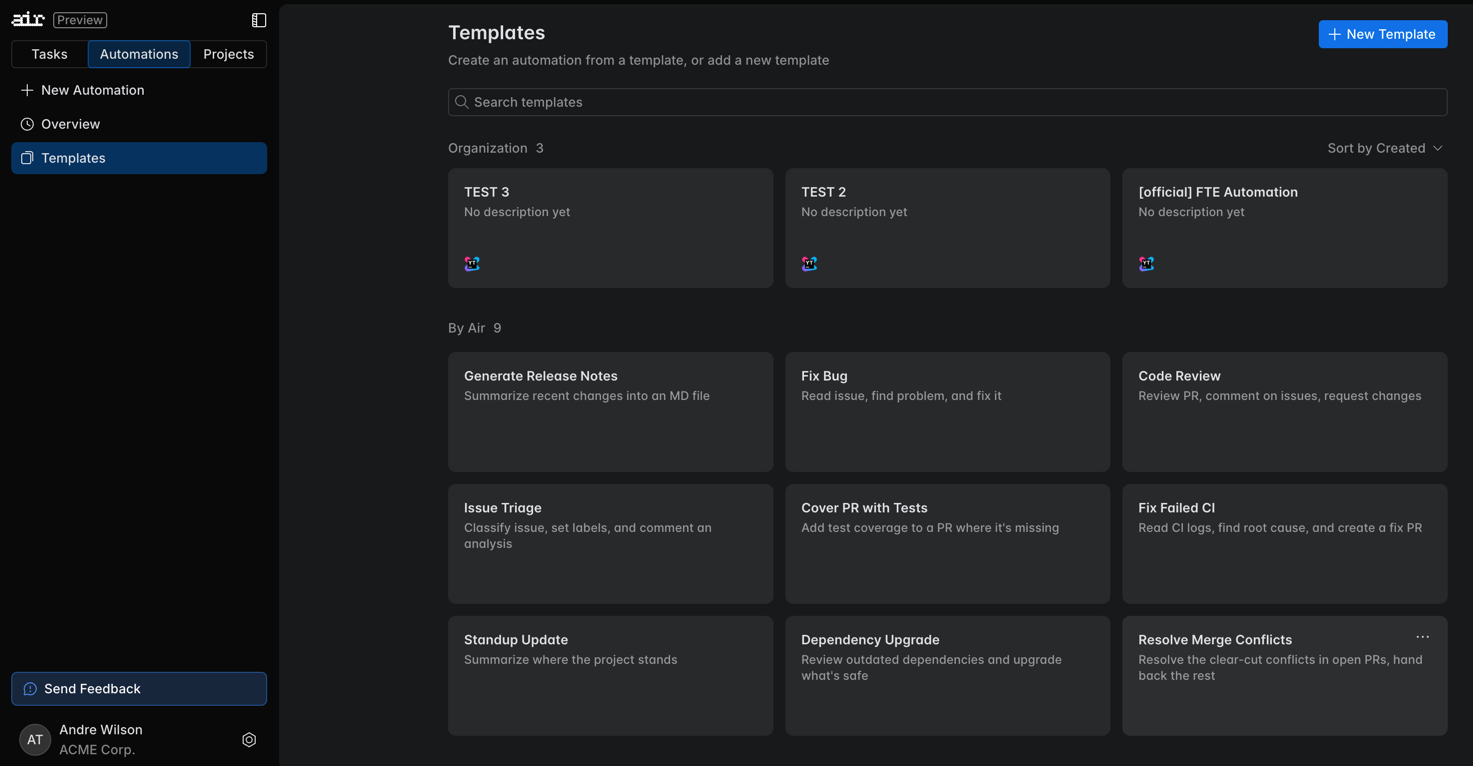
Create an automation from a template
Pick the template in one of the following ways:
on the Templates page, select the template you want to use
in the automation you are creating, click Use Template in the Instructions section. Click it again to swap in a different template
To find a template faster, use Search templates or change the order with Sort by.
In Parameters, enter a value for each parameter the template defines.
If the template offers an Additional Instructions field, use it to add anything this automation needs on top of the template's instructions.
Fill in the rest of the automation: the name, the scope, the repository, and any changes to the triggers and connectors the template brought along. For details, see Create automations.
Click Create.
The new automation stays linked to the template it came from, so later edits to the template apply to it too – see Edit a template.
Duplicate a template
Duplicate a template to start from a definition that already works instead of writing the instructions, triggers, and connectors yourself.
On the Templates page, open the menu on the template's card and click Duplicate.
The template editor opens prefilled with the copy. An organization template brings its instructions, parameters, triggers, connectors, and model across; a By Air template brings the name, description, and instructions.
Adjust what you need, and click Create Template.
Create a template
Create a template when your team runs the same automation over and over – a code review, a triage pass, a scheduled report – and you want everyone to start from the same definition.
Open the Templates page and click New Template.
Enter a name in the Template name field and describe what the template automates in Description. Both appear on the template's card, so write them for someone who has to choose between templates.
In Instructions, describe what the automation should do, and select the model its runs use in Select model.
For any value that changes from one automation to the next, add a parameter instead of hardcoding it.
Leave Allow additional instructions selected to give whoever creates an automation from this template an Additional Instructions field, where they can add to your instructions. Clear it to keep the instructions exactly as you wrote them.
Add the triggers and connectors the automation needs.
Click Create Template. The template appears in the Organization group.
Edit a template
Every automation created from a template follows it, so editing a template changes what those automations do on their next run.
On the Templates page, open the menu on the template's card and click Edit. If you can't modify the template, the same menu offers View instead, which opens the definition read-only.
Change the instructions, parameters, triggers, or connectors, and save.
Automations created from the template run with the new definition from then on. A parameter you remove loses the values those automations supplied for it.
Save an automation as a template
Turn an automation that already works into a template so the rest of the organization can reuse it. This action needs full rights for that automation.
On the Automations page, select the automation you want to reuse.
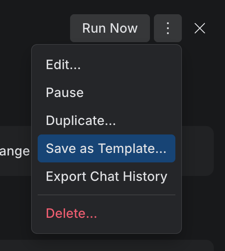
Open the automation menu next to Run Now and click Save as Template.
Replace the values specific to that one automation with parameters, so other people can supply their own.
Save the template. It appears in the Organization group on the Templates page.
Archive a template
Archive a template that your organization has stopped standardizing on. Only organization templates can be archived, and only by someone who can modify them.
On the Templates page, open the menu on the template's card and click Archive.
Confirm with Archive.
Nobody can create an automation from the template anymore, and the automations already created from it keep running. The card stays on the page with an Archived tag and sorts after the active templates. To hide archived templates, clear Show archived in Sort by.
To put the template back into use, open the menu on its card and click Unarchive.
Parameters
A parameter is a placeholder in the template's instructions that gets its value when someone creates an automation from the template. Use parameters for the parts that differ per team or per repository – a label to watch, a reviewer, a target directory – so one template covers all of those cases.
To add a parameter, click Add Parameter under the instructions, or type it directly as {{parameter_name}}. Air Teams recognizes every {{...}} placeholder as an input and lists it in the Parameters section of the new automation, with a field for its value.
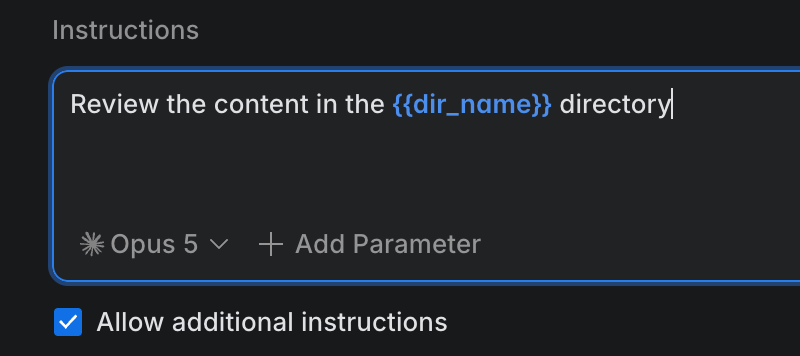
The values replace the placeholders in the automation that gets created, so its runs use what was supplied at creation time.