Air Teams editor
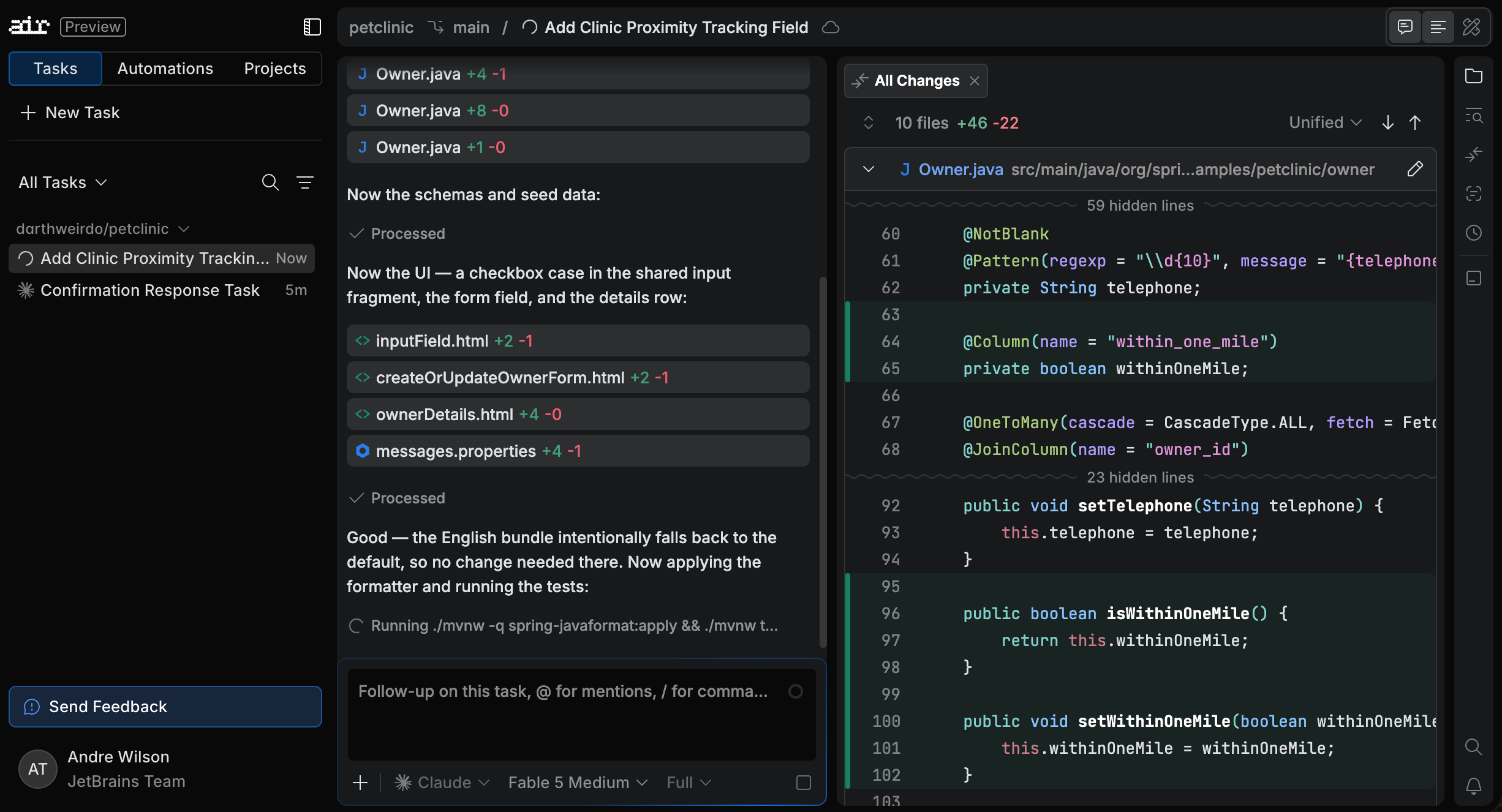
The Air Teams editor is a lightweight code editor that opens in the browser when you open a cloud task in Air Teams. It puts the task's chat next to the code and a set of tools, all connected to the task's cloud environment, so you can follow the agent, review and adjust its changes, and run commands without installing anything.
You can browse, edit, search, and compare code, comment on it, and run Git operations. There's no code analysis: no quick-fixes, no refactorings, and no navigation to declarations or usages. When you need those, check out the task branch in your IDE.
What you can do in the editor
Steer the agent while it works – queue prompts, add context from the code, the terminal, or your machine, and switch the model or the permission mode.
Review the agent's changes – read the diff, comment on it, and send the agent back with feedback. See Review changes.
Explore and edit code – browse and manage files, jump to files, actions, and tools, and edit code yourself. See Explore code.
Search and replace – find text in a file or across the project and replace it in many files at once. See Search and replace.
Work with Git – commit and push your own edits, sync with the remote, branch from a commit, undo changes, and browse the history. See Git.
Run commands – build and test the project in the task's cloud environment. See Terminal.
Finish the task – when the task branch is what you want, create a pull request from it.
For what each tool on the tool bar does, see Tools.
Open a task in the editor
Open https://air.jetbrains.cloud and click a task in the task list. Every task has its own editor, so switching tasks in the list switches the editor too. A task you continue from an automation run opens the same way.
The New Task page isn't the editor yet: the cloud environment doesn't exist until the task starts. See Define a task.
Change the layout
Use the three buttons in the top-right corner to show or hide Chat, Editor, and Tools, in any combination. Keep only the chat while the agent works, and bring in the editor and a tool when you review.
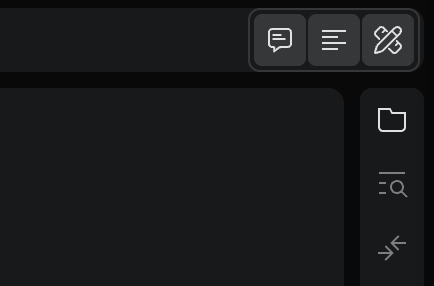
Chat – the conversation with the agent and the task input, with the model and permission mode selectors. See Run a task.
Editor – the open files and diffs, in tabs. See Explore code and Review changes.
Tools – Files, Search, Changes, Comments, History, and Terminal. Pick one on the tool bar along the right edge. See Tools.
The search icon at the bottom of the tool bar opens Go to All, and the bell shows notifications about the status of your tasks.