Manage Git branches
Branches live in the branch selector, which shows the name of the branch that is currently checked out. You can find it in the task header, next to the workspace and the run environment, and in the title bar. Open it to search branches, create one, or switch to another.
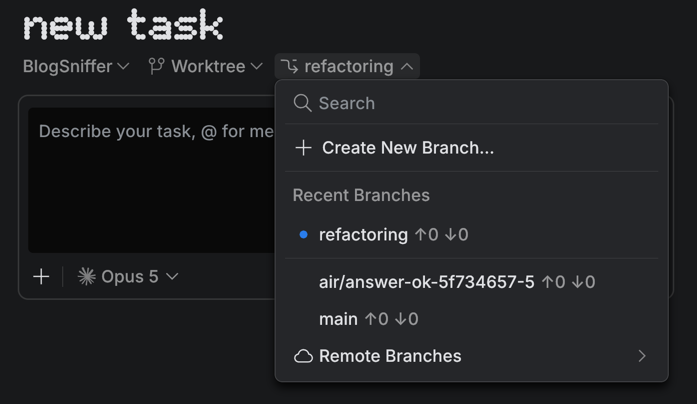
A blue circle marks the branch that is currently checked out. The arrows next to a branch name count the commits that are not synced with the remote. See Check the branch state.
Create a new branch
Create a new branch from the current branch
Click the branch name in the task header or in the title bar.
Select Create New Branch.
Specify the branch name.
The newly created branch is then checked out automatically.
Create a branch from a commit
To branch off an earlier commit instead of the current one, start from the History tool.
Navigate to in the main menu and select History.
Right-click the commit and select New Branch from Here.
Specify the branch name.
Check out branches
Check out a local branch
Click the branch name in the task header or in the title bar.
Under Recent Branches, click the branch you want to check out. To find a branch that is not in the list, type its name in the search field.
Check out a remote branch as a new local branch
If you want to work on a branch created by someone else, you need to check it out to create a local copy of that branch.
Select from the main menu to download the latest remote data.
Click the branch name in the task header or in the title bar.
Select Remote Branches and click the branch you want to check out locally.
Check out a commit
Navigate to in the main menu and select History.
Right-click the commit and select Checkout <revision>.