JetBrains Air Help

History

Use History to track how your workspace evolves over time. History combines Git commits with task-related snapshots, so you can review what happened before a request, what the agent changed, and what you applied to your branch.
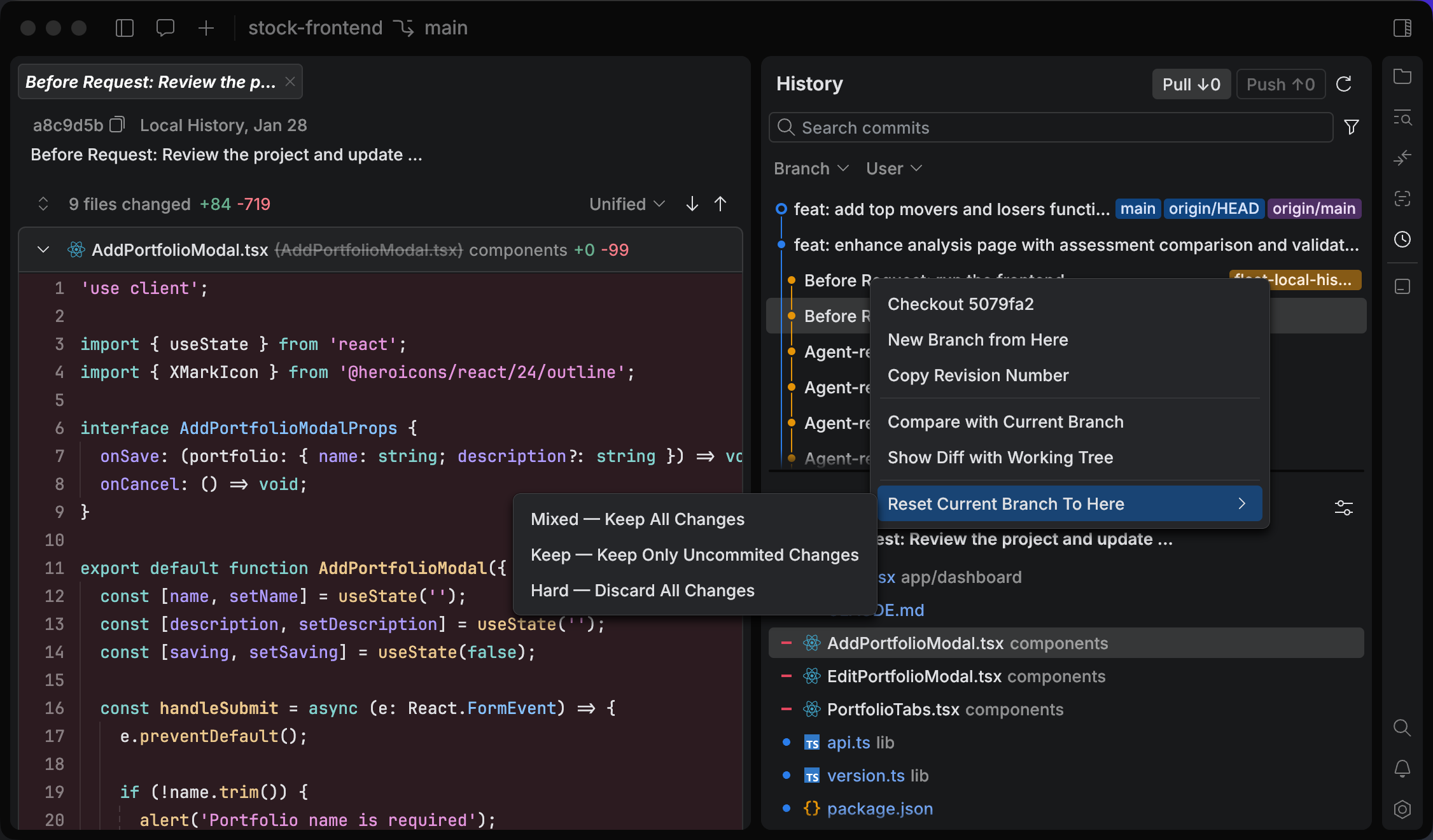
History tool

Open the History tool

  • Navigate to View | Tools in the main menu and select History.

  • On the tool panel, click History.

What you see in History

History can show different types of entries, such as:

  • Git commits from your repository.

  • Before Request snapshots that capture the state before a task started.

  • Auto-committed changes created when you check out task changes to a local branch.

  • Uncommitted changes from the user's working copy when JetBrains Air records your current local edits.

This timeline helps you connect task discussions and results to concrete code changes.

Find and filter entries

Use search and filters to locate the point you need.

  • In the History tool, type in the Search commits field.

Filter by branch or author

  • Use the Branch and User selectors to filter the list.

View diffs from History

Select an entry to see which files changed and review the diff.

History entry details

View file diffs for an entry

  1. In the History tool, select an entry in the list.

  2. In the details pane, select a file. JetBrains Air opens the diff for the selected file.

Compare with the current branch

  1. In the History tool, right-click an entry.

  2. Select Compare with Current Branch.

Show diff with the working tree

  1. In the History tool, right-click an entry.

  2. Select Show Diff with Working Tree.

Roll back to a commit

Roll back to a specific commit when you want to return your branch to an earlier state. For more information about working with git, refer to Git.

Reset the current branch to a commit

  1. In the History tool, right-click the commit you want to roll back to.

  2. Select Reset Current Branch To Here.

  3. Select the reset mode:

    • Mixed — Keep All Changes: moves the branch to the selected commit and keeps your current file changes as uncommitted changes.

    • Keep — Keep Only Uncommitted Changes: moves the branch to the selected commit and keeps only changes that are not committed.

    • Hard — Discard All Changes: moves the branch to the selected commit and discards all local changes.

Sync with a remote repository

Use History to fetch updates, pull remote changes, and push your local commits.

Fetch updates

  • In the History tool, click Fetch.

Pull changes

  • In the History tool, click Pull.

Push commits

  • In the History tool, click Push.

11 March 2026