Commit and push changes
After you've added new files to the local Git repository, or modified files that are already under Git version control, you can share the results of your work. This involves committing them locally and then pushing them to the remote repository.
Commit changes
You commit in the Changes tool, which lists every file that changed in the current project. For the rest of what the tool does, see Changes.
Commit changes locally
Navigate to in the main menu and select Changes.
Select the checkboxes next to the files you want to commit. The counter at the top of the list shows how many of the changed files you selected, for example 3/7 files.
Enter the commit message and click Commit.
To have the Air app draft the message for you, click Generate Commit Message
 next to Commit. Review and edit the suggested message before you commit.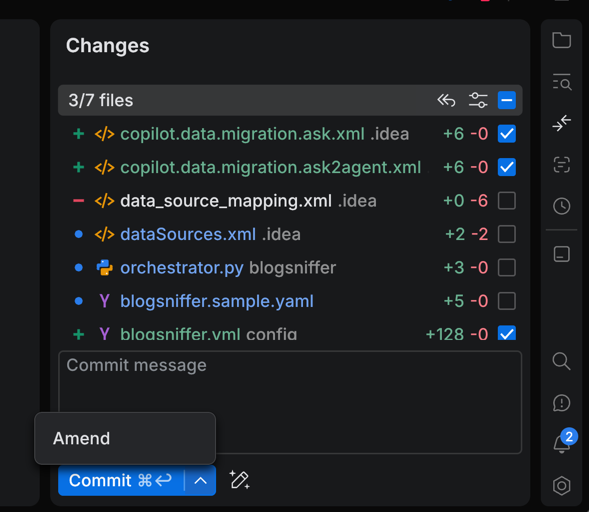
Amend the latest commit
Amend a commit when you want to fold new changes into the commit you just made instead of adding another one.
Navigate to in the main menu and select Changes.
Select the files with the changes you want to add to the previous commit.
Next to Commit, open the drop-down and select Amend.
Edit the pre-filled commit message if you need to, then confirm the amend.
Push changes to a remote repository
Before pushing your changes, sync with the remote and make sure your local copy of the repository is up to date to avoid conflicts.
Push your changes
From the main menu, choose or press Ctrl+Shift+G Ctrl+Shift+P.
In the Git Push dialog that opens, click Push.
To push the changes to the remote branch, you now need to log in to your GitHub, GitLab, or Bitbucket account.
For GitLab and Bitbucket, enter your credentials and click Log in.
For GitHub, enter your personal access token and click Log in. If you do not have a token, follow the Generate link to generate a new personal access token in your GitHub settings.
After the successful login the Air app pushes the local changes to the remote branch.