Undo changes
How you back out a change depends on whether it's committed yet. Revert uncommitted work in the Changes tool, and move the branch off commits you no longer want from the History tool.
Revert uncommitted changes
Reverting restores the file to its state in the last commit. To reject what an agent just wrote, you can also revert straight from the review diff: see Revert changes.
Revert one file
Navigate to in the main menu and select Changes.
Right-click the file and select Revert <file>, or click Revert next to the file name.
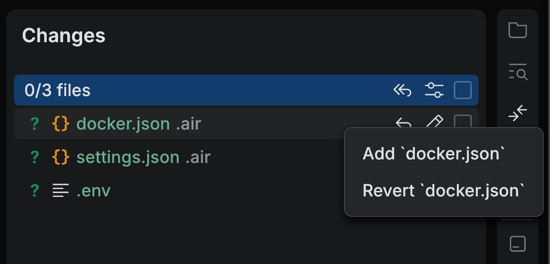
Revert every change in the list
Navigate to in the main menu and select Changes.
At the top of the changed files list, click Revert All.
Roll back to a commit
Reset the current branch when you want to return it to an earlier state.
Reset the current branch to a commit
Navigate to in the main menu and select History.
Right-click the commit you want to roll back to and select Reset Current Branch To Here.
Select the reset mode:
Mixed — Keep All Changes: moves the branch to the selected commit and keeps your current file changes as uncommitted changes.
Keep — Keep Only Uncommitted Changes: moves the branch to the selected commit and keeps only changes that are not committed.
Hard — Discard All Changes: moves the branch to the selected commit and discards all local changes.