Browse Git history
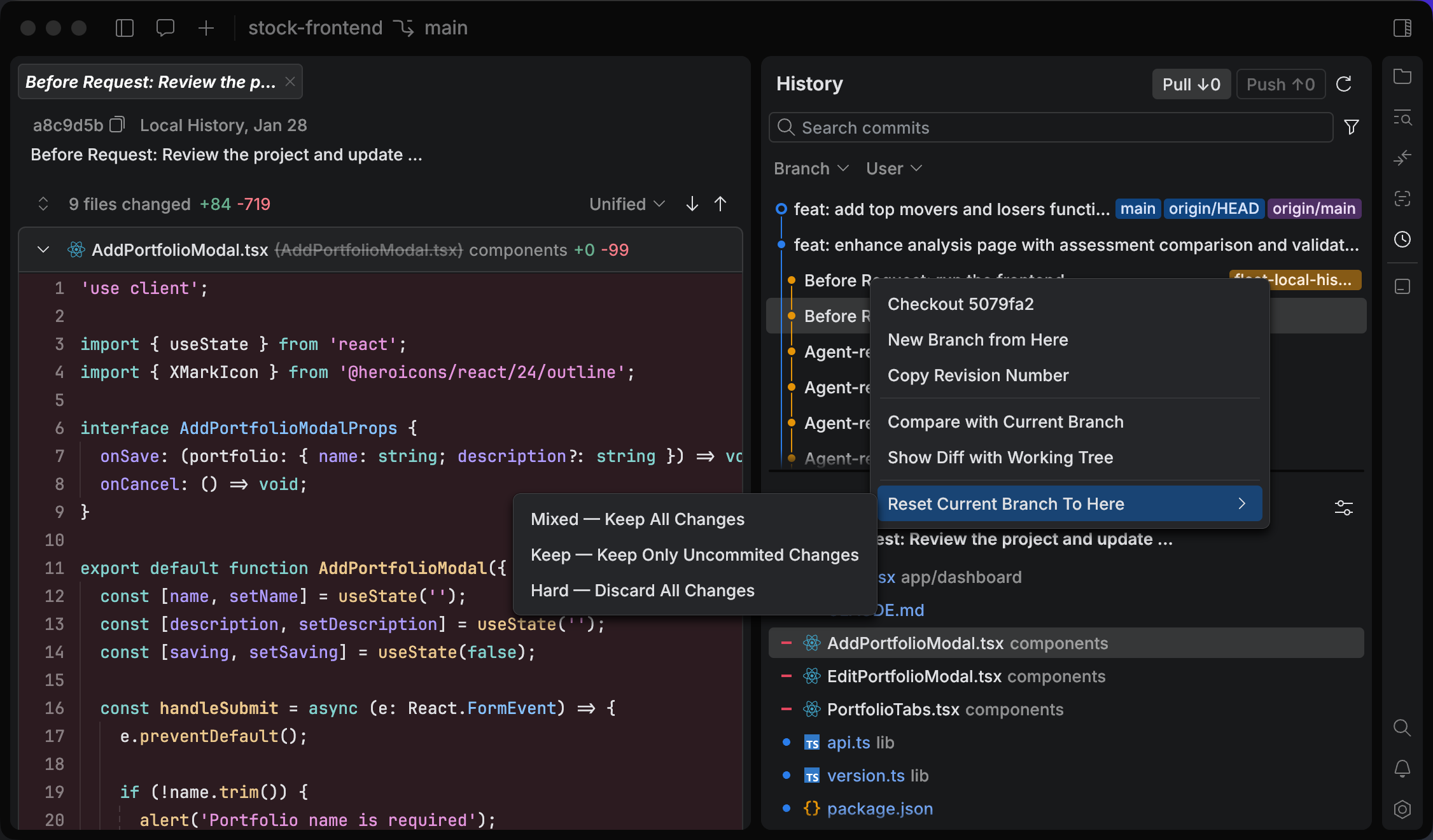
The History tool is where you look back: it interleaves Git commits with the snapshots the Air app takes around agent tasks, so you can find the point you care about and compare it with what you have now.
Find an entry
Search commits and snapshots
In the History tool, type in the Search commits field.
Filter by branch or author
Use the Branch and User selectors to filter the list.
View the history of one file
Open the file in the editor.
Select in the main menu, or press Ctrl+Shift+G Ctrl+Shift+H.
Compare an entry with your code
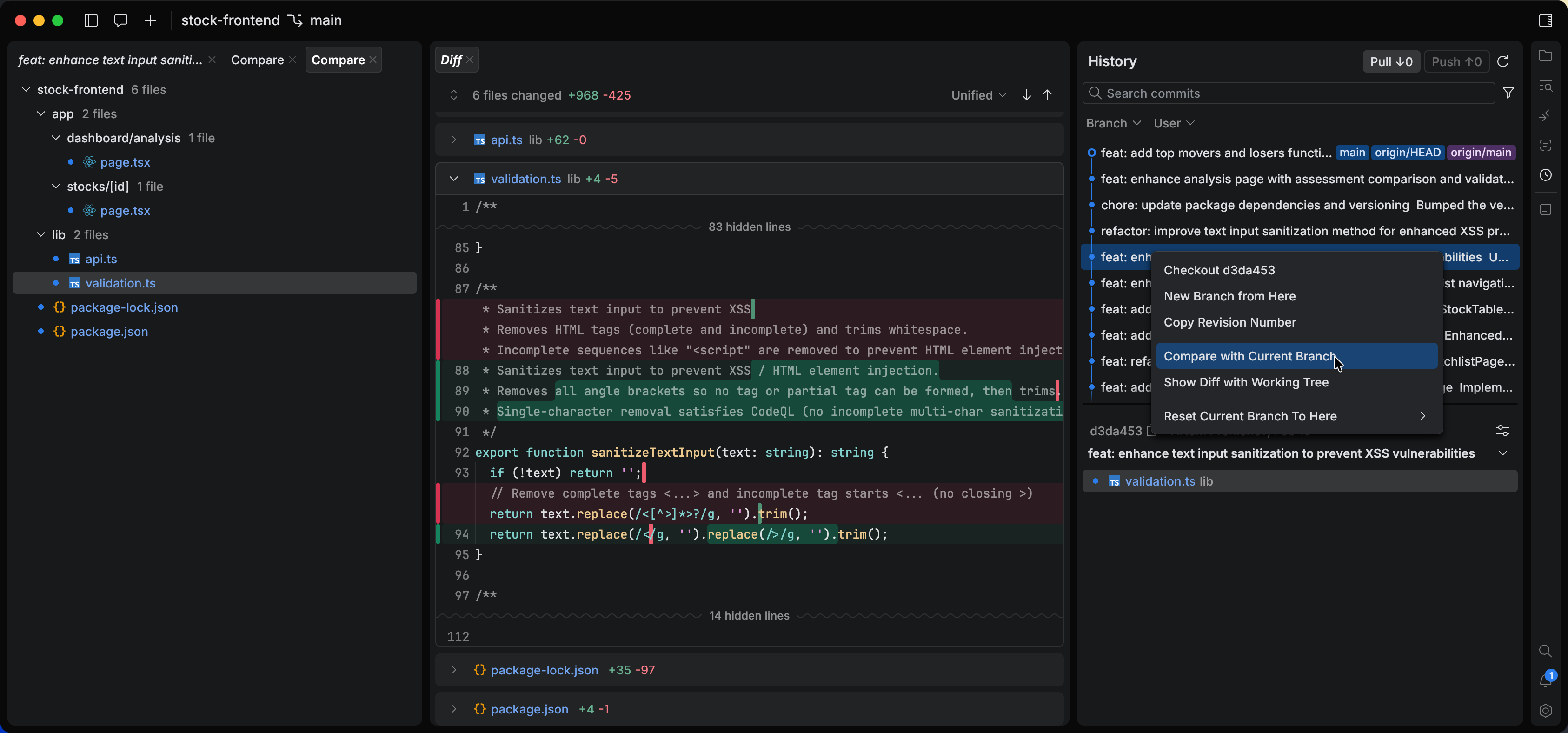
Select an entry to see which files changed and review the diff.
View file diffs for an entry
In the History tool, select an entry in the list.
In the details pane, select a file. The diff for the selected file opens.
Compare with the current branch
In the History tool, right-click an entry.
Select Compare with Current Branch.
Show diff with the working tree
In the History tool, right-click an entry.
Select Show Diff with Working Tree.
Copy a revision number
In the History tool, right-click the commit and select Copy Revision Number.
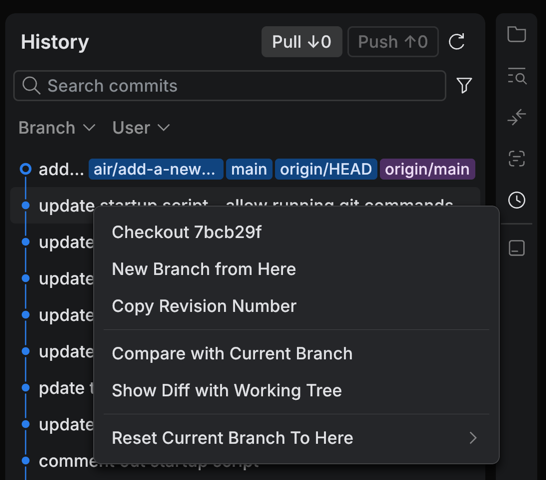
From the same right-click menu you can also check out a commit, start a branch from it, or reset the current branch to it.