Sync with remote Git repositories
Before you can push your changes to the upstream, you need to make sure your local copy of the project is up to date with the remote repository. You can do this in one of the ways: fetch or pull changes, as well as sync the local branch with the remote.
All three commands are in the Git menu and work on the branch that is currently checked out.
Check the branch state
Before you sync, check which direction the branch has drifted. Click the branch name in the task header or in the title bar: each branch in the selector carries two counters.
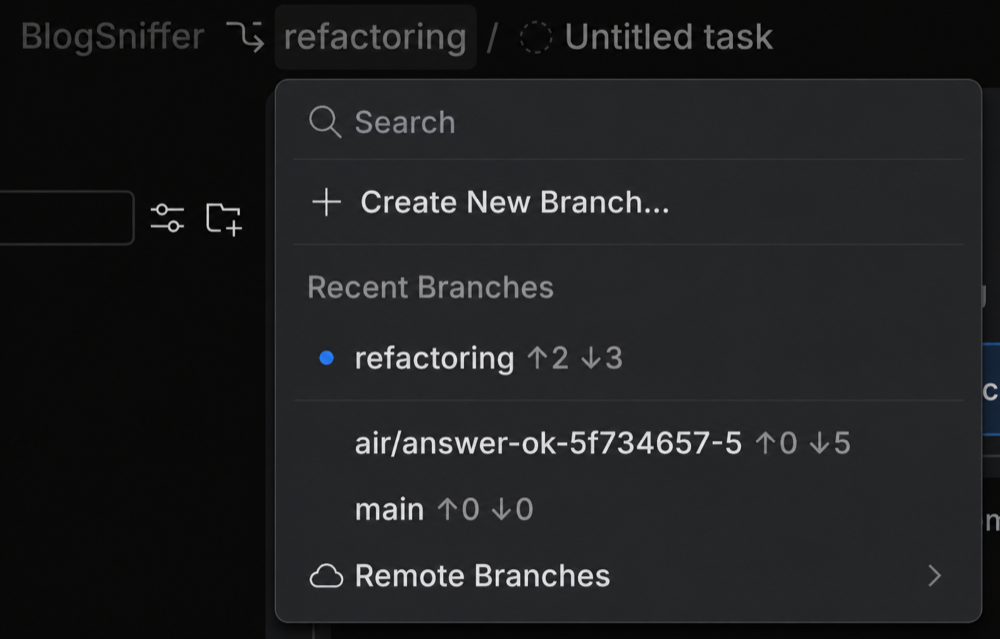
↑ counts the local commits you haven't pushed yet.
↓ counts the remote commits you haven't pulled yet.
So ↑2 ↓3 means the branch has drifted apart on both sides, and Sync brings it back in line in one step. ↑0 ↓0 means the branch matches the remote and there's nothing to sync.
The counters are only as fresh as your last fetch. To keep them current without fetching by hand, enable Auto-fetch repositories in the Git settings.
Fetch changes
When you fetch changes from the upstream, all new data from commits that were made since you last synced with the remote repository is downloaded into your local copy. This new data is not integrated into your local files, and changes are not applied to your code.
Fetched changes are stored as a remote branch, which gives you a chance to review them before you merge them with your files. Since fetch does not affect your local development environment, this is a safe way to get an update of all changes to a remote repository.
Select from the main menu.
Pull
If you need to get changes into the current branch from the remote tracked branch, use pull.
Check out the branch you want to update. See Check out branches.
Choose in the main menu or press Ctrl+Shift+G Ctrl+Shift+U.
Sync
Sync combines both directions in one command: it pulls the commits from the remote tracked branch into your local branch, then pushes your local commits to the remote. Use it when the branch has drifted apart on both sides.
Select from the main menu.
In the Git Sync dialog that opens, confirm the operation.
You can also pull and push from the History tool, where the Pull and Push buttons carry the number of commits waiting on each side.