Permission modes
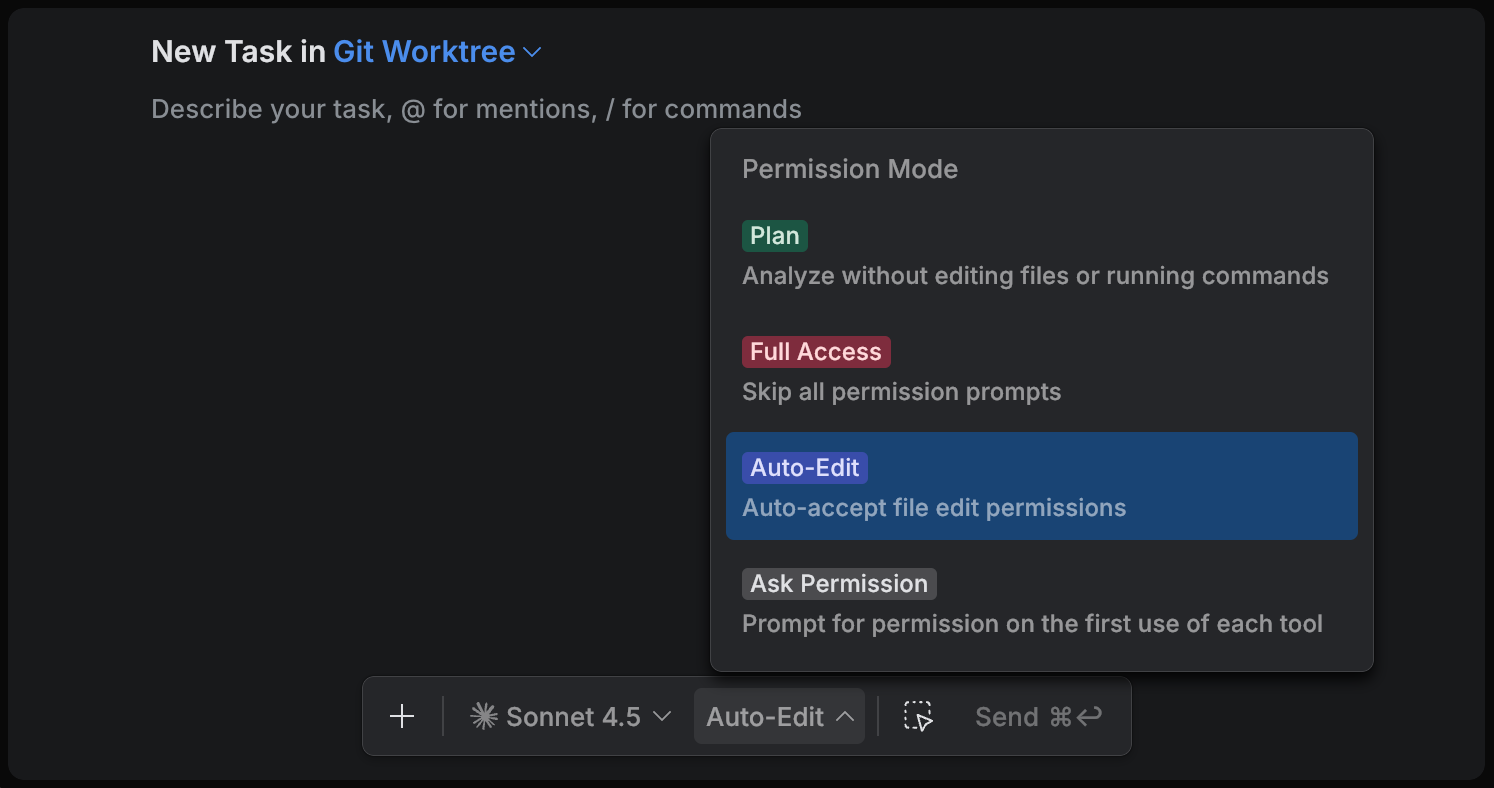
Permission modes control how freely an agent can act in a task: whether it only plans, asks for approval before acting, edits files automatically, or works with full access.
In the Air app, the same general permission model applies to all agents, but exact mode names and descriptions may vary depending on the selected agent. This is done to keep the modes close to the original behavior of each agent where possible.
The browser doesn't map the modes onto a common set: it shows the selected agent's own modes as that agent defines them – see Set up a task before you send it.
Select permission mode and effort
Open the task in the Chat tool.
In the task toolbar, click the permission mode selector. You can also press Shift+Tab to cycle through the available modes.
Select the mode that matches your intent:
Plan – create a plan before making changes. This mode is available for all agents. Learn more in Plan mode.
Ask – require approval before making changes or running commands. Depending on the agent, this mode can also be named Ask Permission, Default, or Chat.
Edit – allow the agent to edit files automatically, while still keeping more limits than full access. Depending on the agent, this mode can also be named Auto-Edit or Agent. With OpenAI Codex, this mode doesn't prompt you at all: the agent reviews its own actions and stops to ask only when one of them looks potentially unsafe.
Full Access – allow the agent to work with the fewest restrictions available for that agent. Use this mode only if you trust the project and understand the risks.
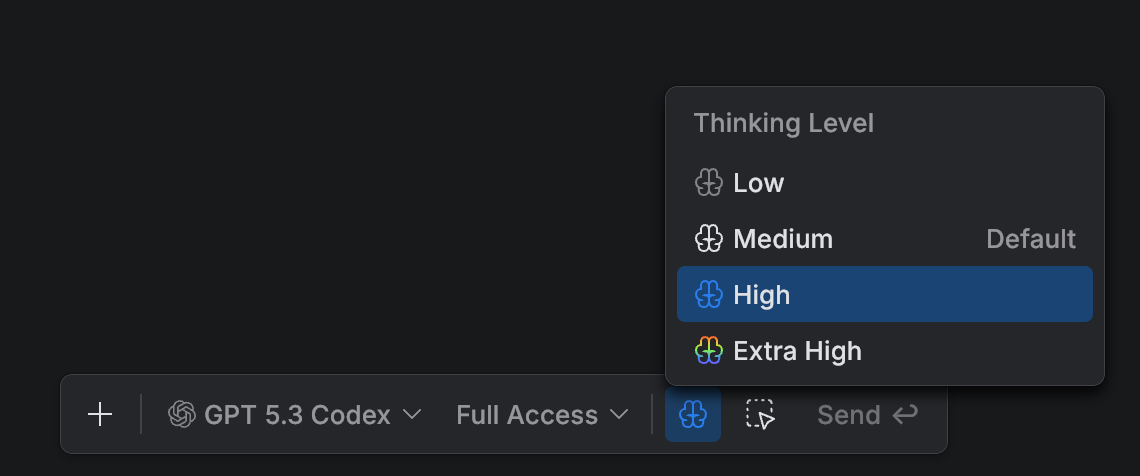
If the selected agent supports it, set the Effort
 level.
Effort controls how much reasoning the model uses for the task. Higher effort levels can produce more carefully reasoned results, but they usually take longer and use more tokens.
Depending on the agent, available levels can include Low, Medium, High, and higher levels such as Max or Extra High.
Some agents also provide additional options, such as Fast Mode.