Task context
Context is the information the agent uses to understand your project and produce a correct change. The more relevant the task context is, the fewer assumptions the agent has to make.
Good practice is to add just enough context to point the agent to the right code: the relevant files or symbols, the current changes, and any examples that show the expected behavior.
This topic covers the Air app. In the browser, context is available once the task is running and its environment has the repository checked out – see Add context to a follow-up.
Add context
Add context from Chat
In the Chat tool, type
@.Select a context item from the list.
Depending on what is available, you can add files and folders, symbols, Git branches, Git commits, local changes, and terminals.
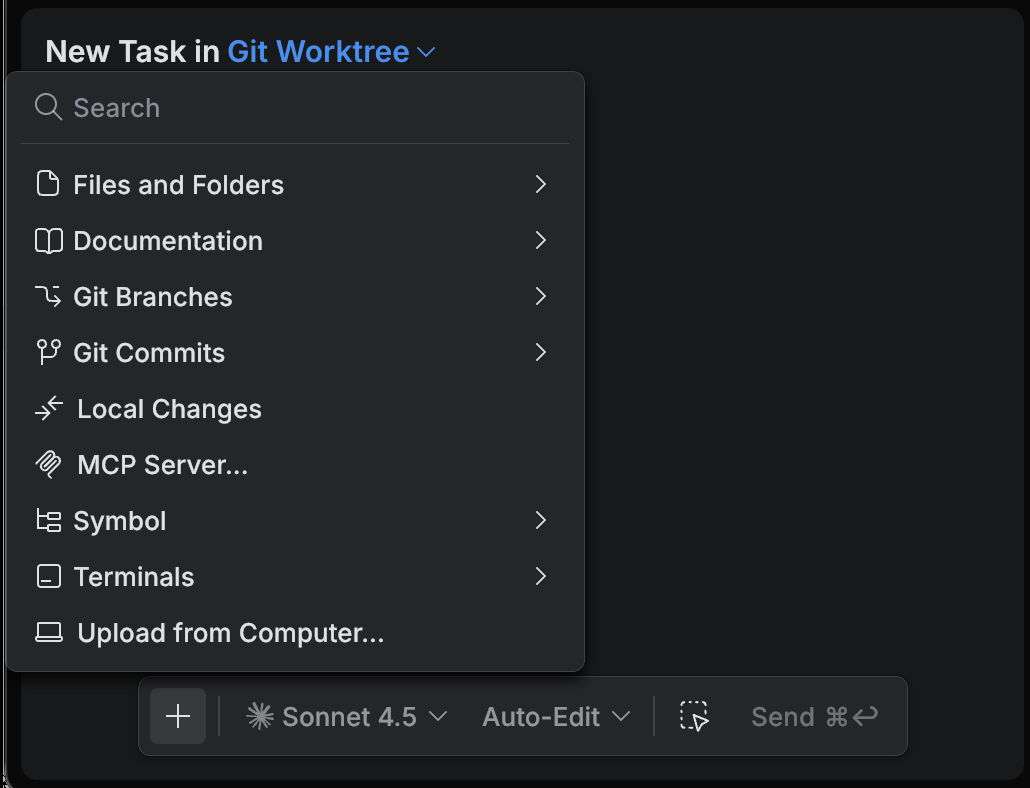
Alternatively, start typing after
@.The search runs immediately through files, folders, and symbols.
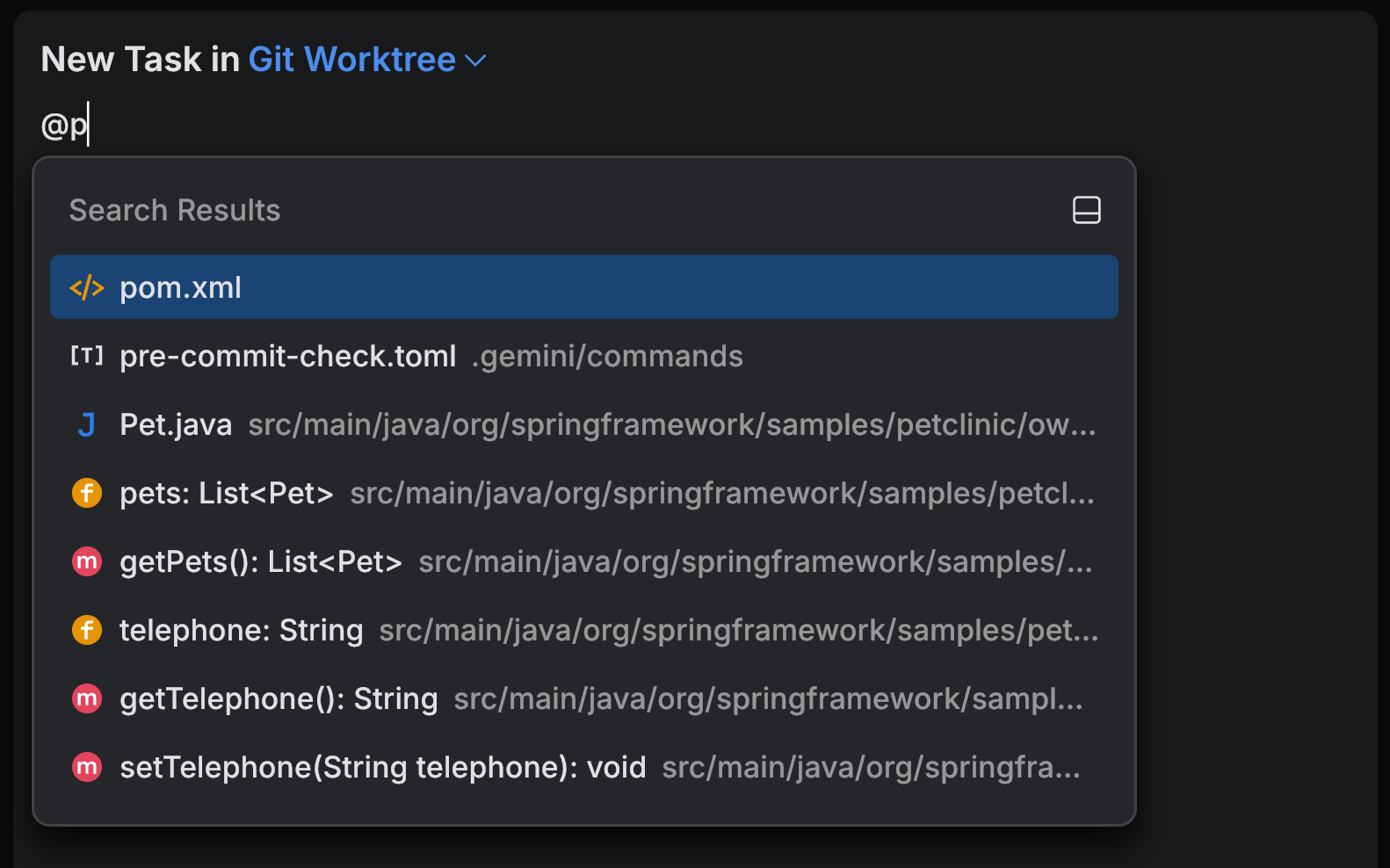
Press ⏎ to add the selected item.
To add more context items, type
@again and repeat the same steps.
Add context from the editor
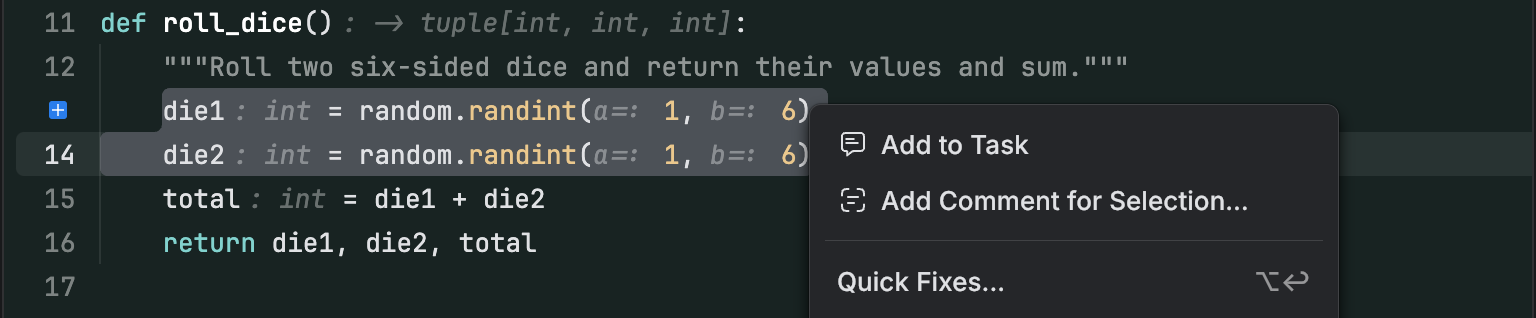
Use editor selection when a specific snippet is the most relevant context for the task. This works well when you want to point the agent to the exact code that needs attention, for example, the buggy logic, the API boundary, or the code you want to refactor.
Select any code, right-click, and use Add to Task to attach it to the task. If you want to leave feedback for a follow-up iteration, use Add Comment for Selection.
Files and folders
Attach files when the change is local and you already know the file to edit. Attach folders when the change spans multiple files in the same area.
Prefer a small folder over the entire repository. Large context can make it harder for the agent to focus on the correct code.
Git branches
Reference a Git branch when the task depends on code that is not in your current working tree. This is useful when you want the agent to inspect another line of work or compare approaches.
Git commits
Reference a commit when you want the agent to explain a change, identify the cause of a regression, or use a known-good version as a baseline.
Commits are also useful as evidence: this behavior worked in commit X.
Local changes
Attach local changes when you want the agent to continue from your unfinished work. This is useful for finish what I started tasks, or when you want the agent to review a diff and suggest fixes.
Local changes reduce back-and-forth because the agent sees the exact state of your working copy.
Symbols
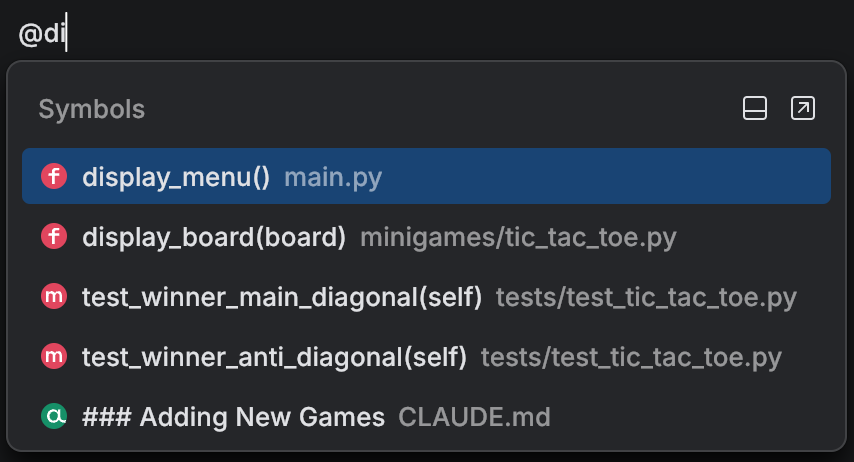
Symbols help you point the agent to specific code elements, such as classes, functions, or methods. This is often the most precise way to add context without attaching entire files.
Use symbols when you know what part of the code should change but do not want to include unrelated code from the same file.
The symbol list shows symbols only for the files that are currently opened in the editor. Open the file first if you want to reference its symbols.
Terminals
Attach a terminal when the agent needs command output, logs, or an existing shell state. This is useful for debugging tasks where the evidence is in the console output.
You can reference only terminals that are currently open in the Air app.
If the output is long, select the exact lines you care about in the Terminal and add them with Add to Task.

Upload files from computer
Upload files when the relevant input is not part of the repository. For example, logs, screenshots, sample data, or a specification document you want the agent to follow.
Upload a file from your computer
In the Chat tool, type
/.Select Upload File from Computer.
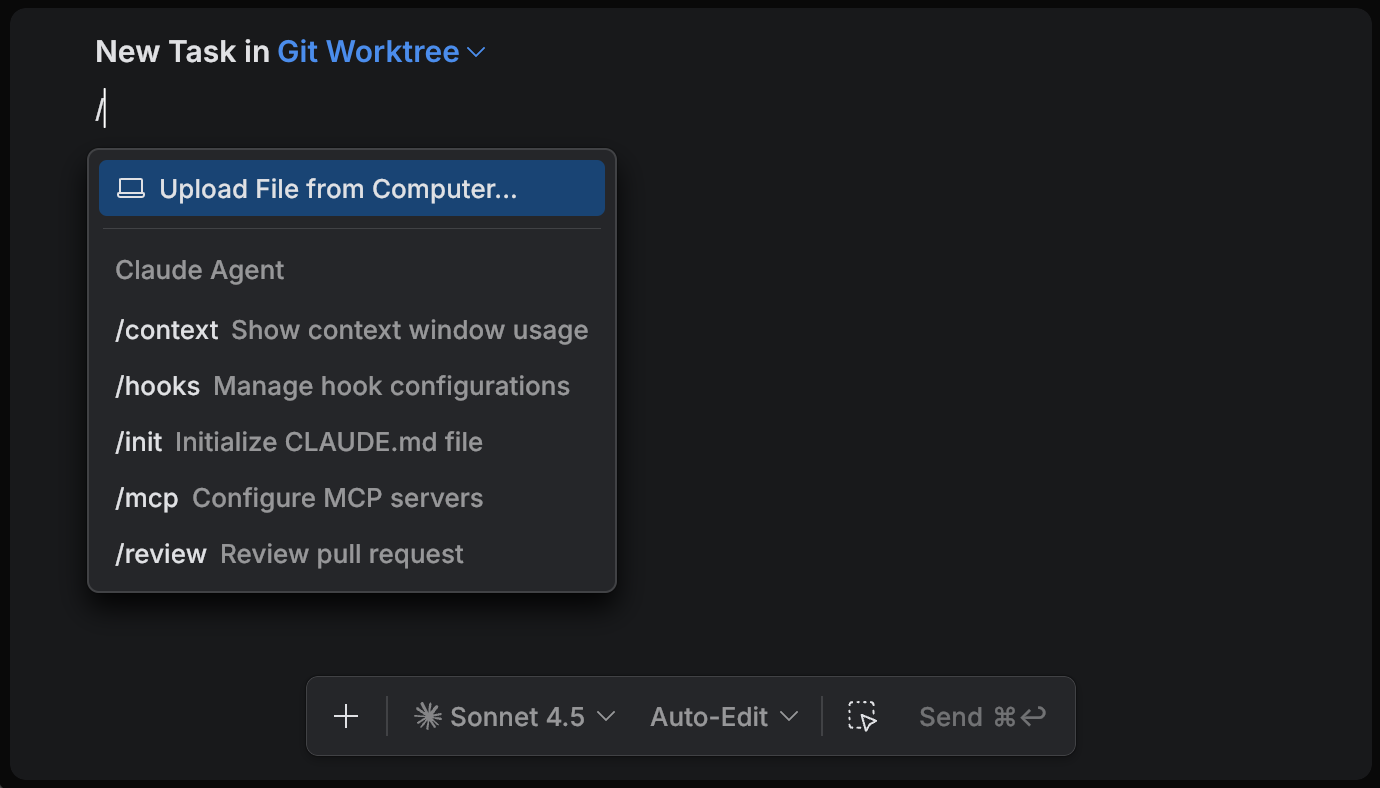
Select the file you want to upload.