Prompt queue
In the Air app, you don't have to wait for the agent to finish before you write your next prompt. Send it while the agent is still working, and it goes to the prompt queue above the chat input. The browser has no prompt queue – there, wait for the agent or stop it before you send the next prompt.
Queued prompts are sent automatically, in order, as the agent finishes the work in front of them. You don't need to send them yourself – the queue is there so you can keep typing, not so you can dispatch prompts by hand.
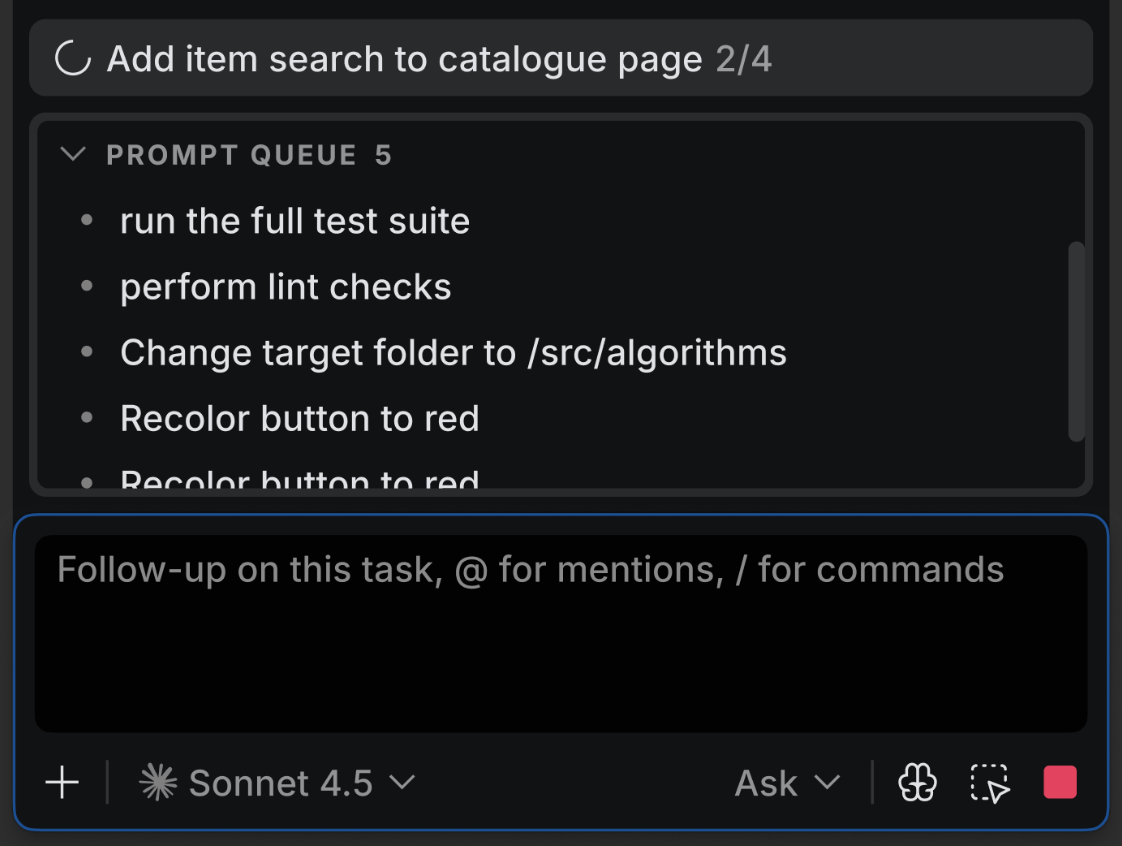
Queue a prompt while the agent works
While the agent is working, type your next prompt in Chat as usual. You can also add context to it.
Click Send.
The prompt moves to the PROMPT QUEUE list and runs when the agent gets to it.
Change the queue before it runs
Drag a prompt up or down the PROMPT QUEUE list to change the order prompts run in.
Point to a prompt and click Edit to rewrite it, or Delete to drop it from the queue.
What happens when you stop the agent
Stopping the agent pauses the queue instead of clearing it. Your prompts stay in the list, and each one gets a send icon so you can run any of them next instead of waiting for its turn.
Sending a new prompt from the chat input resumes the queue. That prompt runs first, and the rest of the queue follows behind it.
When the agent asks you something
A queued prompt is a new instruction, not an answer. When the agent asks a clarifying question or requests permission, answer it in the widget where it appears – see Permission modes. Anything you type in the chat input goes to the queue and waits, so the agent stays blocked until you respond in the widget.