Context window
The context window is how much text the model can hold at once. Everything in the task competes for it: your task definition, the context you attach, the project instructions, the files and command output the agent reads on its own, and the agent's own replies.
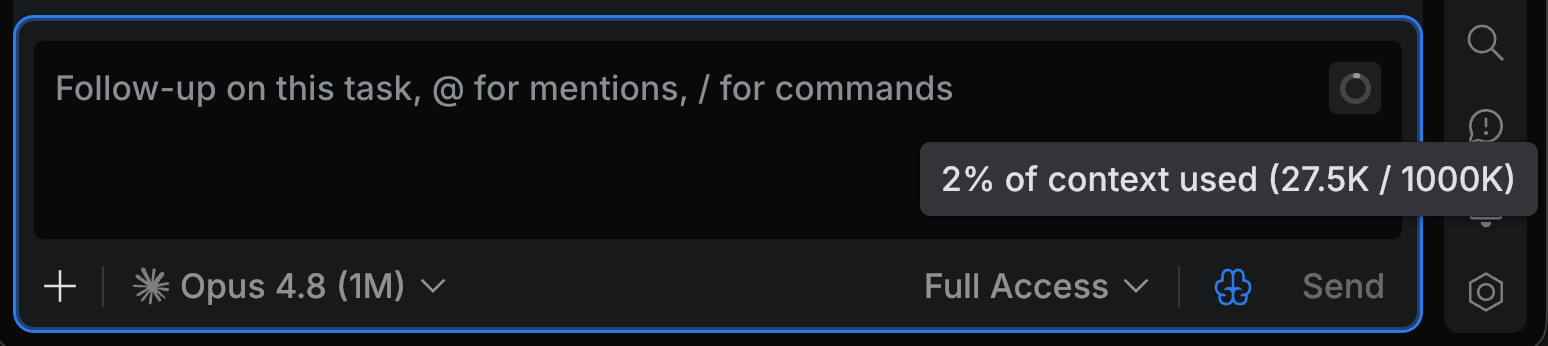
An indicator next to the chat input tracks how much of the window the current task has used. Point to the indicator to see the share of the window used and the token counts behind it, or click it to keep those numbers open. The indicator is in the browser as well, on a task you have open.
When the context window fills up
The indicator is highlighted once the task passes 80% of the window, and marked as an error above 99%. Treat that as the point to act: what an agent does when it runs out of room is up to the agent, and the ones that summarize the conversation for you lose detail in the process.
To free up space, type / in Chat and use the agent's own commands. /compact replaces the conversation so far with a summary, and /clear drops it completely. The indicator drops to the new usage either way.
The other option is to stop growing the task. Start a new one for the next piece of work, and attach only the context that piece needs – a task that stays well inside its window also spends fewer AI credits on re-reading its own history.
Why the indicator isn't always there
The agent has to report its own context usage before the indicator can show it. Claude Agent and OpenAI Codex do. Other agents pick the indicator up with no setup on your side as soon as they report usage over ACP.
A task you haven't sent yet has nothing in its context window, so the indicator appears with the agent's first response.