Define tasks
To start the agentic workflow, define a task. The quality of the result depends on how clearly you define the goal, what context you provide, and how you configure the agent run.
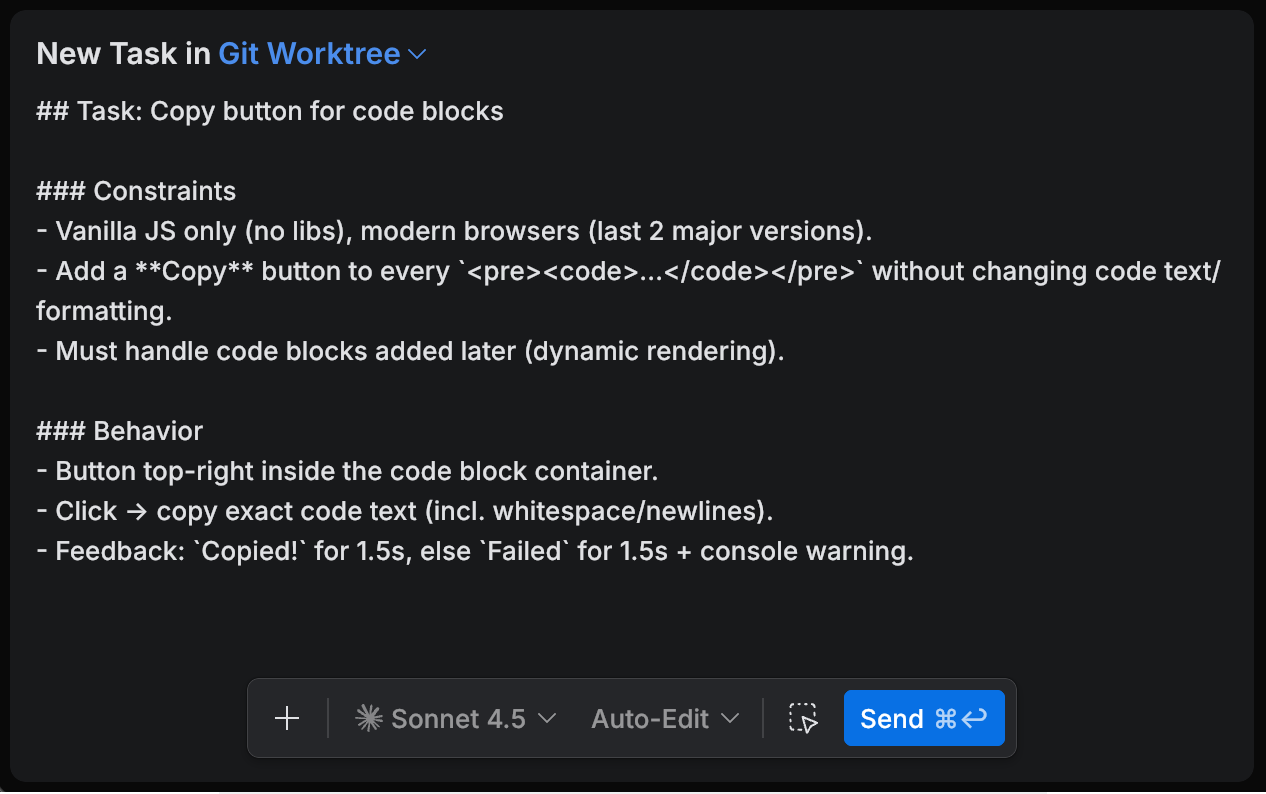
In the Air app, you define tasks in the Chat tool. This is where you describe the goal, add context, and choose how the agent will work on the task.
A task you start in the browser is set up on the new task page instead, which offers less: the cloud environment doesn't exist yet, so there's nothing to attach context from and no commands to run. See Work with a task in the browser.
Define a task
Open a project and open the Chat tool.
Describe the goal in the task input.
Explain what you want to achieve and what done means. Mention important constraints, expected behavior, and any known failures or error messages.
(Optional) Use voice input

If voice input is configured, click the microphone button in the task input and dictate the task instead of typing it.
Learn how to configure it in Voice input.
Select a task run environment.
In the task header, open the environment selector and choose where the agent will run, for example Local Workspace, Git Worktree, or Docker.
Learn more in Run environments.
Select an agent and model.
In the task toolbar, open the model selector and choose the agent and model for the task.
Learn more in Agents and models.
Select a permission mode.
In the task toolbar, open the permission mode selector and choose how freely the agent can act in the task.
If you want the agent to prepare an implementation plan before changing code, select Plan. In this mode, the agent first creates a plan, and you then decide whether to proceed to implementation.
Learn more in Permission modes and Plan mode.
Add context.
Add the files, symbols, examples, or other inputs the agent should use, so it does not have to guess. Use one of the following:
Click Add context to attach files, folders, Git items, terminals, or external tools.
Type
@to mention symbols such as classes, functions, or methods.Select code in the editor and attach it to the task.
Paste a minimal snippet that reproduces the issue.
Learn more in Task context.
Check project instructions.
If the project includes instruction files such as
CLAUDE.mdorAGENTS.md, make sure they reflect how you want the agent to work.Learn more in Project instructions.
Run the task.
Press Enter or click Send.
After the task completes, review the result and continue iterating if needed.
Learn more in Review and integrate. If you selected Cloud as the run environment, the result is committed and pushed instead of left in your working copy – see Run a task.
Voice input
You can use voice input to dictate task prompts in the Chat tool.
Voice input uses a local Whisper model for speech recognition. No audio is sent to the cloud.
Configure voice input
Open Settings.
Search for Voice Input.
In the Voice Input section, click Download to download a local Whisper model.
Optionally, select the model size and recognition language.
After the model is downloaded and the status is Ready, return to the Chat tool.
In the task input, click the microphone button
and start dictating.Click the stop button
 once you are done.