Terminal
Use Terminal to run command-line tasks inside the Air app. You can run Git commands, install dependencies, and execute scripts without leaving the workspace. The Air app starts a terminal session in the project root by default. You can open additional sessions in separate tabs.
Open the Terminal tool
Navigate to in the main menu and select Terminal.
On the tool panel, click Terminal.
Start a new terminal session
Start a new session
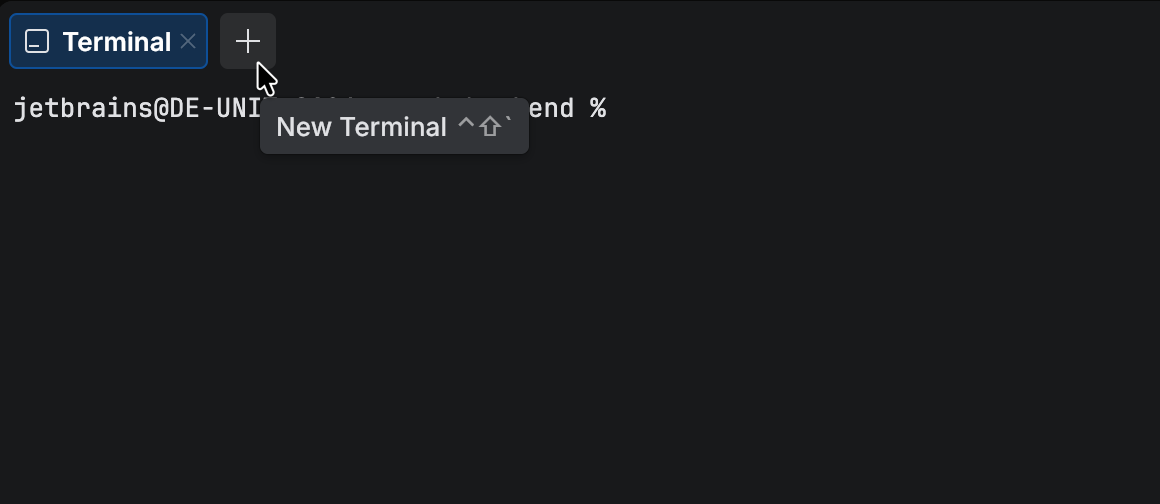
In the Terminal tool, click New Terminal.
A new session opens in a new tab.
Search in terminal output
Search in a terminal session
In the Terminal tool, press Ctrl+F.
Type the text to search for.
Open a terminal in a file directory
Open Terminal for a file
In Files or in an editor tab, right-click a file.
Select .
The Air app opens a new terminal session in the directory of that file.
Configure Terminal settings
You can configure the terminal shell and appearance in settings.
Open Terminal settings
Press Ctrl+, to open settings and select .
Common settings include the terminal font, font size, line height, caret shape, and the default shell profile.
Configure the shell profile
The Air app runs the default system shell by default, but you can select a different shell by configuring a terminal profile.
Configure the shell
Open settings.
In the Terminal section, find the Default profile list.
From the Default profile list, select Edit Terminal Profiles.
In settings.json, add the
"terminal.profiles"array. Specify the following within the array:program: specifies the command that runs the REPL.args: specifies additional arguments. This parameter is optional.name: specifies the name displayed in the Default profile list. This parameter is optional.
Consider the following examples. The exact code may vary depending on your environment. Ensure that you reference a shell installed on your system.
"terminal.profiles": [ { "program": "cmd", "args": [""], // optional "name": "cmd" // optional } ]or
"terminal.profiles": [ { "program": "C:/Program Files/Git/usr/bin/bash.exe", // or "C:/Program Files/Git/bin/bash.exe" "args": [""], // optional "name": "Git bash" // optional } ]"terminal.profiles": [ { "program": "/bin/bash", "args": ["-l"], // optional "name": "bash" // optional } ]or
"terminal.profiles": [ { "program": "/opt/homebrew/bin/oh-my-posh", "args": ["init zsh"], "name": "oh-my-posh", }, { "program": "/bin/zsh", "args": ["--login"], "name": "Zsh", }, ],From the Default profile list, select the profile that you created.