Work with source code
When you work with code, CLion ensures that your work is stress-free. It offers various shortcuts and features to help you add, select, copy, move, edit, fold, find occurrences, and save code.
For navigation inside the editor, refer to Editor basics.
Find action
If you do not remember a shortcut for the action you want to use, press Ctrl+Shift+A to find any action by name.
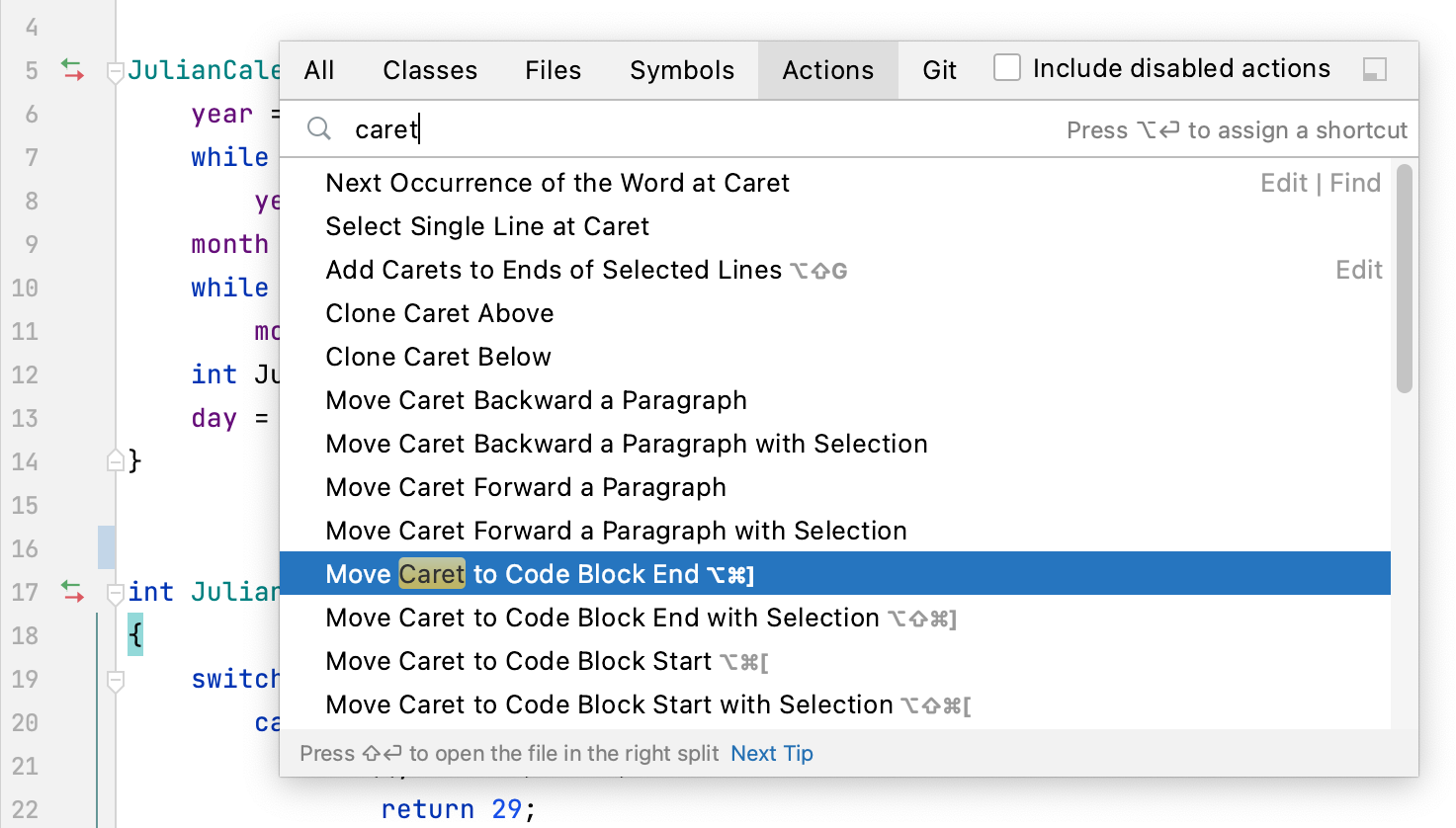
You can use the same dialog to find classes, files, or symbols. For more information, refer to Search everywhere.
Toggle read-only attribute of a file
If a file is read-only, it is marked with the closed lock icon  in the status bar, in its editor tab, or in the Project tool window. If a file is writable, it is marked with the open lock icon
  in the Status bar.
Open file in the editor or select it in the Project tool window.
Do one of the following:
Go to or .
Click the lock icon in the status bar.
If a read-only status is set by a version control system, it's suggested that you use CLion version control integration features. For more information, refer to Version control.
Transpose characters
In the editor, place the caret at the characters you want to swap.
Go to .
There is no default shortcut for this action. You can assign a custom shortcut.
Lines of code
CLion offers several useful shortcuts for manipulating code lines.
To add a line after the current one, press Shift+Enter. CLion moves the caret to the next line.
To add a line before the current one, press Ctrl+Alt+Enter. CLion moves the caret to the previous line.
To duplicate a line, press Ctrl+D.
To sort lines alphabetically in the whole file or in a code selection, go to or . These actions might be helpful when you work with property files, data sets, text files, log files, and so on. If you need to assign shortcuts to those actions, refer to Keyboard shortcuts for more information.
To delete a line, place the caret at the line you need and press Ctrl+Y.
To join lines, place the caret at the line to which you want to join the other lines and press Ctrl+Shift+J. Keep pressing the keys until all the needed elements are joined.
You can also join string literals, a field or variable declaration, and a statement. Note that CLion checks the code style settings and eliminates unwanted spaces and redundant characters.
To split string literals into two parts, press Enter.
CLion splits the string and provides the correct syntax. You can also use the Break string on '\n' intention to split string literals. Press Alt+Enter or click
 to select this intention.
To comment a line of code, place the caret at the appropriate line and press Ctrl+/. Press Ctrl+/ again on the same line to uncomment it.
To move a line up or down, press Alt+Shift+Up or Alt+Shift+Down respectively.
Copy and paste code
You can use the standard shortcuts to copy Ctrl+C and paste Ctrl+V any selected code fragment. If nothing is selected, CLion automatically copies as is the whole line where the caret is located.
By default, when you paste anything in the editor, CLion performs "smart" paste, for example, pasting multiple lines in comments will automatically add the appropriate markers to the lines you are pasting. If you need to paste just plain text, press Ctrl+Alt+Shift+V.
When you copy (Ctrl+C) or cut (Ctrl+X) a line without any code selected, the paste action will add the contents of the clipboard to above the current line, not at your caret.
If you want to paste your copied code at the caret, select the Paste at the caret position option in the advanced settings.
Place the caret at a line or a symbol, right-click to open the context menu, select . When you select the Copy Reference (Ctrl+Alt+Shift+C) option, CLion creates a reference string that includes the line number of the selected line or symbol. You can press Ctrl+V to paste the copied reference anywhere.
CLion keeps track of everything you copy to the clipboard. To paste from history, in the editor, from the context menu, select (Ctrl+Shift+V). In the dialog that opens, select your entry and click Paste.
When you copy and paste code to the editor, CLion displays the hidden (special) characters represented by their Unicode name abbreviation.
Code selection
Select code constructs
In the editor, place the caret at the item you want to select and press Ctrl+W/Ctrl+Shift+W to extend or shrink your selection.
For example, in a plain text file, the selection starts within the whole word then extends to the sentence, paragraph, and so on.
If you need to highlight your braces, place the caret immediately after the block closing brace/bracket or before the block opening brace/bracket.
Select code according to capitalization
In the Settings dialog (Ctrl+Alt+S) , go to .
Select the Use "CamelHumps" words checkbox.
If you want to select words with a double click according to capitalization, make sure that the Honor "CamelHumps" words settings when selecting on double click checkbox right below is also selected.
Code statements
Move statements
In the editor, place the caret at the needed statement and press Ctrl+Shift+Up to move a statement up or Ctrl+Shift+Down to move a statement down. CLion moves the selected statement performing a syntax check.
Complete current statement
In the editor, press Ctrl+Shift+Enter or from the main menu select . CLion inserts the required trailing comma automatically in structs, slices, and other composite literals. The caret is moved to the position where you can start typing the next statement.
Code fragments
Move and copy code fragments by dragging them in the editor.
To move a code fragment, select it and drag the selection to the target location.
To copy a code selection, keeping Ctrl pressed, drag it to the target location.
The drag functionality is enabled by default. To disable it, in the Settings dialog (Ctrl+Alt+S) , go to and clear the Move code fragments with drag-and-drop checkbox in the Mouse Control section.
To toggle between the upper and lower case for the selected code fragment, press Ctrl+Shift+U.
Note that when you apply the toggle case action to the CamelCase name format, CLion converts the name to the lower case.
To comment or uncomment a code fragment, select it and press Ctrl+Shift+/.
To configure settings for commenting behavior, use options in the Comment Code section, on the Code Generation tab located in the language-specific pages under .
Code folding
CLion automatically recognizes certain code structures and makes them foldable. You can also define custom folding regions.
Folded code fragments are shown as shaded ellipses ( ). If a folded code fragment has errors, CLion highlights the fragment in red.
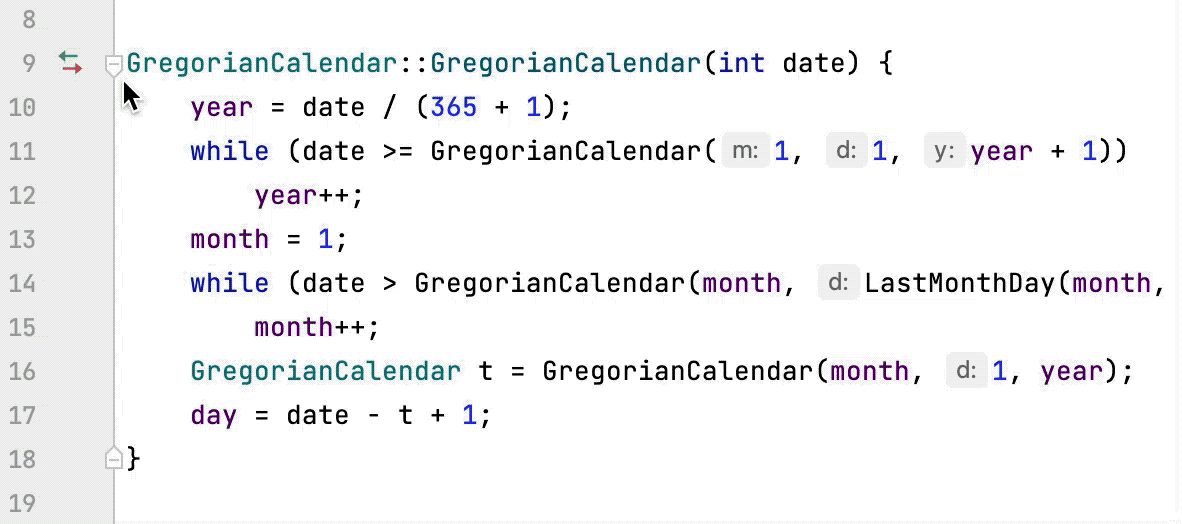
By default, folding icons in the gutter show up on hover. You can change this and configure other code folding settings in . For example, you can disable the default folding for one-line Rust methods:
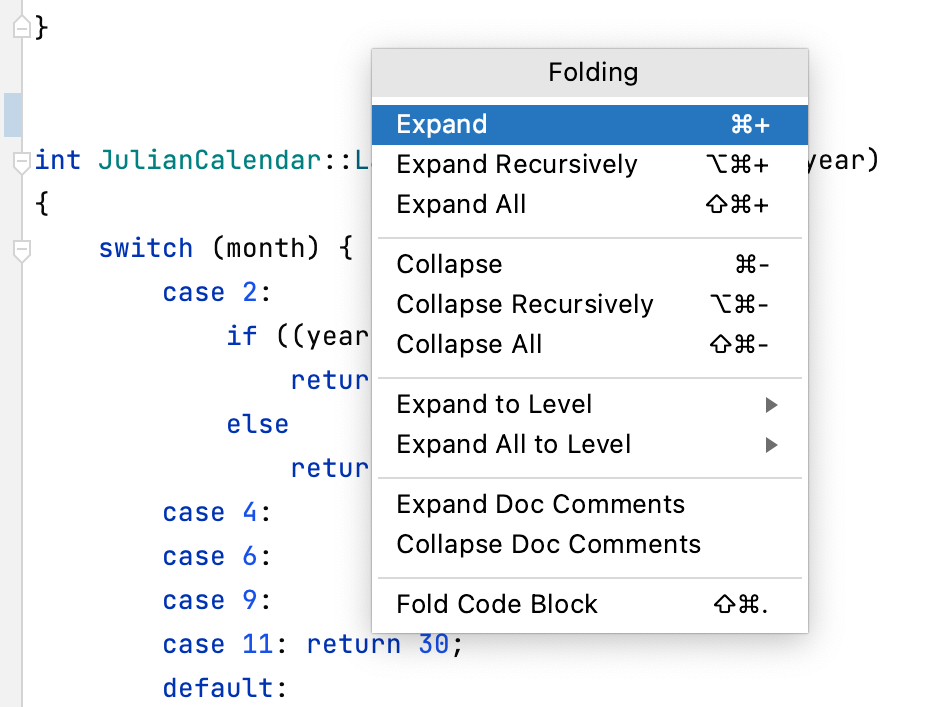
Go to in the main menu (Ctrl+Shift+A) and search for folding. CLion will show a popup with all folding actions with their shortcuts:
Expand or collapse code elements
To fold or unfold a code fragment, press Ctrl+NumPad -/Ctrl+NumPad +. CLion folds or unfolds the current code fragment, for example, a single method.
To collapse or expand all code fragments, press Ctrl+Shift+NumPad -/Ctrl+Shift+NumPad +.
CLion collapses or expands all fragments within the selection, or, if nothing is selected, all fragments in the current file, for example, all methods in a file.
To collapse or expand code recursively, press Ctrl+Alt+NumPad -/Ctrl+Alt+NumPad +. CLion collapses or expands the current fragment and all its subordinate regions within that fragment.
To fold a block of code inside a pair of matching curly braces
{}, press Ctrl+NumPad -. To expand the block, press Ctrl+NumPad +.To collapse or expand doc comments in the current file, in the main menu select or Collapse Doc Comments.
To collapse or expand a custom code fragment, select it and press Ctrl+.. Alternatively, mark the code fragment as Custom folding region.
You can fold or unfold any manually selected regions in code.
Fold or unfold nested fragments
To expand the current fragment and all the nested fragments, press Ctrl+NumPad *, 1. You can expand the current fragment up to the specified nesting level (from 1 to 5).
To expand all the collapsed fragments in the file, press Ctrl+Shift+NumPad *, 1. You can expand the collapsed fragments up to the specified nesting level (from 1 to 5).
Custom folding regions
You can make any code fragment foldable by marking it as a custom folding region with dedicated comments. After that, you can expand and collapse the fragment with Ctrl+. or have it collapsed automatically on opening the file.
In the editor, select a code fragment and press Ctrl+Alt+T.
From the popup menu, select <editor-fold...> Comments or region...endregion Comments.
Optionally, specify a description under which the collapsed fragment will be hidden.
To collapse or expand the created region, press Ctrl+..
To navigate to the created custom region, press Ctrl+Alt+..
Configure code folding icons
You can select how to display folding icons that appear in the gutter or disable them completely.
Press Ctrl+Alt+S to open settings and then select .
From the Show code folding arrows list, select Always or On mouse hover.
Clear the checkbox to disable the icons.
CLion Classic engine (deprecated)
Before 2026.2, CLion offered two language engines: one that is the default now, previously known as CLion Nova, and the legacy one, called CLion Classic. Starting with CLion 2026.2, Classic is unbundled and moved to a separate plugin. We are no longer actively developing CLion Classic – see its lifecycle below. Any new language-specific improvements will target only the default bundled engine.
If you still depend on the Classic engine, you can install the C/C++ Language Support via Classic Engine plugin from JetBrains Marketplace, as described in Install the CLion Classic engine.
CLion Classic lifecycle
As announced in the CLion’s Classic Engine Unbundled: What’s Next blog post, the remaining milestones for the legacy engine are as follows:
CLion 2026.3 (November 2026) — the last stable CLion Classic release compatible with the IDE.
After 2026.3 (December 2026) — updates for the CLion Classic engine end.
If you used CLion Classic in CLion 2026.1 or earlier, CLion 2026.2 switches to the default engine after the upgrade.
Install the CLion Classic engine
The CLion Classic engine plugin and the bundled CLion C and C++ plugin cannot be enabled at the same time, and CLion does not disable either of them for you. Install the plugin and disable CLion C and C++ within the same Settings session, then restart the IDE once.
Open Settings or press Ctrl+Alt+S in your IDE and then select .
Open the Marketplace tab, search for
C/C++ Language Support via Classic Engine, and click Install. Do not restart the IDE at this point.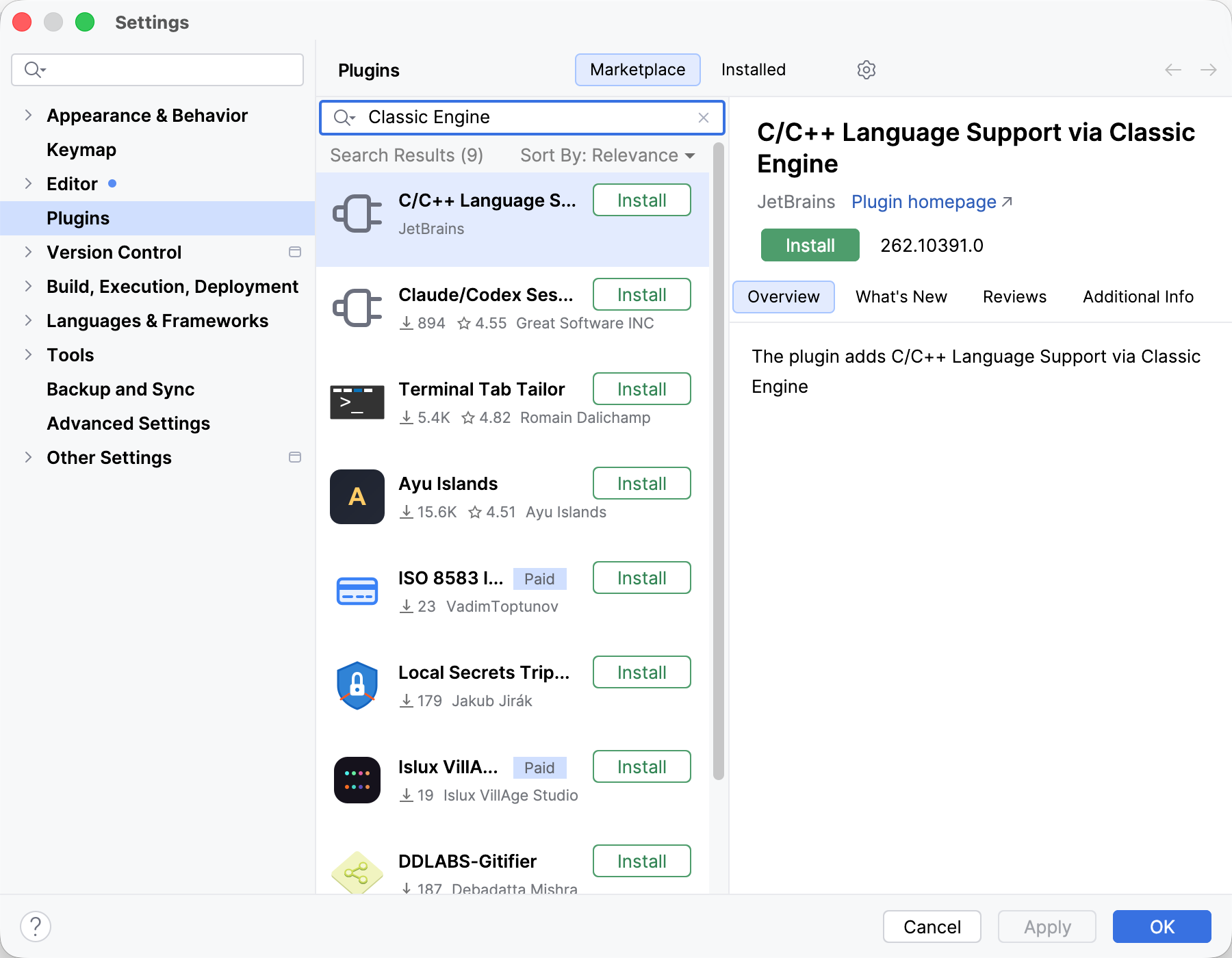
Open the Installed tab and clear the checkbox next to the CLion C and C++ plugin.
Click OK, and then restart the IDE when CLion prompts you.
After the restart, CLion resolves C and C++ code with the Classic engine.
Switch back to the default engine
Open Settings or press Ctrl+Alt+S in your IDE and then select .
On the Installed tab, select the checkbox next to the CLion C and C++ plugin.
Clear the checkbox next to the C/C++ Language Support via Classic Engine plugin.
Click OK, and then restart the IDE when CLion prompts you.
To remove the Classic engine from the IDE completely, uninstall its plugin as described in Uninstall plugins.
Features available only with the old engine
The Move Declarations and Move Static Members refactorings (CPP-35867) and the Inline Parameter refactoring (CPP-35868).
Full support for Objective-C and Objective-C++ (CPP-37281). If your project only partially includes code written in these languages, the basic support that CLion provides may suffice. This includes syntax highlighting, code completion suggestions, warnings, and other editor features for source files.
Some inspections, intentions, and quick-fixes, such as the unused-includes checks (CPP-35980).
The Cling integration.