Dev Environments
A dev environment is a containerized workspace hosted remotely. It includes source code, an IDE backend, and required development tools. You can use dev environments for software development instead of your local machine:
Your local machine works as a frontend. It runs only a client (e.g., via JetBrains Gateway or JetBrains Toolbox) that is connected to a dev environment.
The dev environment works as a backend. It runs all heavy-weight IDE operations: processes the source code, builds indexes, compiles the code, and so on.
Long-lived vs. short-lived dev environments
CodeCanvas is optimized for short-lived dev environments. Still, long-lived setups are also supported when necessary.
Long-lived dev environments – In this traditional approach, you create a dev environment and use it for a long time as if it was your local machine. This offers familiarity but lacks the main benefits of remote development.
Short-lived dev environments – In this modern approach, you create a dev environment for a specific task, e.g., a bugfix or a feature implementation. After the task is completed, you stop and remove the environment. This approach offers all the advantages of remote development:
Constantly updated IDE indexes and faster rebuilds.
Consistent development environment for all team members – It helps to avoid the "works on my machine" problem and makes it easier to onboard new team members.
Avoiding disruptive branch switching – Instead of switching branches in the same environment, you can create a new environment for each branch and avoid rebuilding the project, reindexing the code, and so on.
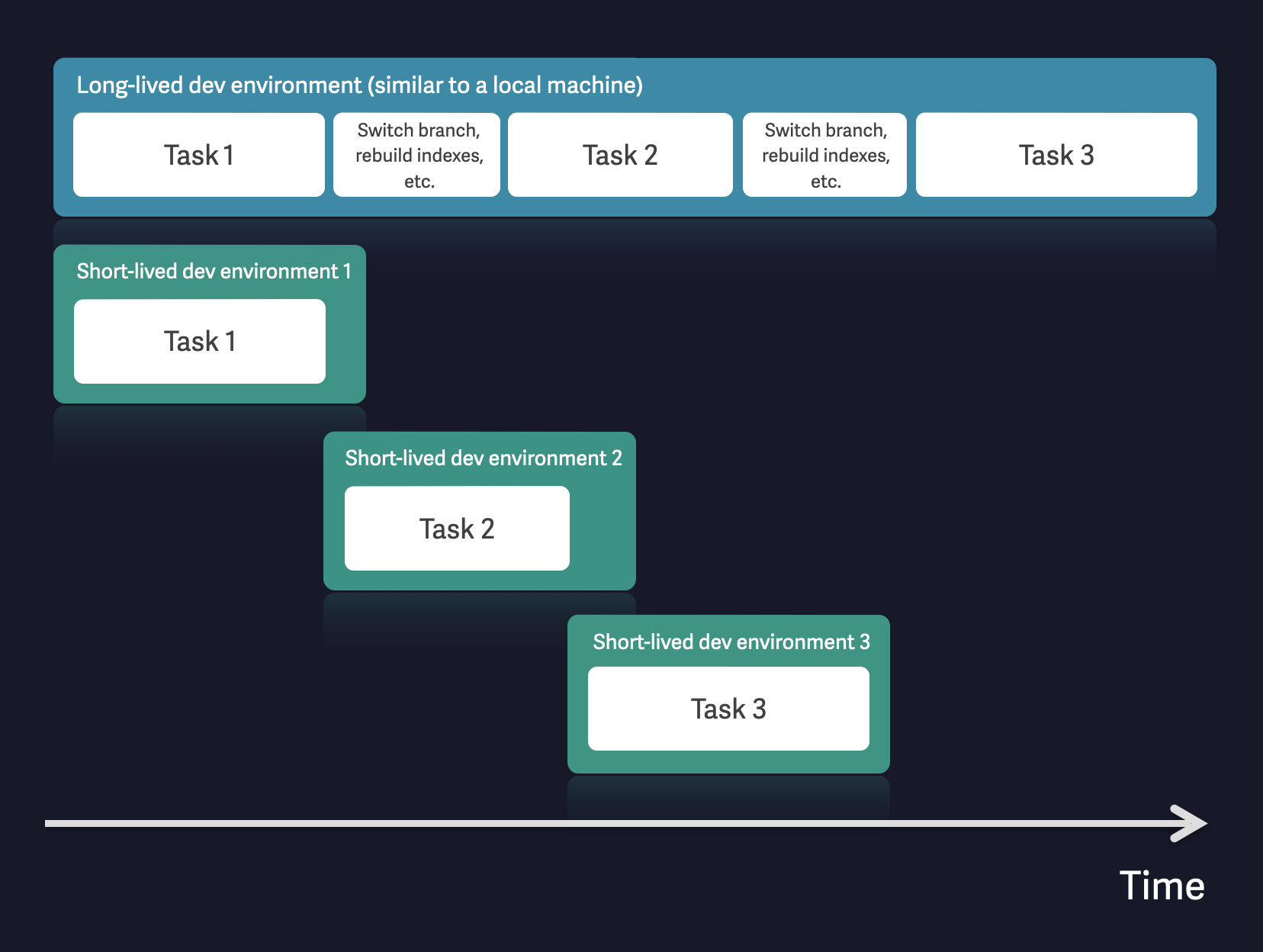
Though you can use either approach, CodeCanvas was designed with the short-lived workflow in mind. Features like warm-up, standby pool, and lifecycle scripts maximize the benefits of short-lived dev environments. This allows you to experience the full potential of remote development: faster startup, consistent environment, and no need to maintain the environment.
How dev environments work
Preparing a dev environment for a project
Before creating a dev environment, you should configure it for your project using a dev environment template. Typically, this should be done by a namespace administrator once for a project. Learn how to create a template
Creating a dev environment
Normally, you start your work by running JetBrains Gateway (or JetBrains Toolbox) – a client application that connects to CodeCanvas and let you create a dev environment based on a specific template. Learn how to start a dev environments
You can also connect to a dev environment using SSH. Learn how to connect to an environment via SSH
Dedicated container
When you create a dev environment, CodeCanvas assigns a dedicated container to your account. Dev environments are individual – only you can access your environments.
By default, if the administrator hasn't specified a specific Docker image, the dev environment uses the default image for the container.
Dev environment storage
Each dev environment has an assigned storage. When a dev environment is started for the first time, CodeCanvas clones the project repository to the storage and mounts it to the dev environment. Learn more about the data in the storage
Developing in a dev environment
When you make changes to the code in the local client (the frontend), they're sent to the dev environment (the backend) that takes care of the rest. Your local client only renders the user interface and handles the communication with the backend.
When you push changes to the repository for the first time, CodeCanvas asks you to provide your Git credentials. Learn more
Dev environment lifecycle
If there is no activity with a dev environment for more than 30 minutes (default), CodeCanvas stops the environment: It performs graceful shutdown for the container (docker stop). The dev environment automatically saves the contents of the working directory and user home directory. All uncommitted changes will be available after you restart the environment. The activity in this context means any interaction with the dev environment via the IDE or SSH. For example, if you run a build and minimize the IDE window, the environment will be stopped after 30 minutes regardless of the build status.
There is also a hard timeout for session duration: The dev environment will be stopped after 10 hours (default) of continuous work, regardless of the activity.
Both timeouts can be configured by the namespace administrator on the template level.
Concurrent usage limit
Each dev environment consumes part of the user's concurrent usage limit. If the limit is exceeded, starting a new environment will fail. Learn more about usage limits