Run DataGrip for the first time
You can use the Toolbox App to run any JetBrains product. In the case of a standalone installation, running DataGrip depends on the operating system:
To run DataGrip, find it in the Windows Start menu or use the desktop shortcut. You can also run the launcher batch script or executable in the installation directory under bin.
Run the DataGrip app from the Applications directory, Launchpad, or Spotlight.
Run the datagrip.sh shell script in the installation directory under bin. You can also use the desktop shortcut if it was created during installation.
Import settings
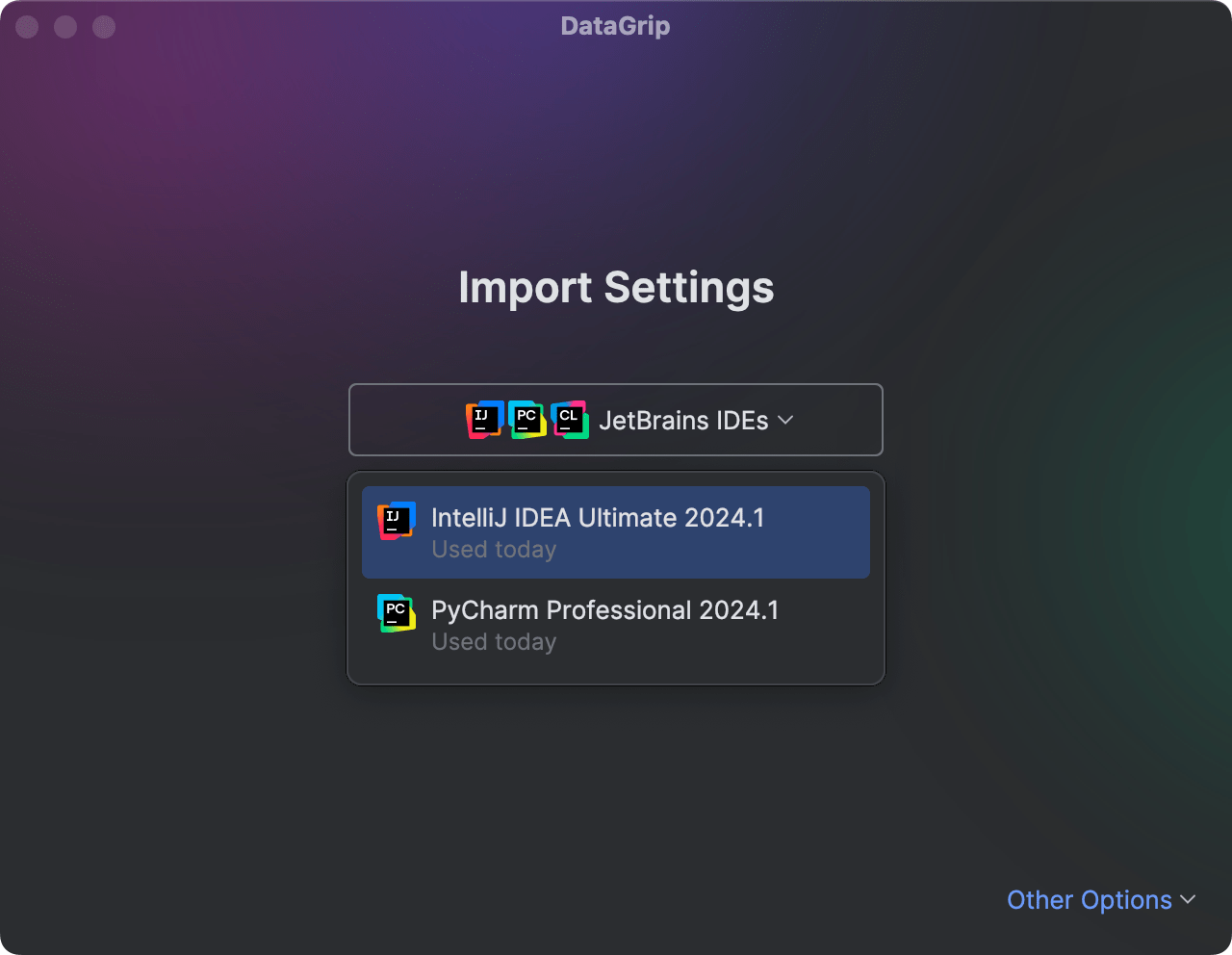
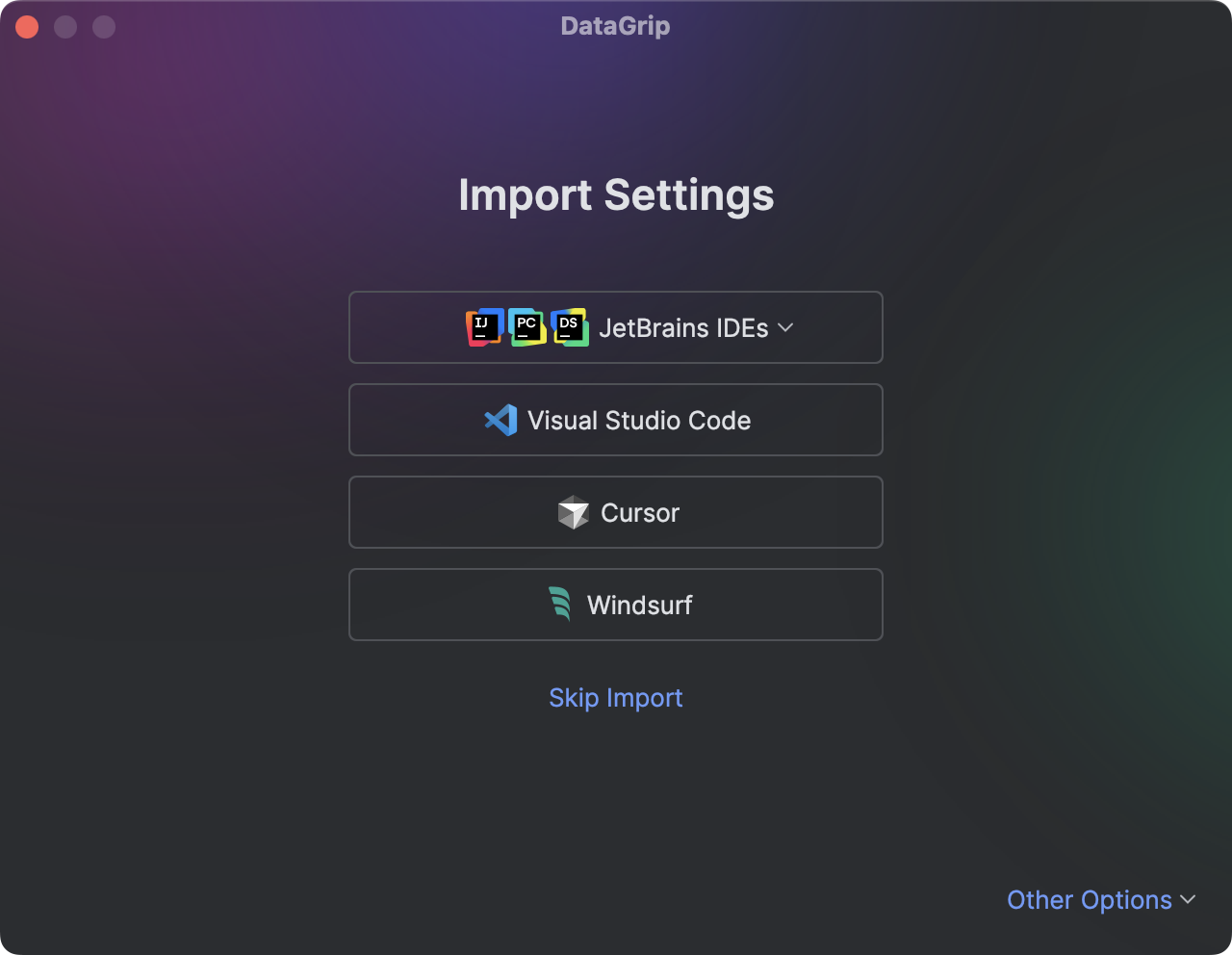
When you launch your DataGrip for the first time, you will see the Import Settings dialog with the list of other IDE's settings found on your machine.
Select from which IDE you want to import settings.
If you use several JetBrains IDEs, select the one with the preferred settings from the drop-down list or click Other Options to select IDEs used more than 6 months ago.
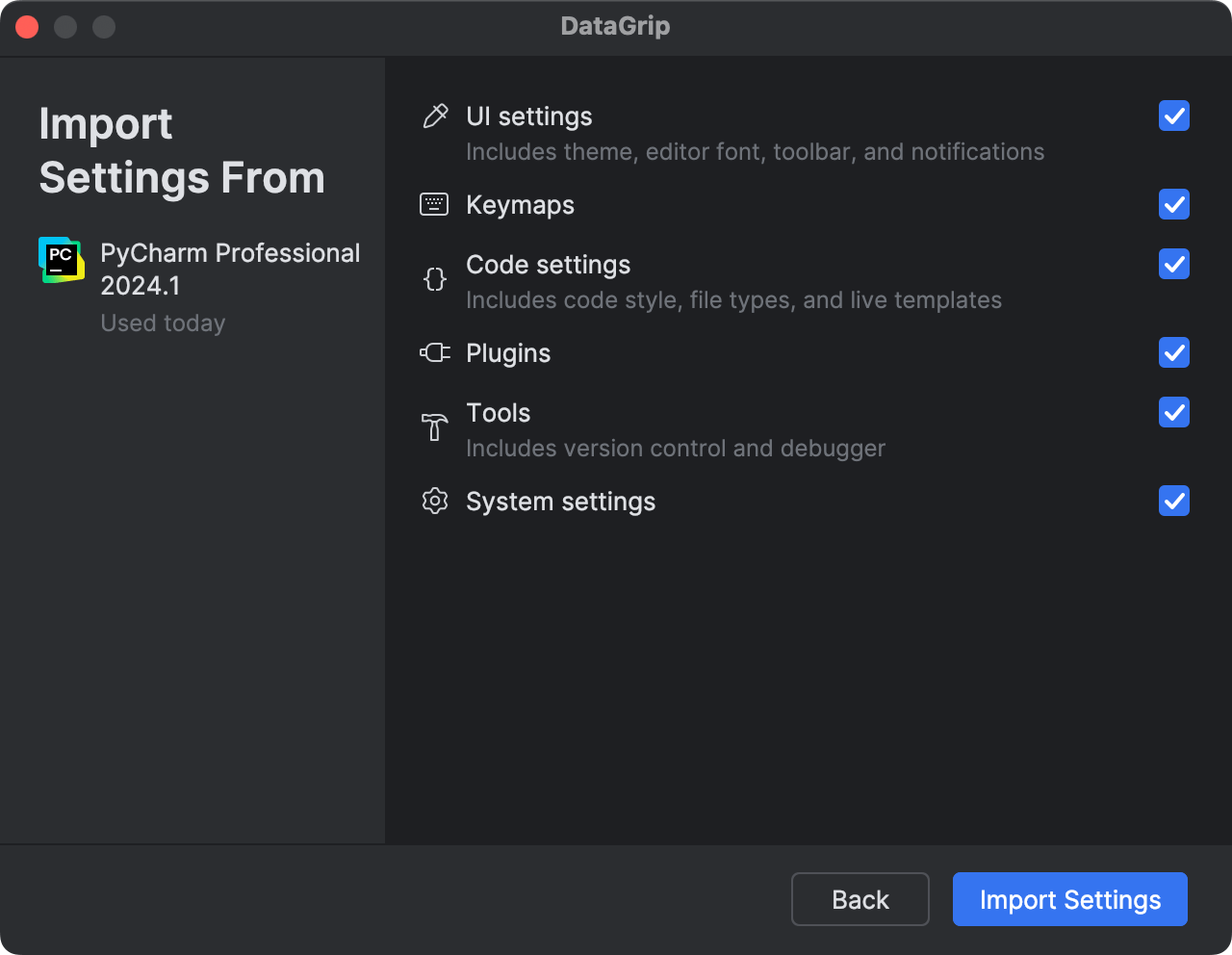
Select which settings you want to import and click Import Settings.
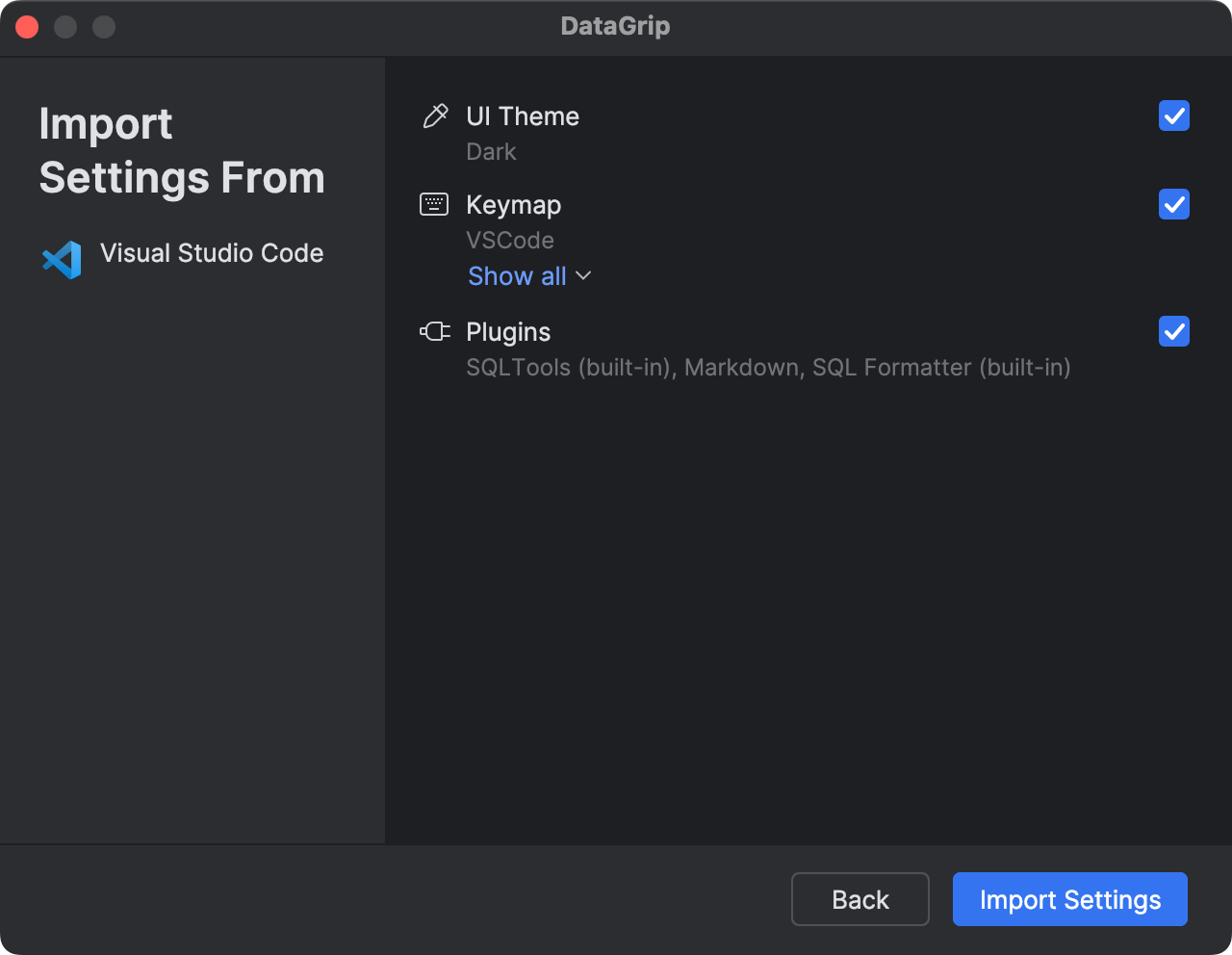
You will see a confirmation that the settings have been successfully imported.
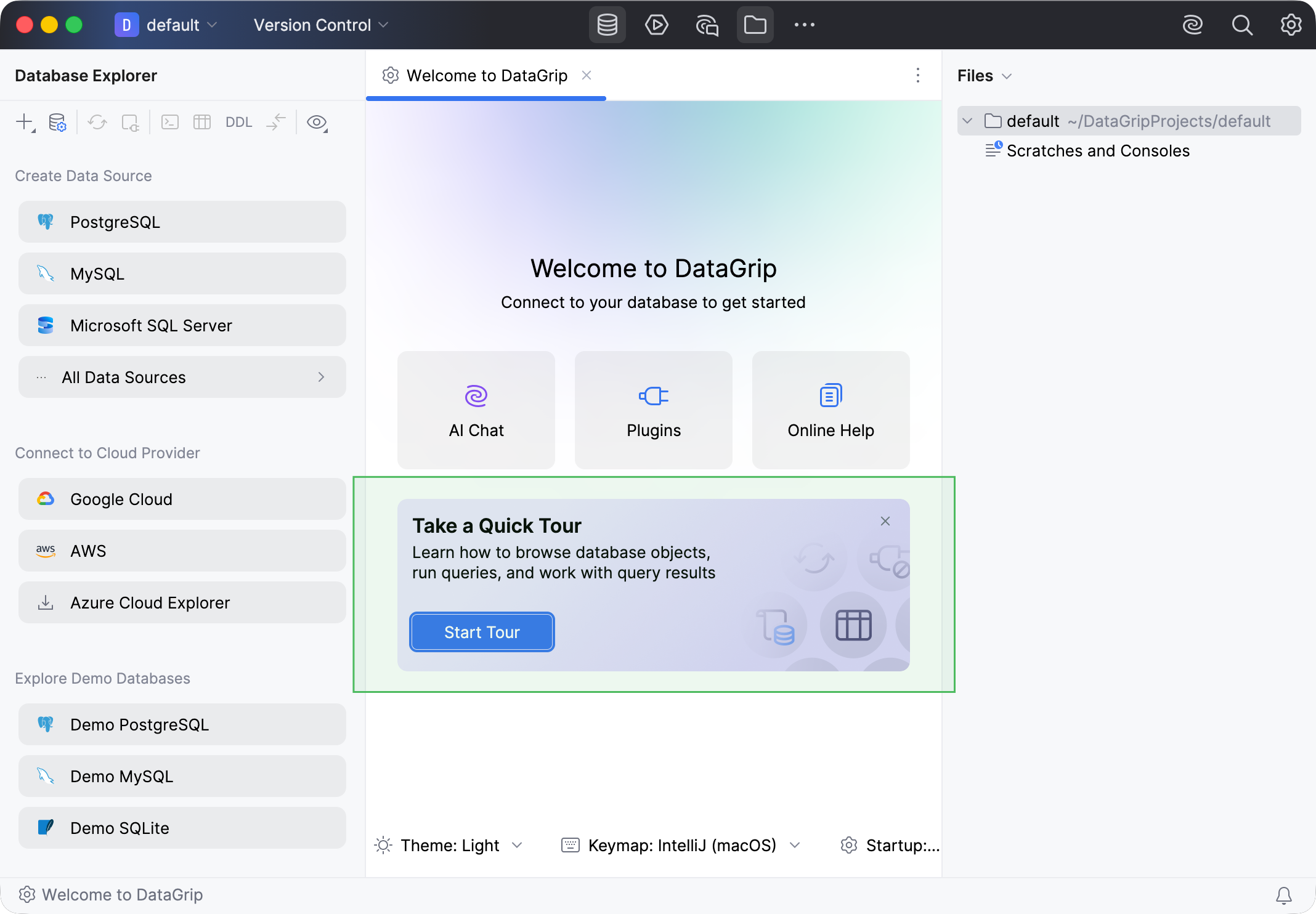
You will see the default project with the Welcome to DataGrip tab, the starting point to your work with the IDE. This project also appears when you close all opened projects.
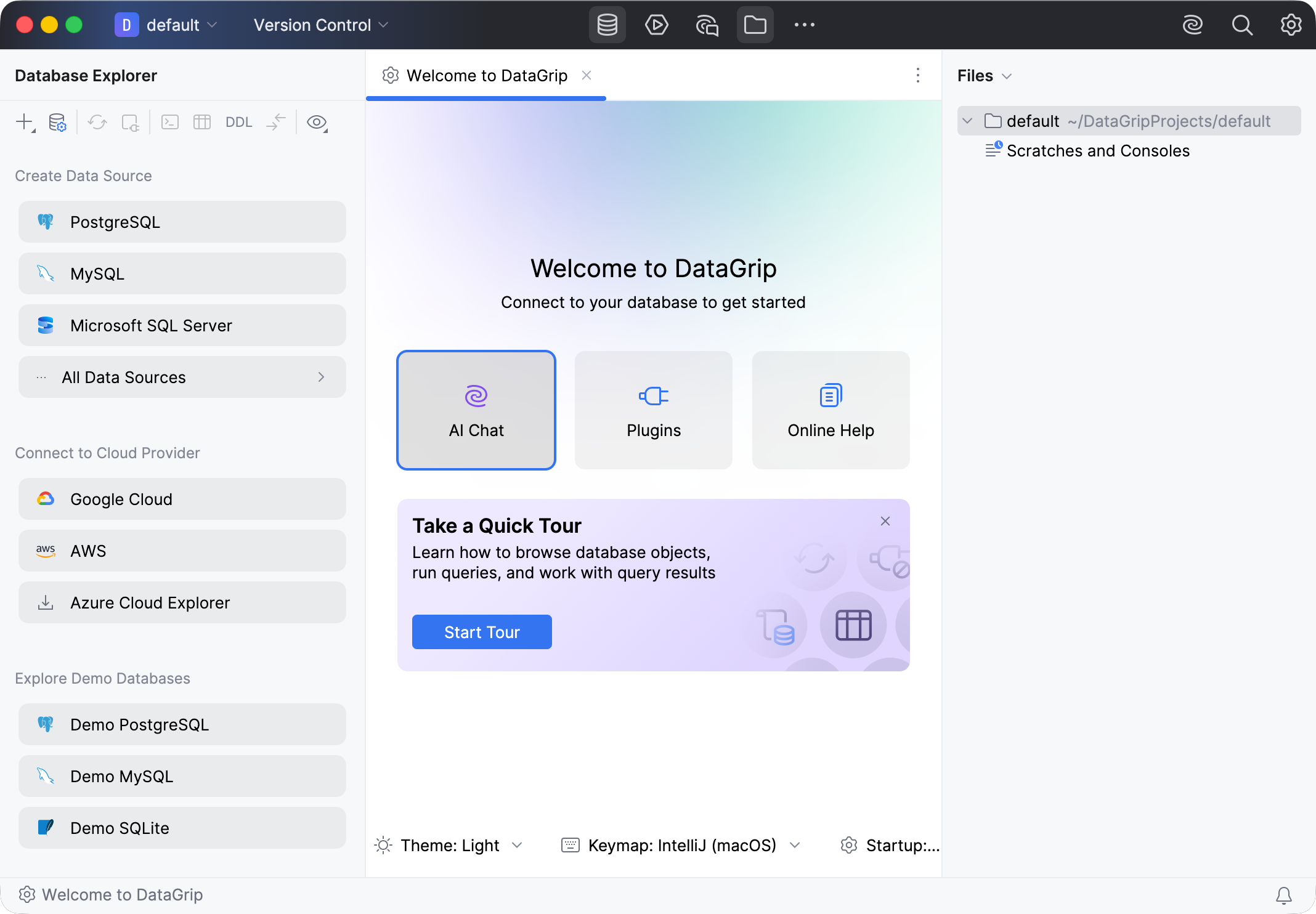
Customize the IDE appearance
On the Welcome tab, you can select another color theme or a keymap.
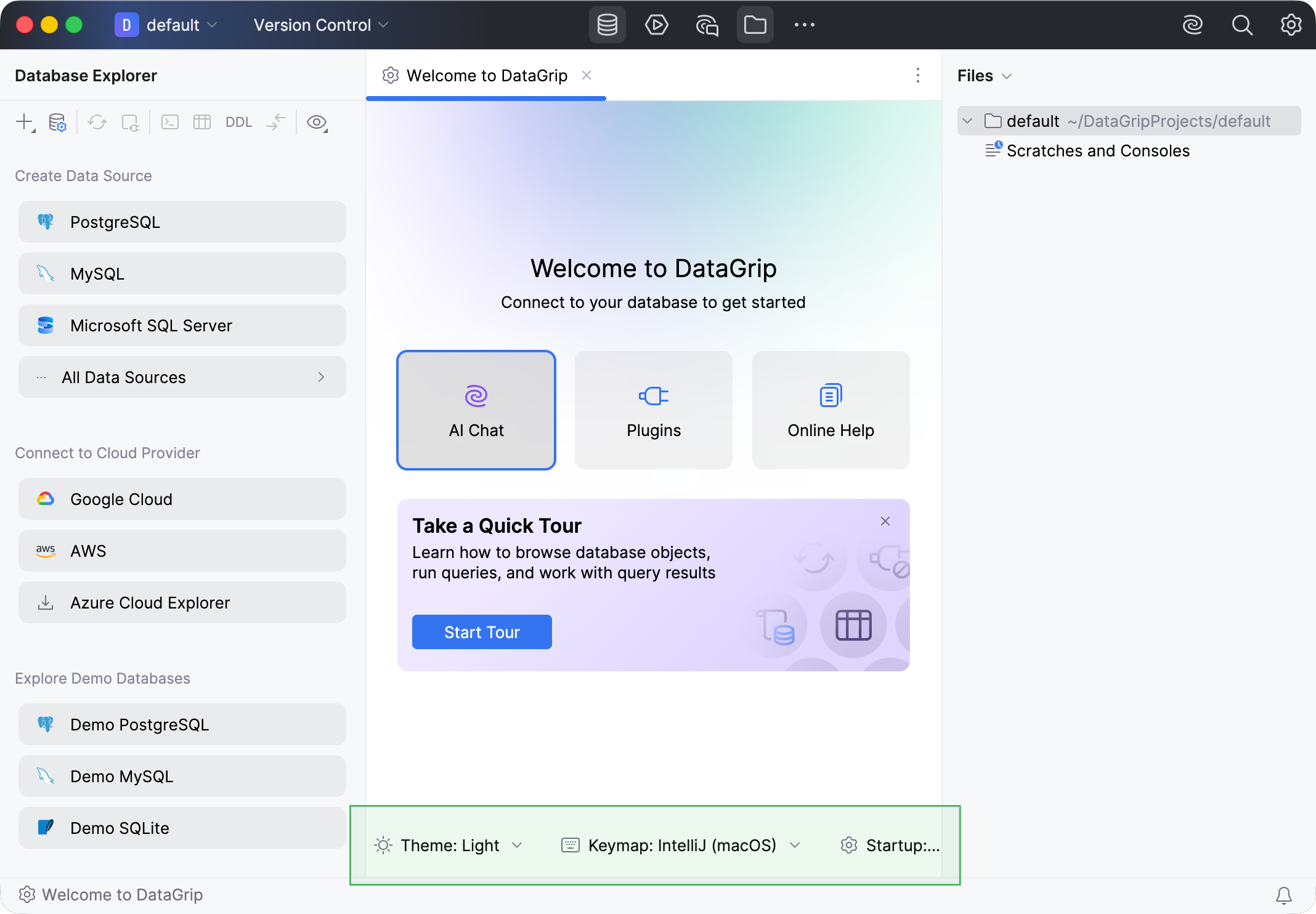
Configure the default settings
Press Ctrl+Alt+S to open the settings dialog. The settings that you modify at this moment will become the new default configuration for your projects and the IDE.
Install additional plugins
Click the Plugins button on the Welcome tab. Download and install additional plugins from JetBrains Marketplace.
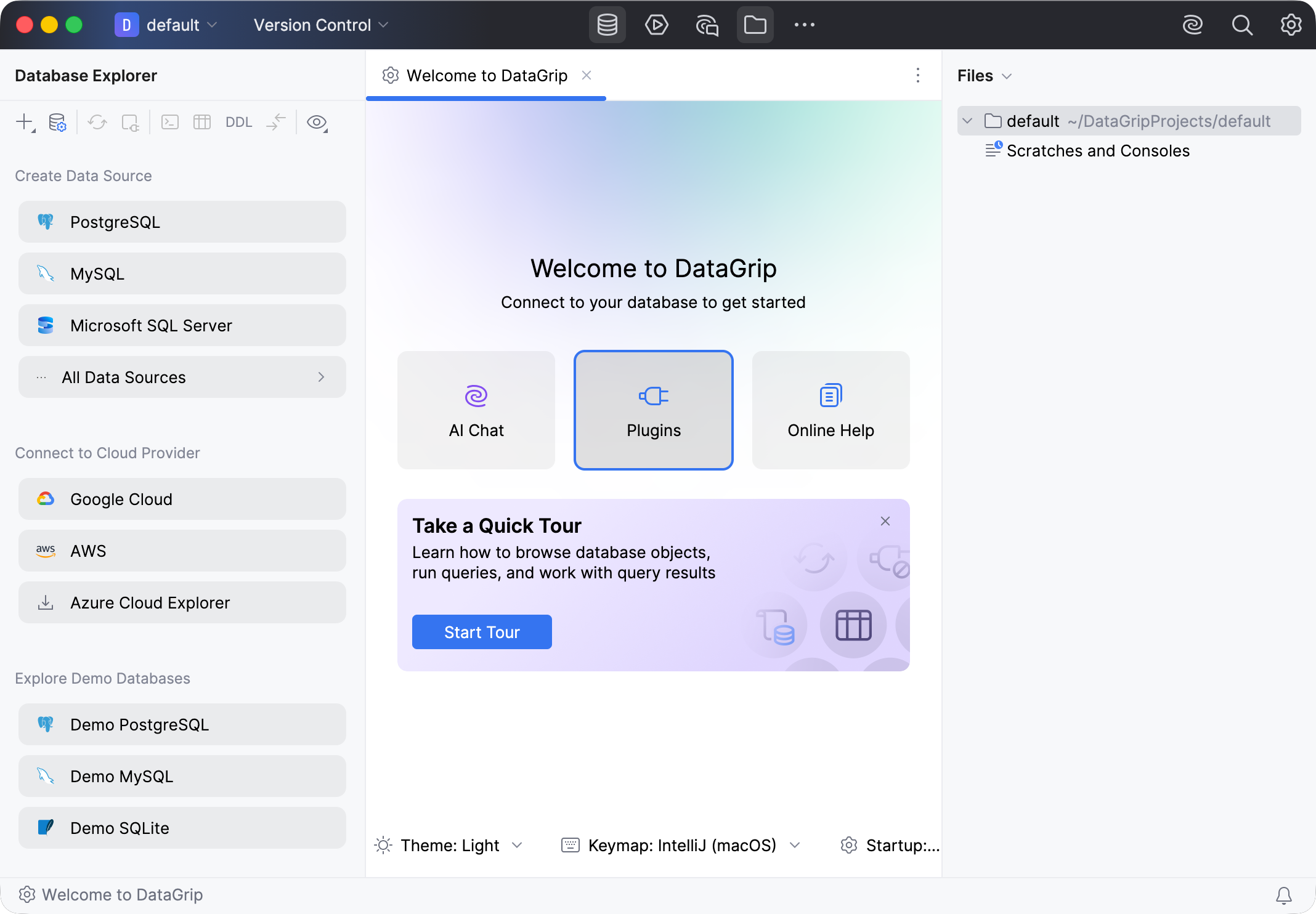
Learn DataGrip
DataGrip offers learning possibilities for users to get more familiar with the shortcuts, features, and workflows that the IDE has to offer.
To run the learning module, click the Take a Quick Tour banner or select from the main menu.