Install on a Kubernetes cluster using Helm charts
The instructions in this article describe the installation of Datalore Enterprise in a Kubernetes cluster using Helm.
It is highly recommended that you have experience using the Kubernetes technology, particularly Helm. For the PoC purpose, we suggest trying the Docker-based installation.
- Prerequisites
Before installation, make sure that you have the following:
k8s cluster
Kubectl on your machine pointed to this cluster
Helm
This installation was tested with Kubernetes v1.24 and Helm v3.2.4, but other versions may work too.
- Hardware requirements
Datalore server machine: 4GB of RAM (the number of CPU is irrelevant if the load is not high)
For every concurrently run notebook: from 4GB of RAM
Basic Datalore installation
Follow the instruction to install Datalore using Helm.
Install Datalore
Add the Datalore Helm repository:
$ helm repo add datalore https://jetbrains.github.io/datalore-configs/chartsCreate a datalore.values.yaml file.
In datalore.values.yaml, add a
databaseSecretparameter to set up your database password. A random string is advised.databaseSecret: password: xxxxConfigure your volumes. In datalore.values.yaml, add the following parameters:
volumes: - name: storage ... - name: postgresql-data ...where:
storage: contains workbook data, such as attached files (UID:GID 5000:5000).postgresql-data: contains PostgreSQL database data (UID:GID 999:999).
Below are exemplary procedures of configuring your volumes:
Configure hostPath volumes
Create directories:
mkdir -p /data/postgresql mkdir -p /data/datalore chown 999:999 /data/postgresql chown 5000:5000 /data/dataloreAdd to datalore.values.yaml:
volumes: - name: postgresql-data hostPath: path: /data/postgresql type: Directory - name: storage hostPath: path: /data/datalore type: Directory
Use volumeClaimTemplates
If you set up volume auto-provisioning in Kubernetes, you can replace
volumeswithvolumeClaimTemplates.volumeClaimTemplates: - metadata: name: storage spec: accessModes: - ReadWriteOnce resources: requests: storage: 10Gi - metadata: name: postgresql-data spec: accessModes: - ReadWriteOnce resources: requests: storage: 2GiRun the following command and wait for Datalore to start up:
helm install -f datalore.values.yaml datalore datalore/datalore --version 0.2.6Go to http://127.0.0.1:8080/ and sign up the first user. The first signed-up user will automatically receive admin rights.
To access Datalore by a domain other than 127.0.0.1, add a URL with this host as the
DATALORE_PUBLIC_URLparameter in the datalore.values.yaml file.For example, if you want to use the https://datalore.yourcompany.com domain, add the following:
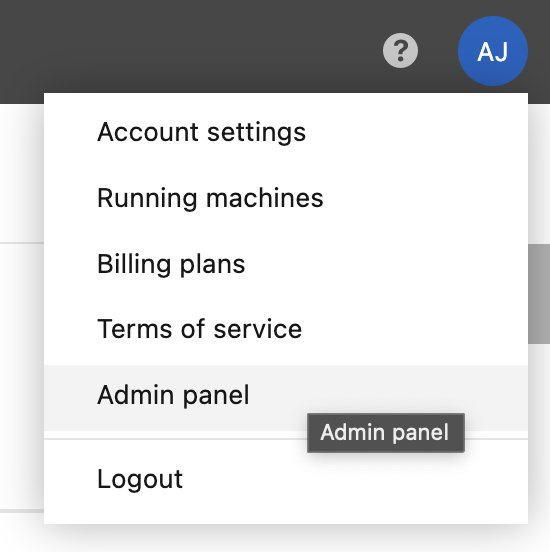
dataloreEnv: ... DATALORE_PUBLIC_URL: "https://datalore.yourcompany.com"Click your avatar in the upper-right corner, select Admin panel | License and provide your license key.
Optional procedures
Run Datalore in a non-default namespace
When running Datalore, specify the namespace:
helm install -n <non_default_namespace> -f datalore.values.yaml datalore datalore/datalore --version 0.2.6(Optional) If you use a custom config, add the namespace under the
agentsConfigkey as shown in the code below:k8s: namespace: <non_default_namespace> instances: ...
Use an external postgres database
Add two variables under
dataloreEnv: database user and database URL.dataloreEnv: ... DB_USER: "<database_user>" DB_URL: "jdbc:postgresql://[database_host]:[database_port]/[database_name]"Set
internalDatabasetofalse.