Export
The procedures below explain how to export notebooks, reports, and workspaces in various formats.
Notebooks
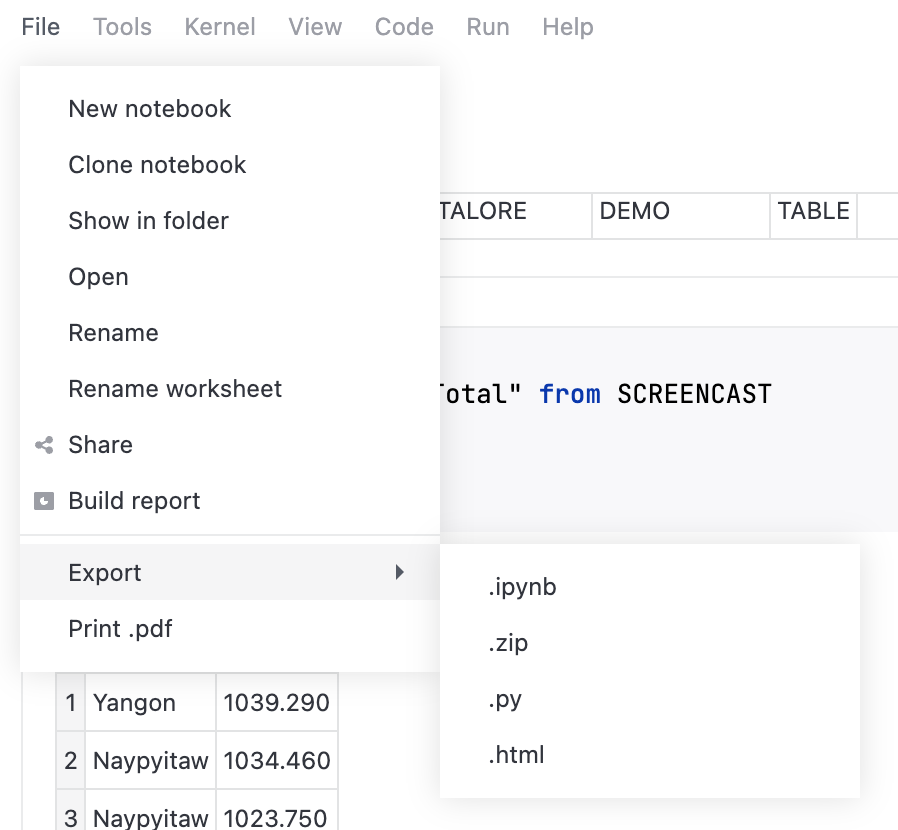
You can export your Datalore notebooks in the following formats:
.ipynb
.zip
.py
.kts
.scala
.r
.html
Available export formats vary depending on the notebook's language.
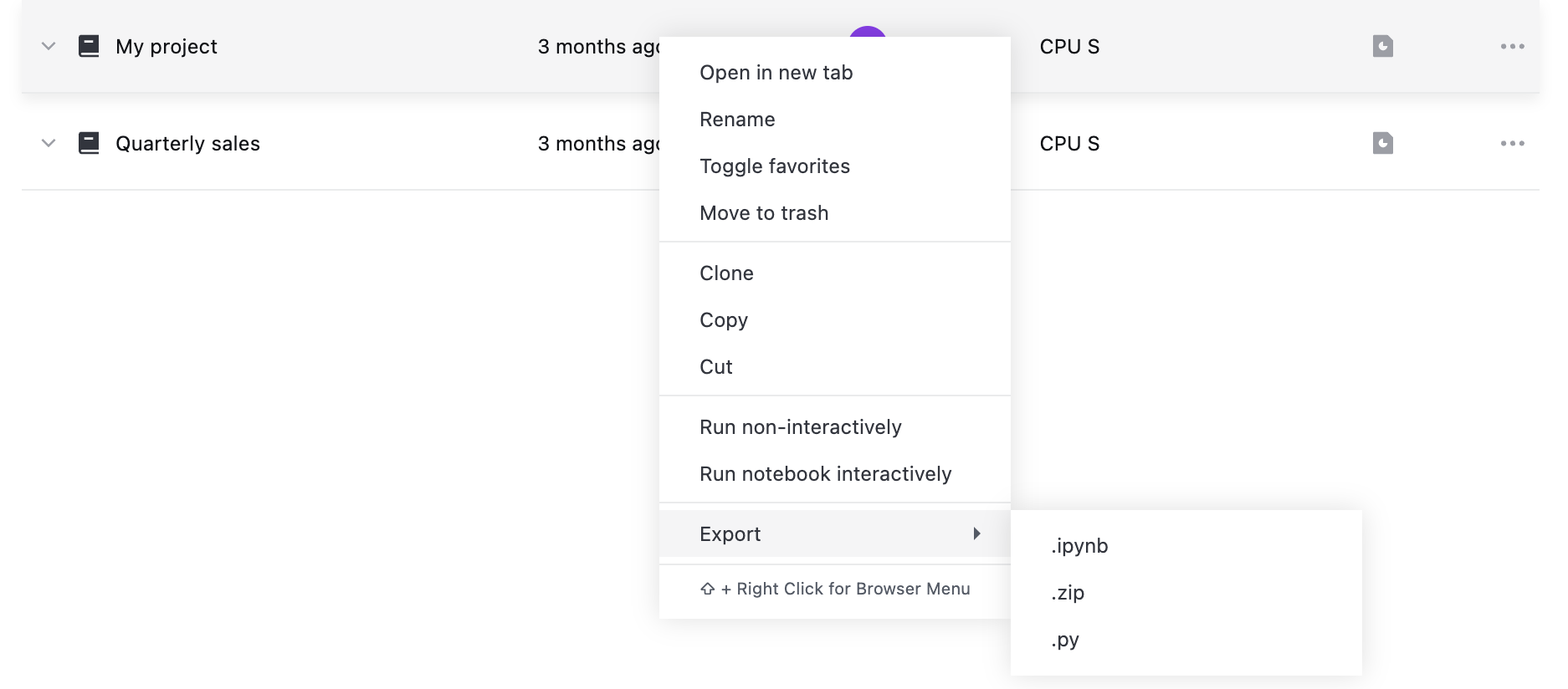
Export a notebook from the Home page
In the sidebar, select the workspace that contains the notebook you want to export.
The
 Notebooks section opens by default.
Locate the notebook and click
 (More) next to it.
Select Export and the desired export format.
Export a notebook from the editor
Open the notebook you want to export.
In the main menu at the top, select File | Export and the desired export format.
Print a notebook from the editor
You can view and print your notebook output as PDF using the browser interface.
In the main menu at the top, select .
Follow the prompts in the browser's print dialog.
Reports
Print a report
Open the report you want to print.
Click
(More) at the top right and select Print .pdf.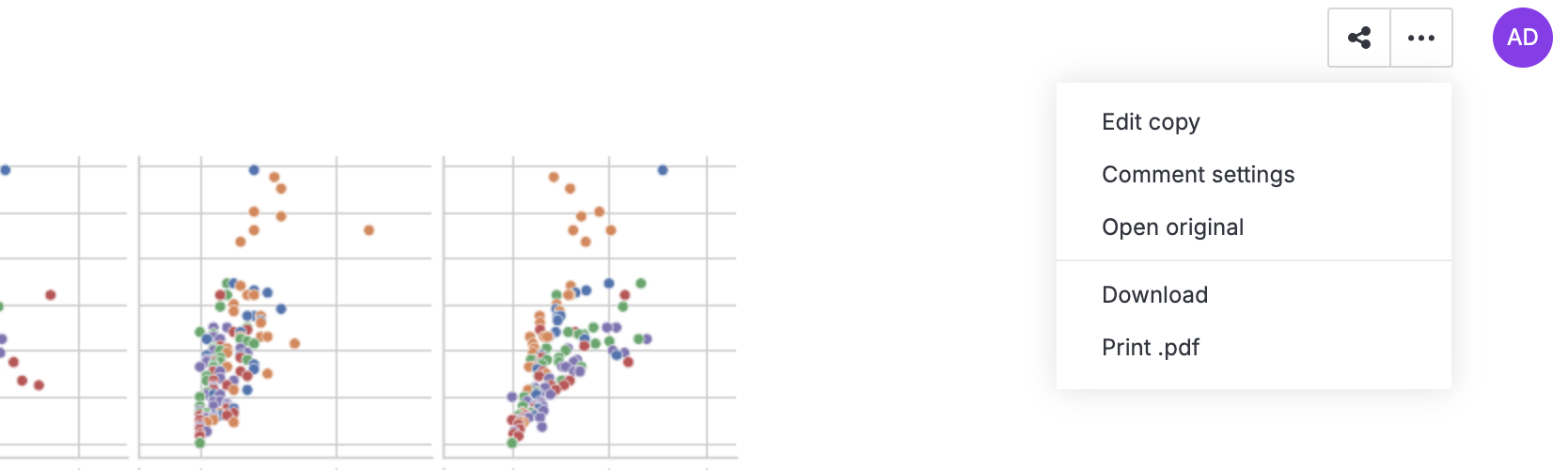
Follow the prompts in the browser's print dialog.
Workspace
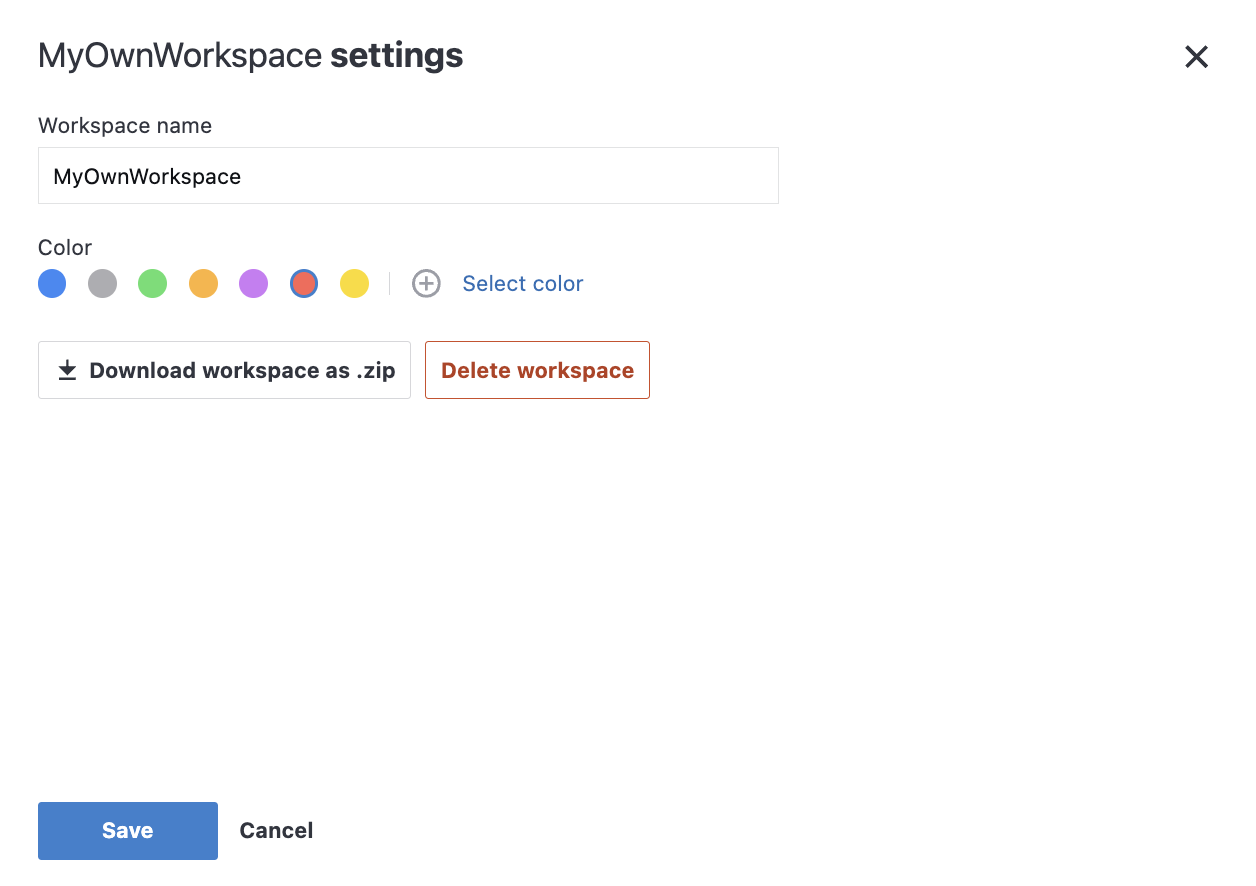
Export a workspace by downloading it as a .zip file containing the workspace attachments, workspace notebooks, and reports made from those notebooks (if available).
Download a workspace
In the sidebar, select the workspace you want to export.
Click
 (Settings).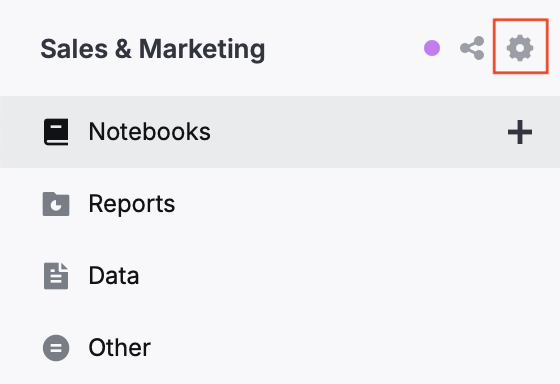
In the Settings dialog, click Download workspace as .zip.