Install Datalore On-Premises in Docker containers using Docker Compose
This page guides you through installing and configuring Datalore On-Premises in a Docker container with Docker Compose.
This is the recommended way to install Datalore unless you specifically need to use Kubernetes.
The installation process consists of two parts:
Basic installation to get Datalore On-Premises up and running.
Configuration steps to customize the installation.
- Prerequisites
Before you start, make sure that you have the following:
Docker
Docker Compose v2.32 or greater
- Hardware requirements
Datalore On-Premises requires resources for running both the server, database, and computations. When selecting the amount of resources, consider your expected computational workload and the number of agents working concurrently.
Datalore server machine: 4GB of RAM (the number of CPU is irrelevant if the load is not high)
For every concurrently run notebook: from 4GB of RAM
- Fargate restrictions
AWS Fargate is a serverless compute engine for containers.
Datalore On-Premises can run in Fargate, but attached files and Reactive mode will not work due to Fargate’s security policies.
Basic Datalore installation
Step 1. Get the docker-compose file
Download and open the docker-compose.yaml file from the datalore-configs repository on GitHub.
Replace the values of
DB_PASSWORDandPOSTGRES_PASSWORDproperties with the same string value. This string will serve as your database password, so keep it secret.
Step 2. (Optional) Configure a custom domain
By default, Datalore is only accessible at 127.0.0.1. To use a custom domain, add the desired URL without a trailing slash as the
DATALORE_PUBLIC_URLparameter in the docker-compose.yaml file.For example, if you want to use https://datalore.yourcompany.com, add the following block:
services: datalore: ... environment: ... # Make sure the URL doesn't have a trailing slash DATALORE_PUBLIC_URL: "https://datalore.yourcompany.com"If you have not already, configure DNS for this domain.
Step 3. (Optional) Use an external postgres database
Datalore requires a PostgreSQL database (version 15 or higher). By default, a single-instance PostgreSQL database is included in Datalore’s Docker Compose configuration file.
To use an external database:
In the docker-compose.yaml file, add the following variables under
environment:environment: ... DB_USER: "<database_user>" DB_URL: "jdbc:postgresql://[database_host]:[database_port]/[database_name]"Remove the
postgresqlblock:postgresql: image: jetbrains/datalore-postgres:2024.4 expose: [ "5432" ] networks: - datalore-backend-network volumes: - "postgresql-data:/var/lib/postgresql/data" environment: POSTGRES_PASSWORD: "changeme"Remove the following line from the
volumessection:postgresql-data: { }
Step 4. (Optional) Enable an email allowlist
You can enable an allowlist for new user registration so that only users with email addresses included in the allowlist can register. To do that:
In the docker-compose.yaml file, add the following parameter:
environment: EMAIL_ALLOWLIST_ENABLED: "true"
The tab will be available in the Admin panel.
Step 5. (Optional, Hub-only) Enable user filtration based on Hub group membership
By default, all Hub users can register in Datalore unless you disable registration in the Admin panel.
To grant Datalore access only to members of a specific Hub group:
In the docker-compose.yaml file, add the following parameter:
environment: HUB_ALLOWLIST_GROUP: 'group_name'
Step 6. (Optional) Configure notebook code import limit
You can configure the limit of notebook code import by setting your own value in bytes. To do that:
In the docker-compose.yaml file, add the following parameter:
environment: VFS_MAX_IMPORT_SOURCE_LENGTH: '<length_in_bytes>'
Step 7. Start Datalore
Run the following command and wait for Datalore to start up:
docker compose upGo to http://127.0.0.1:8080/ or the custom URL you configured in Step 2 and register the first user. This user will automatically receive the Super Admin role.
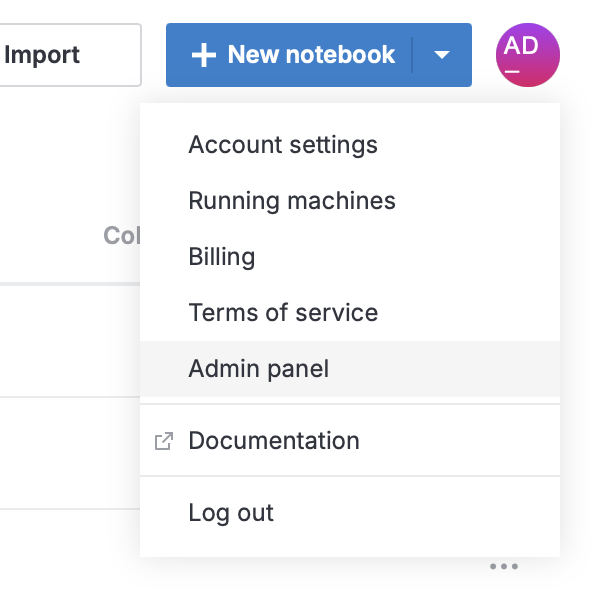
Add your license. To do that, click your avatar at the top right, select Admin panel | License and enter your license key.
Next steps
Required configuration steps
Configure agents: Customize how your agents work to manage your computational resources.
Enable GPU machines: Enable GPU machines in your installation.
Manage users: Create and manage users and viewers.
Configure plans: Customize resource usage among your Datalore users.
Optional configuration steps
Set up JetBrains Hub: Integrate an authentication service.
Customize or update environment: Build custom images tailored for your needs.
Enable gift codes: Activate the service for generating and processing gift codes.
Enable the email service: Activate email notifications.
Enable audit logging: Turn on extended activity logging for Datalore users.
Keywords
Datalore installation, Datalore deployment, install Datalore, installation procedures, installation requirements, Docker deployment