Release notes
This section lists functionality added to GoLand in the current release. To view release notes for other GoLand versions, click the version switcher on the help site and select the version that you need.
WSL: native support for Go projects in WSL 2
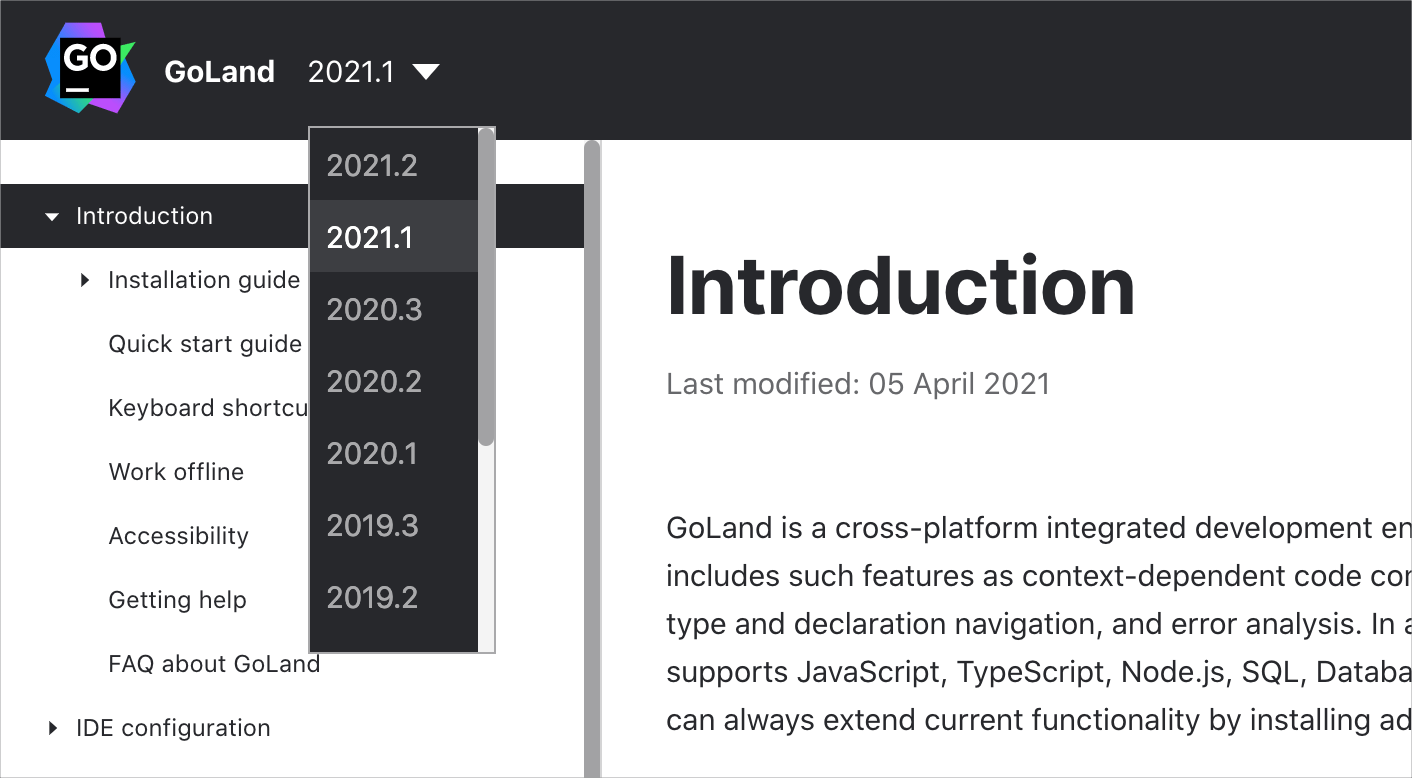
You can open a project inside WSL and specify an SDK located there.
If you create a new project (or open an existing one) in WSL, GoLand will tell you that for these projects, you have to use Go SDK in WSL. You can download Go SDK or choose an existing one in the \\wsl$ subdirectory.
For more information about using WSL, see WSL.
Known issues
The following issues are still under development:
symlinks: IDEA-253253, https://github.com/microsoft/WSL/issues/5118
file watchers: WEB-38925
external tools: IDEA-201045
Mozilla rr: https://github.com/rr-debugger/rr/issues/2506
Editing: autocompletion for struct tags
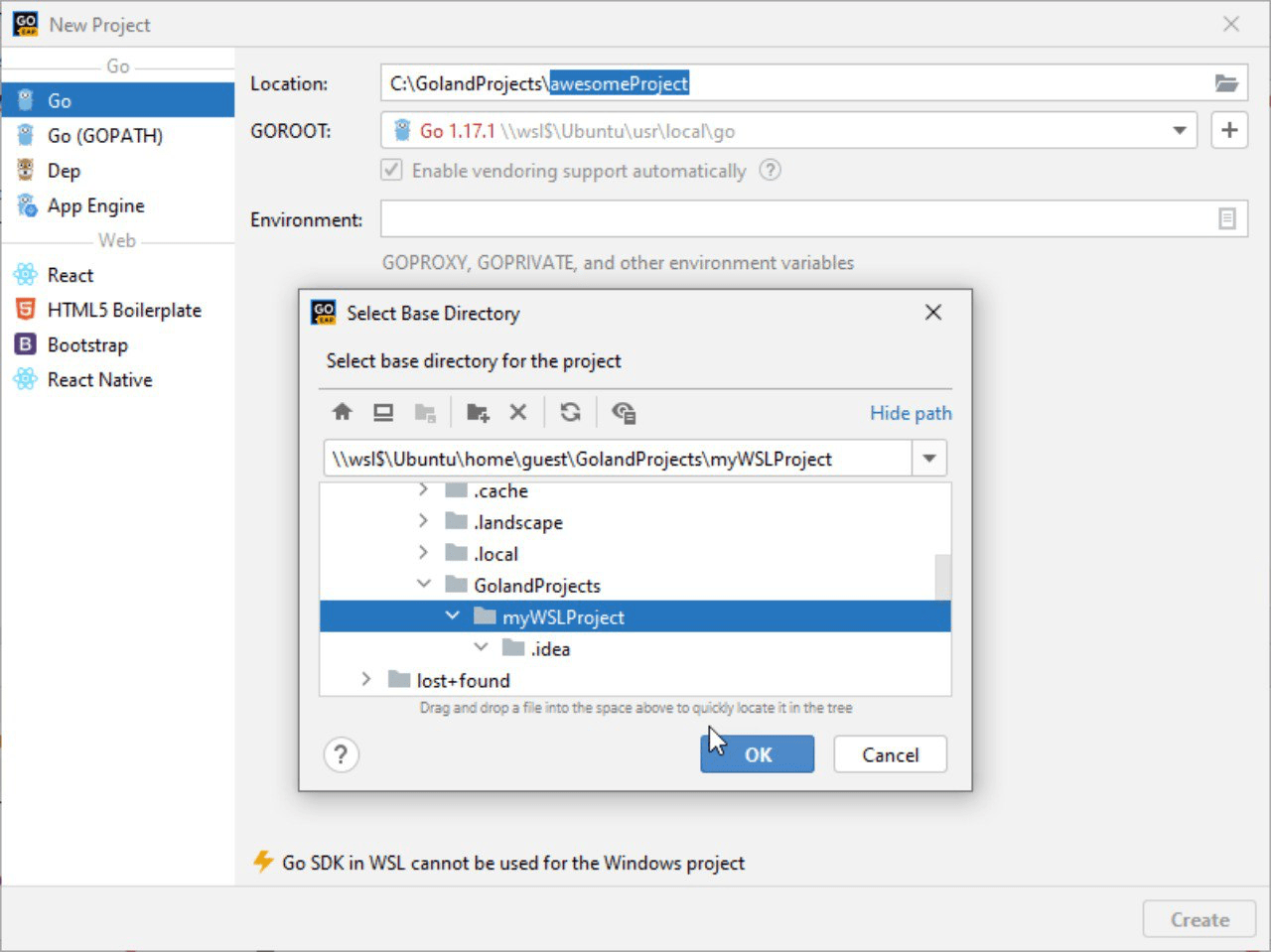
When you start filling out a tag, right after you type backticks (`), GoLand will suggest entering a key. Press Tab and you will see a list of options. Choose the style of the value name. The IDE saves your choice, and it will suggest the same style first in the list for other fields of this struct.
Editing: postfix templates for string-to-number conversion
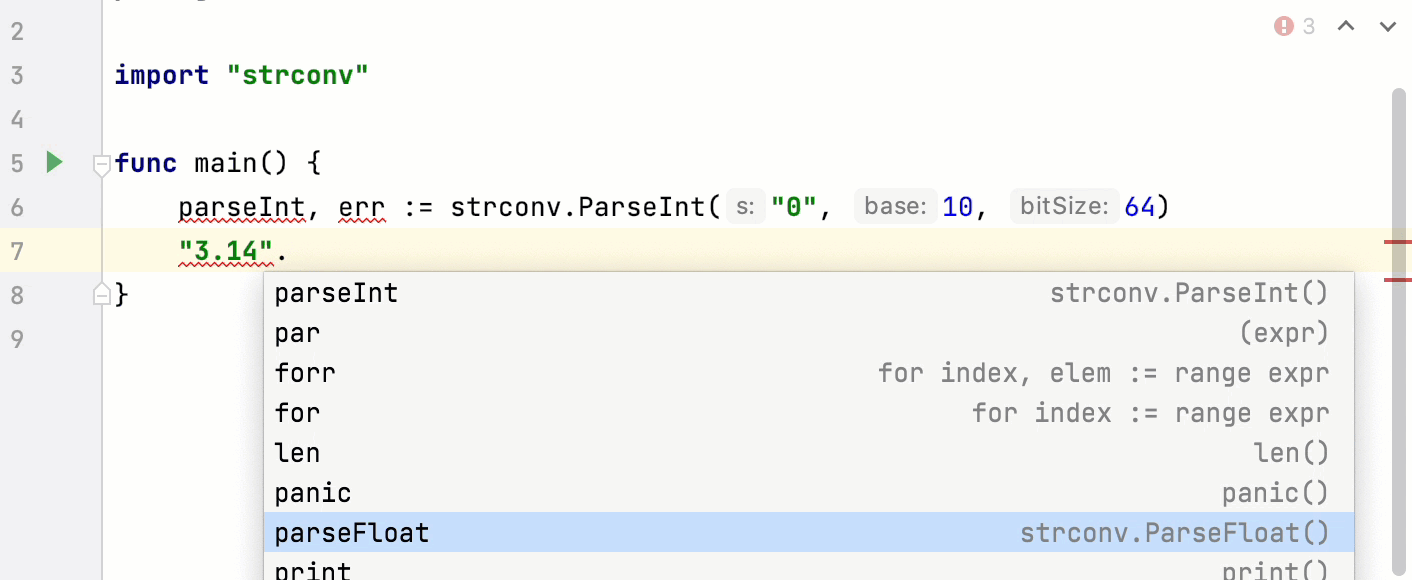
You can use parseInt and parseFloat postfix templates to convert strings to numbers.
Consider the following animation to see how the templates expand. If you want to handle err values generated by the templates, use the nn postfix template.
Editing: export type quick-fix
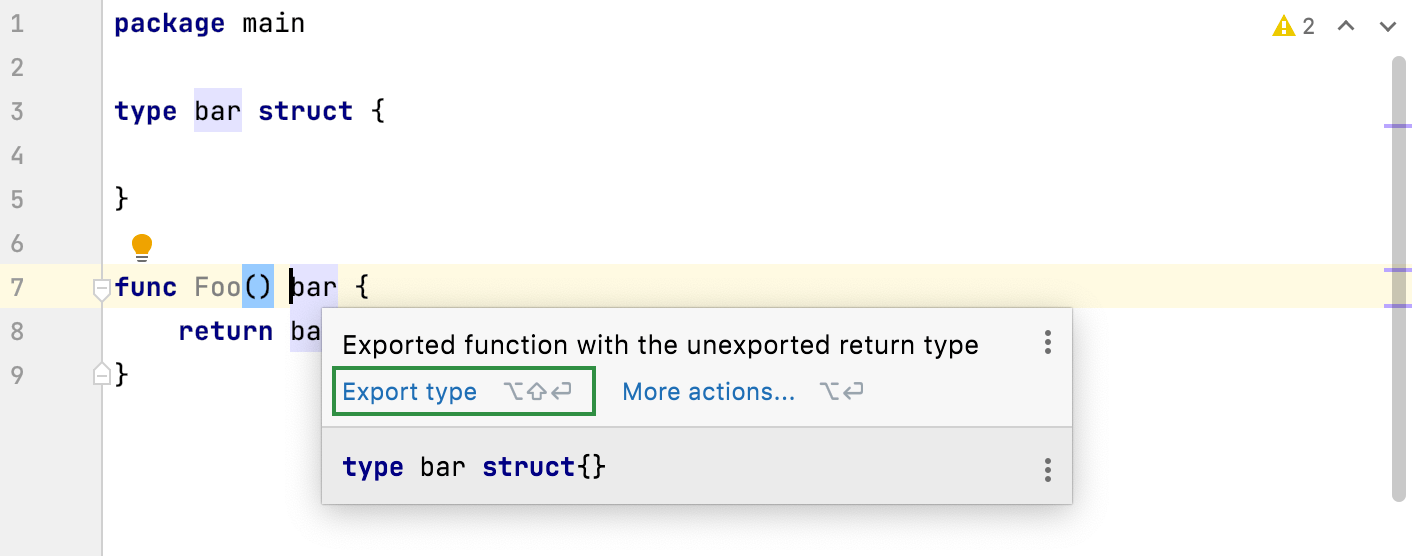
If you write an exported function that returns an unexported type, GoLand will suggest a quick-fix to export the type.
Debug: hide object types
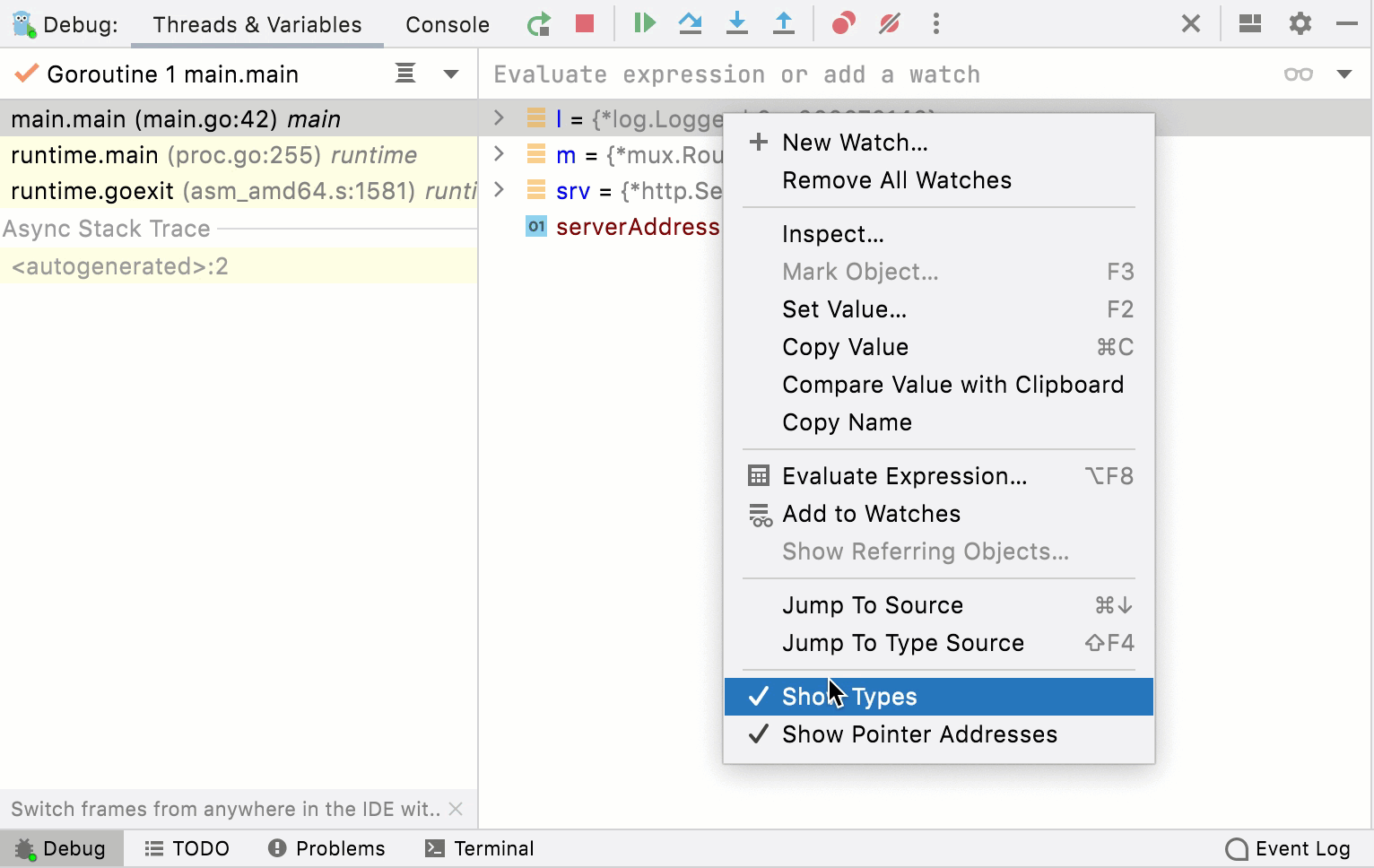
If object types take up too much space in the Debug tool window, right-click a variable and clear the Show Types option in the list that appears.
Inspections: context.TODO
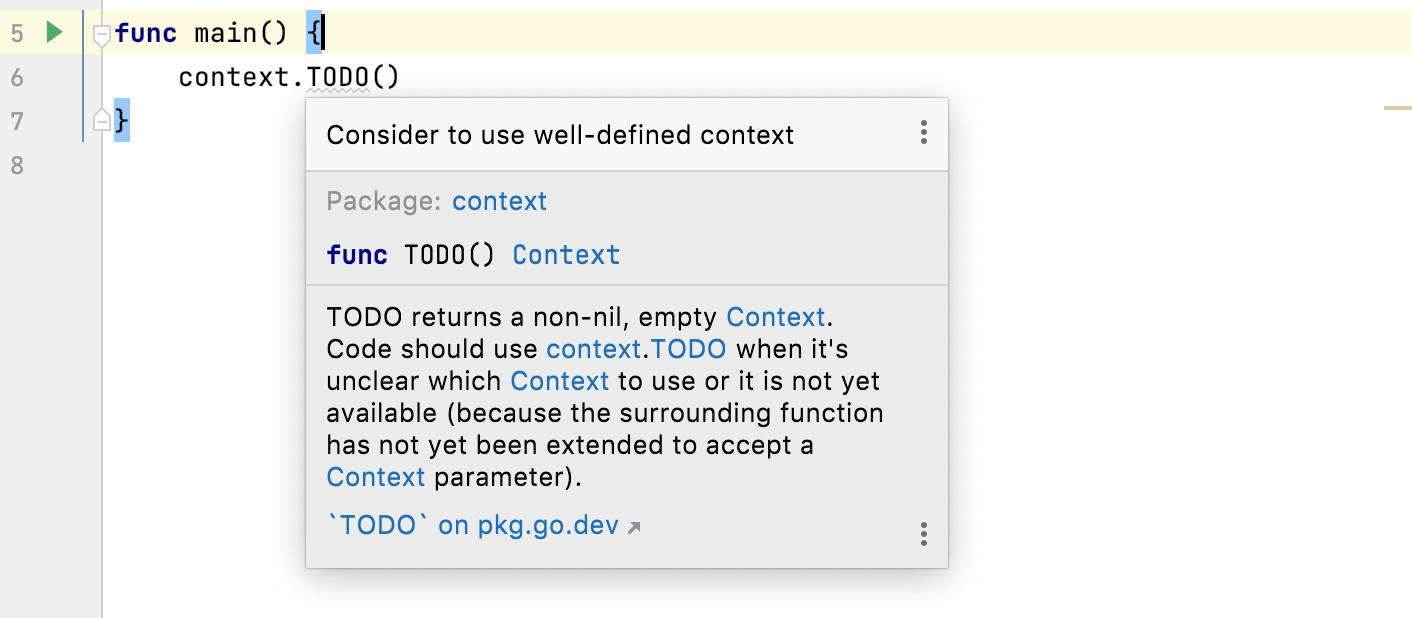
The Usage of context.TODO inspection highlights usages of context.TODO(). To enable it, open settings by pressing Ctrl+Alt+S and go to . By default, this inspection has a weak warning. It will serve you as a reminder to change context.TODO(), if at the time of writing it was unclear which Context to use.
Generating code: the TODO comment in the Implement Method template
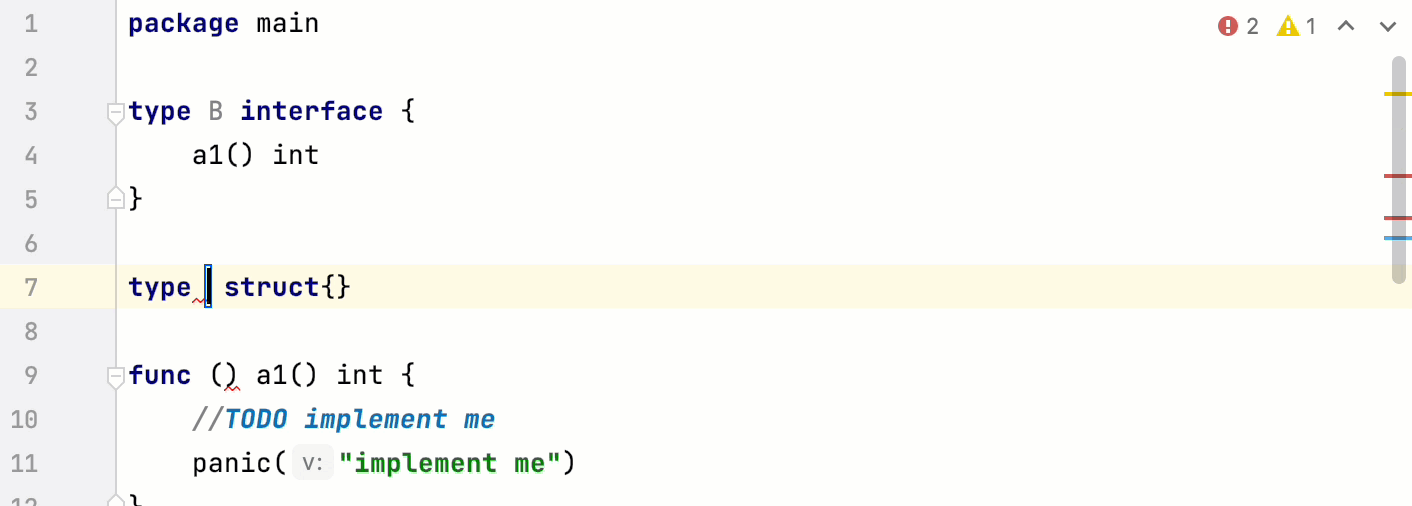
The //TODO implement me comment is automatically added to the template generated when you use the Implement Methods action. These special comments are highlighted in the editor, indexed, and listed in the TODO tool window. It will serve as a reminder about unimplemented methods.
Debug: a better representation of nil interfaces
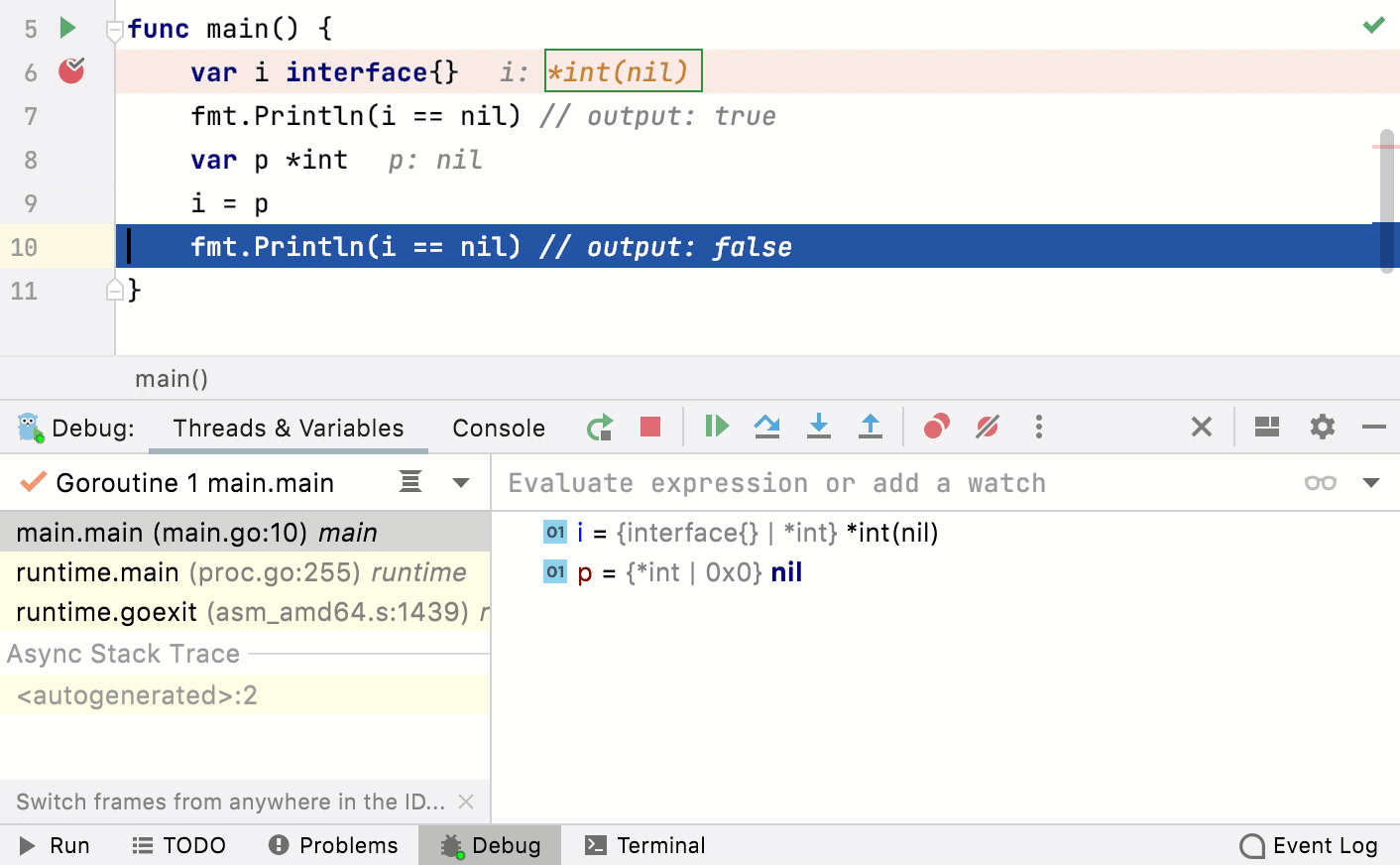
Interfaces in Go have two components, a type and a value of that type. For an interface to be nil, both of these components must be nil.
If in your program you have an interface with a value containing a nil pointer, that interface will not be equal to nil because the inner type is not nil. This might be confusing. For more information about nil values, see Why is my nil error value not equal to nil? at golang.org.
To detect such cases, we changed how interfaces are represented in the debugger window. For instance, if you have an interface with T=*int, and V=nil, it will be shown like this:
For example, try the following code in the debugger:
Debug: short package names
GoLand does not display the full package name in the debugger’s Threads & Variables window (previously called Variables). Now you will see only the last part of the full name.
Debug: Delve for Linux ARM
GoLand bundles Delve built for the ARM architecture, and debugging on Linux ARM remote targets now works out of the box.
Editing: a quick-fix for error string formatting
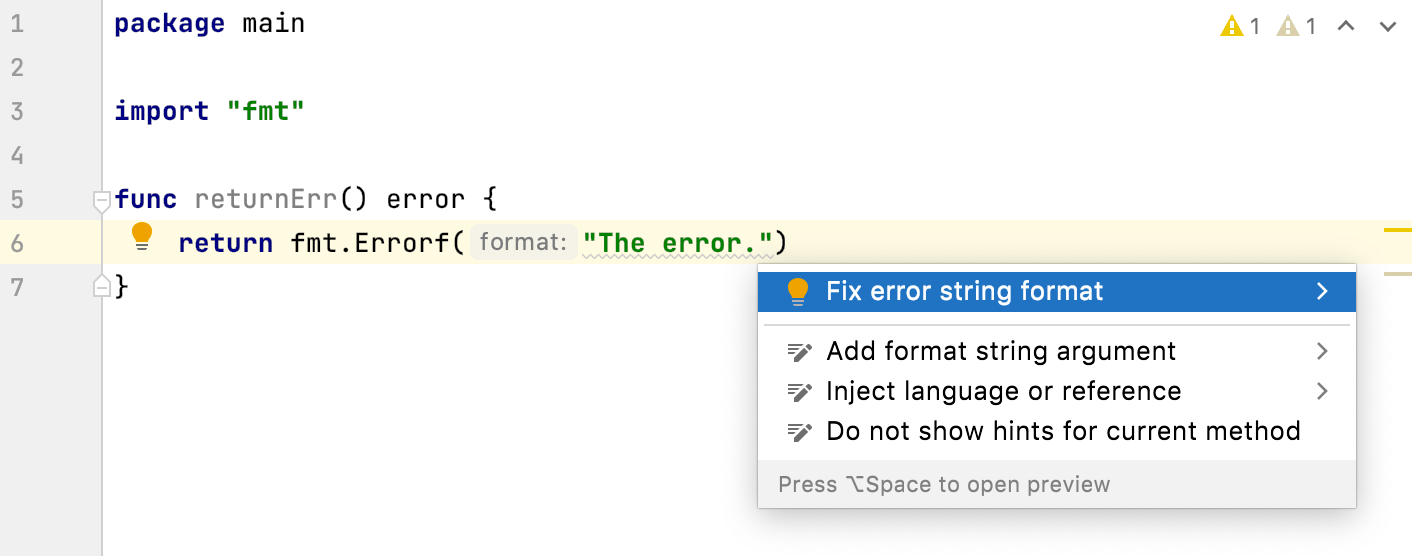
According to Error Strings entry in the golang repository at github.com, you should not capitalize error strings. GoLand will correct you if you forget this convention.
To fix the invalid string, press Alt+Enter and select Fix error string format.
Run targets: a project-wide run target
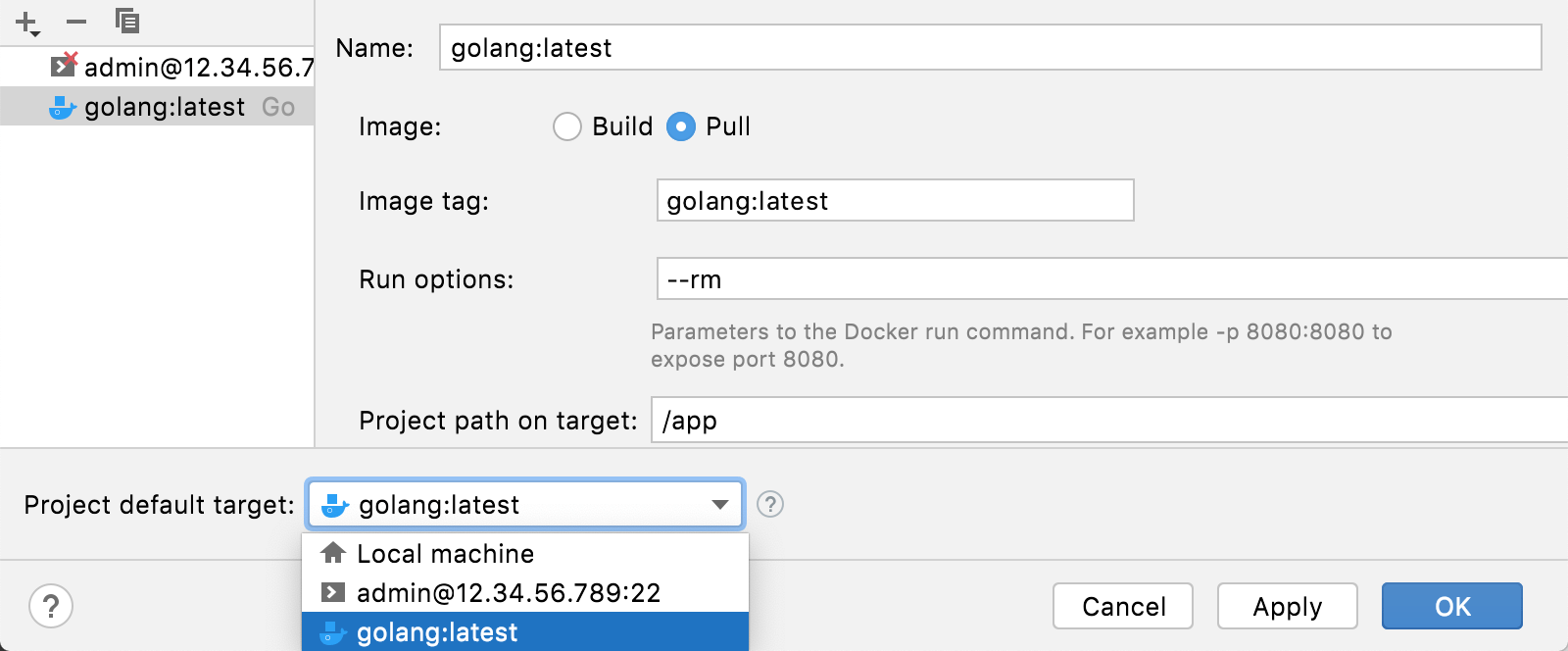
You can now set a project-wide default run target. To set the default run target, click . At the bottom of the Run Targets dialog, select the default run target for new run/debug configurations.
To have other run targets in the Project default target, add a run target configuration.
UI: a new Bookmarks tool window
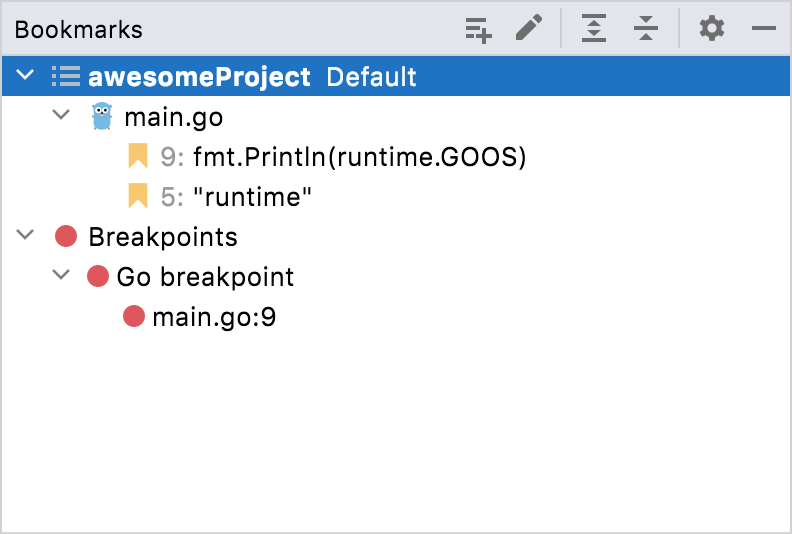
Favorites and Bookmarks tool windows are merged into a single Bookmarks tool window.
From now on, all the files, folders, and classes that you mark as important with F11 are located in the new Bookmarks tool window.
When you add a bookmark, GoLand puts it in the node named after your project. The IDE automatically creates this node beforehand and stores all your prioritized items there by default. New bookmarks will appear at the top of the list inside this node. However, you can organize them manually by dragging and dropping them to new lists, which you can name according to your needs.
Formatting: gofmt on save enabled by default
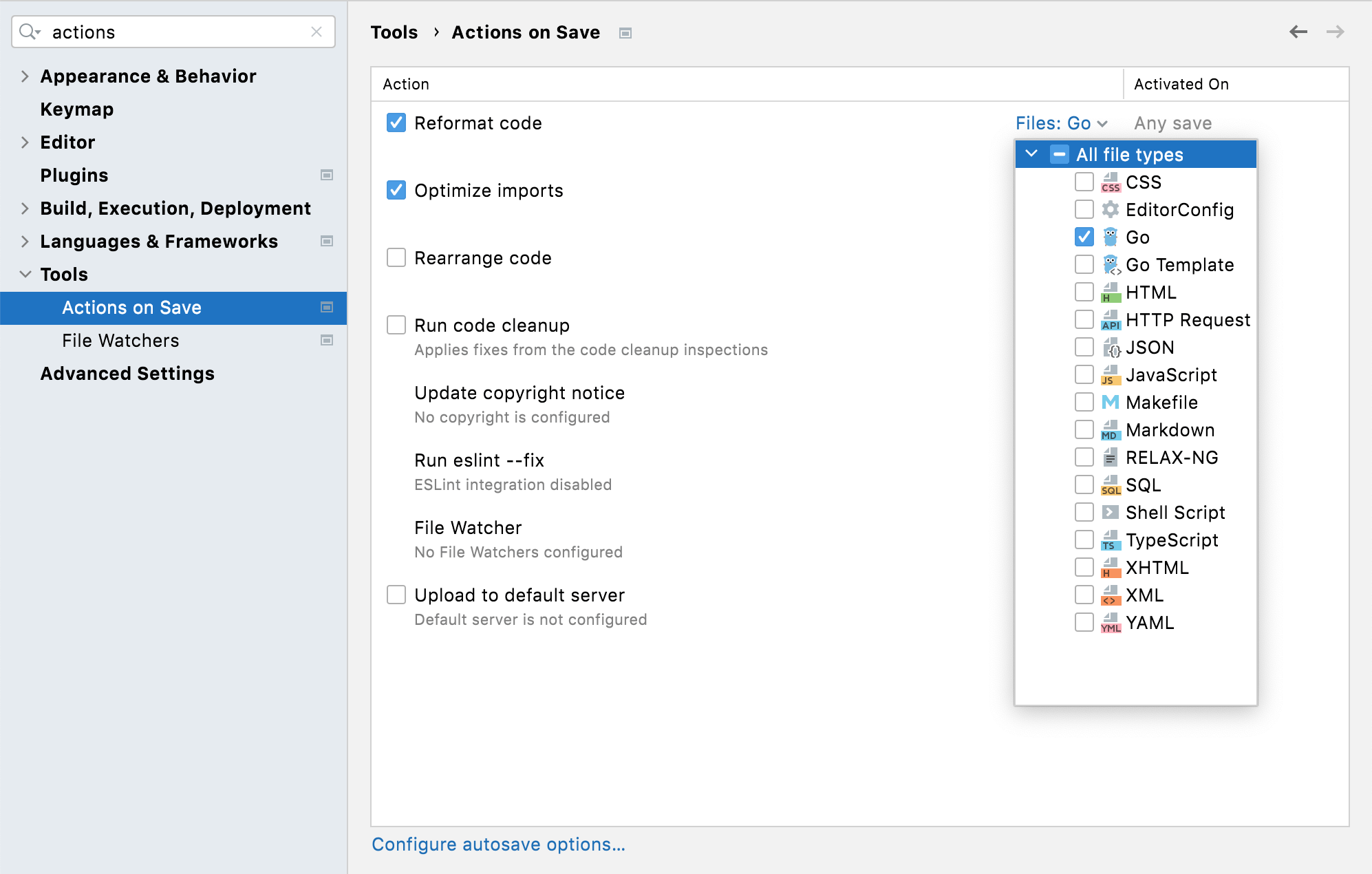
When file is saved or when you press Ctrl+S explicitly, the IDE will run gofmt as a part of the Reformat code option.
To configure the Reformat code option, open settings by pressing Ctrl+Alt+S and navigate to .
Alternatively, you can go to the settings from the notification popup in the editor. In the settings, you can select file types that will be reformatted when the file is saved.
Connectivity: proxy support for SSH connections
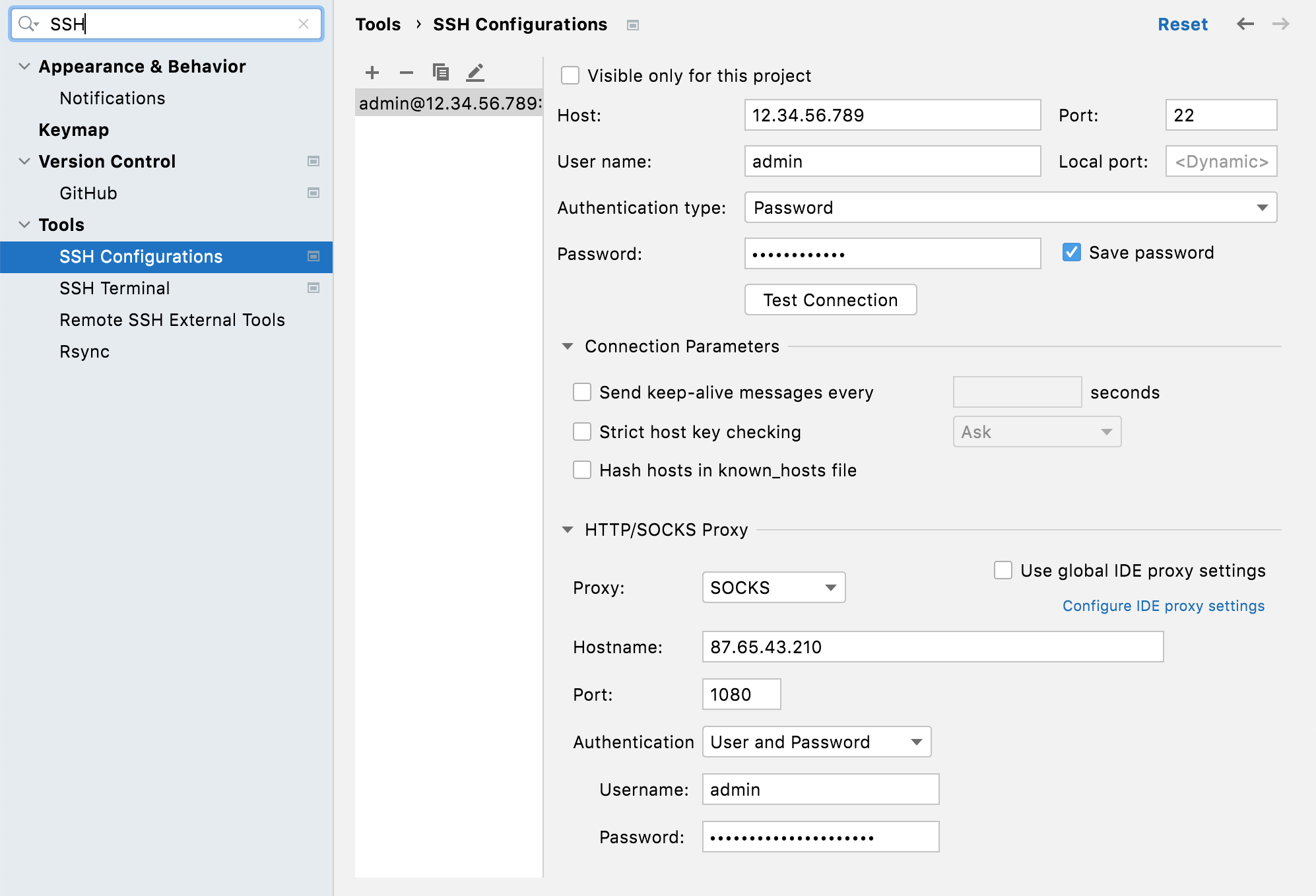
You can now specify an HTTP or SOCKS proxy server for your SSH configuration. To configure the HTTP or SOCKS proxy server, open settings by pressing Ctrl+Alt+S and navigate to . Expand the HTTP/SOCKS Proxy node and specify your connection details.
It is also possible to sync your SSH proxy settings with the global IDE ones. To do so, select the Use global IDE proxy settings checkbox. To configure global settings, click Configure IDE proxy settings. Otherwise, open settings by pressing Ctrl+Alt+S and navigate to
Code execution: split tabs in the Run tool window
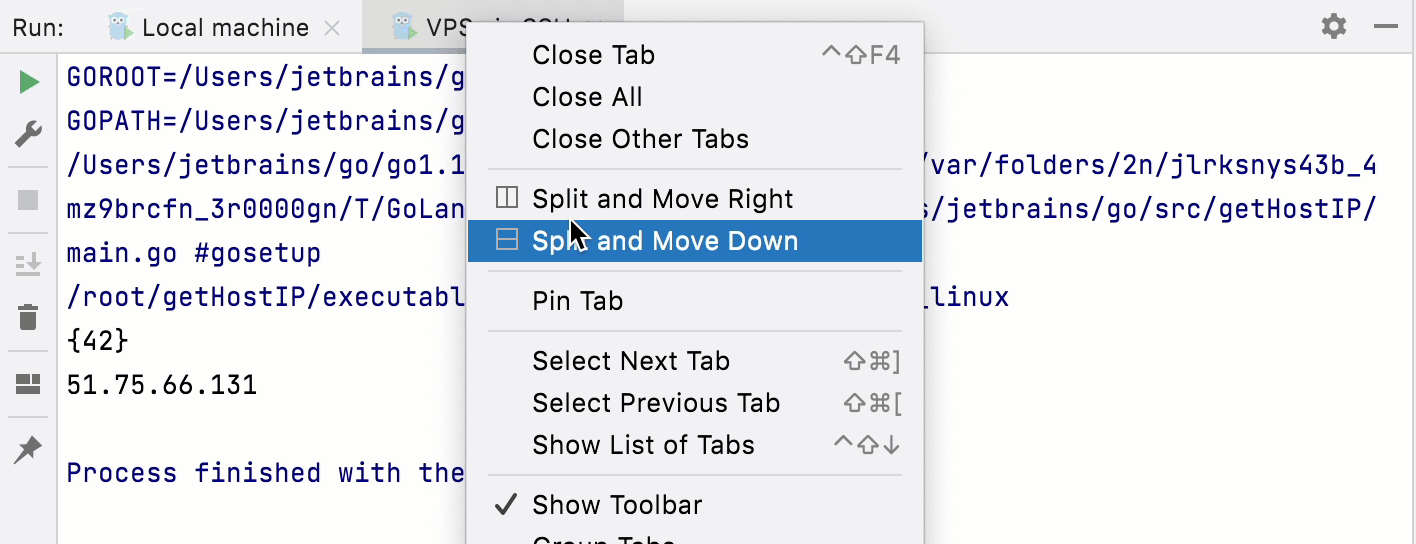
If you have several configurations running simultaneously and you need to see the results of all these runs, you can split the window by dragging and dropping the tabs to the highlighted area inside the Run tool window. To unsplit the window again, right-click the top pane and select Unsplit from the context menu.
Run targets: configure folders for sources and executables
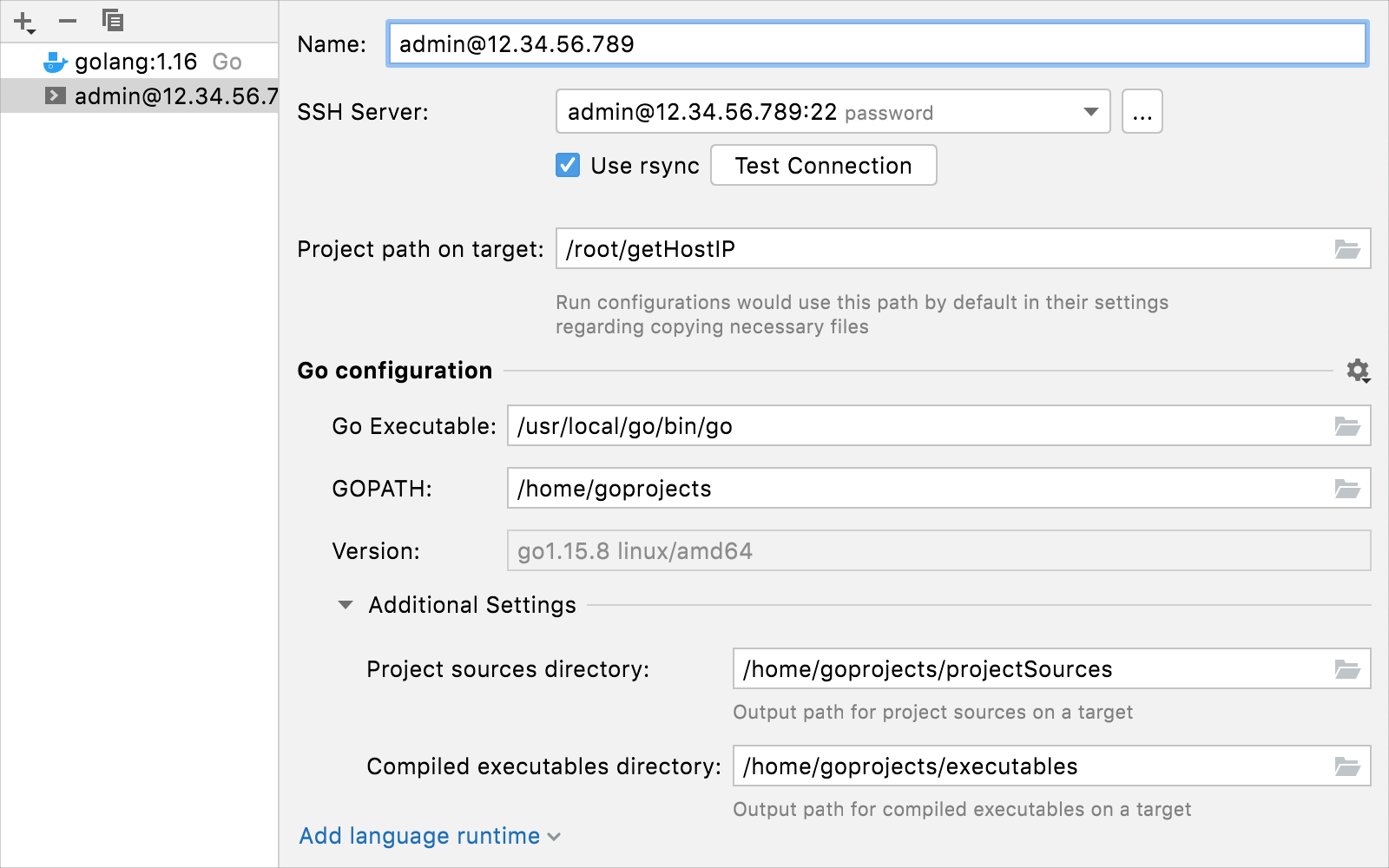
Previously, when you ran a Go program on the remote target via SSH connection, these folders’ names would be created randomly and would look something like this: sources-ny5uj0XOaI. Moreover, on every run, there would be a separate folder for every executable. So after several runs, you would have several folders with random names in your project’s directory.
To configure a path to sources and executables in the Project sources directory and Compiled executables directory fields, click . Select or create a run target and expand the Additional Settings section for it.
Testing: a template for testify assertions
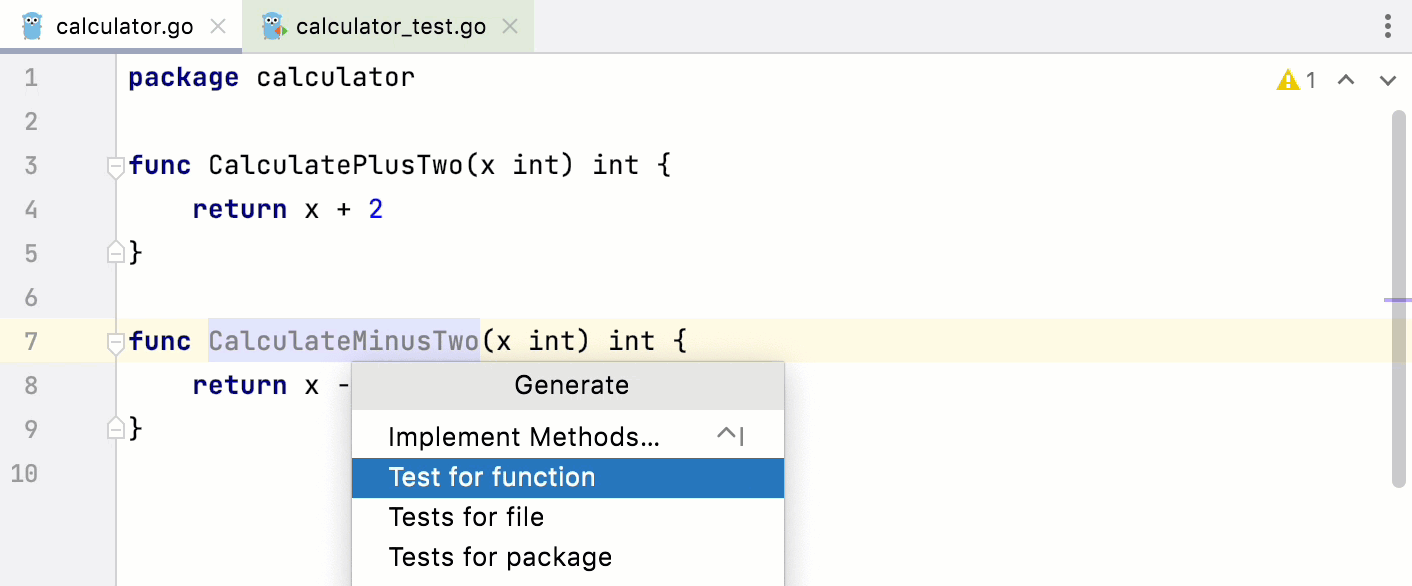
You can try a new template for table tests with testify assertions. If you already used assert in your package, GoLand will generate a boilerplate with assertions when you press Alt+Insert and choose the necessary option.
Type parameters: type inference
GoLand now has type inference for type parameters.
Currently, it is mostly invisible from the perspective of a user, as IDE subsystems such as inspections, completion, and others need to be updated to recognize instantiated types.
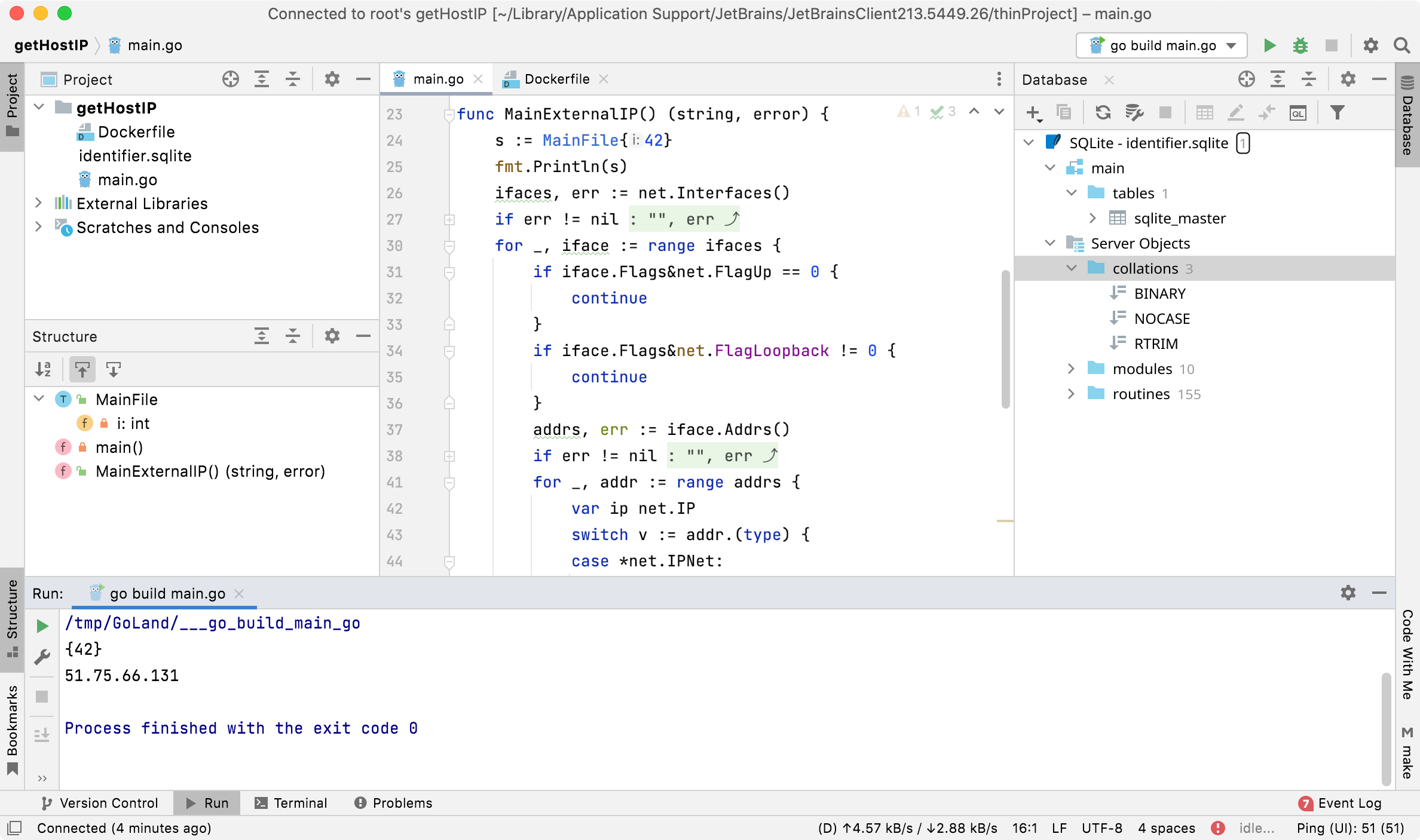
Remote development: JetBrains Gateway
With JetBrains Gateway you can:
Develop on any machine: software developers are not limited by the power of their local devices – they can use as many resources from their remote machine as needed.
Take advantage of a flexible environment configuration: remote development environments can be separated from your local machine configuration. This can help avoid version conflicts and aid you in navigating between workspaces.
Have source code–free laptops: no source code is hosted on the developer’s machine when they are using the remote development workflow. The company’s data remains secure in authorized repositories.
Work securely from anywhere: The remote development functionality supports working from home and hybrid schedules, with your projects securely located on the remote machine and accessible from anywhere.
For more information about remote development with JetBrains Gateway, see Remote development.
HTTP client: various improvements
The following improvement were made to the HTTP client:
gRPC requests in the HTTP client
Support for text streams and JSON streams in the HTTP Client
Binary responses in the HTTP client
Output redirection to custom file or directory
Support for HTTP request identifiers
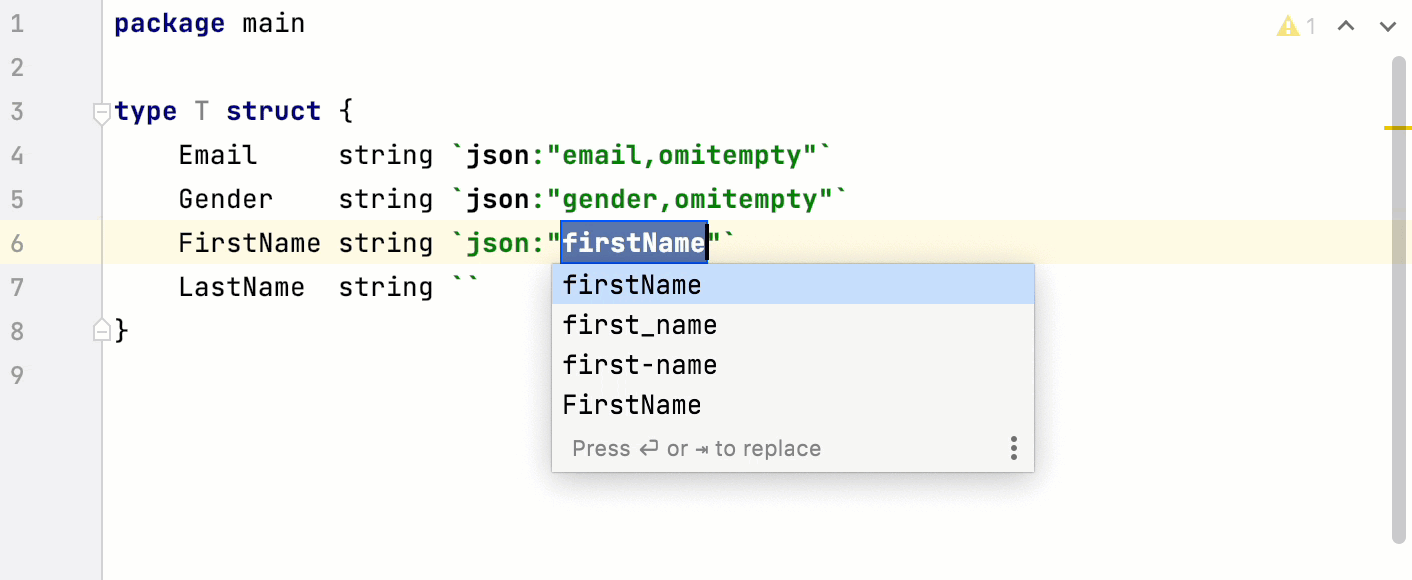
Search and navigation: source code preview in Show Usages
For the Show Usages feature (Ctrl+Alt+F7), you can enable or disable the source code preview for a found usage.